

TutorialIn-app guide
Jasmine TV Local attractions: cards, pictures and QR codes
· Jasmine Apps
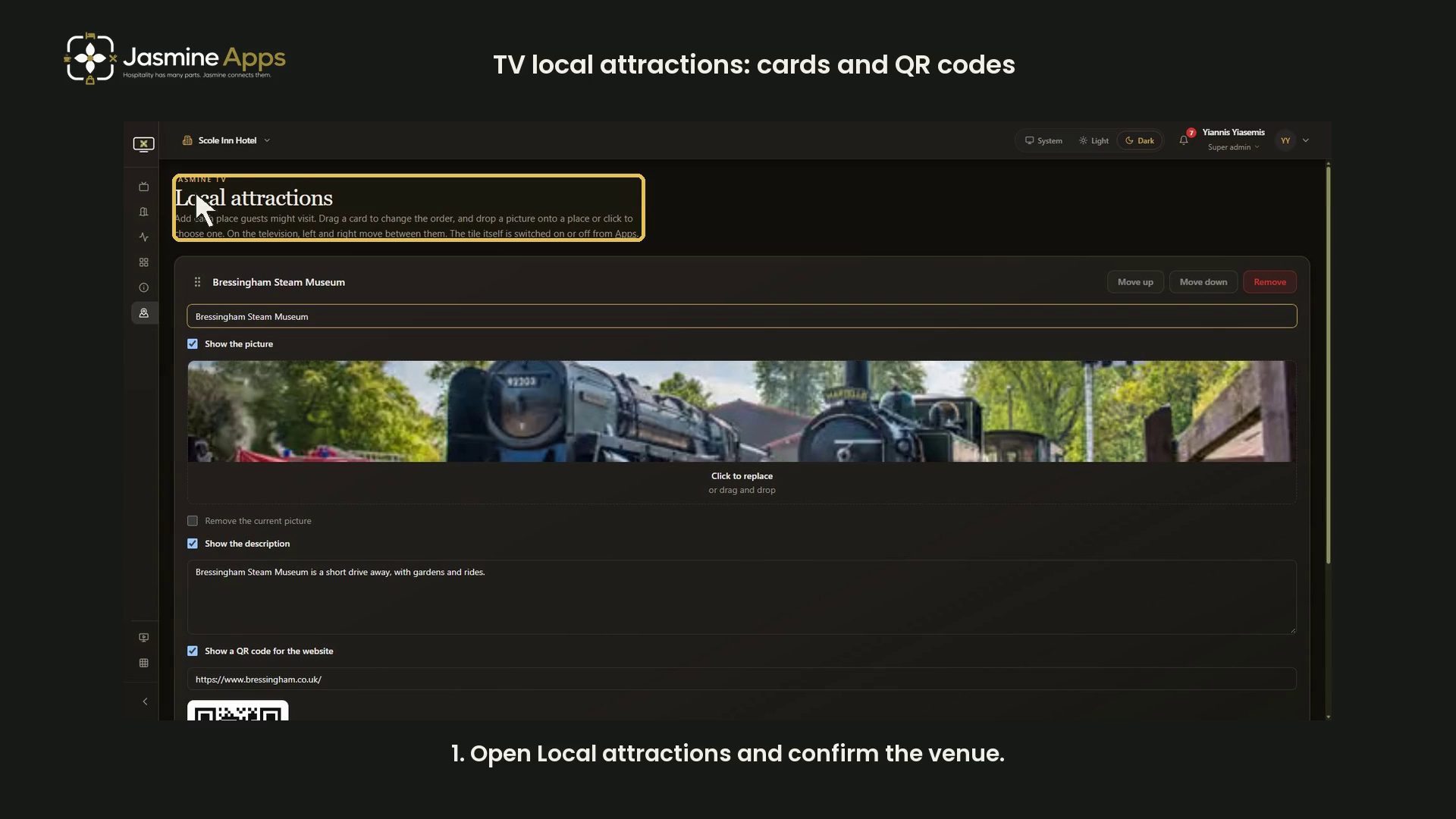
Jasmine TV Local attractions lets you prepare the places guests browse on their room television. This guide walks through attraction cards, picture and description settings, website QR codes, ordering and Save, with a narrated dark-mode video.
Watch the walkthrough
The video uses unsaved examples. It adds a temporary sample card, moves it and removes it, then reloads to discard the remaining edit. The live venue list is unchanged.
Open Local attractions and check the venue
Open Local attractions from the Jasmine TV sidebar. Confirm the selected venue before editing. If you switch venues, reload and confirm the intended venue's content before making changes.
The page explains that guests move left and right between attractions on the television. The visibility of the Local attractions tile is controlled separately under Apps.
Name the card and choose a picture
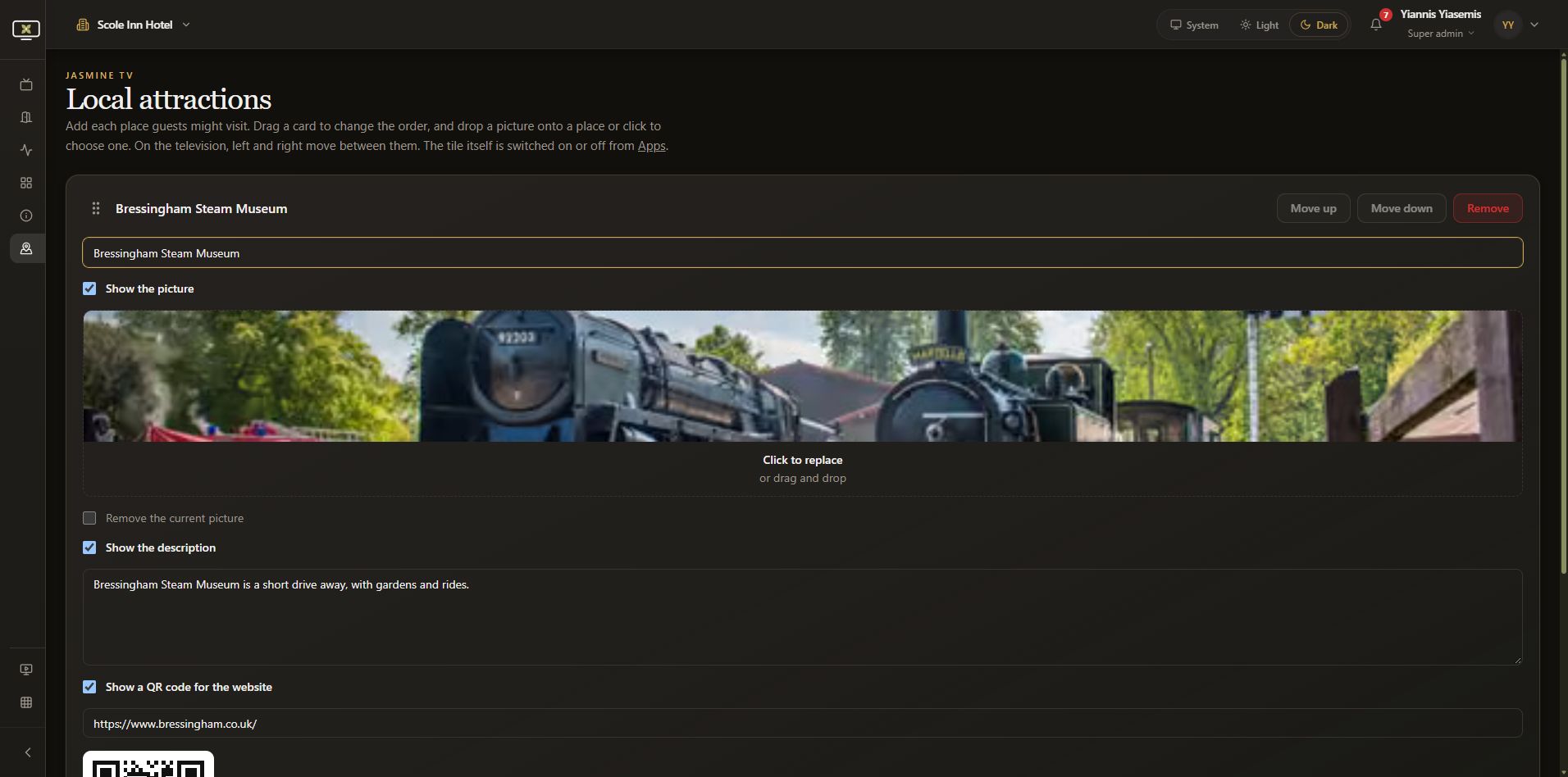
Enter a clear Attraction name. The heading updates as you type, helping you identify the card while editing.
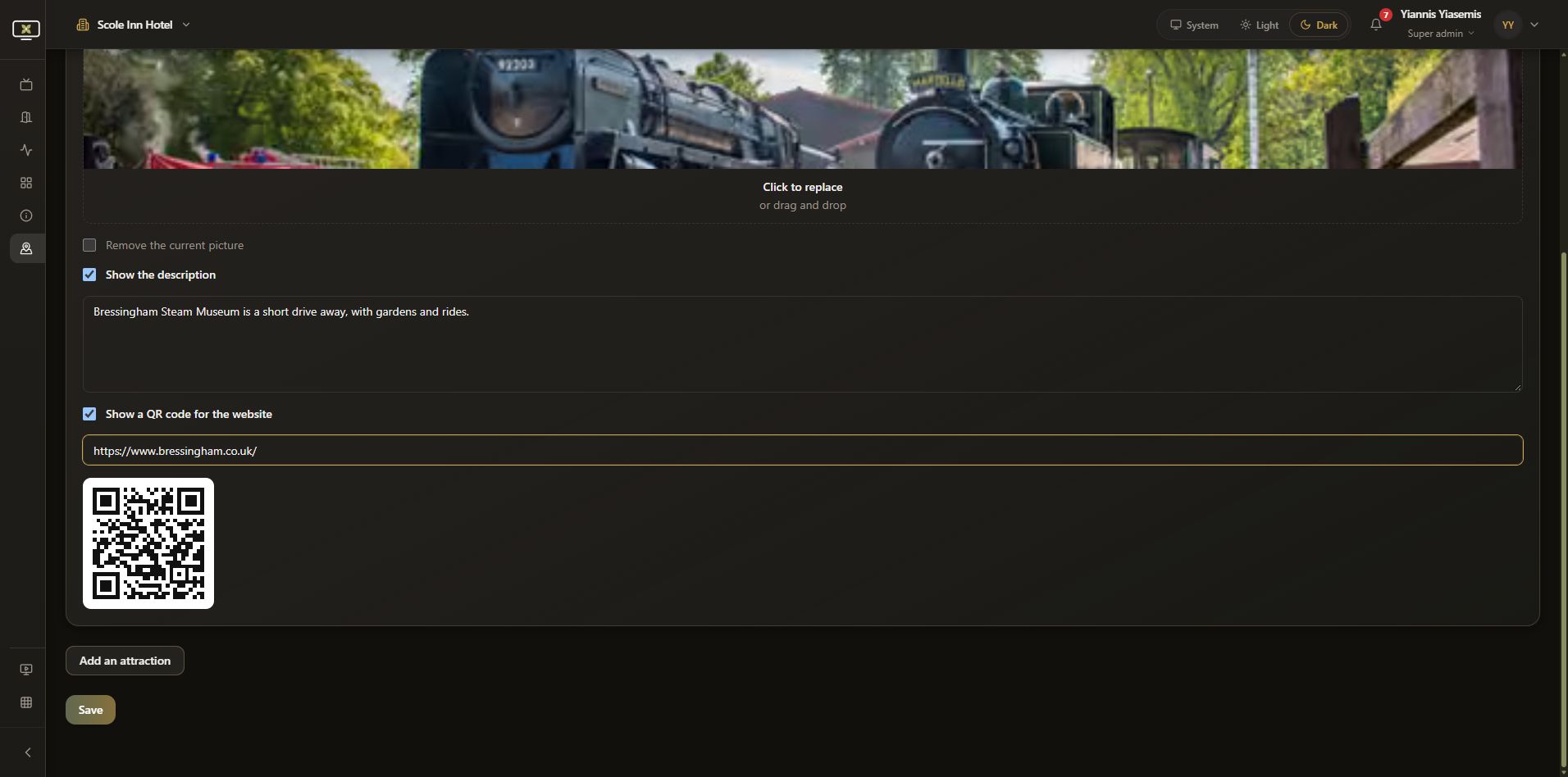
Use Show the picture to choose whether the picture is displayed. Click the upload area to choose a picture, or drag and drop one onto the card. On an existing picture, Remove the current picture is a separate control. Hiding a picture and removing it are different choices.
Add the description and website QR code
Write a short Description with accurate visitor information, then choose Show the description if guests should see it. Review practical details before saving; the museum text in the video is existing example content from the editor.
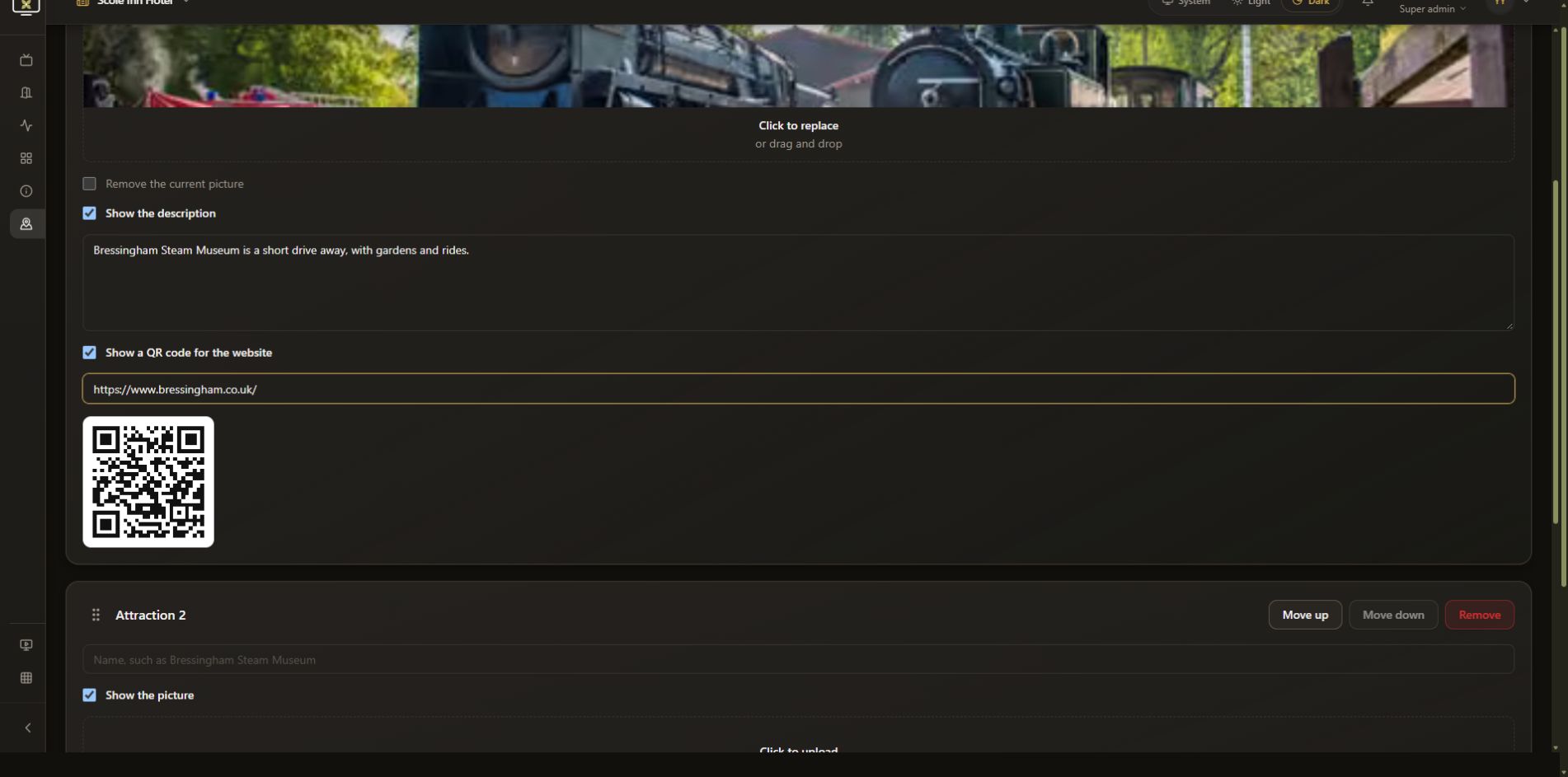
Enter the intended Website address and choose Show a QR code for the website. The editor displays a QR preview beneath the address. A blank website shows a prompt to add an address before a preview can appear.
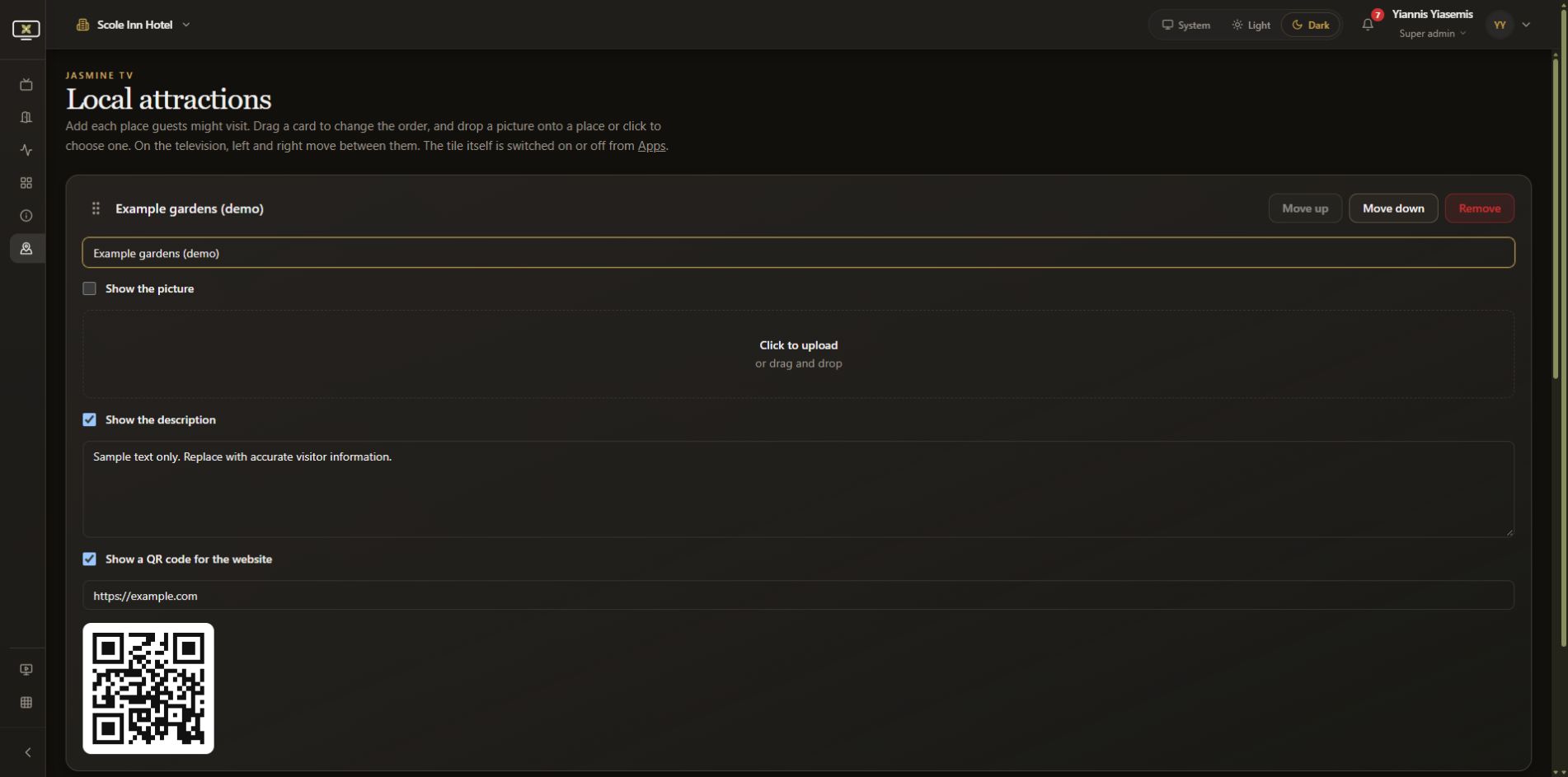
Check the website destination carefully. After saving real changes, test scanning the code from a room television. The sample card's example.com address demonstrates the field and should be replaced before publishing a real attraction.
Add and arrange more cards
Click Add an attraction to create another card. Each card has its own name, picture, description, website and display settings. In the video, Example gardens (demo) is a temporary card; its description is clearly marked as sample text and Show the picture is unchecked.
Use Move up, Move down, or the drag handle at the left of a card to set the order. A card already at the top has Move up disabled; the bottom card has Move down disabled. The video moves the temporary sample to the first position and back again.
Remove takes the selected card out of the editor list. Review the card name before removing anything, and check the complete list before saving. The demonstration removes only its unsaved temporary sample.
Save intentional changes and check the television
Save is at the bottom of the page. Before using it, check:
- Attraction names and their order.
- Pictures and the chosen picture-display settings.
- Description text and whether it should be shown.
- Website destinations and QR previews.
- That sample content and unwanted cards have been removed.
Save when your real content is ready, then review the attractions and scan the QR codes on a room television. This walkthrough does not click Save. Reloading restores the original single card and its settings, confirming that no demonstration content reached the live guest list.
Continue with Jasmine TV
See app visibility and ordering, Hotel info sections and formatting, or TV rooms and guest controls.