

TutorialIn-app guide
Jasmine TV Hotel info: sections, formatting and preview
· Jasmine Apps
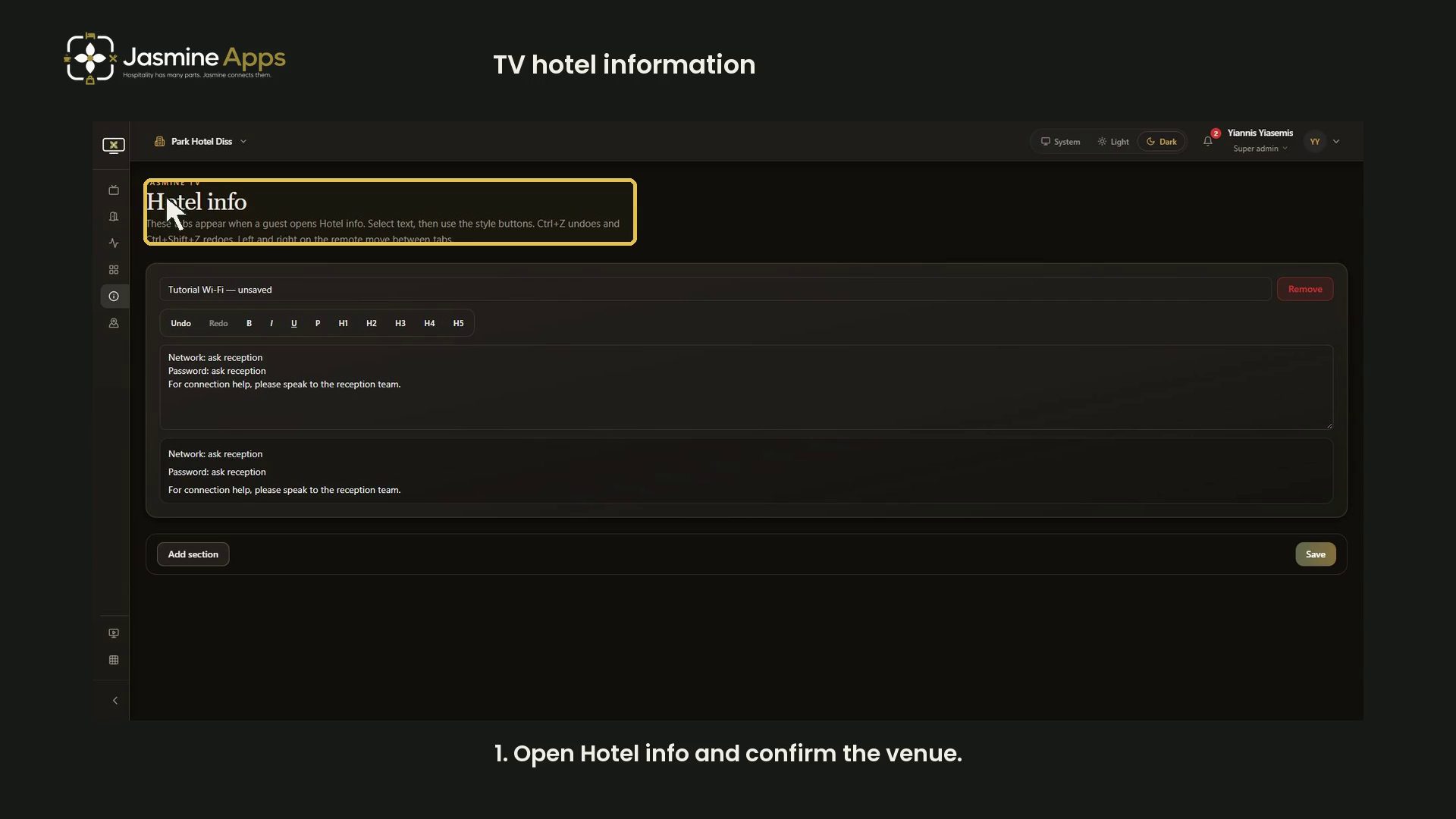
Jasmine TV Hotel info lets you organise guest information into sections that appear as tabs on the television. This guide walks through the current editor with an unsaved example, a rendered preview and a narrated video.
Watch the walkthrough
Confirm the venue before editing
Open Hotel info and check the selected venue. After switching venues, reload the editor and confirm the saved sections belong to the venue you intend to edit.
The page explains that guests use the remote's left and right controls to move between Hotel info tabs.
Write a clear section title and text
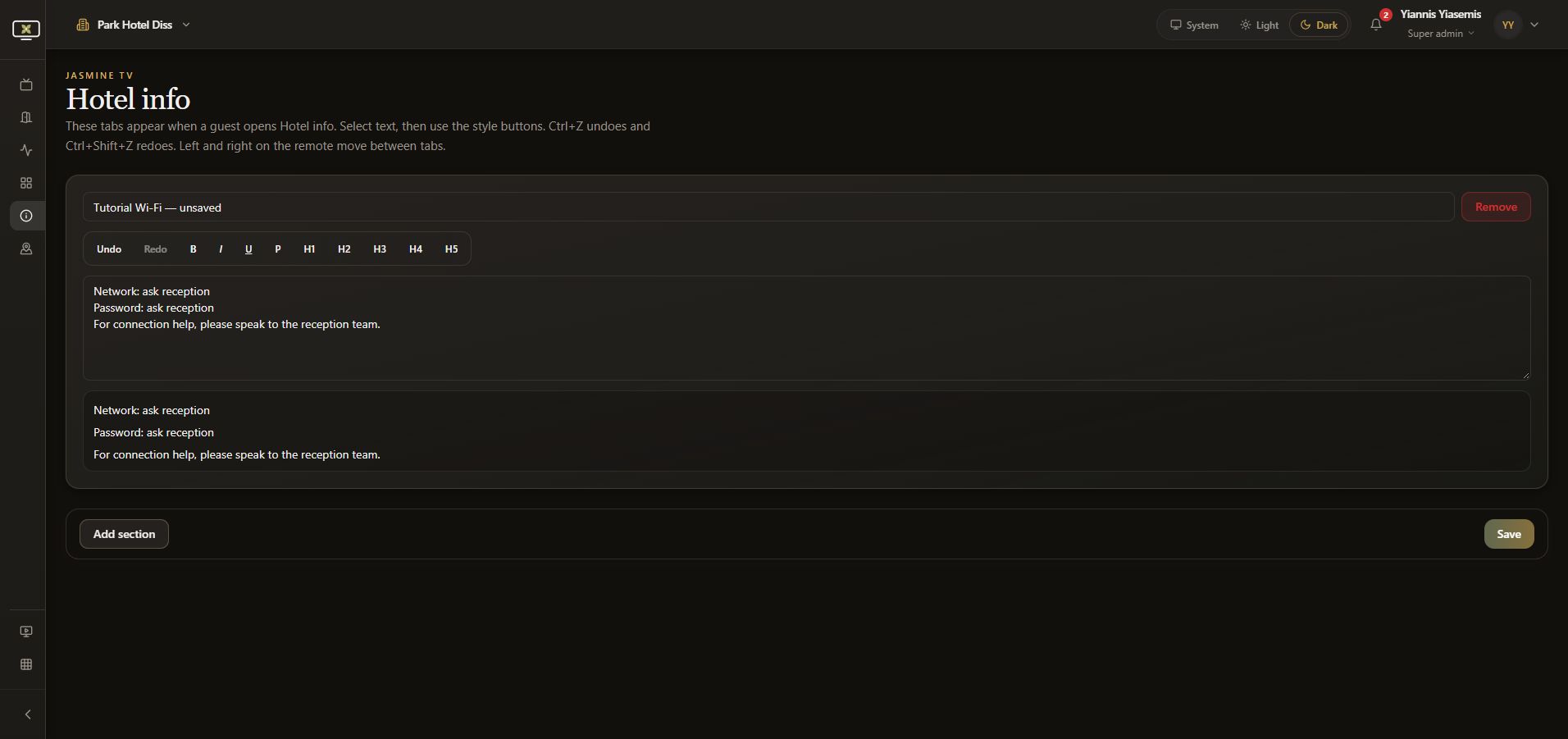
Each section has a Section title, a Section text field, a formatting toolbar and a rendered preview below the field. Keep the title short and the information useful to guests.
The example uses Tutorial Wi-Fi — unsaved and the wording Network: ask reception and Password: ask reception. No actual network password appears in the screenshots or video.
Add a section for another topic
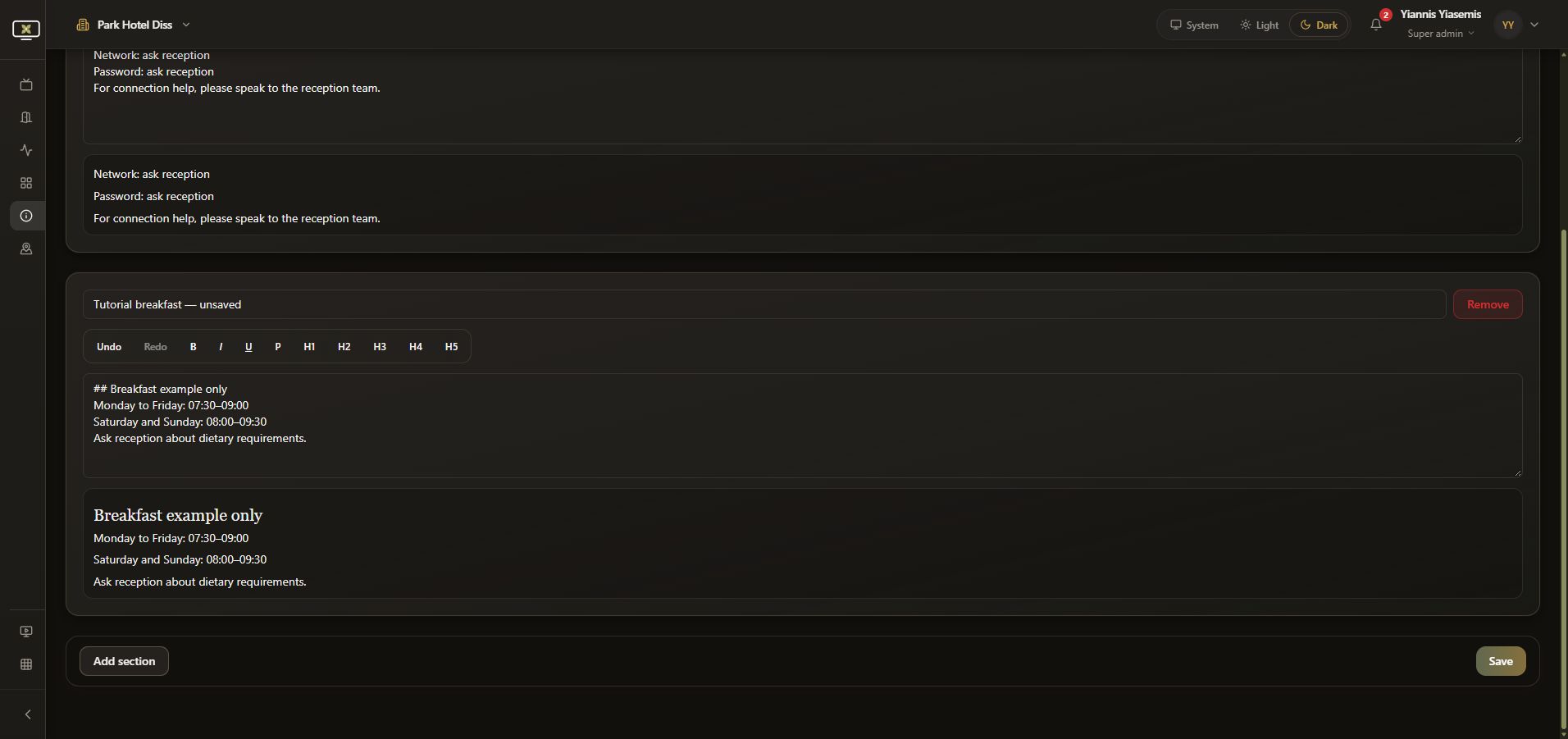
Choose Add section for another block. Enter its title and text, then review the preview.
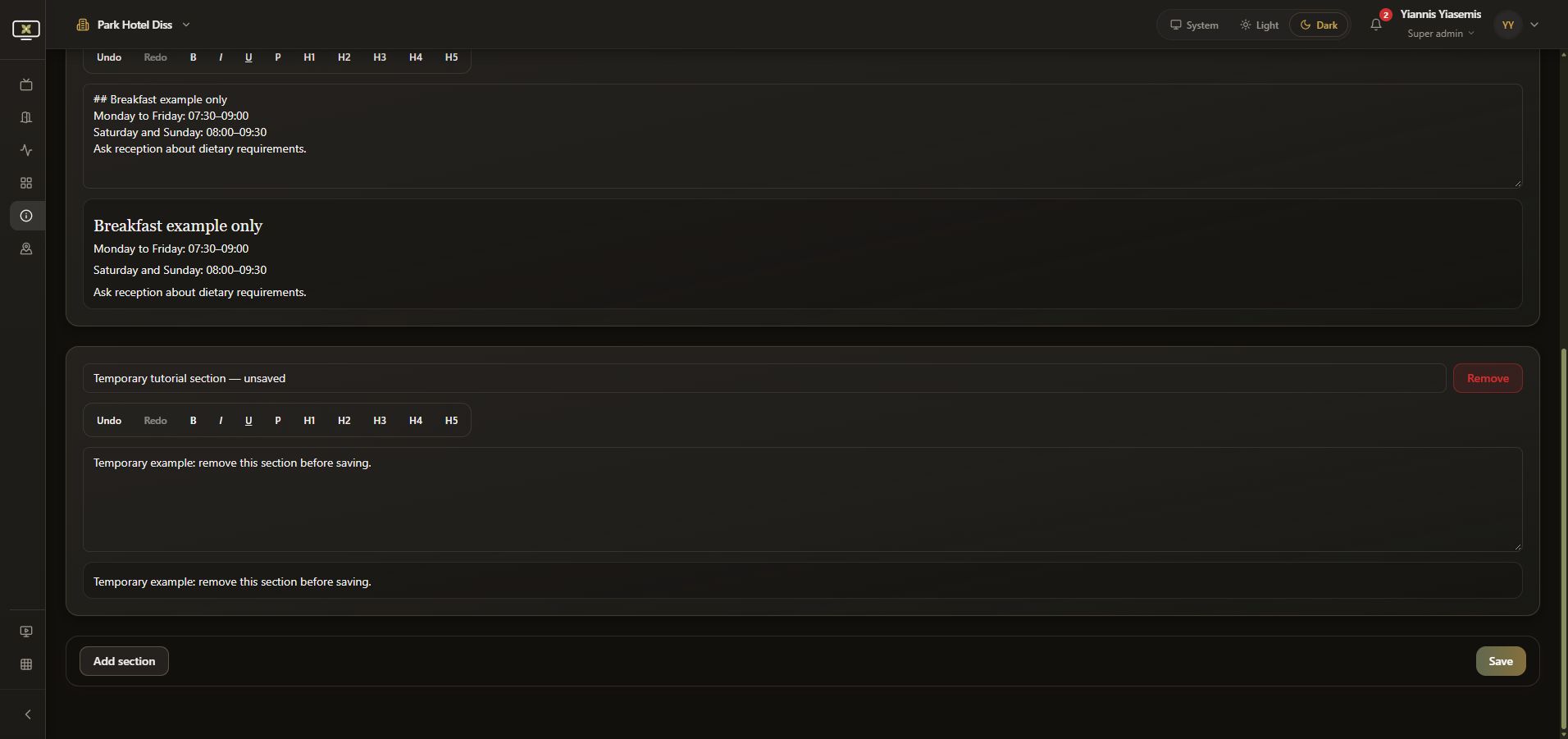
Our breakfast example shows weekday hours of 07:30–09:00 and weekend hours of 08:00–09:30. These are demonstration times, not a statement of the venue's current breakfast policy. Use your confirmed times and approved guest instructions for a real page.
Format text and check the result
Select the text you want to format, then use a style button. The toolbar includes B, I, U, P and H1–H5.
The walkthrough selects the breakfast heading line and chooses H2. The editing field shows the heading markup, while the preview below renders the heading. Check the complete preview, including opening hours and the text beneath them.
Use Undo and Redo
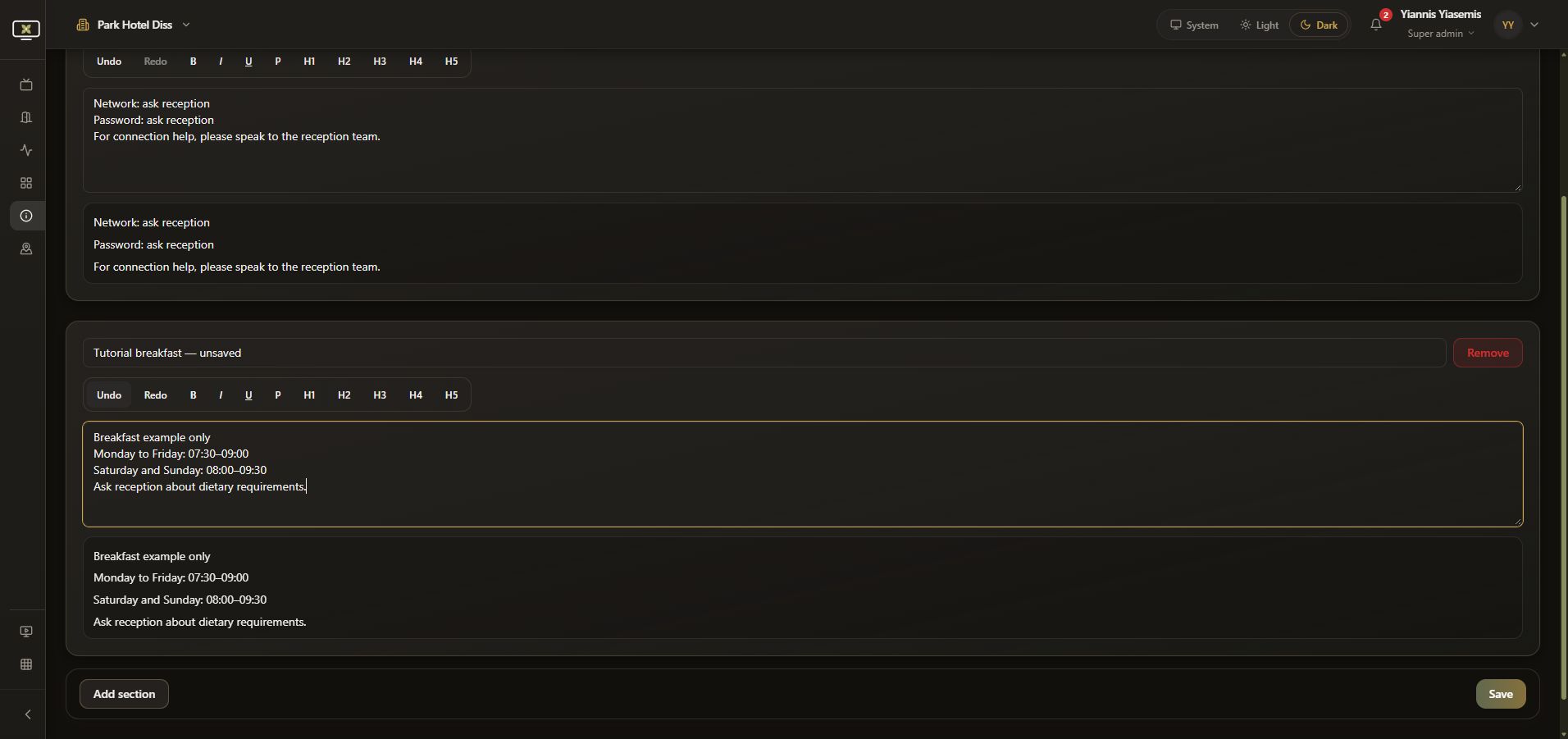
Undo reverses the latest edit in that section; Redo restores it. The page lists Ctrl+Z and Ctrl+Shift+Z as keyboard shortcuts. Read the preview after a formatting change to confirm the result.
Remove an unwanted sample section
An added section has its own title, toolbar and text field. Use Remove on a section you no longer want in the draft. Check its title before removing it.
The demonstration adds and removes a temporary tutorial section. The remaining sample sections are still unsaved.
Review before Save
Read every title, instruction, opening time and rendered preview before choosing Save for a finished page. After saving real content, refresh the television and check the guest-facing tabs.
This demonstration leaves Save alone and reloads to discard its sample edits. The original saved sections were restored, and no tutorial content was published to televisions.
Continue with Jasmine TV
See TV rooms and guest-stay controls, TV apps, or the Jasmine TV overview.