

TutorialIn-app guide
Jasmine TV Apps: review visibility, availability and order
· Jasmine Apps
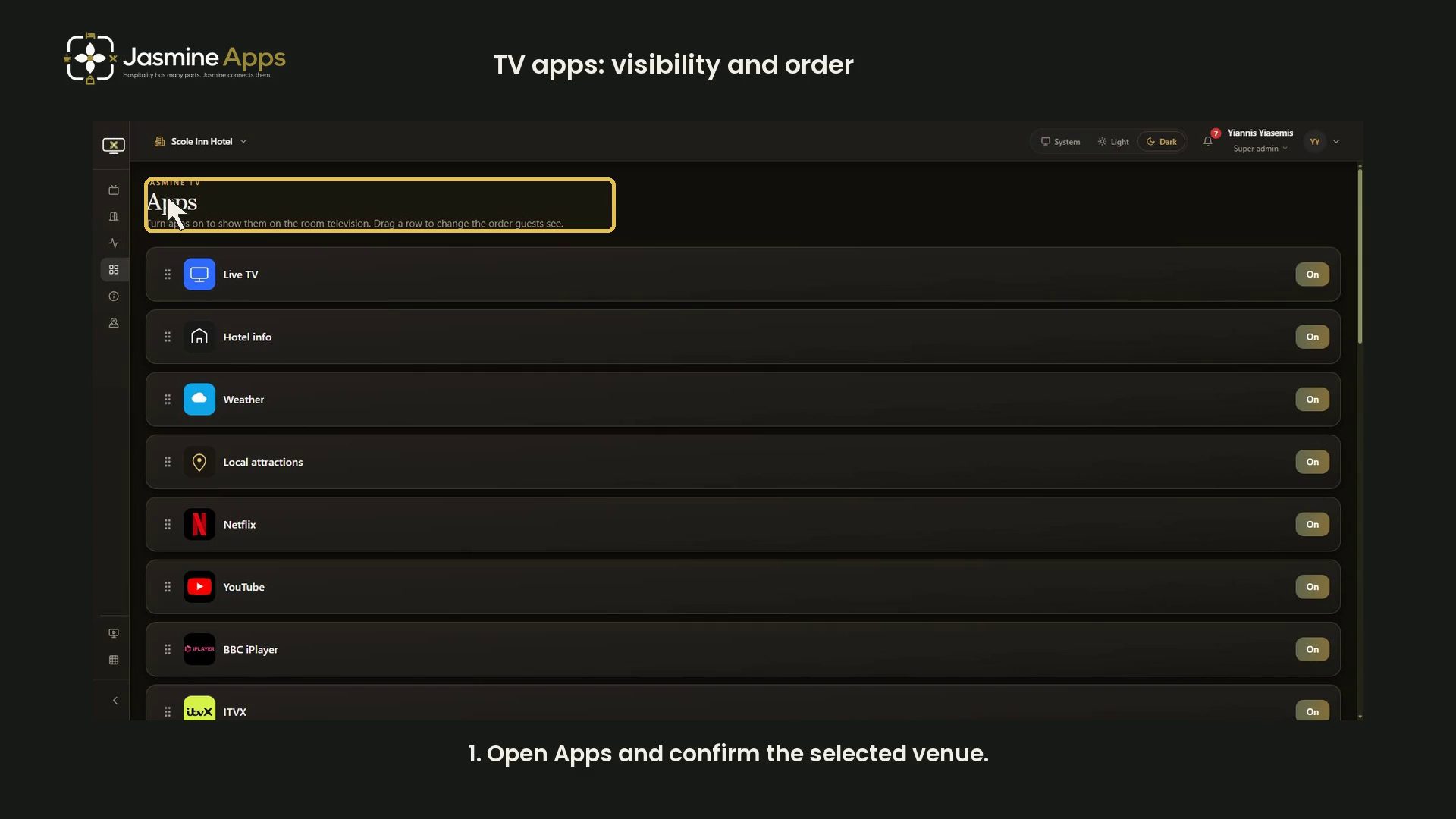
Jasmine TV Apps controls the app menu guests see on the room television. This guide reviews the current state buttons, unavailable-app messages and ordering handles, with a narrated dark-mode video.
Watch the walkthrough
Open Apps and check the venue
Open Apps from the Jasmine TV sidebar. Confirm the selected venue before changing its menu.
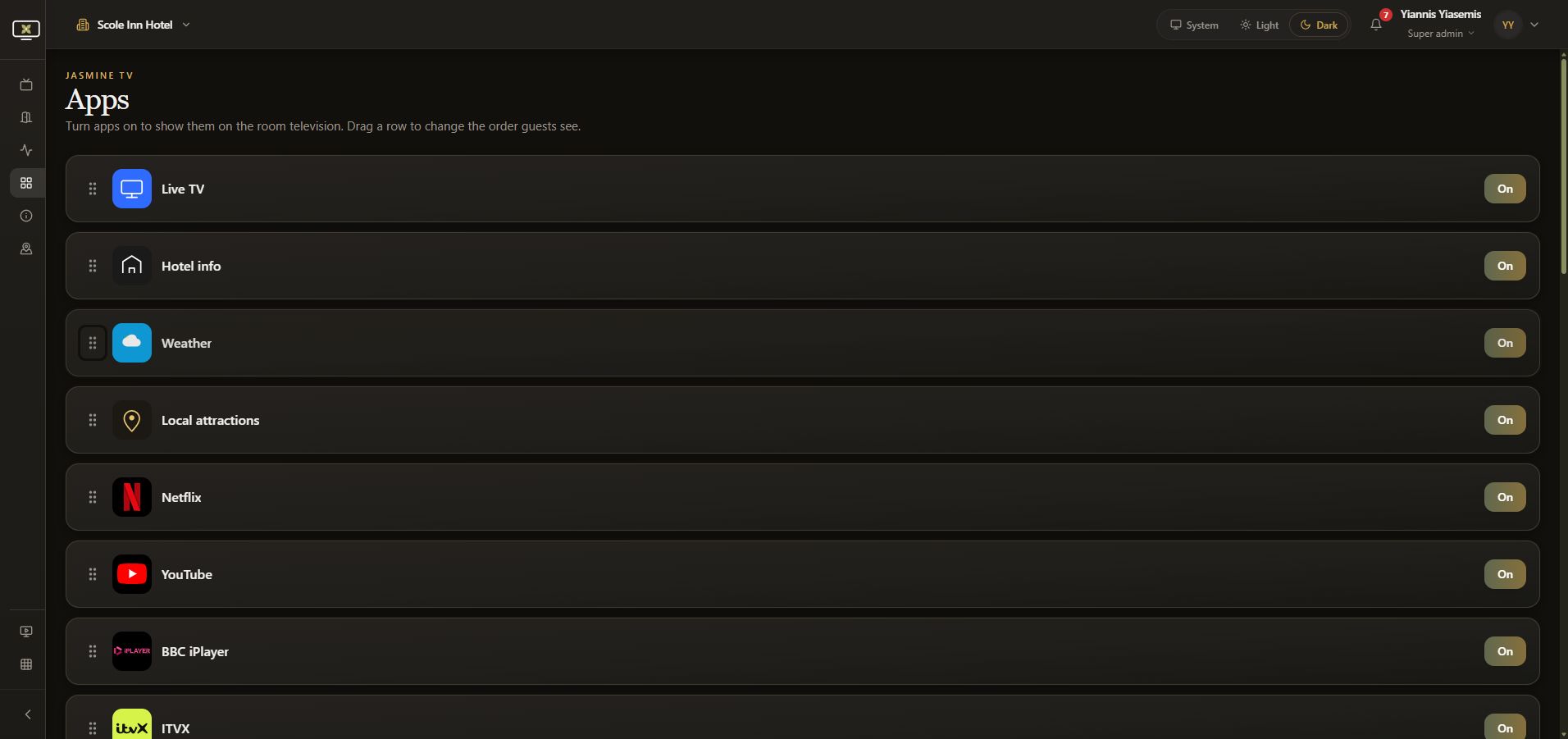
The page says to turn apps on to show them on the room television and drag rows to change the order guests see.
Read each app name and state together
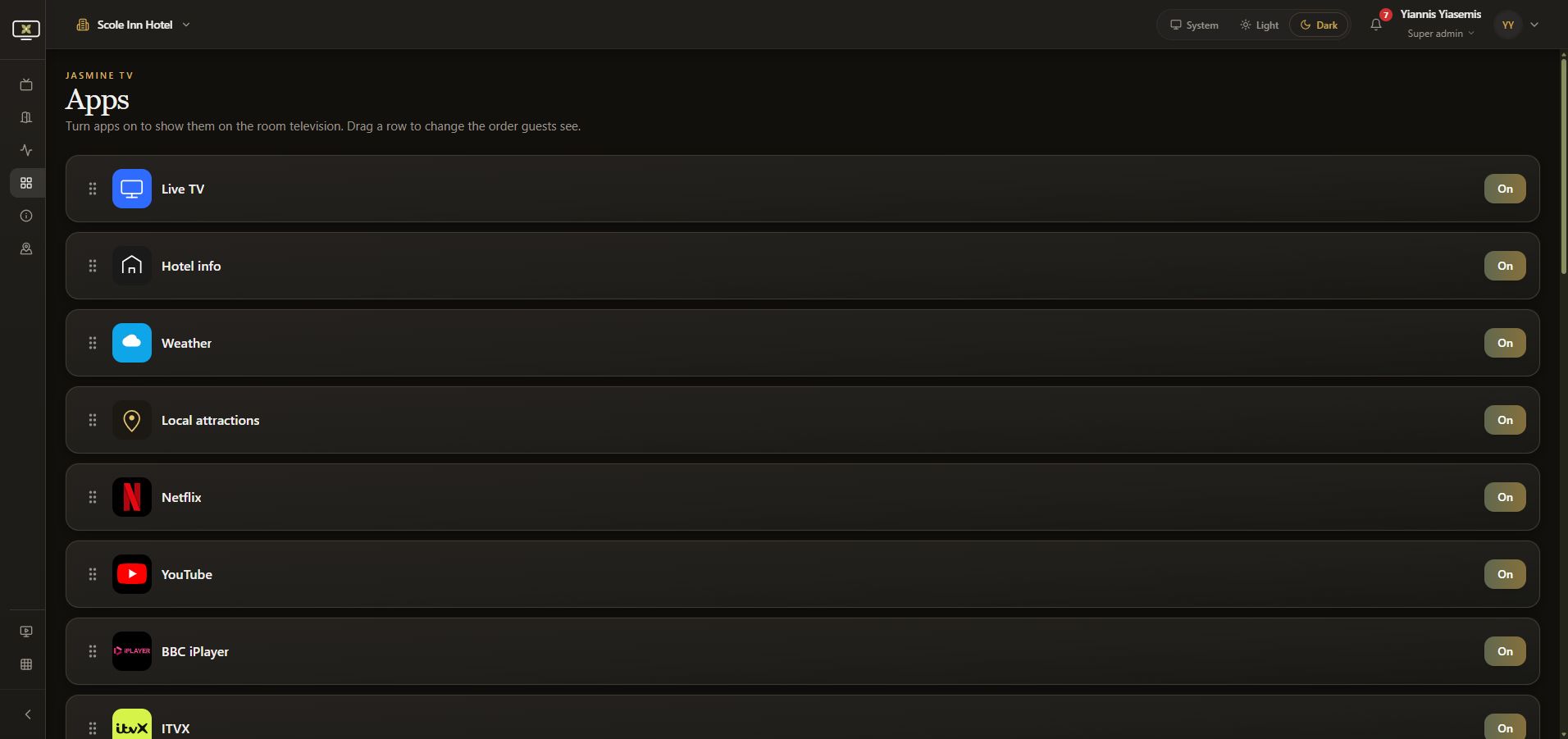
The demonstration shows On beside entries including Live TV, Hotel info, Weather and Local attractions. Read the app name and the button on the same row together. The button at the right is the visibility control; On describes the current enabled state in this example.
This walkthrough reviews those states without changing them. There is no separate Save button on this page, so plan an intentional change before using the visibility and ordering controls.
Review the rest of the app list
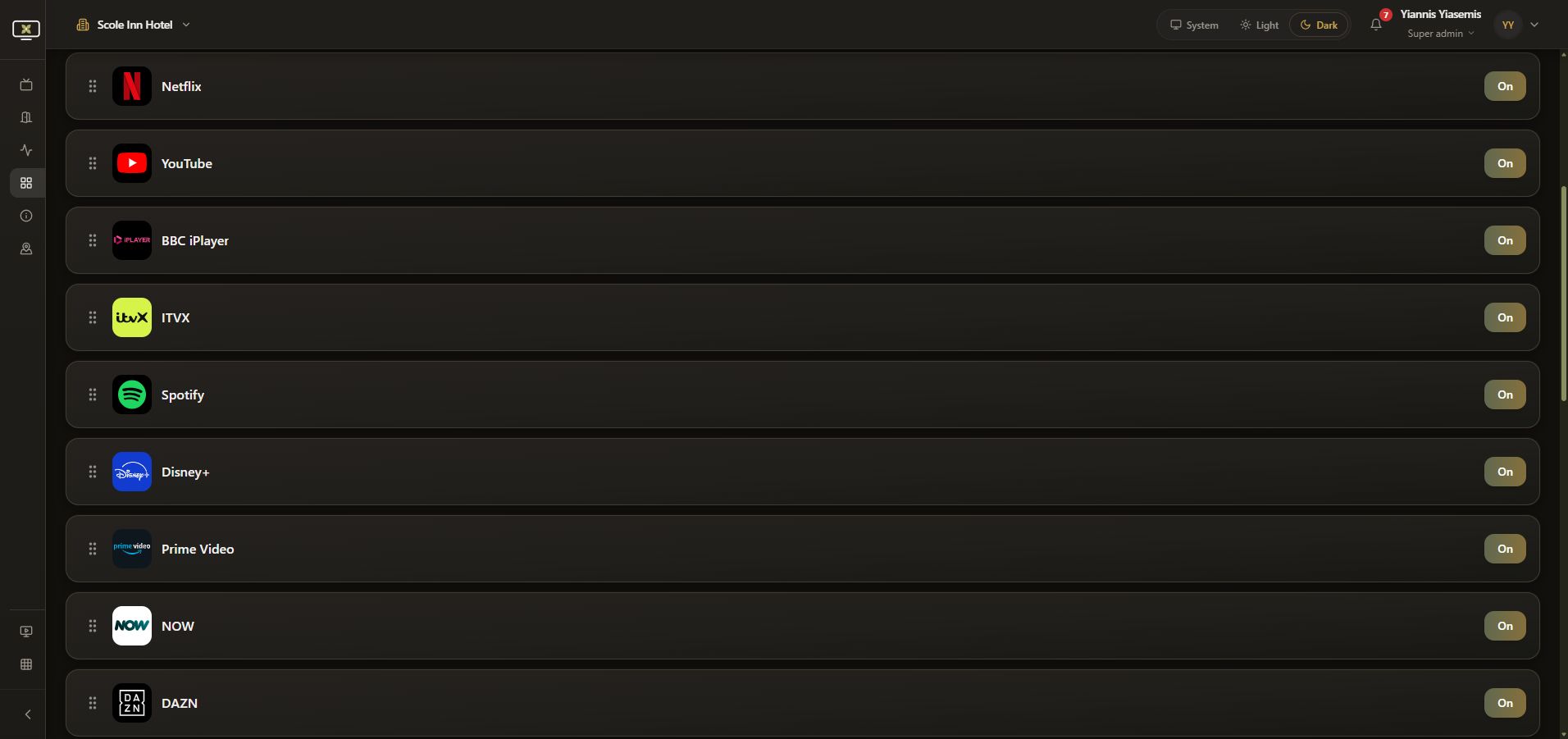
Scroll through the other app entries and logos. Check each row's state individually rather than assuming the entire list has the same availability.
Read Unavailable messages
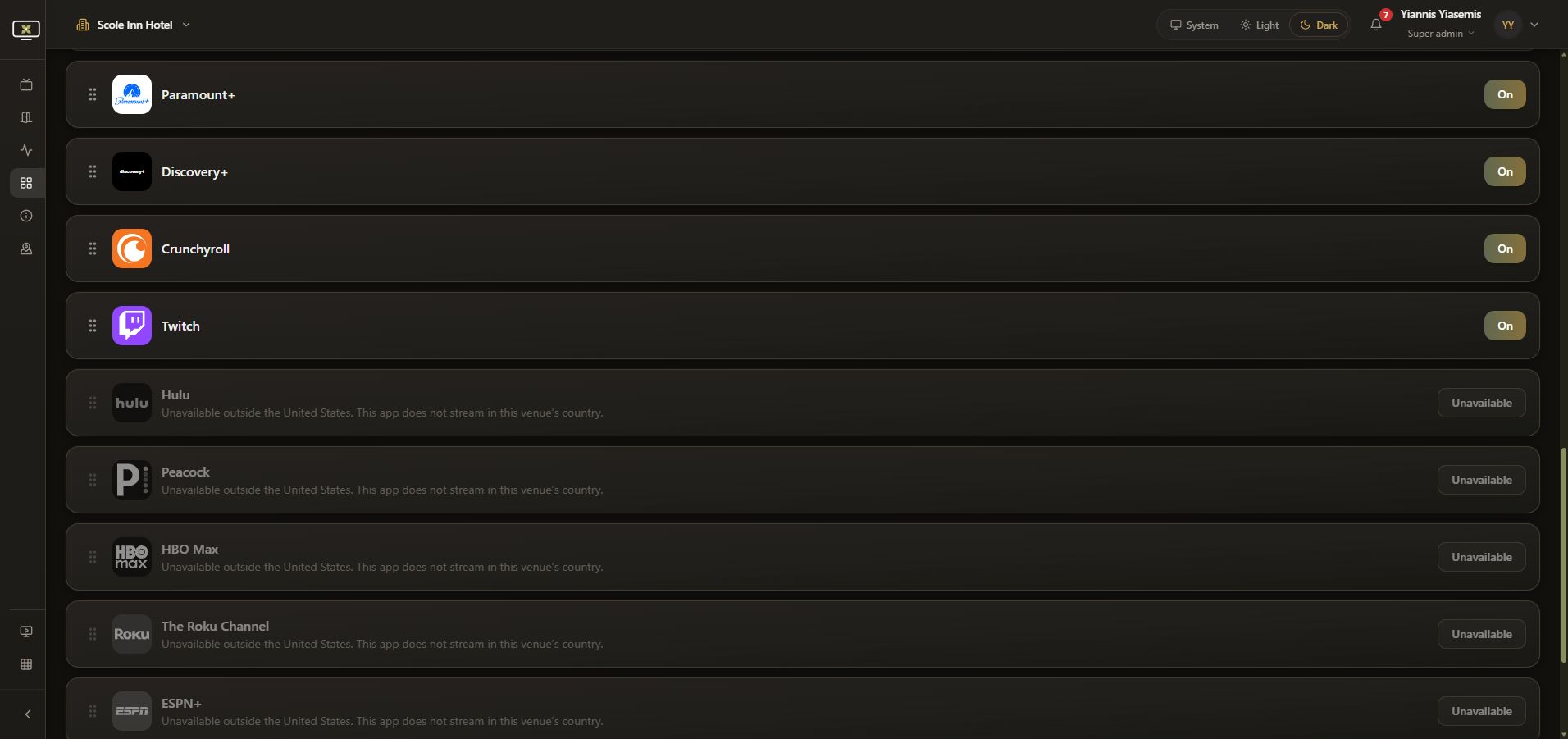
An Unavailable entry is different from an enabled entry. Its control is disabled, and the page provides an explanation for the selected venue. In this example, the disabled rows show a country-availability message.
Read the message shown for your own venue before troubleshooting a control that cannot be switched on. This guide describes the app page's displayed status; it does not test the streaming services themselves.
Use the ordering handle
The handle at the left of a row controls its position. With a pointer, drag the row to the intended position.
The handle also exposes keyboard instructions:
- Focus the row's handle and press Space to pick it up.
- Use the arrow keys to move the picked-up item.
- Press Space again to drop it in the new position, or Escape to cancel.
The video focuses Weather, picks it up and then cancels with Escape without moving it. Reloading confirms that the original app order remains unchanged.
Check the guest-facing menu after real changes
Review the enabled entries and their order, then check the menu on a room television after making intentional changes for your venue.
This walkthrough changes no visibility button and applies no new order. The example retained all 19 On entries and 7 disabled Unavailable entries after reload.
Continue with Jasmine TV
See Hotel info sections and formatting, TV rooms and guest controls, or local attractions.