

Staff Cannot See Their Clock Jasmine Shift?
· Jasmine Apps
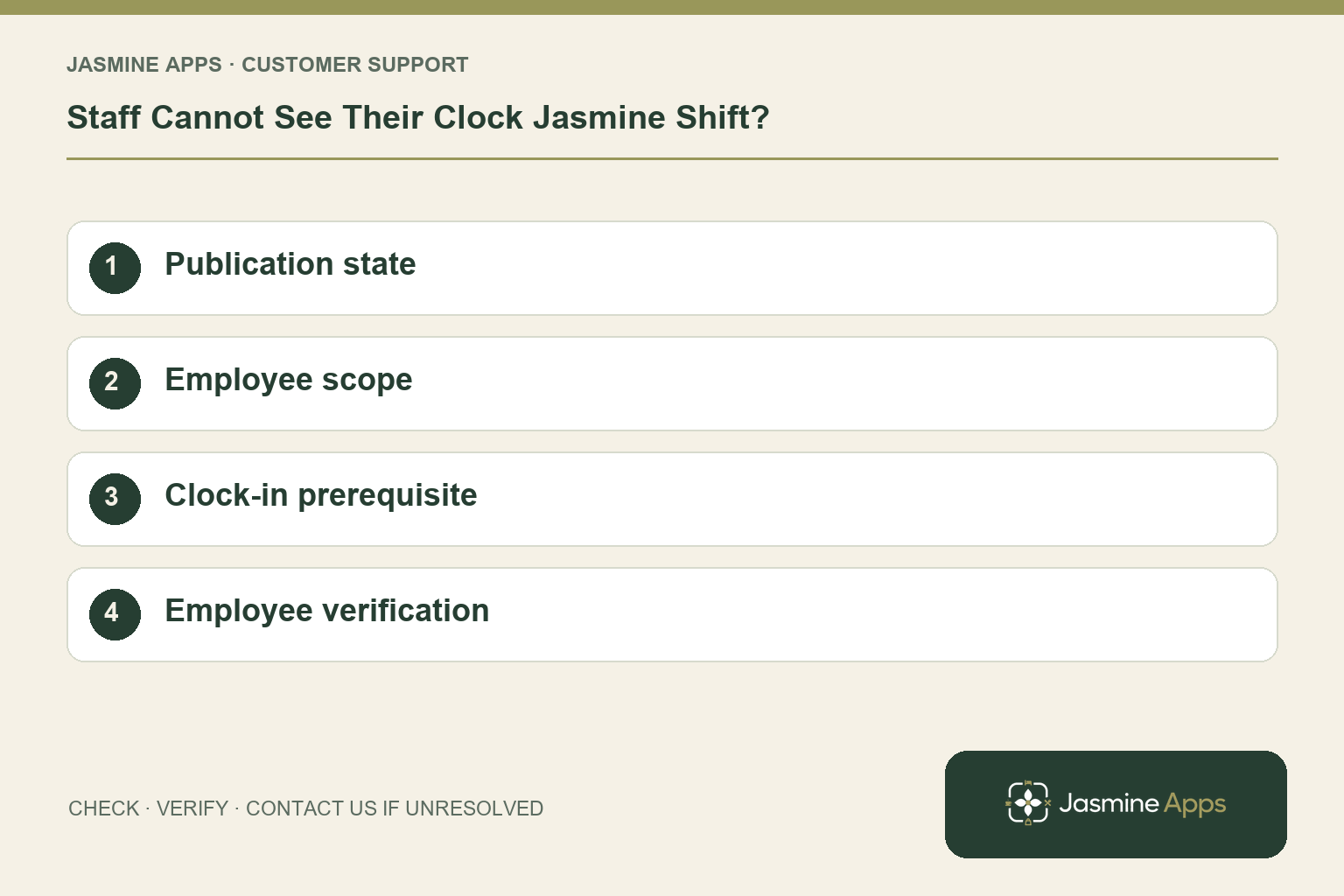
Customer support: Work through these checks in order. After each change, repeat the original action and check the result. If it remains unresolved, use Contact Us.
A manager can see the shift, but the employee cannot. Clock Jasmine distinguishes a rota being planned from one published for staff. Check the person, board and month before assuming the staff app is missing data.
Quick answer: Confirm the employee is included on the right rota and publish the intended month so it appears in My Rota.
1. Why can a manager see a shift staff cannot?
The rota guide says staff see shifts in My Rota once the month is published. A shift on a planning board is not enough. Open Rotas & Shifts, choose the correct board and review the month shown beside Publish. Check the shift details and conflicts first; publication should make an agreed schedule visible, not expose unfinished planning.
Check the result: The checked rota month is published.
2. Could the employee be outside the board scope?
The rota Settings include Who is on this rota and an Employees tab showing included people. Confirm the correct team and employee are in scope. Also verify the intended venue and date. Two colleagues with similar names, or separate bar and kitchen boards, can make the assignment look correct at a glance. Resolve identity and scope before adding a duplicate shift.
Check the result: The employee is included on the relevant board.
3. Why might the same problem also block clock-in?
If Require published rota for clock-in is enabled, staff cannot clock in for an unpublished month. Publishing the intended checked rota addresses that prerequisite. Do not switch the rule off just to hide a planning omission. The manager should decide whether an exceptional shift is authorised, record its circumstances and use the venue's approved attendance process if a correction is needed.
Check the result: An unpublished plan is corrected through the manager.
4. How should we verify the repair?
Ask the employee to open My Rota on their own account and read back the date, start, end and venue. Compare those with the manager's board. If still absent, note whether the web and staff app differ. Brief staff when a published schedule changes. Do not rely on a screenshot sent to one employee as the permanent rota record.
Check the result: Date, times and venue match the manager's record.
Example from the actual app
The real Rotas & shifts page describes monthly schedules on rota boards and says people on a board can see its published shifts. Its list distinguishes Whole venue, Team roster and By role boards. Check the employee’s intended board scope and published period before creating another assignment.
Before you contact us
| Check | What to do | Result to verify |
|---|---|---|
| Publication state | Review the intended board and month. | The checked rota month is published. |
| Employee scope | Check team, person and venue. | The employee is included on the relevant board. |
| Clock-in prerequisite | Review the published-rota requirement. | An unpublished plan is corrected through the manager. |
| Employee verification | Open My Rota on the employee's own account. | Date, times and venue match the manager's record. |
Record which check failed, the exact error wording and when it happened. Include the relevant venue and record reference, and say whether one device or several people are affected. If you changed a setting, identify that change and the retest outcome. This helps us investigate the actual failing stage instead of asking you to repeat the whole process.
Contact Us if the expected result still does not appear. Send only the information needed to investigate; keep passwords, active codes, payment details and unrelated customer records out of screenshots.
When to stop and ask for help
Give support the venue, rota title, month and affected shift reference, plus whether the employee appears in scope and the month is published. Share employment details only in the authorised private support route.
Related support checks
- At Work but Clock Jasmine Refuses GPS Clock-In?
- Forgot to Clock Out in Clock Jasmine? What Happens Next?
- Clock Jasmine Break Time Looks Wrong? Check the History
Illustrations explain the workflow and are not product screenshots. Any numerical example is labelled illustrative and is not a customer result. Product wording and documented setup checks reviewed on 13 October 2026; confirm the features available in your current installation.