

TutorialIn-app guide
Clock Jasmine: review history and manual entry controls
· Jasmine Apps
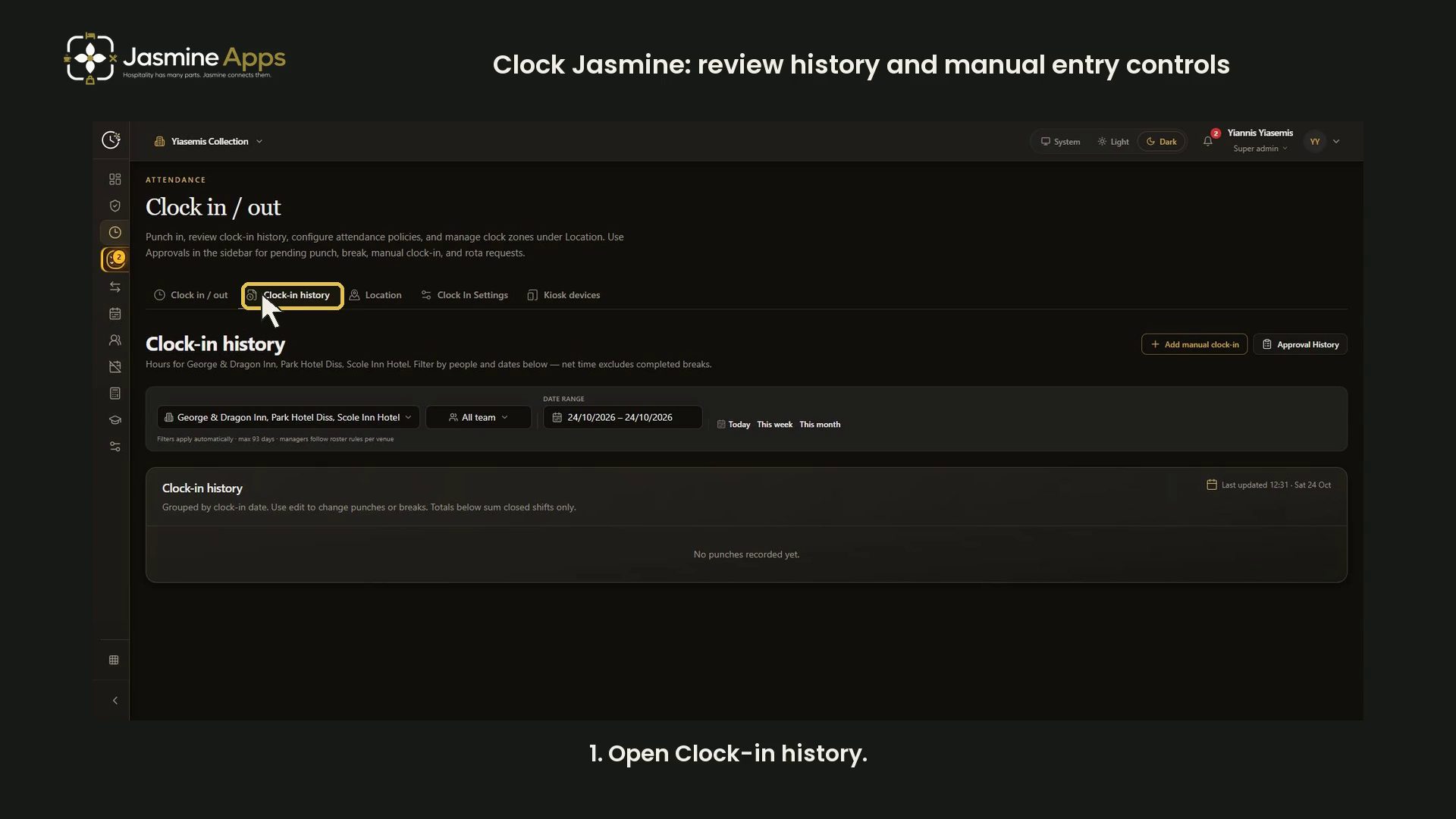
Clock Jasmine's clock-in history combines venue, people and date filters with attendance totals. This dark-mode guide shows an empty Today result and the blank manual entry form. It does not edit punches or demonstrate approval decisions.
Watch the walkthrough
Open and filter clock-in history
From Clock in / out, choose Clock-in history. Check the venue selection, people filter and date range together.
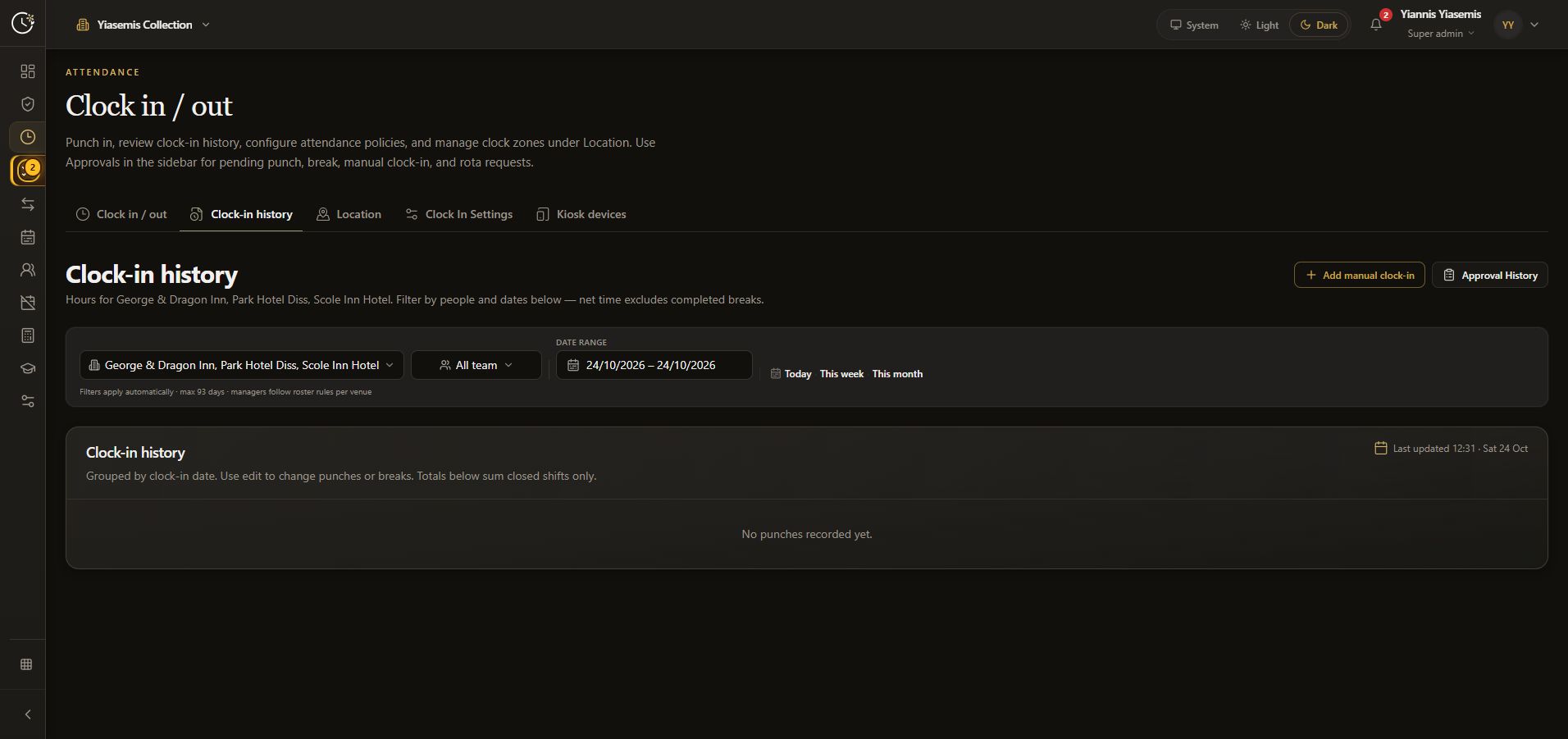
Today, This week and This month are date shortcuts. Filters apply automatically. The screen states a maximum range of 93 days and notes that managers follow roster rules per venue.
Interpret the result
History is grouped by clock-in date. Net time excludes completed breaks, and totals sum closed shifts only. No punches recorded yet is an empty result for the selected view. Check the filters before assuming a person has no attendance records elsewhere.
Review the manual entry form
Add manual clock-in opens a form for a missing pair of punches. Its warning says both clock-in and clock-out are required and saving adds them immediately.
For an actual verified correction, check Venue, Employee, Clock-in, Clock-out and the optional Note before saving. Both time fields include a date and time.
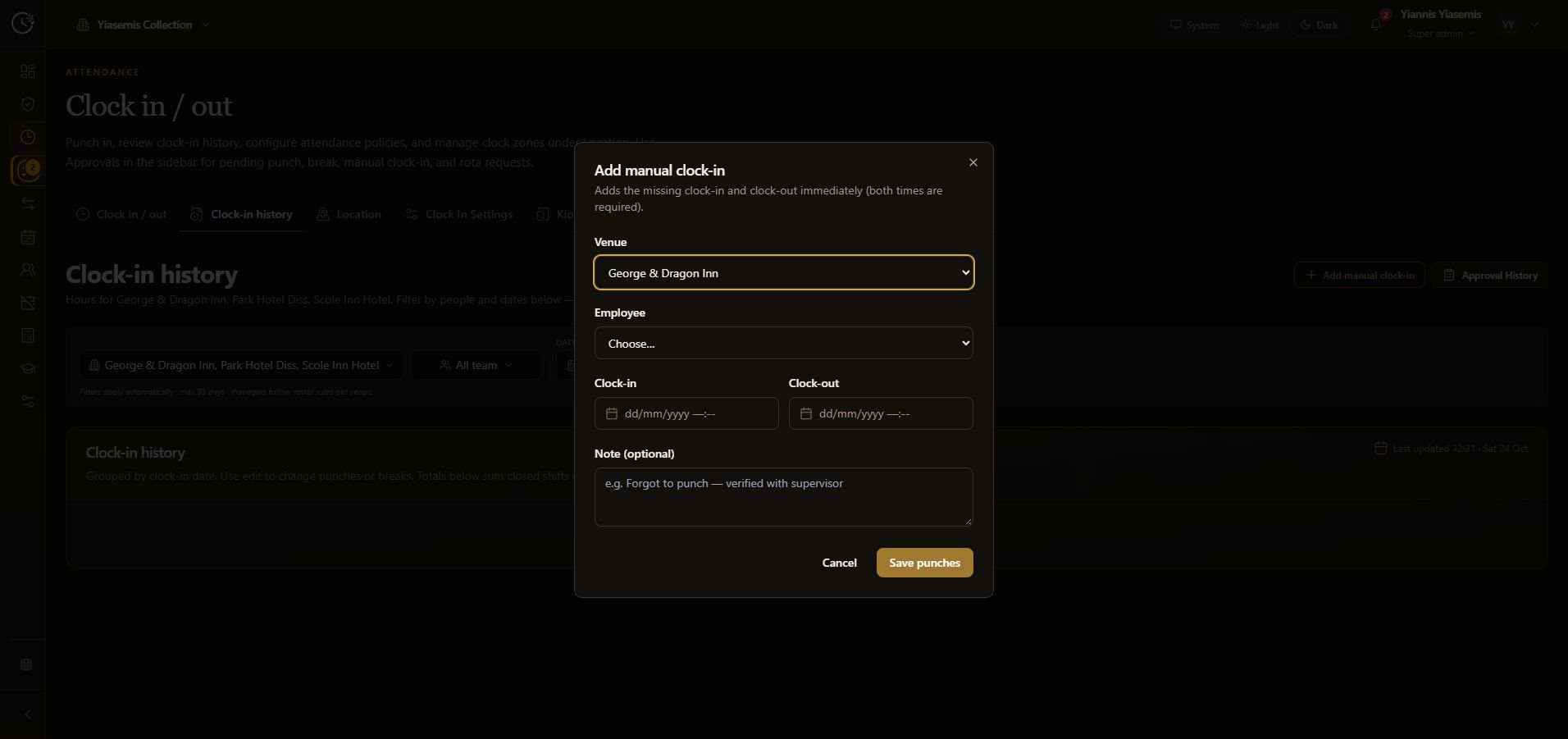
This walkthrough leaves the employee and times unselected, enters no note, and uses Cancel. Save punches is not pressed.
Keep approvals separate
Approval History is a separate control on the history page. The live approvals queue and approval decisions are outside this guide. No attendance or approval records were changed.
See the clock-in controls guide or Clock Jasmine overview.