

At Work but Clock Jasmine Refuses GPS Clock-In?
· Jasmine Apps
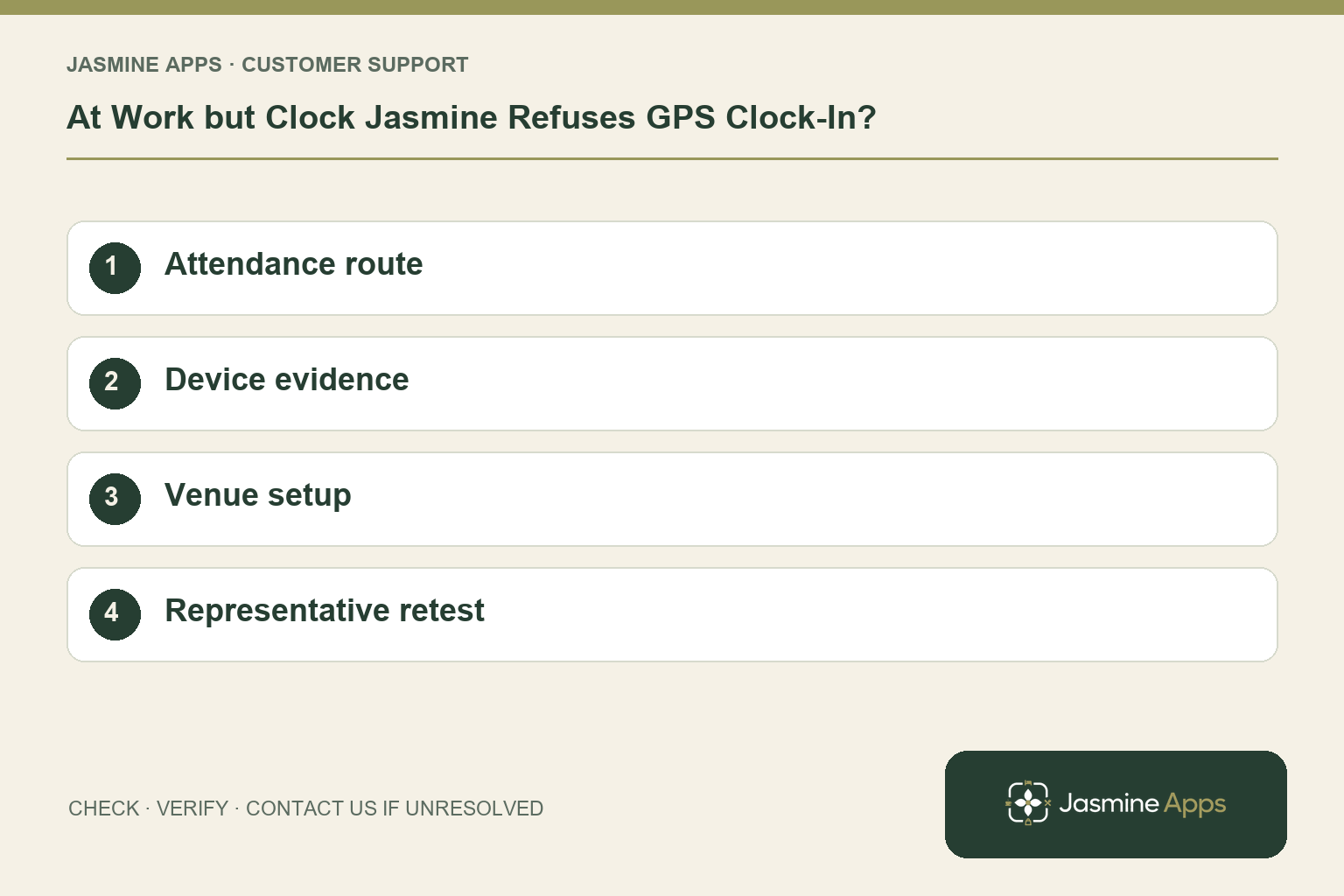
Customer support: Work through these checks in order. After each change, repeat the original action and check the result. If it remains unresolved, use Contact Us.
You are at the staff entrance, yet mobile clock-in reports a location problem. Indoor positioning and an incorrectly configured venue location can produce similar symptoms. Start with the message and device route so an authorised manager can review the right setting.
Quick answer: Check location access and the reported position, then have the manager review the venue coordinates, radius and accuracy policy.
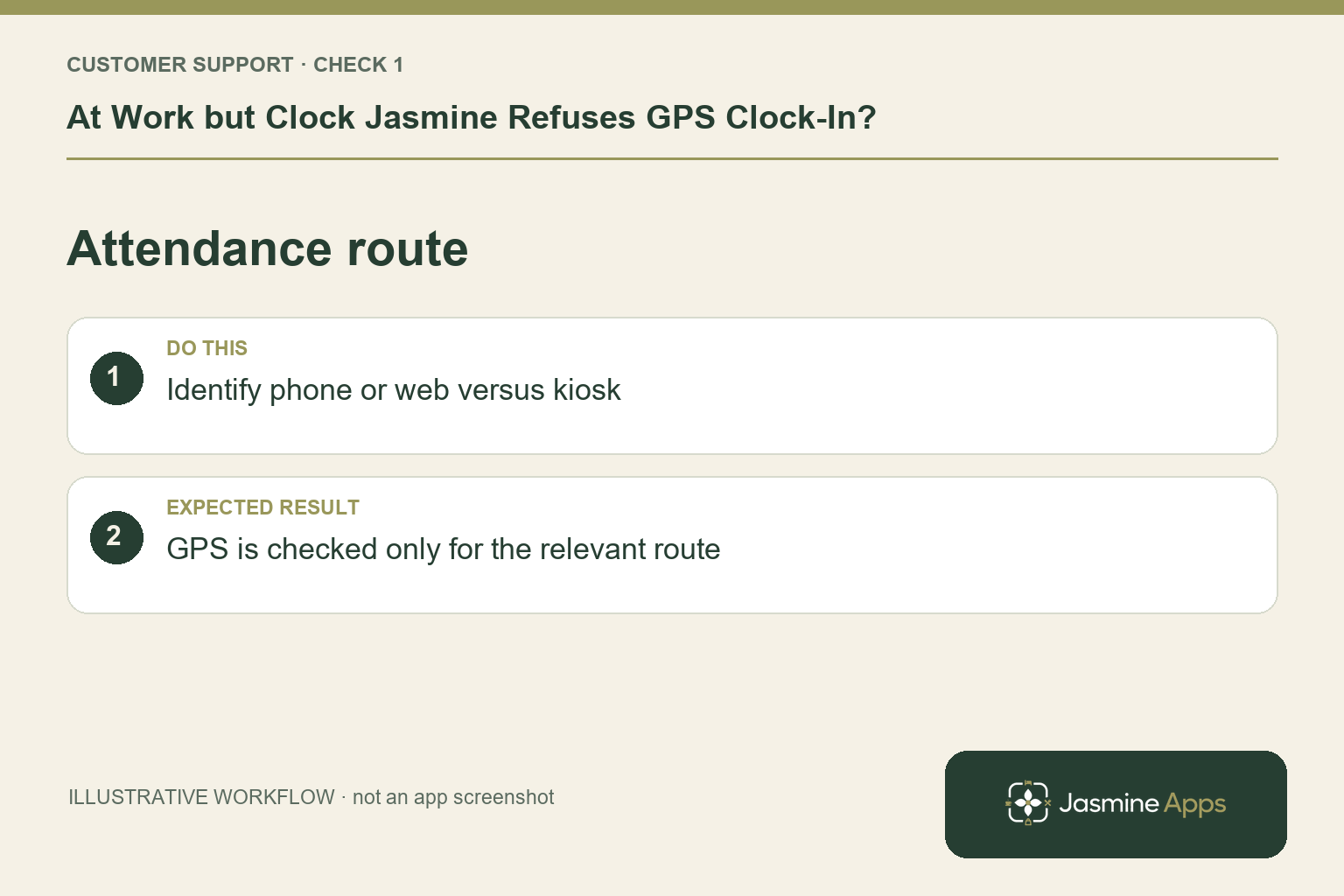
1. Is this a phone clock-in or a kiosk problem?
Clock Jasmine location controls apply to configured web or staff-app punches. Kiosk punches do not capture GPS. Identify the route first; changing the site's coordinates will not repair a kiosk PIN failure. Note whether clock-in, clock-out or breaks are affected and what the screen actually says. That detail matters more than calling every refusal a GPS error.
Check the result: GPS is checked only for the relevant route.
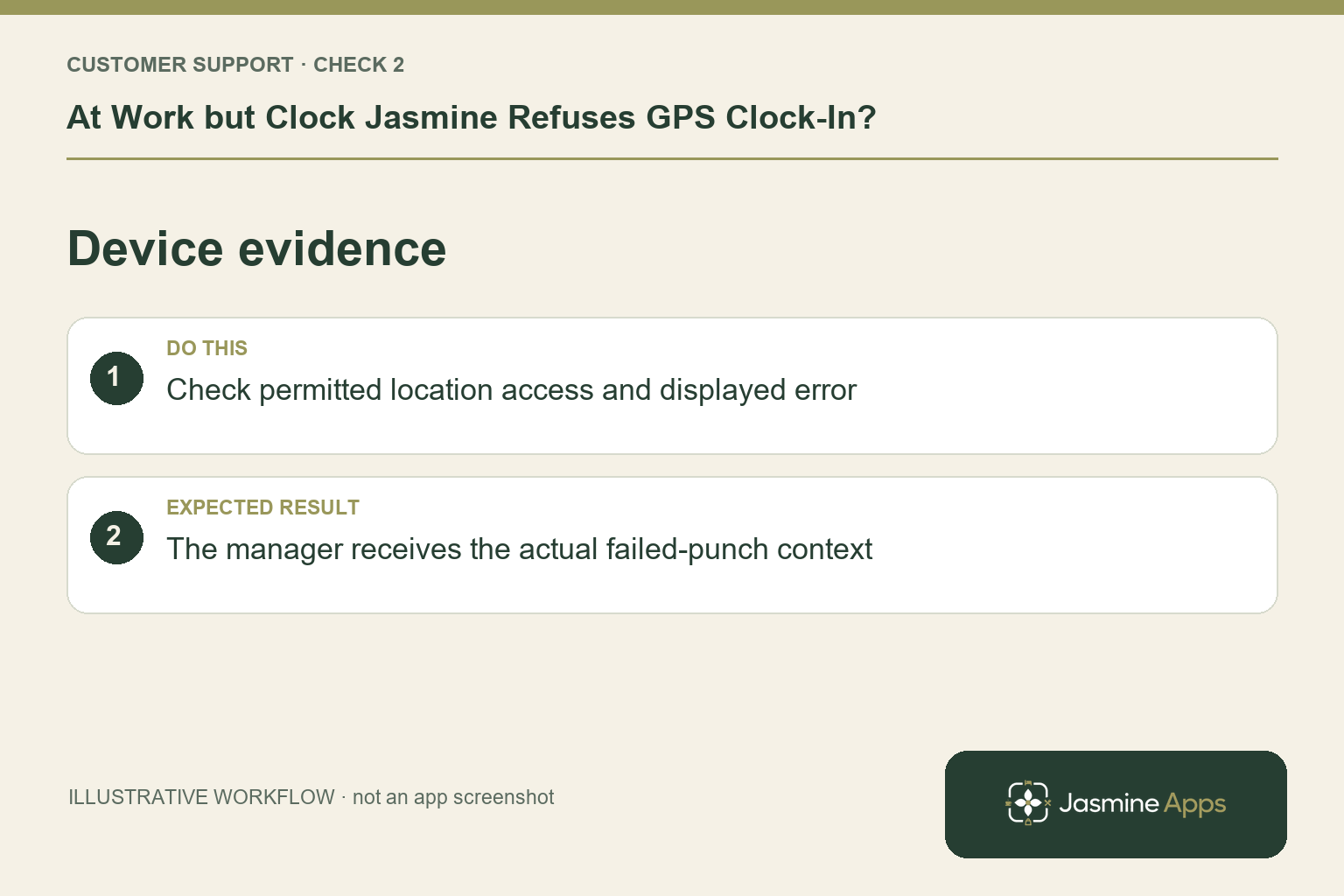
2. What can the employee check?
Use the approved app or web route on the correct account and check that the device allows location access for it. Note whether position accuracy is poor indoors and whether the connection is working. Follow the venue's agreed process for reporting a blocked punch, including the actual arrival time. Do not use a colleague's account or falsify a position to get past the check.
Check the result: The manager receives the actual failed-punch context.
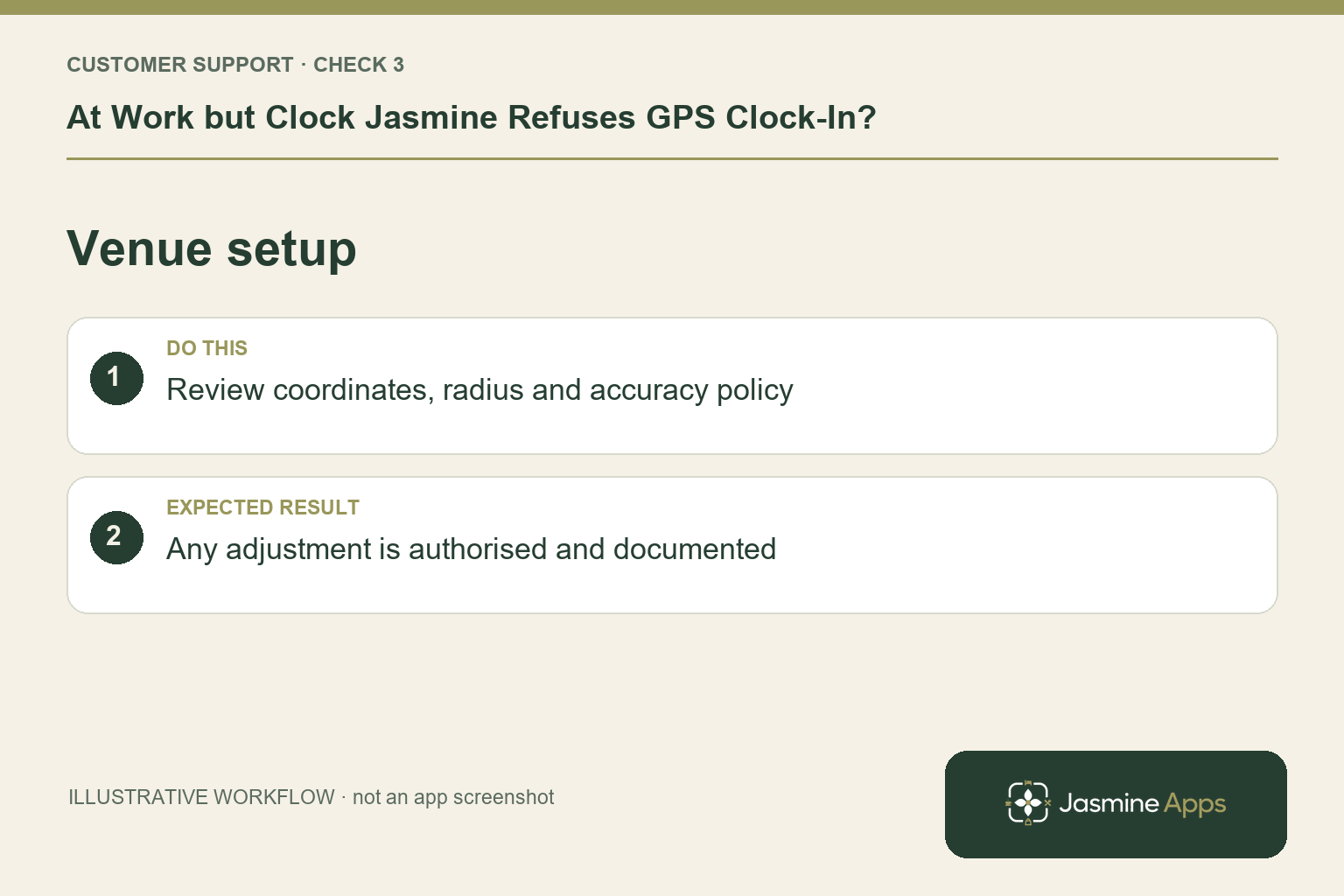
3. Which settings should the manager inspect?
Location records include name, latitude, longitude and radius. Clock In Settings also includes Require geofence for mobile clock-in/out/breaks and Maximum acceptable GPS accuracy. Compare the saved location with the real staff entrance and the failing reading. The help guide discusses a measured radius or accuracy adjustment for poor indoor positioning. Any change should be authorised, documented and tested against the attendance policy.
Check the result: Any adjustment is authorised and documented.
4. How do we stop the same problem returning?
Test the chosen settings on representative staff devices at the normal entrance and break-return point. Record the result, not just whether one manager's phone worked. Keep an approved missed-punch reporting route available. If several employees fail in the same spot, investigate the location setup; if only one fails, collect device-specific evidence before changing every venue's policy.
Check the result: The result is recorded without bypassing policy.
Example from the actual app
The actual Clock In Settings separates Require punch inside an allowed clock zone from mobile-specific geofence requirements. It also refers to Request device location under Settings and active sites under Location. Check those prerequisites and the employee’s workforce permissions. The page warns that saving with several venues selected applies the policies across that scope, so the manager must review the selected venue before any change.
Before you contact us
| Check | What to do | Result to verify |
|---|---|---|
| Attendance route | Identify phone or web versus kiosk. | GPS is checked only for the relevant route. |
| Device evidence | Check permitted location access and displayed error. | The manager receives the actual failed-punch context. |
| Venue setup | Review coordinates, radius and accuracy policy. | Any adjustment is authorised and documented. |
| Representative retest | Test at the normal entrance on affected devices. | The result is recorded without bypassing policy. |
Record which check failed, the exact error wording and when it happened. Include the relevant venue and record reference, and say whether one device or several people are affected. If you changed a setting, identify that change and the retest outcome. This helps us investigate the actual failing stage instead of asking you to repeat the whole process.
Contact Us if the expected result still does not appear. Send only the information needed to investigate; keep passwords, active codes, payment details and unrelated customer records out of screenshots.
When to stop and ask for help
Provide support with the venue, action, exact error, device/app version and reported accuracy where shown. Send precise location evidence privately only where necessary. An authorised manager should handle attendance corrections rather than asking staff to keep retrying indefinitely.
Related support checks
- Staff Cannot See Their Clock Jasmine Shift?
- Forgot to Clock Out in Clock Jasmine? What Happens Next?
- Clock Jasmine Break Time Looks Wrong? Check the History
Illustrations explain the workflow and are not product screenshots. Any numerical example is labelled illustrative and is not a customer result. Product wording and documented setup checks reviewed on 13 October 2026; confirm the features available in your current installation.