

Forgot to Clock Out in Clock Jasmine? What Happens Next?
· Jasmine Apps
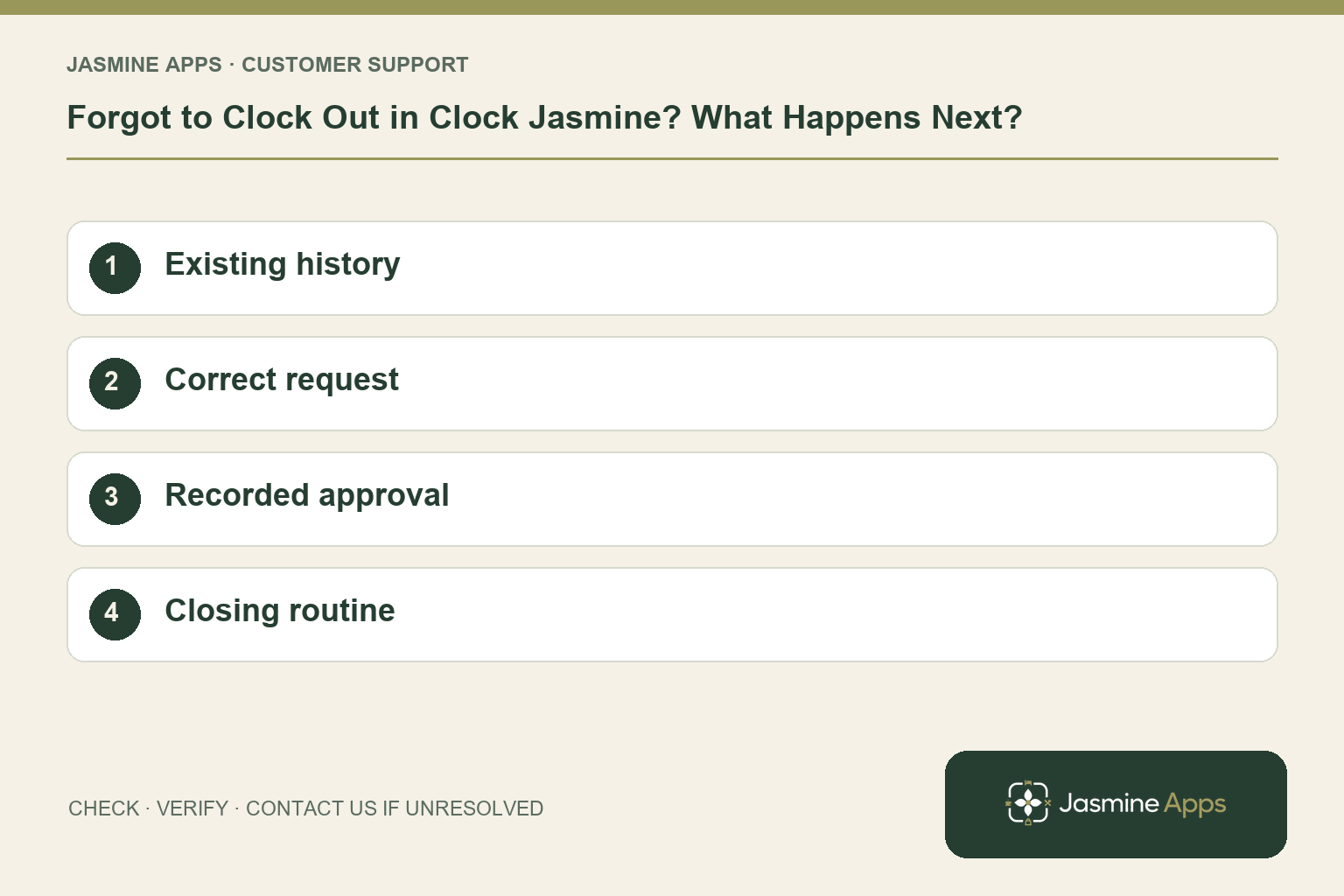
Customer support: Work through these checks in order. After each change, repeat the original action and check the result. If it remains unresolved, use Contact Us.
A shift finishes, the team leaves, and the attendance record is still open. A forgotten Clock Jasmine clock-out needs a truthful time correction. Recording another punch without checking the history can make the original shift harder to understand.
Quick answer: Review clock-in history, report the actual finishing time and submit the appropriate correction for authorised approval.
1. What should I check before doing anything?
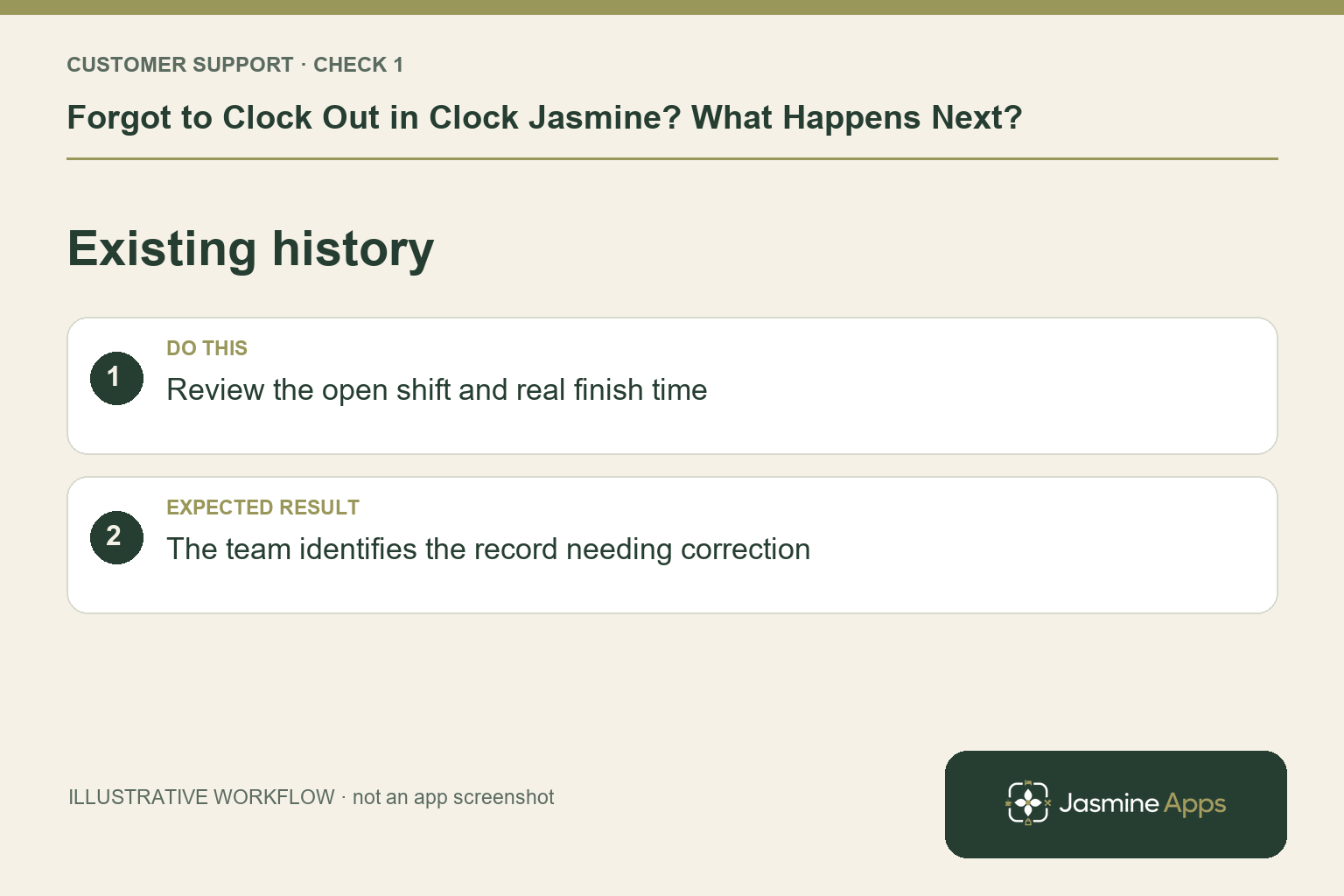
Open Clock-in history and find the affected shift. Staff see My clock-in history; managers see the people they manage. Compare clock-in, clock-out and breaks with what actually happened. Note the real finish time and why the punch was missed. If the timer remains active, tell the manager promptly and follow the supported correction route instead of guessing what a new tap will change.
Check the result: The team identifies the record needing correction.
2. Can a manual entry fix every missing punch?
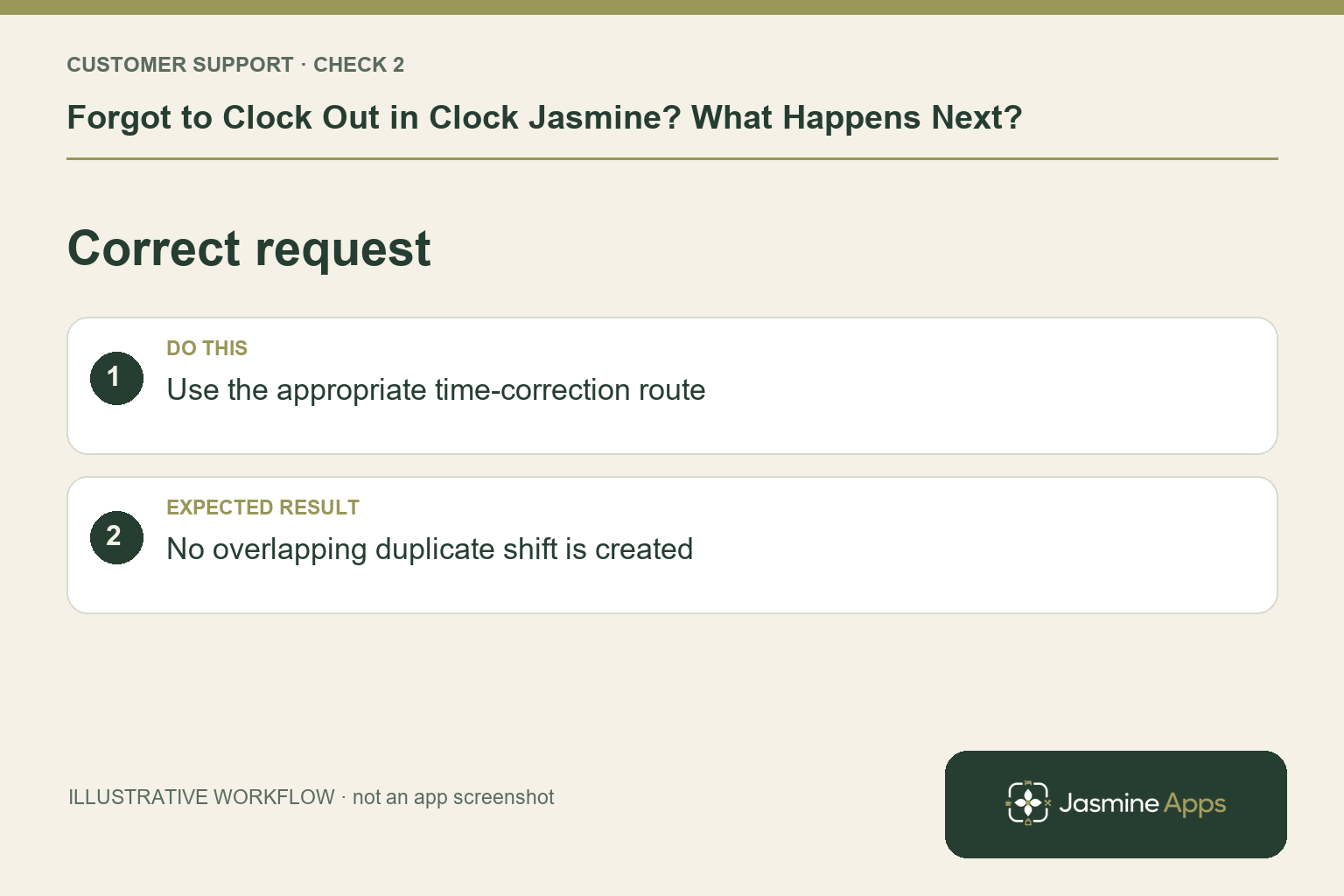
Clock Jasmine supports manual-punch and time-correction requests. The existing guide describes Add manual clock-in for a missing record, with Venue, Employee, Clock-in, Clock-out and an explanatory note. A partially existing shift needs the appropriate correction, not an overlapping duplicate. Ask the manager which supported action fits that record. Staff submit for approval; admins have a direct Save punches route where authorised.
Check the result: No overlapping duplicate shift is created.
3. Does submitting mean payroll is already corrected?
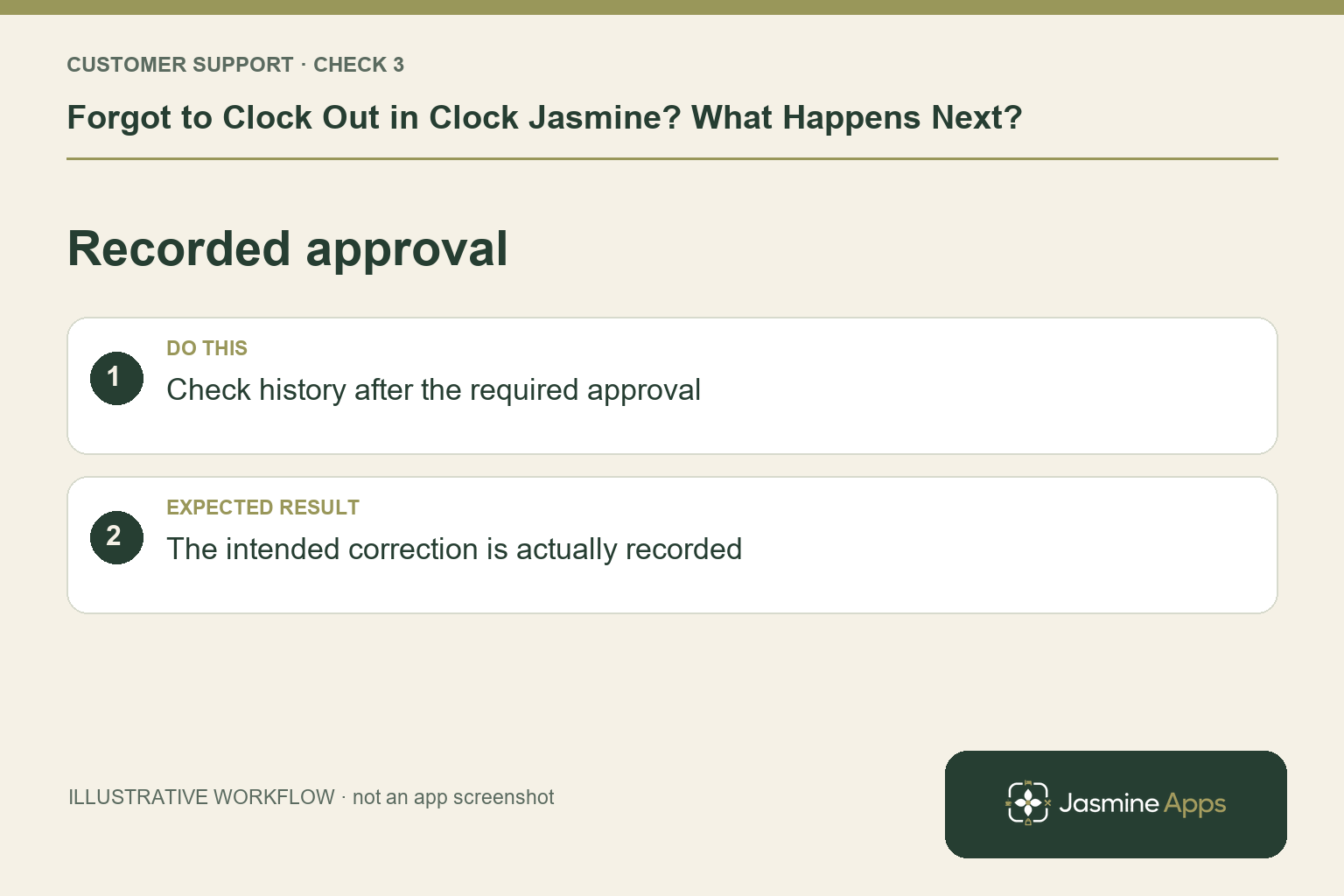
No. The Approvals queue can show Finalize timesheet and Reject, and the recording step is Approve & record timesheet. A manager may Endorse for admin rather than finish the record themselves. Check that the entry is recorded in history after the required approval. A submitted request or verbal agreement is not evidence that an earlier exported CSV contains the correction.
Check the result: The intended correction is actually recorded.
4. How can staff reduce forgotten endings?
Include clock-out in the closing handover: secure the station, finish the agreed tasks, then verify the attendance status. Keep the device route accessible at the real exit. Explain what staff should do if a phone dies or the connection fails. A clear exception routine helps more than quietly changing times later without an employee explanation.
Check the result: Staff know how to report a missed ending.
Example from the actual app
The real attendance workspace separates Clock in / out, Clock-in history, Location, Clock In Settings and Kiosk devices. Clock-in history states that totals sum closed shifts only; Rotas & shifts describes published monthly boards. Follow the record relevant to the task and check whether the employee’s shift is merely planned, actually recorded or awaiting approval. For this article’s existing history check, review the open shift and real finish time. Verify the team identifies the record needing correction.
Before you contact us
| Check | What to do | Result to verify |
|---|---|---|
| Existing history | Review the open shift and real finish time. | The team identifies the record needing correction. |
| Correct request | Use the appropriate time-correction route. | No overlapping duplicate shift is created. |
| Recorded approval | Check history after the required approval. | The intended correction is actually recorded. |
| Closing routine | Verify attendance status before departure. | Staff know how to report a missed ending. |
Record which check failed, the exact error wording and when it happened. Include the relevant venue and record reference, and say whether one device or several people are affected. If you changed a setting, identify that change and the retest outcome. This helps us investigate the actual failing stage instead of asking you to repeat the whole process.
Contact Us if the expected result still does not appear. Send only the information needed to investigate; keep passwords, active codes, payment details and unrelated customer records out of screenshots.
When to stop and ask for help
If history remains incorrect after an approved correction, provide the shift date, record reference, original and intended times through the authorised support channel. Keep the original entry and approval evidence; do not remove it to create a cleaner-looking history.
Related support checks
- Staff Cannot See Their Clock Jasmine Shift?
- At Work but Clock Jasmine Refuses GPS Clock-In?
- Clock Jasmine Break Time Looks Wrong? Check the History
Illustrations explain the workflow and are not product screenshots. Any numerical example is labelled illustrative and is not a customer result. Product wording and documented setup checks reviewed on 13 October 2026; confirm the features available in your current installation.