

TutorialIn-app guide
Clock Jasmine: prepare an absence form
· Jasmine Apps
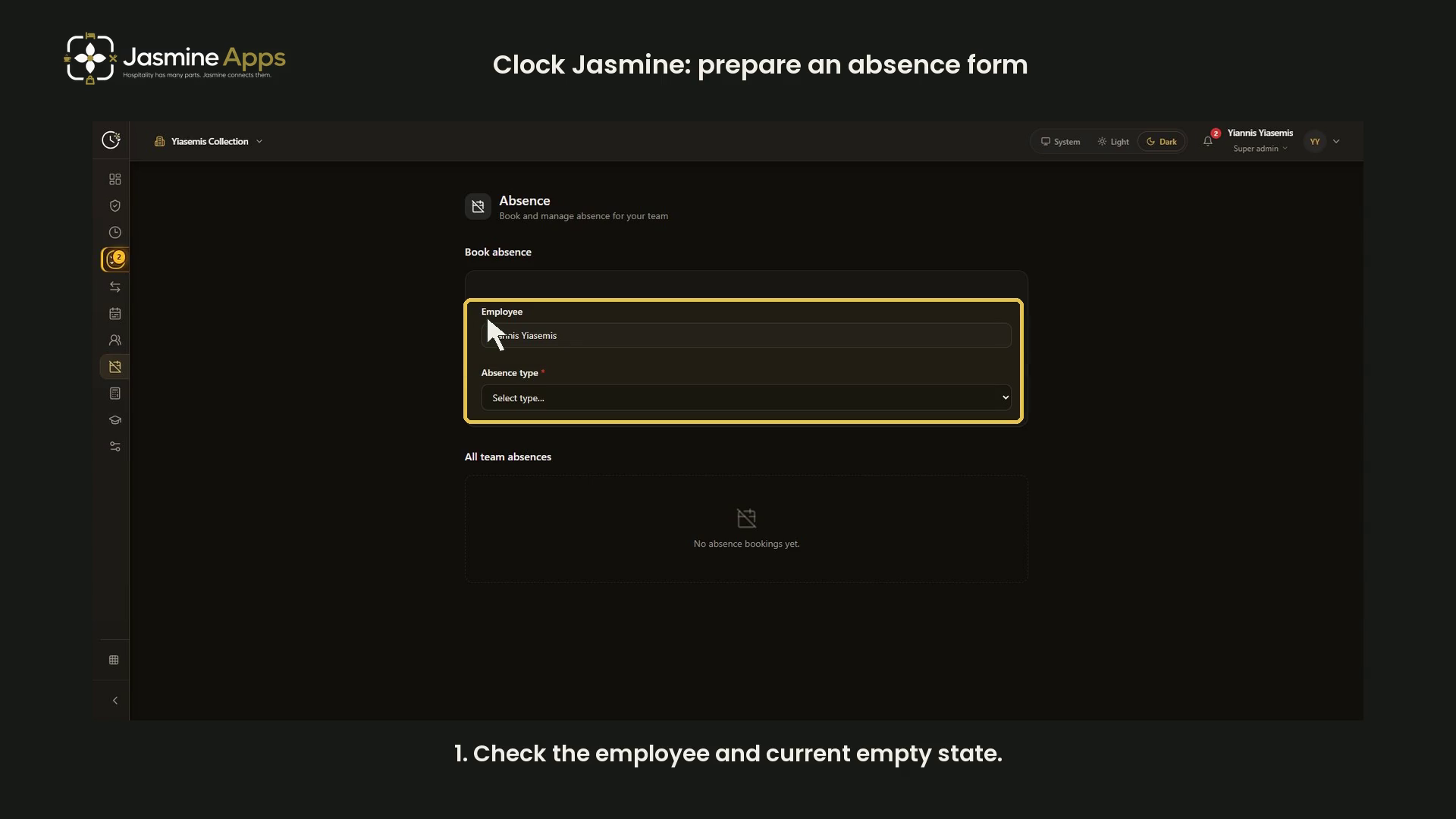
Clock Jasmine's Absence page provides an employee form and a separate list of team absences. This dark-mode walkthrough uses a clean empty venue view and reviews an unsaved Other absence example. No leave, sickness or approval record is created.
Watch the walkthrough
Check the employee and absence type
Open Absence and check the Employee displayed. Choose the type that matches the real request. The available types include paid leave, unpaid leave, sickness, lateness and other absence.
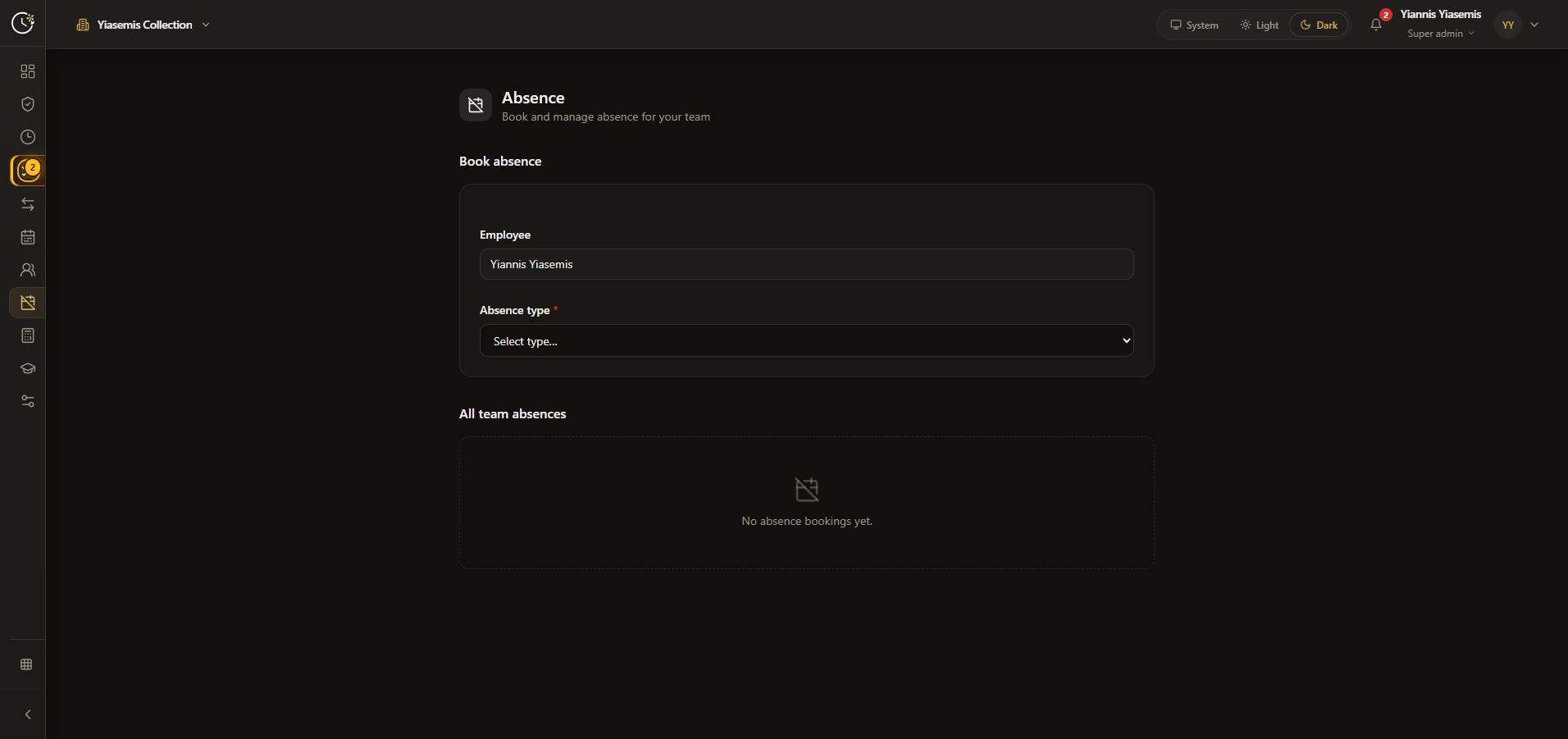
The walkthrough selects Other absence only to reveal the form controls. It does not record an actual personal reason.
Review reason, dates and summary
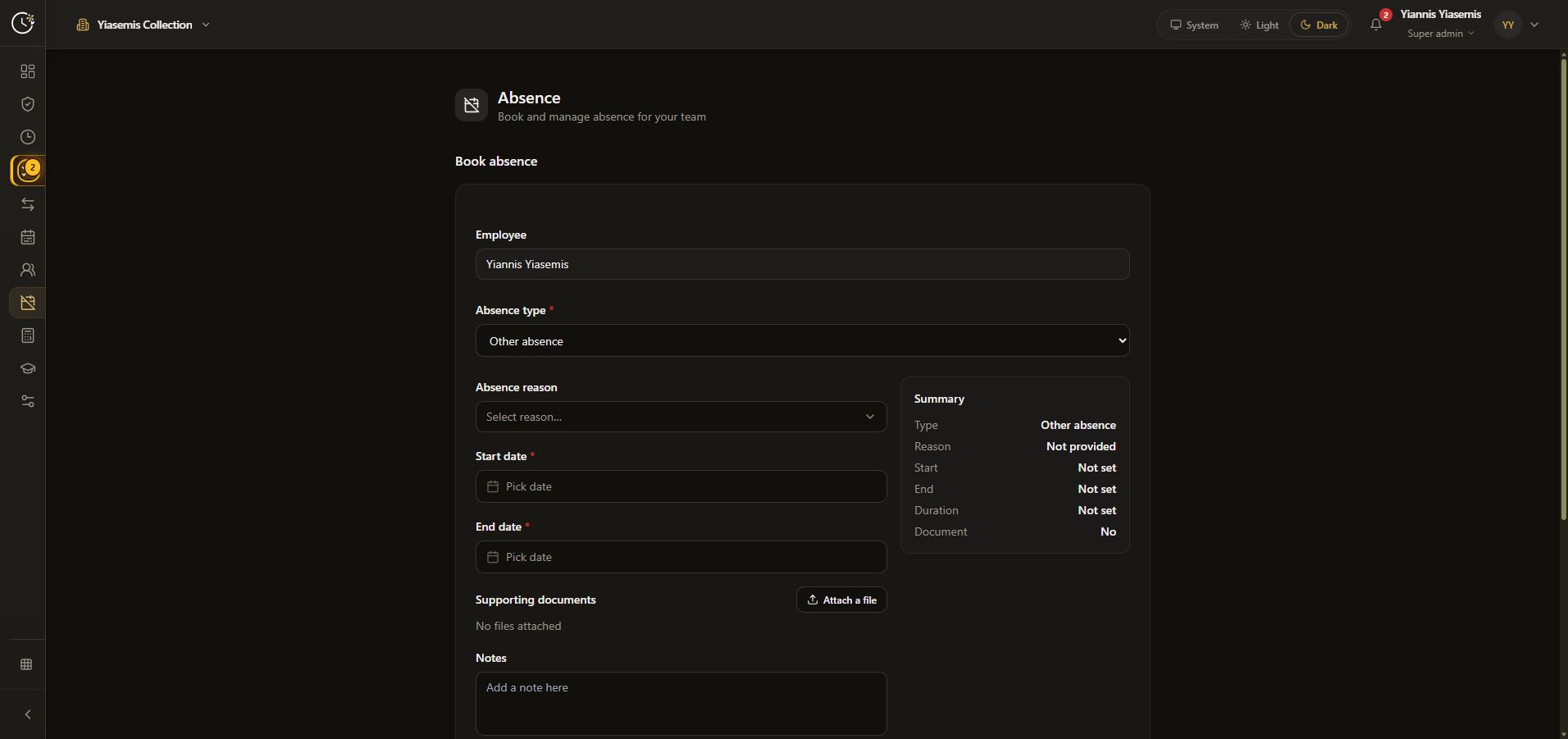
The expanded form has Absence reason, Start date and End date. The date buttons show Pick date until dates are chosen.
The Summary panel lists the type, reason, start, end, duration and document status. Review these together before adding a real absence.
Review attachments and notes
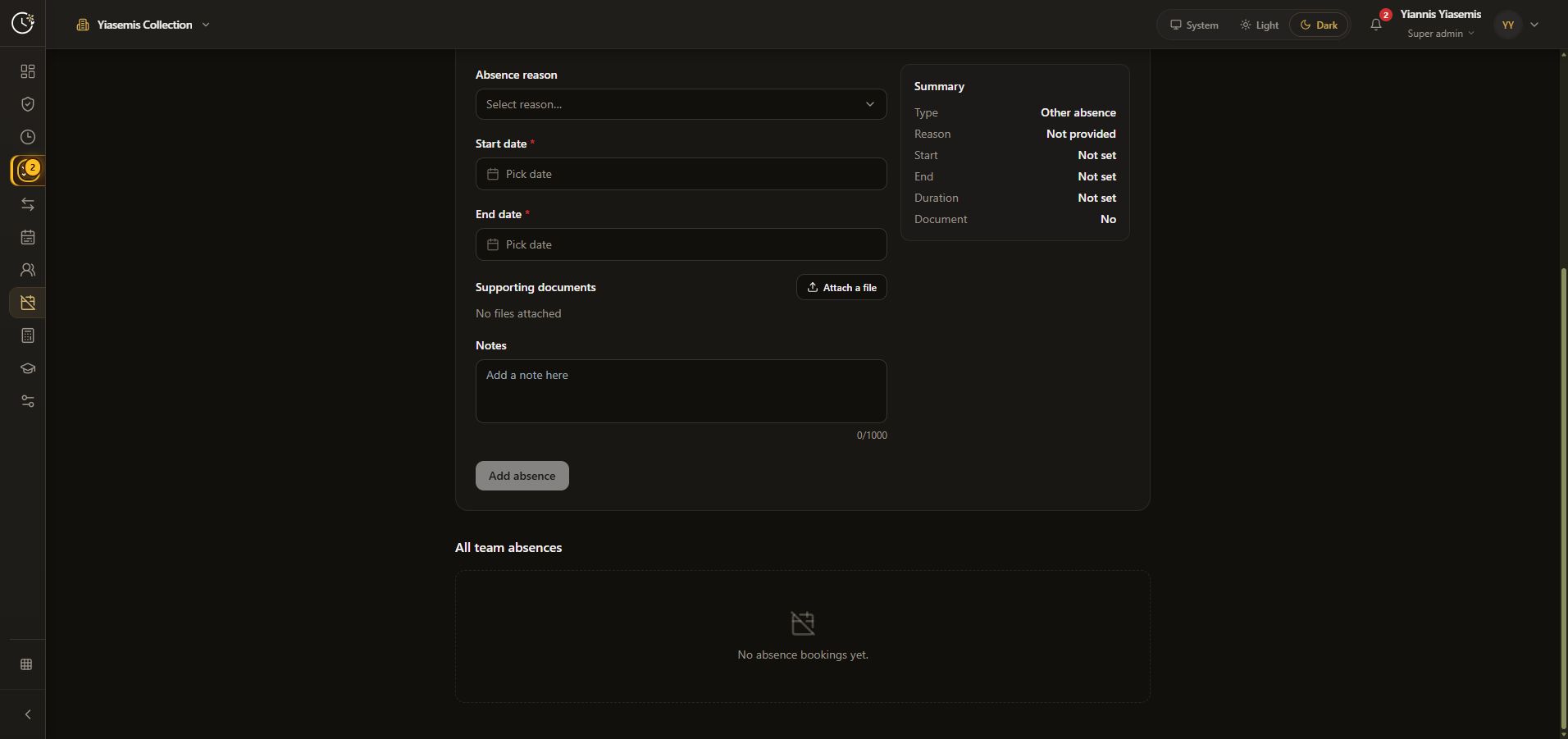
Attach a file is available under Supporting documents. Notes has a 1,000-character counter. The demonstration leaves both blank and uploads no employee documents.
Check completeness before adding
The example has no dates, no reason and no document. Add absence is disabled. The walkthrough does not submit the form or make an approval decision.
All team absences is a separate section. This selected venue shows No absence bookings yet. Reloading discards the unsaved example and returns to the type picker.
See the Clock Jasmine overview or attendance history guide.