

TutorialIn-app guide
Getting started with Clock Jasmine: staff onboarding
· Jasmine Apps
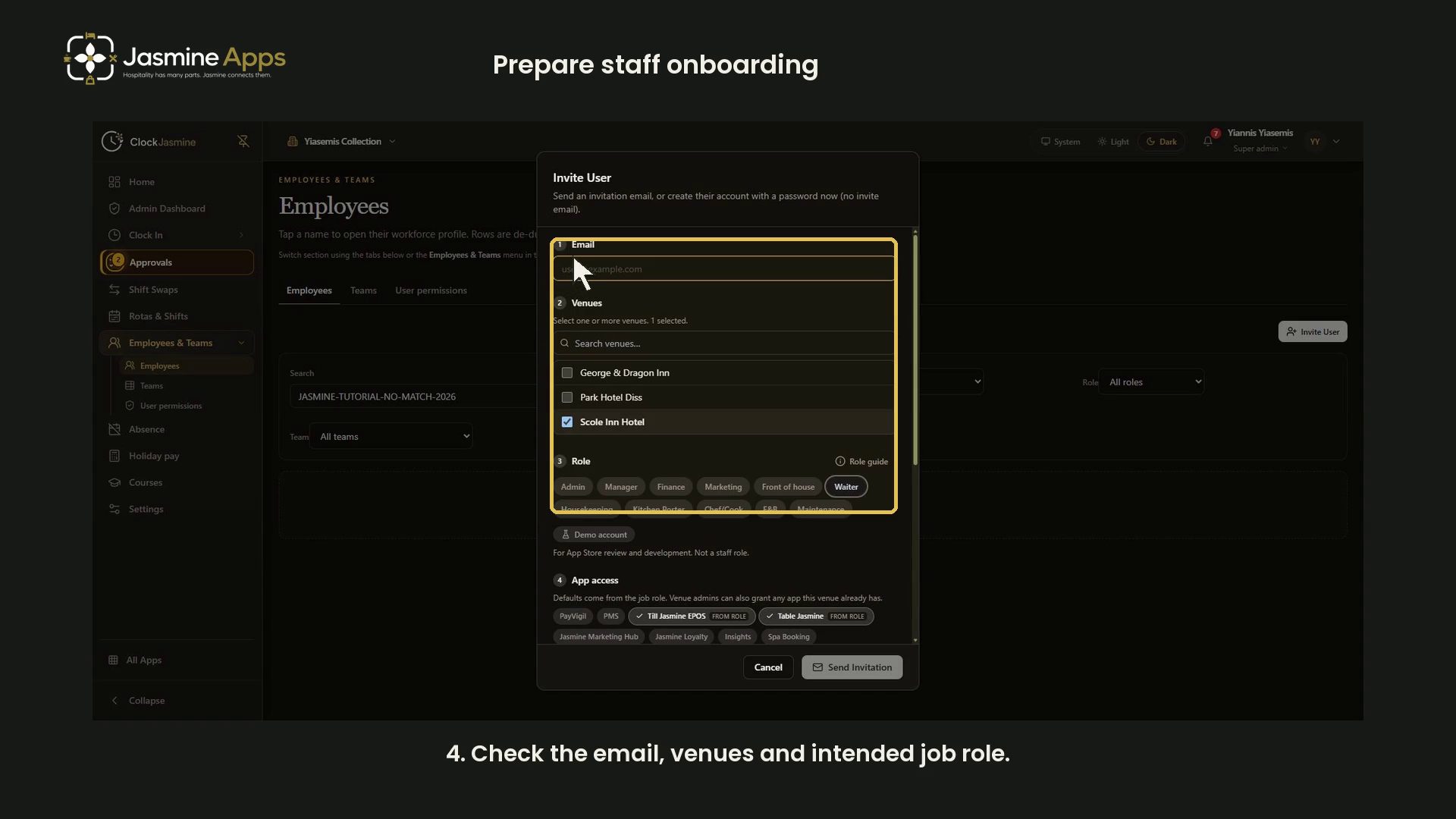
Getting started with Clock Jasmine begins with preparing staff onboarding: review the agreement, check the right venues and role, then review the invitation options. This guide follows the current interface in dark mode, with a narrated video and full-size screenshots.
Watch the walkthrough
Before you start
Use an account authorised to manage staff onboarding for the intended venue. Have the person's correct email, job role and any approved employment agreement ready. Some screens still use the earlier Clock Hawk name.
The recorded employee search deliberately matches nobody. The email stays blank, and the examples are closed without sending an invitation, creating an account or changing staff access.
1. Review a contract template and its sample preview
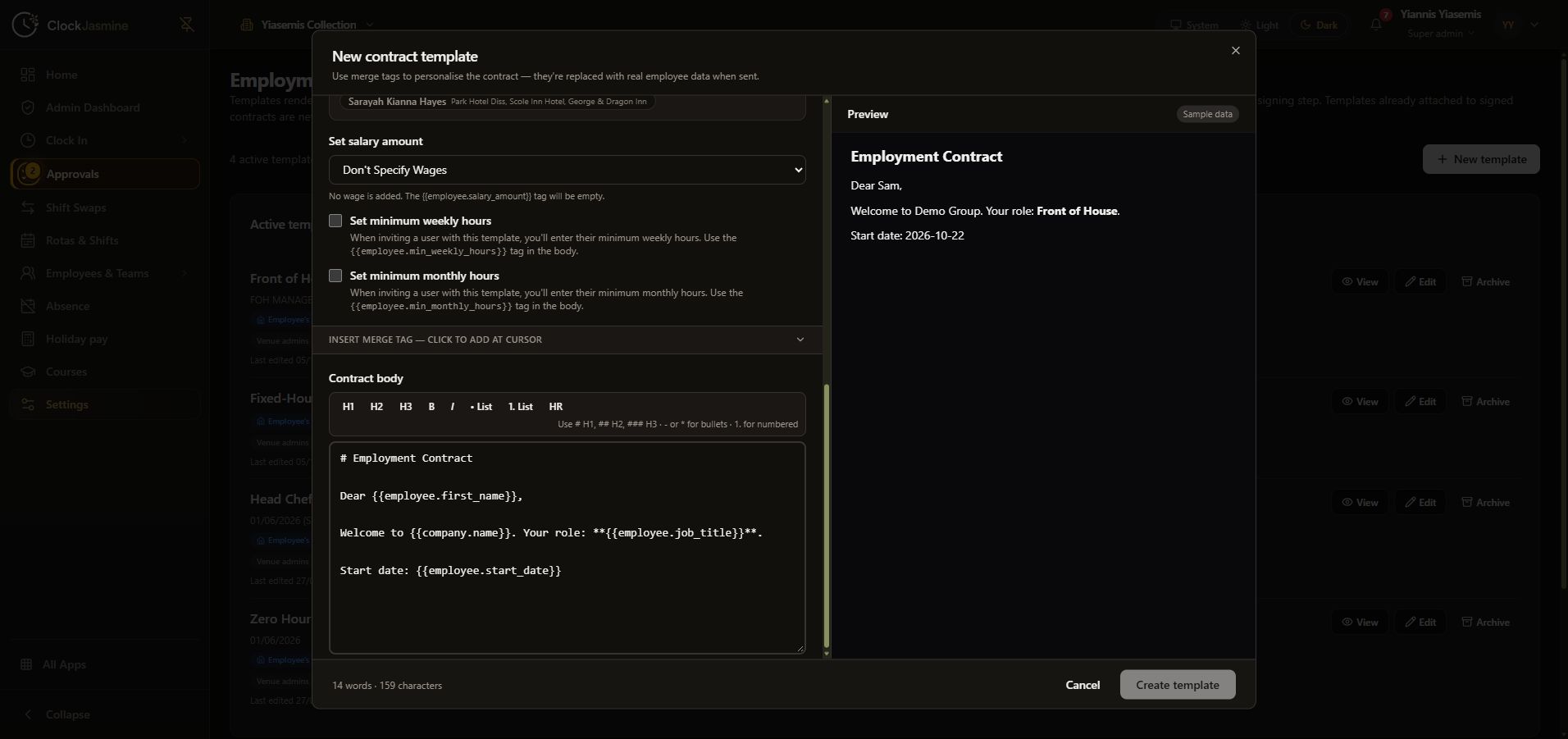
Open Settings, then Employment contract templates → Manage → New template. The editor separates the contract body from a preview labelled Sample data.
Compare merge tags such as {{employee.first_name}}, {{company.name}} and {{employee.start_date}} with the rendered preview. The preview's sample person is not an employee record. Use approved wording and review the template's venue and sender settings before creating a real template.
This walkthrough inspects the initial example and chooses Cancel. It does not create or alter a contract template.
2. Open Employees and Invite User
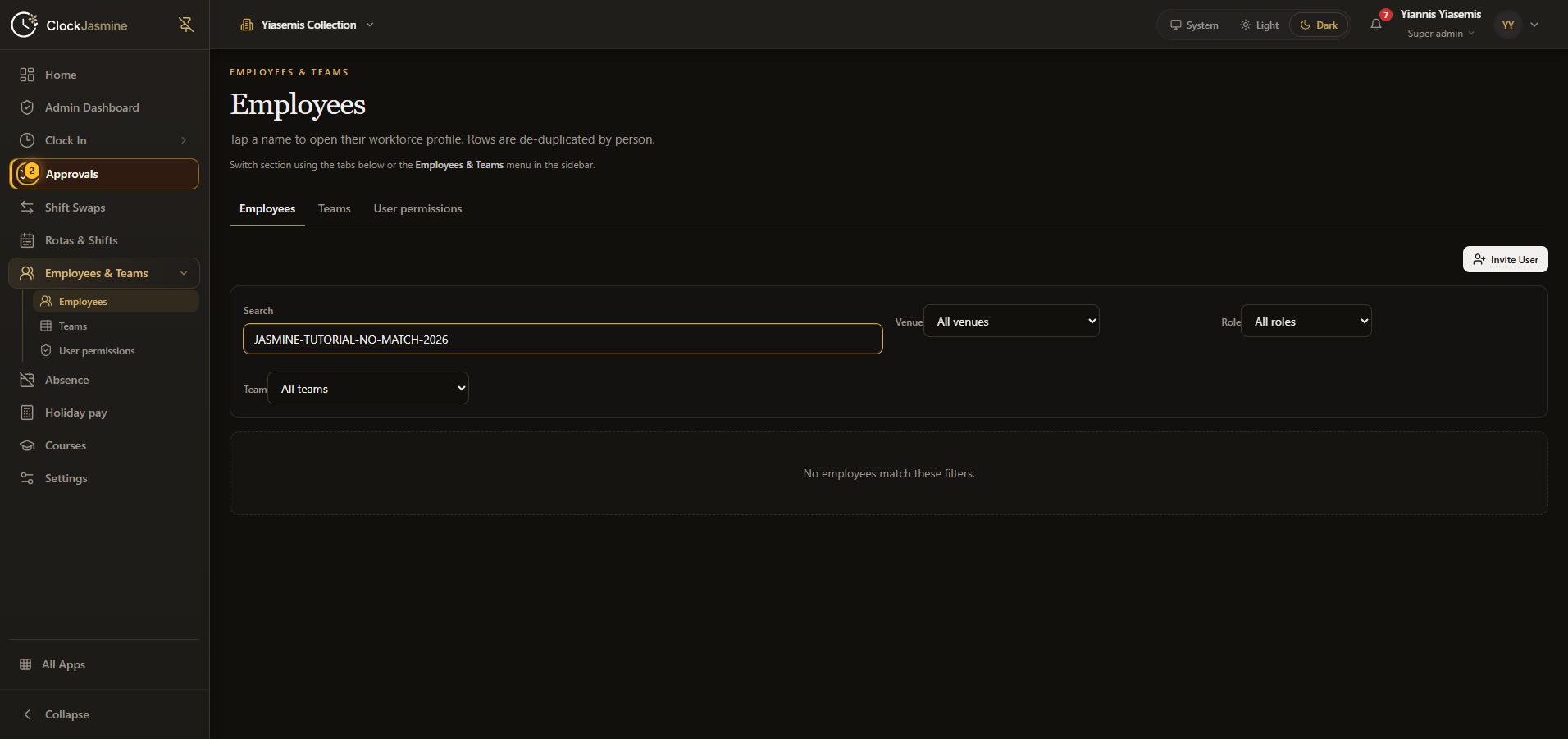
Open Employees & Teams → Employees, then Invite User. The current employee page provides Search, Venue, Role and Team filters. Clear or adjust the filters when looking for a real colleague; the tutorial search is intentionally empty.
3. Check email, venues and role
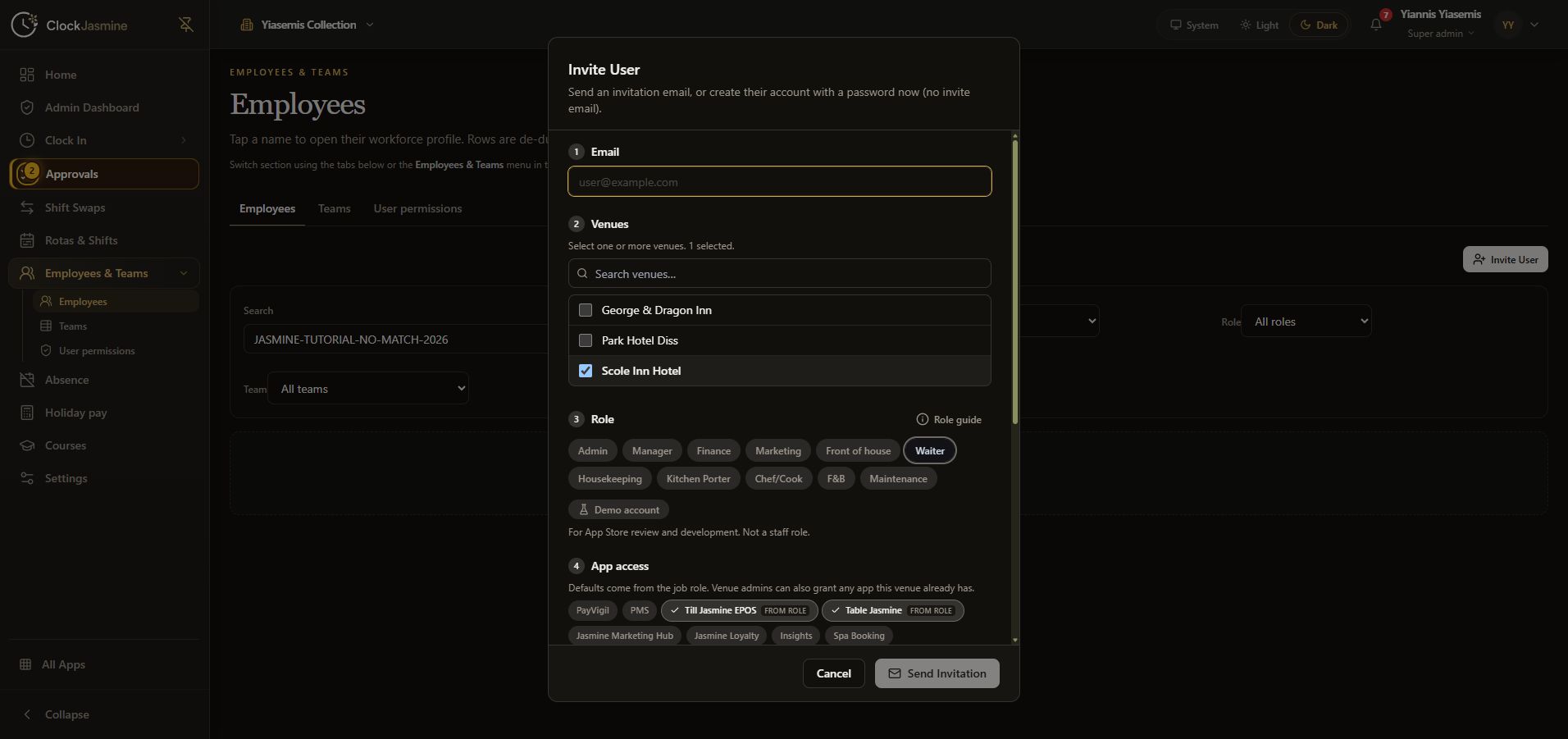
In Invite User, check the email and select only the intended venues. Choose the role that matches the person's work. The recorded form shows Waiter; it is an example, not a role recommendation for every staff member.
4. Review Role guide and App access
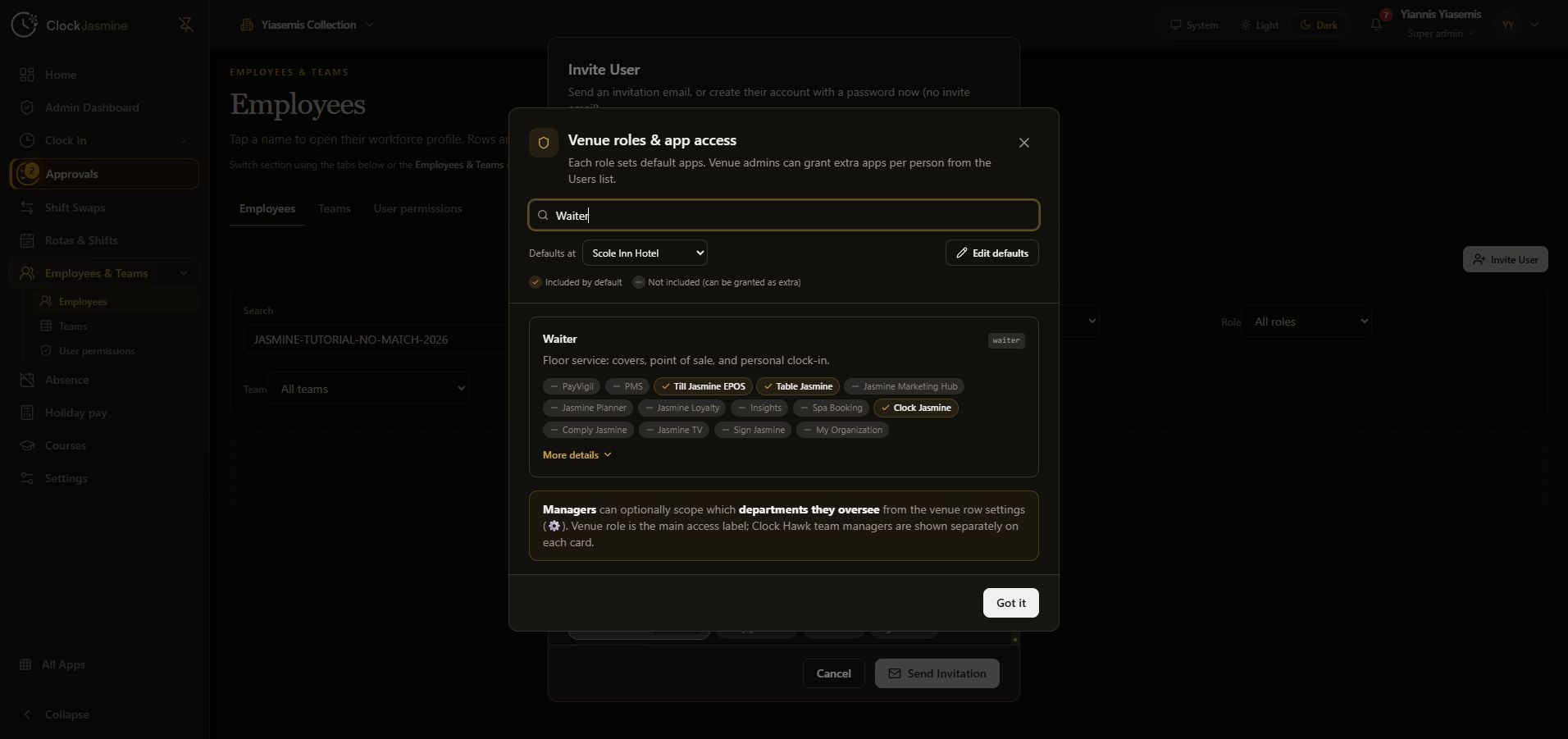
Open Role guide, choose the intended venue in Defaults at, and search the role. In this recorded Waiter example, Till Jasmine EPOS, Table Jasmine and Clock Jasmine are included. The guide distinguishes included apps from apps outside the defaults.
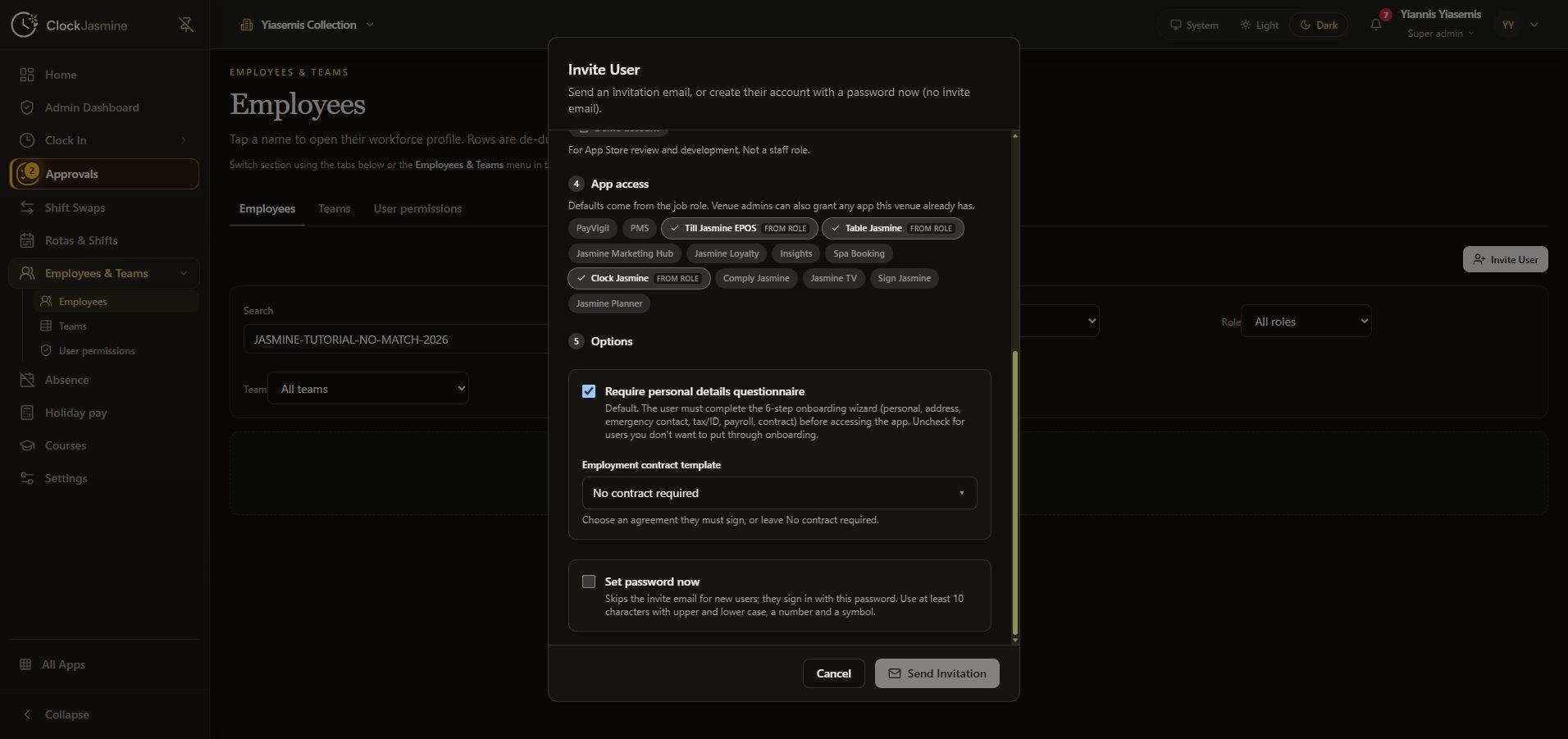
Return to the invitation and inspect App access. From role marks an included app. This walkthrough reviews the display without editing role defaults or granting extra apps.
5. Review onboarding and the agreement selector
Scroll inside the invitation to Options. Require personal details questionnaire describes the onboarding wizard. Review this choice for the person you are inviting.
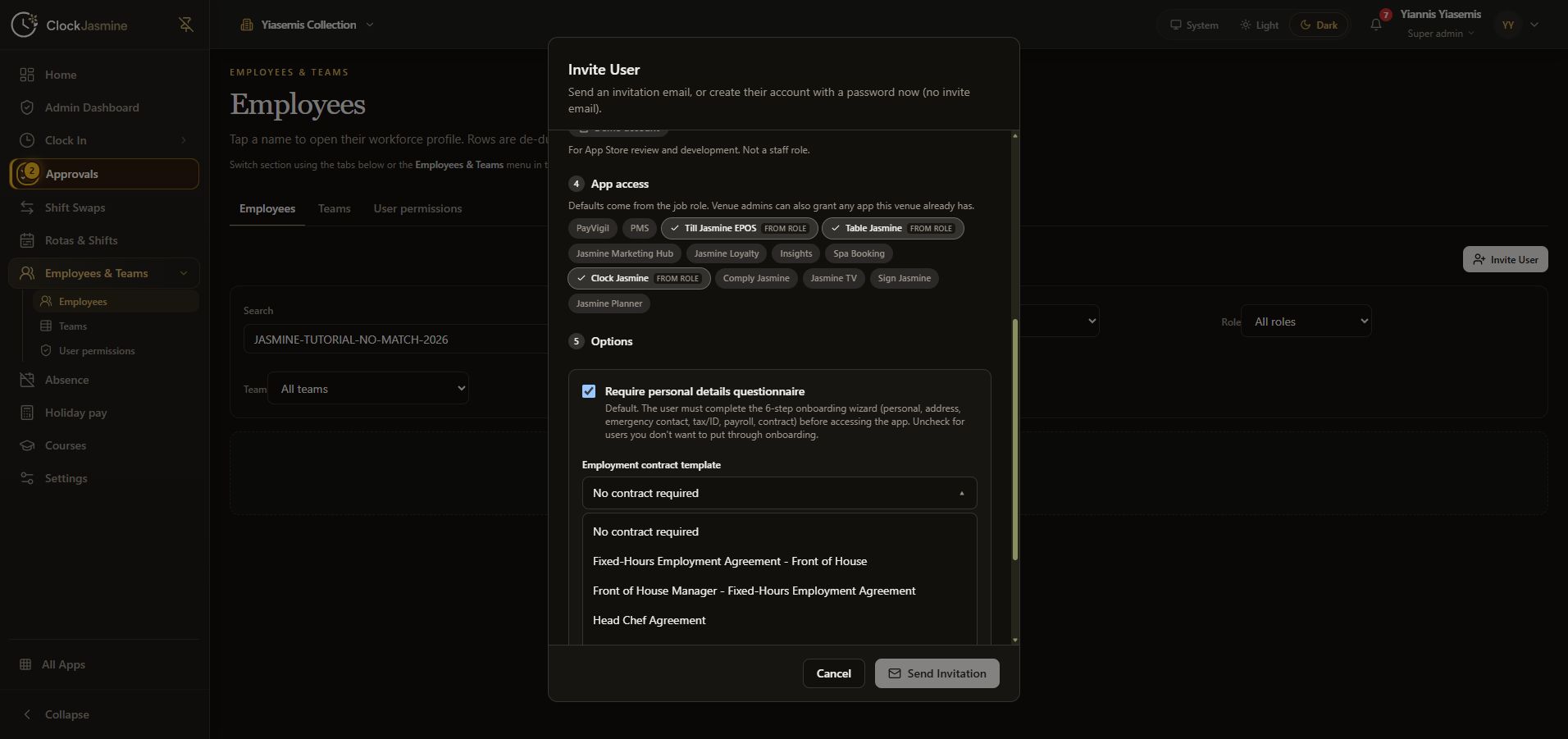
Open Employment contract template to review available agreements. Select the approved template when one is needed. The recording opens the list, closes it without selecting another agreement, and leaves No contract required displayed.
6. Review before sending
Check the email, venues, role, app access and onboarding choices together. Set password now is a separate account-creation option; it stays off in this walkthrough.
Use Send Invitation only for an intended, reviewed invitation. The demonstration selects Cancel, so no invitation is sent and no account or access is created.
Next in this series
Prepare a rota board · Review hours-export controls · Clock Jasmine overview.