

TutorialIn-app guide
Clock Jasmine: review clock-in and location controls
· Jasmine Apps
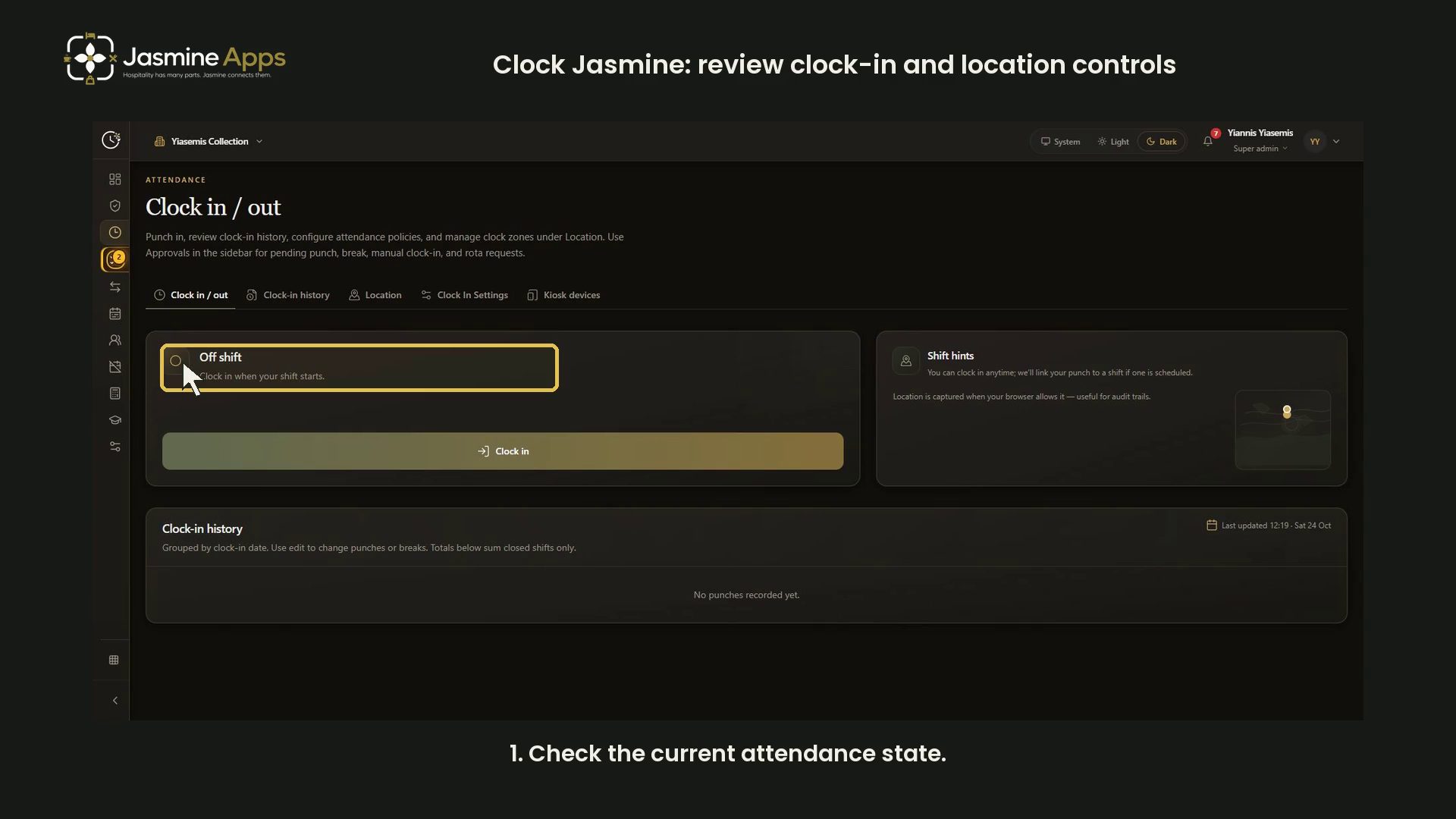
Clock Jasmine shows whether you are currently on shift and provides access to attendance history and location controls. This dark-mode walkthrough reviews the off-shift screen and a separate blank location form without recording attendance.
Watch the walkthrough
Check your attendance state
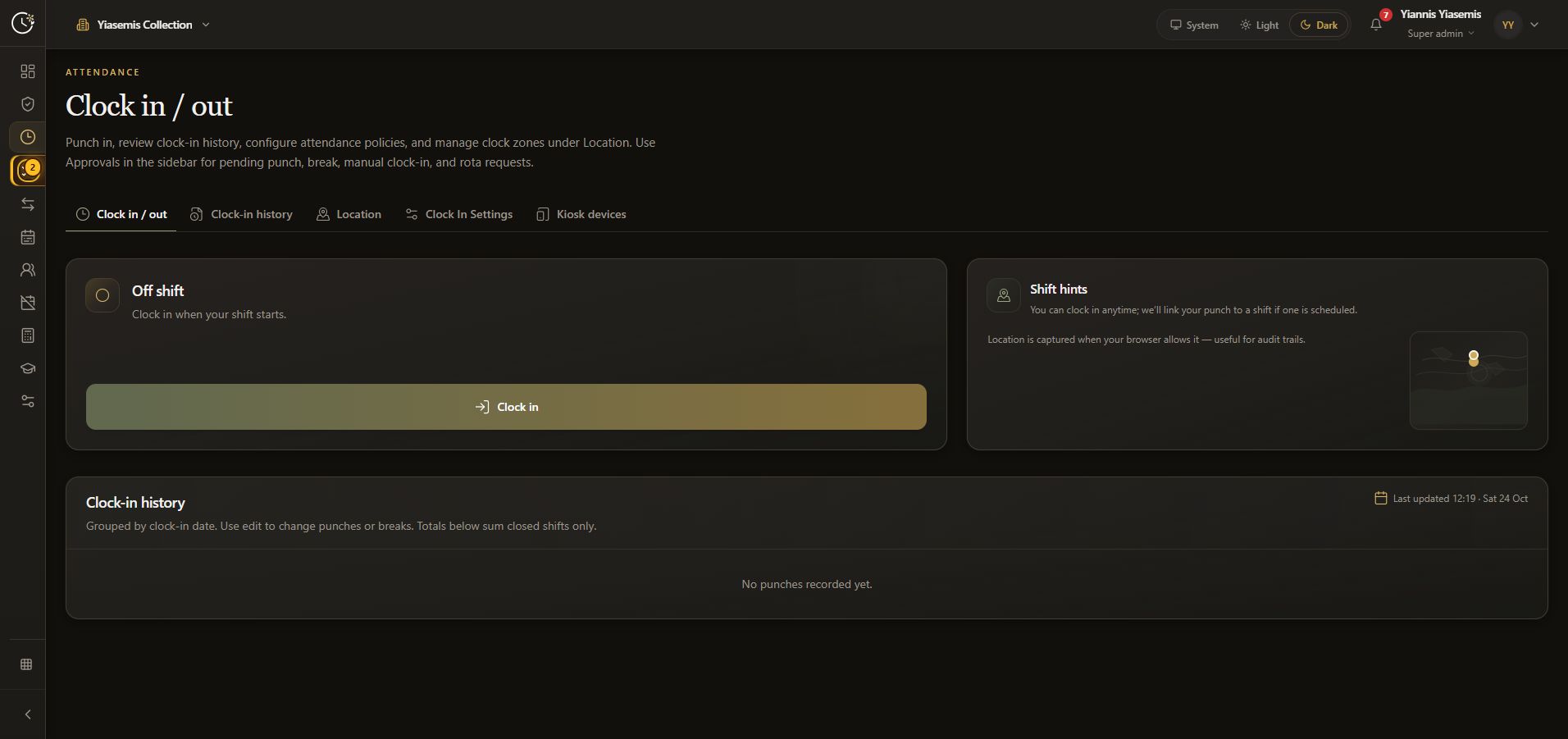
Open Clock in / out and read the current status. The example shows Off shift and Clock in when your shift starts.
Clock in records the start of attendance. Use it for your actual shift according to your venue's process. The demonstration highlights the button without pressing it.
Read the shift hints
The Shift hints panel says a punch can be linked to a scheduled shift. It also says location is captured when the browser allows it. This walkthrough does not grant location permission.
Review the history note
Clock-in history groups punches by their clock-in date. Totals sum closed shifts only. The example has no punches recorded, so it does not demonstrate an active shift, a break or clocking out.
Review a clock-location form
For administrators, Location provides allowed attendance zones. The separate blank Add clock location form shows Find by address, Location name, Latitude, Longitude, Radius (metres), Active and an optional address.
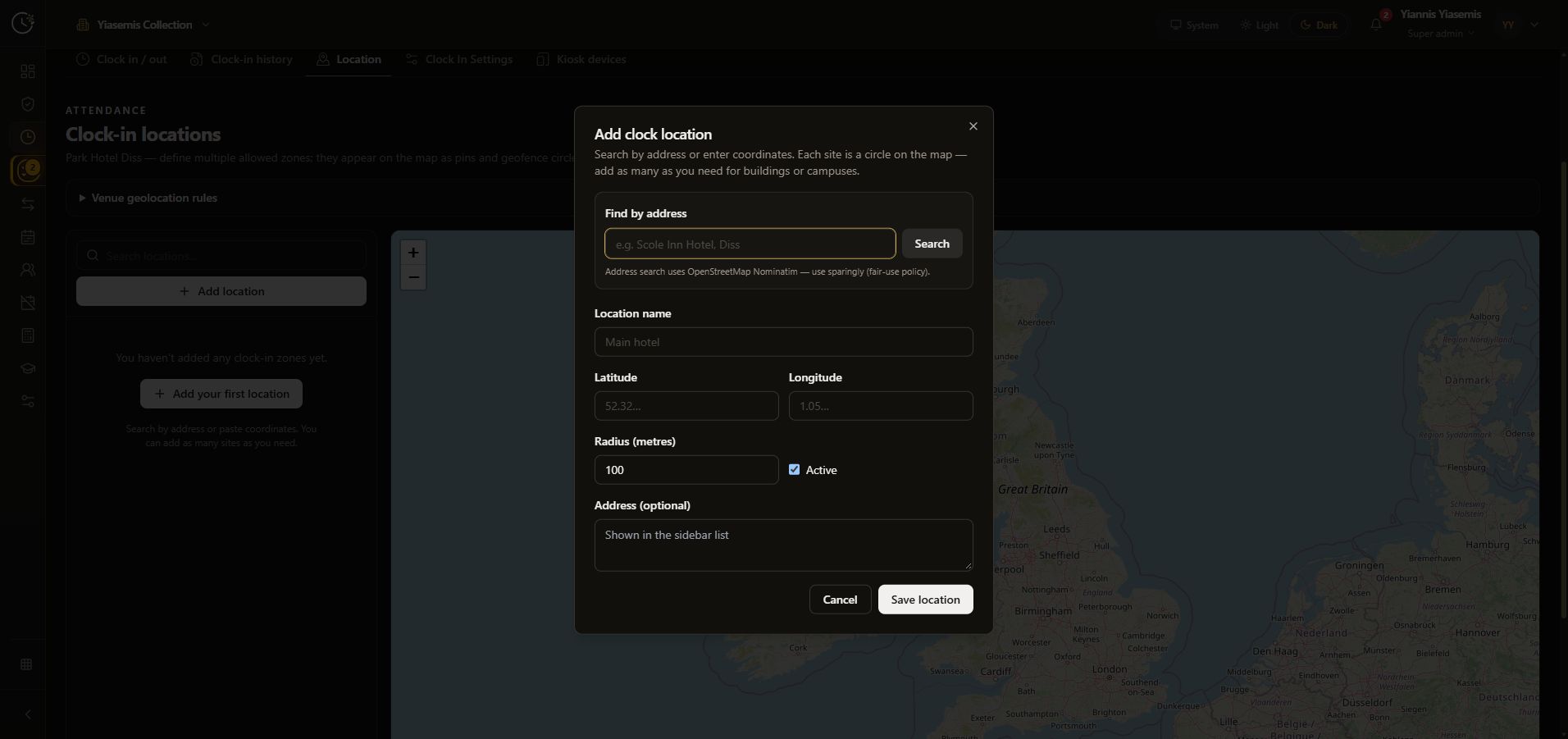
Check the details before saving a real zone: configured zones can affect attendance enforcement. This example uses Cancel and leaves the form unchanged. No zone, policy or attendance record was saved.
Continue with clock-in history or the kiosk screen guide.