

Clock Jasmine Break Time Looks Wrong? Check the History
· Jasmine Apps
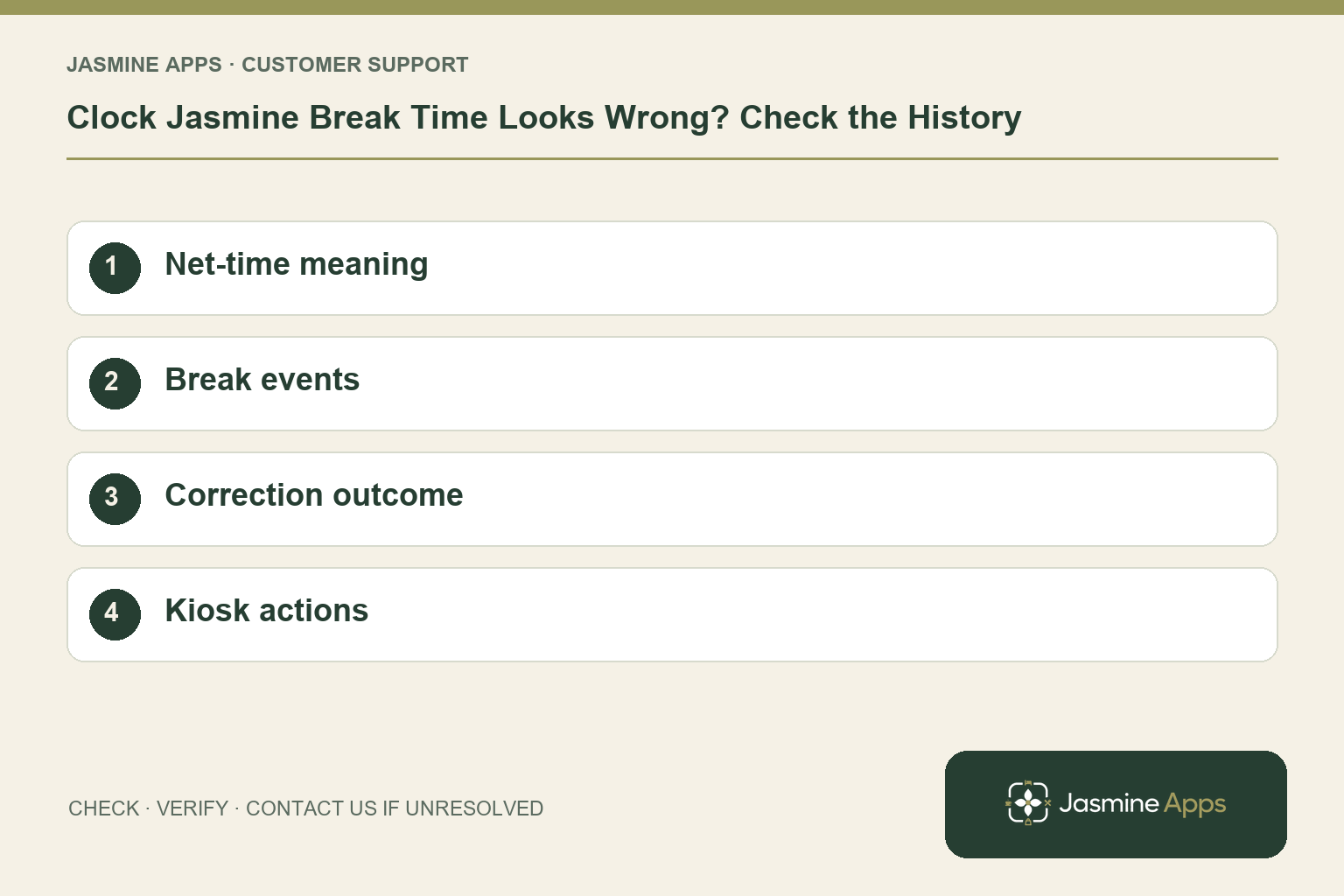
Customer support: Work through these checks in order. After each change, repeat the original action and check the result. If it remains unresolved, use Contact Us.
The employee remembers a short break, but the displayed working time suggests something longer. Clock Jasmine records break start and end actions, and its timer already accounts for breaks. Check the underlying events before adjusting the figure a second time.
Quick answer: Compare recorded break events with the actual break, use an approved correction if needed, and avoid deducting the same break twice.
1. What does the live timer represent?
The existing clock-in guide describes Net working time and says the timer deducts breaks. Treat that as the app's working-time figure for its configured workflow. Do not subtract a remembered break again simply because the shift spans several hours. For payroll decisions, review the record and your venue's pay rules rather than assuming a timer alone resolves every entitlement.
Check the result: The same break is not deducted twice.
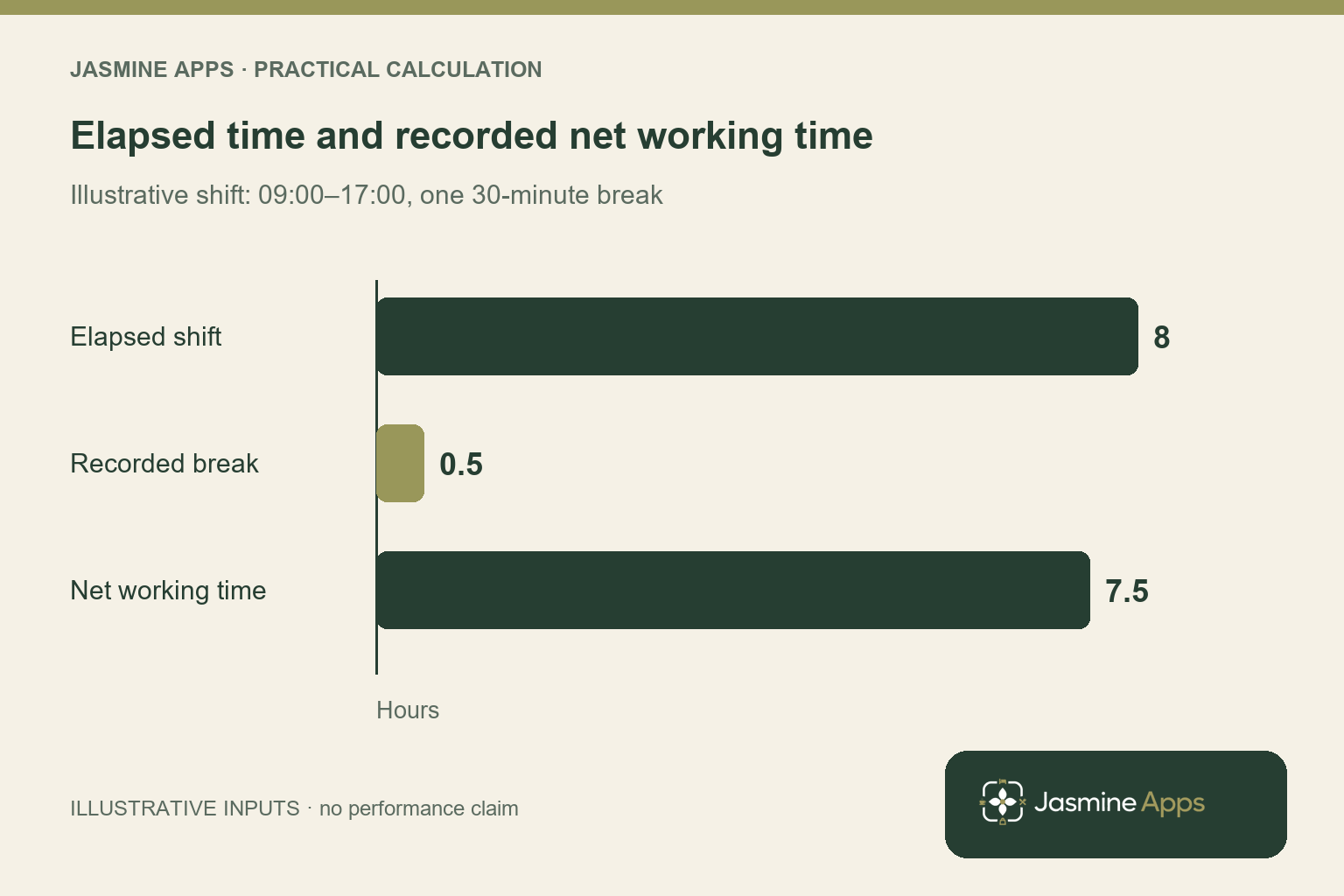
Illustrative time check: A shift from 09:00 to 17:00 spans eight hours. With one correctly recorded 30-minute break, net working time is 7.5 hours: 8 − 0.5 = 7.5. Subtracting that same break again would produce 7 hours. This explains the arithmetic, not a pay entitlement; use the venue’s approved payroll rules for payment decisions.
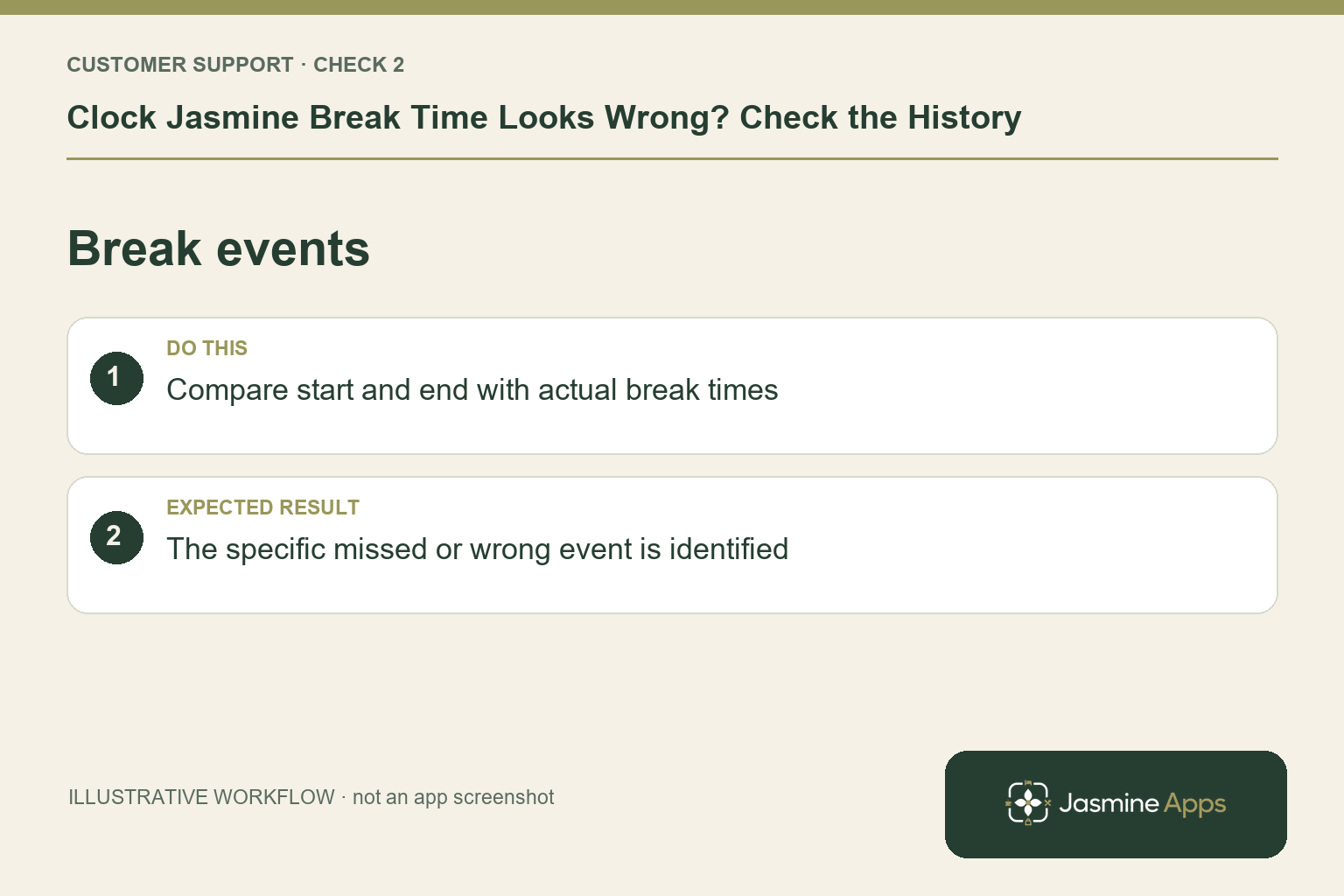
2. How do I find an unfinished break?
Open Clock-in history and review the shift's start, end and recorded breaks. The normal sequence is Start break, status On break, then End break on return. If someone forgot the return action, record the actual break end and notify the manager. A mistaken event needs the supported time-correction process; creating another shift to compensate can cause an overlap.
Check the result: The specific missed or wrong event is identified.
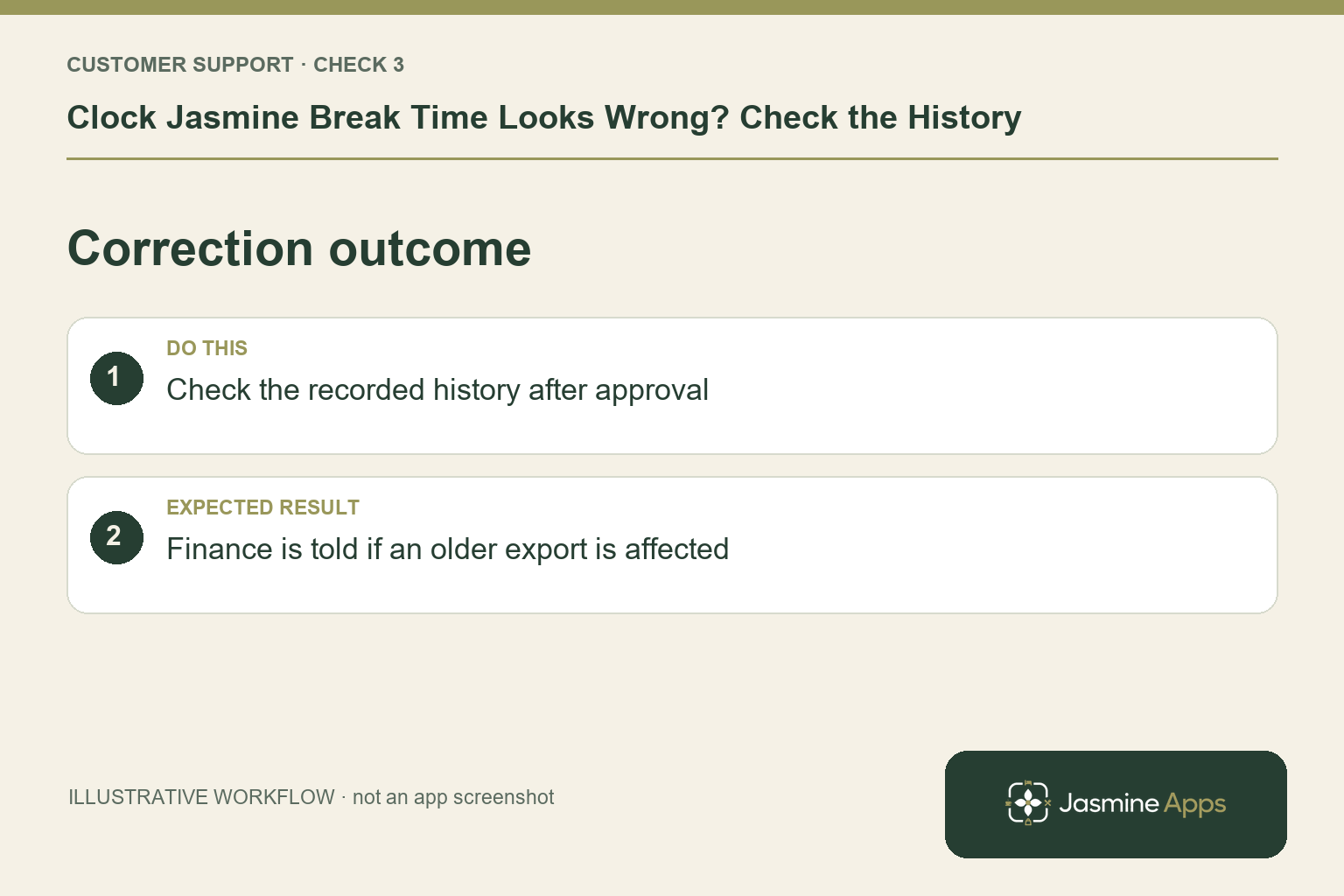
3. Who should approve the corrected record?
Submit the correction with a factual note and supporting shift context through the authorised route. Managers or admins use the relevant Approvals process. Check the resulting history after approval rather than relying on the request's presence in a queue. If hours were already exported, finance must know that the earlier file may need replacing through a controlled process.
Check the result: Finance is told if an older export is affected.
4. Could kiosk settings hide the break action?
For a shared kiosk, allowed actions are chosen during device setup. Verify the intended device permits Start break and End break, and check the current shift state: a person on break sees a different action from someone off shift. Have staff demonstrate the full arrival, break, return and exit sequence. Do not share a PIN to test another employee's record.
Check the result: The full break-and-return cycle is available.
Example from the actual app
The actual Clock-in history introduction says totals sum closed shifts only. Clock In Settings separately offers Allow users to insert breaks on mobile when kiosk mode is enabled. If the symptom is a missing mobile break action, check that policy and the current shift state. If the symptom is wrong time, review the saved events; changing an access policy does not correct a past break record.
Before you contact us
| Check | What to do | Result to verify |
|---|---|---|
| Net-time meaning | Review the timer and underlying break record. | The same break is not deducted twice. |
| Break events | Compare start and end with actual break times. | The specific missed or wrong event is identified. |
| Correction outcome | Check the recorded history after approval. | Finance is told if an older export is affected. |
| Kiosk actions | Review allowed actions and current shift state. | The full break-and-return cycle is available. |
Record which check failed, the exact error wording and when it happened. Include the relevant venue and record reference, and say whether one device or several people are affected. If you changed a setting, identify that change and the retest outcome. This helps us investigate the actual failing stage instead of asking you to repeat the whole process.
Contact Us if the expected result still does not appear. Send only the information needed to investigate; keep passwords, active codes, payment details and unrelated customer records out of screenshots.
When to stop and ask for help
Raise a persistent calculation discrepancy with the shift reference and recorded break times after corrections are approved. Explain whether the problem is a missing action, wrong event or unexpected net total. Keep employee data in the private support process.
Related support checks
- Staff Cannot See Their Clock Jasmine Shift?
- At Work but Clock Jasmine Refuses GPS Clock-In?
- Forgot to Clock Out in Clock Jasmine? What Happens Next?
Illustrations explain the workflow and are not product screenshots. Any numerical example is labelled illustrative and is not a customer result. Product wording and documented setup checks reviewed on 13 October 2026; confirm the features available in your current installation.