

TutorialIn-app guide
Clock Jasmine approvals: review and verify a time correction
· Jasmine Apps
Review a Clock Jasmine time-correction request, save the decision and check that the approved values reached Clock-in history. This walkthrough uses only the fictional Demo account in Demo Venue.
Before you start
Open the intended venue with an account authorised to review Clock Jasmine requests. Have the verified shift details ready before deciding. Approval changes the attendance record and can affect reported hours and pay figures; compare the request with your venue's approved evidence.
A staff time-correction request and a manager's direct manual edit are different workflows. In this training test, the Demo account submitted its own correction in the app's session-only Front of house role preview, then returned to its actual Admin role. No persistent membership or role was changed. The video begins with that real request already pending; it does not demonstrate a separate employee signing in.
The fictional shift is 5 November, starting at 09:00. The request changes its finish to 13:30, giving four hours and thirty minutes with no breaks. These are training values, not actual employee hours or payroll.
Watch the walkthrough
Review the pending request
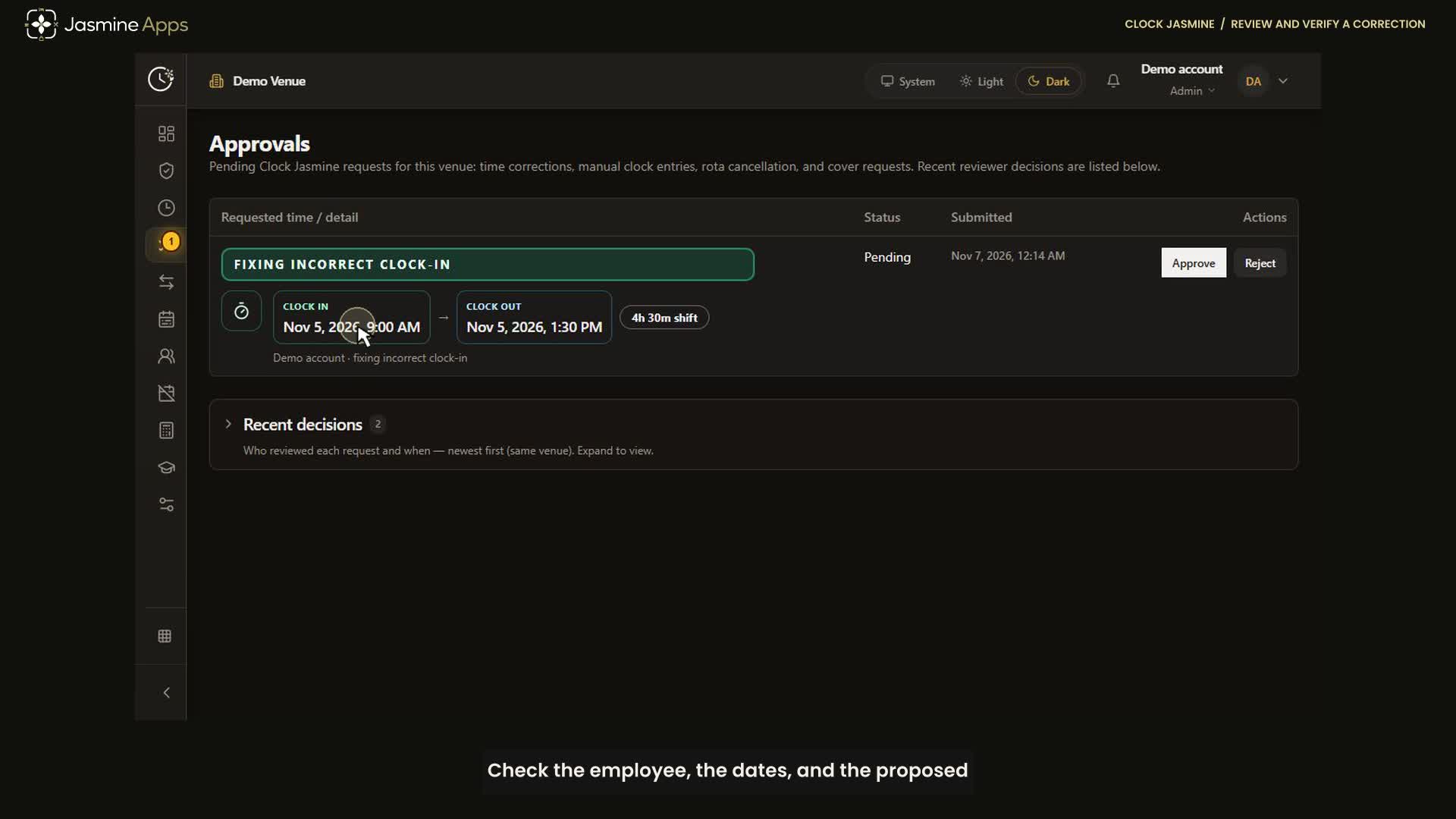
Open Approvals in the Clock Jasmine sidebar. Home also provides View all requests, and the request panel offers Open full page.
Check the selected venue, the request type, the person, the proposed clock-in and clock-out dates and times, the displayed duration and its Pending status. Dates matter as well as the time of day, particularly for overnight shifts.
Compare the proposed values with the intended correction. Do not assume that text typed into a time field was retained: the pending request shows the values that are actually being reviewed.
Approve and wait
Choose Approve only after reviewing the request. In the tested interface, this action submits the decision immediately; there is no additional approval confirmation dialog.
Wait for the request to leave the pending table. The recording reaches Nothing waiting for approval because this was the only pending request. In a busier venue, other requests may remain; check the specific item rather than expecting an empty queue.
Do not submit the decision repeatedly while it is processing. A cleared pending row alone is not the final verification.
Verify the decision
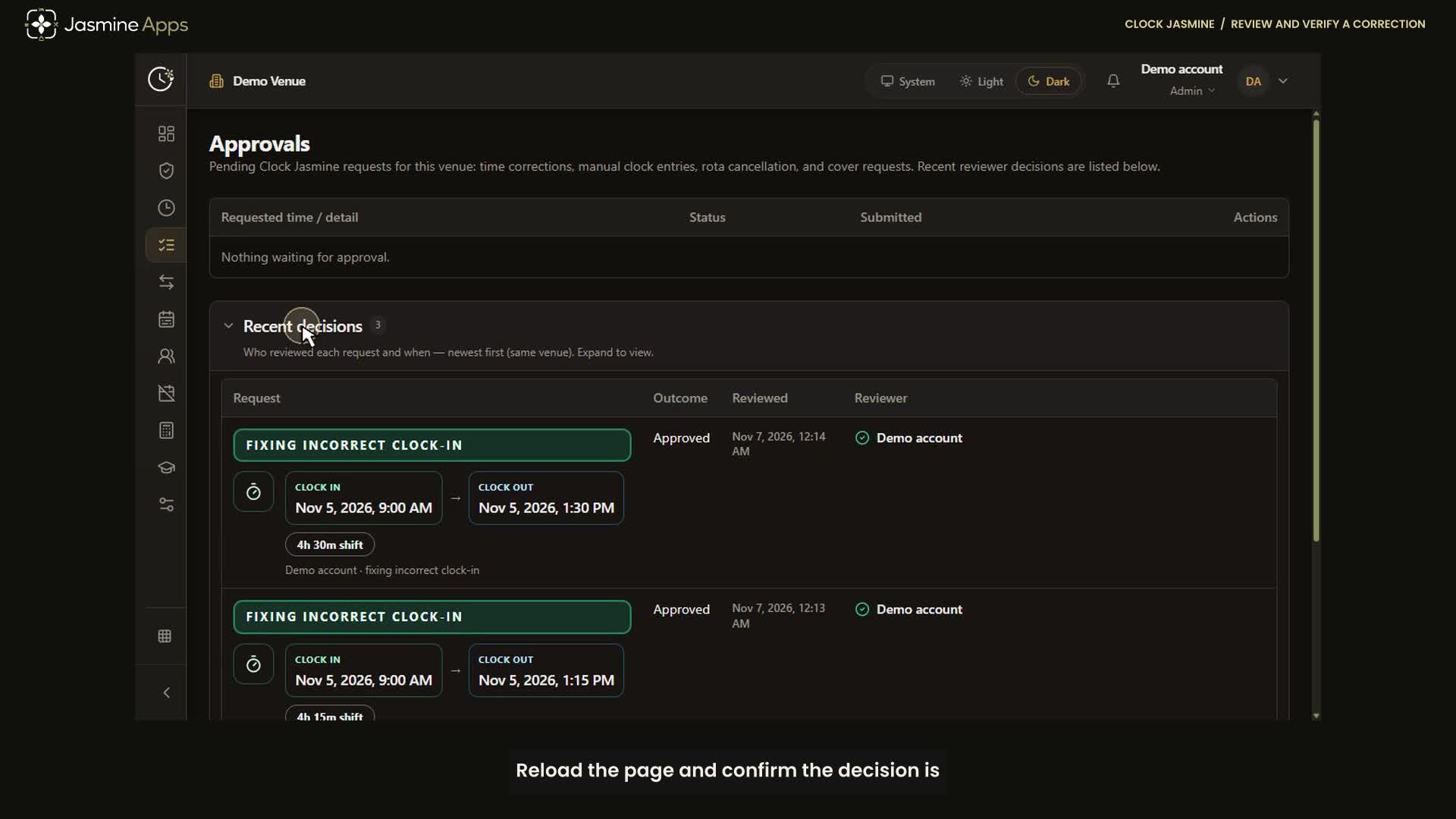
Expand Recent decisions below the pending table. Find the matching correction and compare its dates, times and person again. Check Approved, the review timestamp and the reviewer. The current page lists newer decisions first.
Reload the page, reopen Recent decisions and confirm that the same saved decision remains. The walkthrough completes this reload check before moving to attendance.
Check attendance
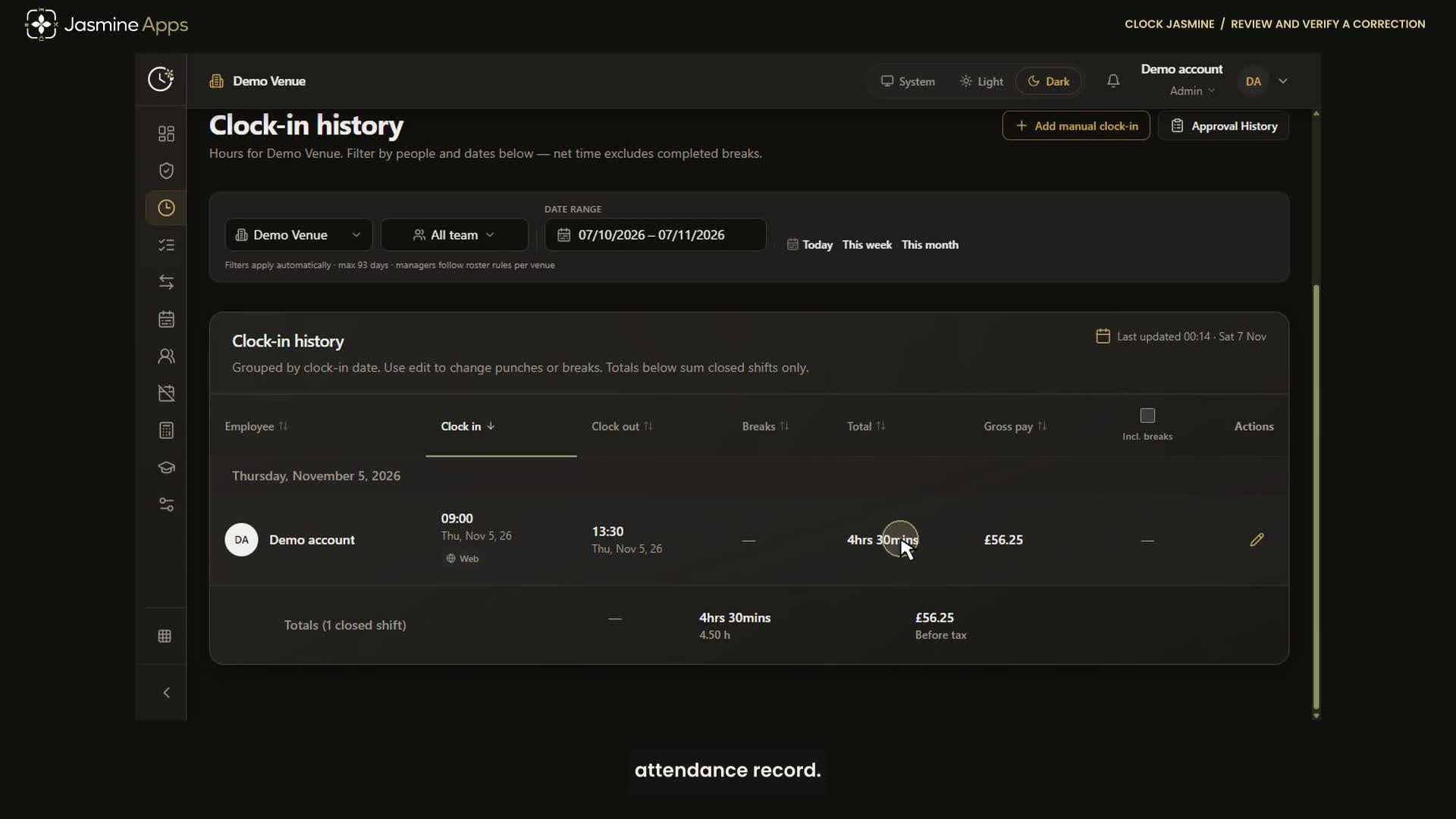
Open Clock-in history and use a date range containing the corrected shift. Check the venue and employee filters, then scroll to the matching row.
The verified example shows 09:00 clock-in, 13:30 clock-out and 4hrs 30mins. With no breaks, the net total is 4.50 h. Where breaks exist, compare the break records and the Incl. breaks setting before interpreting the total. That switch can show the full shift span instead of net worked time.
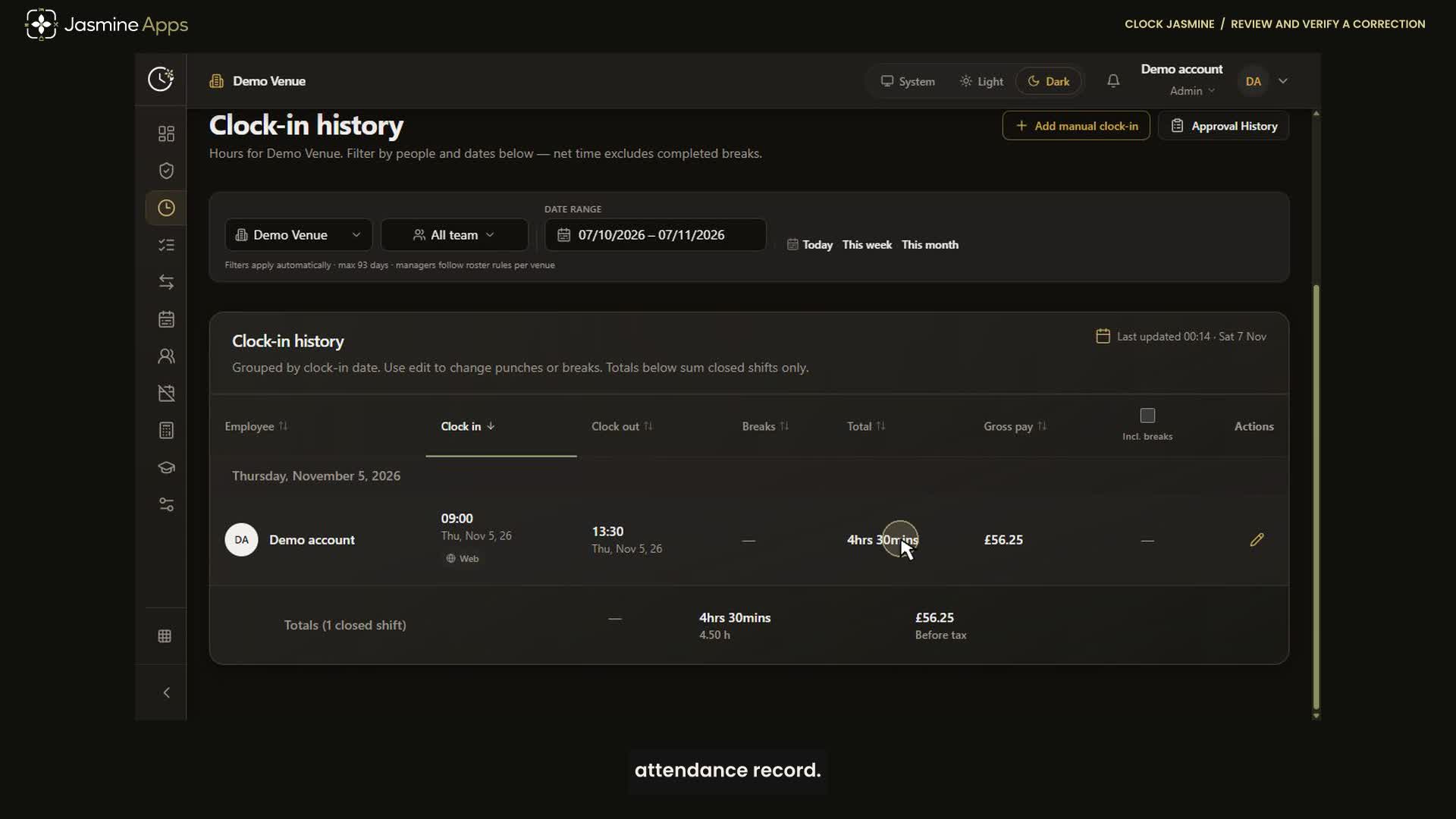
The displayed gross figure comes from the fictional profile rate. This tutorial does not calculate a pay period, export payroll, mark anything paid or transfer money. Follow the separate reports and payroll-export guides for their verified scope.
Declining a request
If the proposed values are incorrect, use Reject rather than approving them to clear the queue. The current Decline time correction dialog has an optional message and Show decline to employee & notify in-app.
Review that checkbox deliberately. The dialog says an unchecked choice is a silent decline: the decision and optional note are retained for managers, without the employee alert or the employee's Recent time-correction decisions entry. A checked choice shows the decline to the employee and sends an in-app notification. Finish with Decline request, or use Cancel to leave the request pending.
The main video demonstrates approval. A separate fictional unchanged submission was silently declined during verification; the video does not demonstrate employee receipt of a notification. Absence decisions, rota cancellation, cover requests and break-specific corrections require their own checks; this guide verifies the time-correction route only.
Troubleshooting
- No pending request: confirm the venue and whether the employee actually submitted it. A direct admin edit may already be saved without a pending request.
- The proposed time is wrong: ask for a corrected request or use the appropriate rejection process; do not approve values solely because a note describes different ones.
- The request disappeared: inspect Recent decisions before deciding that it failed or submitting another request.
- History still looks unchanged: check the employee, dates and venue, reload, and compare the exact shift.
- The hours differ from the shift span: review breaks and Incl. breaks before assuming an error.
- A reviewer or decision seems incorrect: retain the audit details and investigate through your venue's authorised process.
Continue learning
Clock in and out · Manual entries and breaks · Attendance reports · Payroll exports · Holiday-pay profiles.