

TutorialIn-app guide
Clock Jasmine absence approvals: review and verify a decision
· Jasmine Apps
Review a Clock Jasmine absence request, approve the intended fictional booking and verify its saved status after reloading. The video uses the Demo account in Demo Venue and does not make a decision about a real employee's time off.
Before you start
Use an account authorised to decide absence requests for the intended venue. Confirm the employee's request and your workplace's approval process before choosing a decision. This guide explains app controls; it does not decide whether a real employee should receive leave.
The training request is Unpaid Leave for 10 November 2026, with a note stating that it is fictional and does not represent real employee time off. It was submitted by the Demo account using the app's session-only Front of house role preview. The account then returned to its existing Admin role for review. No permanent role or venue membership was changed.
The video begins with the genuine request already Pending. It verifies approval and persistence. It does not demonstrate annual-leave eligibility, entitlement deductions, a sickness decision, document review or delivery of an employee notification.
Watch the walkthrough
Find the absence request
Open Approvals in the Clock Jasmine sidebar. Its panel includes Open full page for the full approvals view shown in the recording.
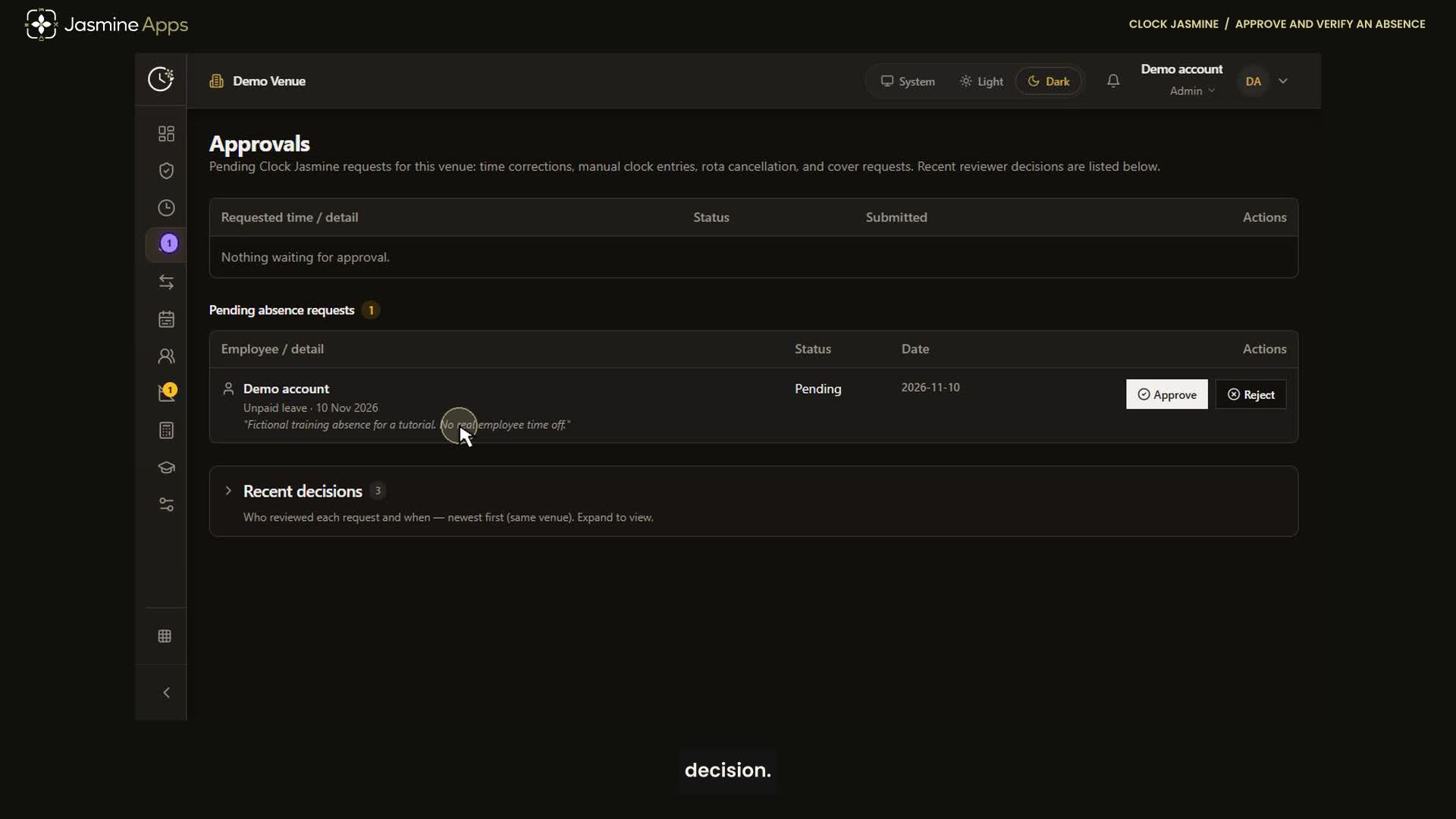
Look for Pending absence requests. This is a separate section from the time-correction and other pending requests above it. The training page says Nothing waiting for approval in the upper table while still showing one pending absence below; that upper message does not mean there are no absence requests.
Read Employee / detail, Status, Date and the available actions on the absence's own row.
Review the request details
Confirm the requesting employee, type of leave, dates and note together. Check them against the intended request before making a decision. Where your workplace requires supporting evidence or scheduling checks, complete those through its authorised process.
Use the employee identity in Pending absence requests to identify the request. The Employee value in the separate Book absence form is the subject of that form; it is not a substitute for identifying a pending request.
In this example, the request is one day with a clearly fictional note. Do not copy its date or training note into a real employee record.
Approve and wait
Choose Approve on the reviewed absence row. In the tested route, this submits the decision immediately; no additional approval dialog appears.
Wait for the request to leave Pending absence requests. The sidebar pending count also clears in this one-request training case. A busier venue may still have other requests, so follow the specific item instead of expecting the whole queue to be empty.
Avoid repeating Approve while processing. Verify the resulting absence record rather than treating a disappeared row alone as proof of the final status.
Verify absence history
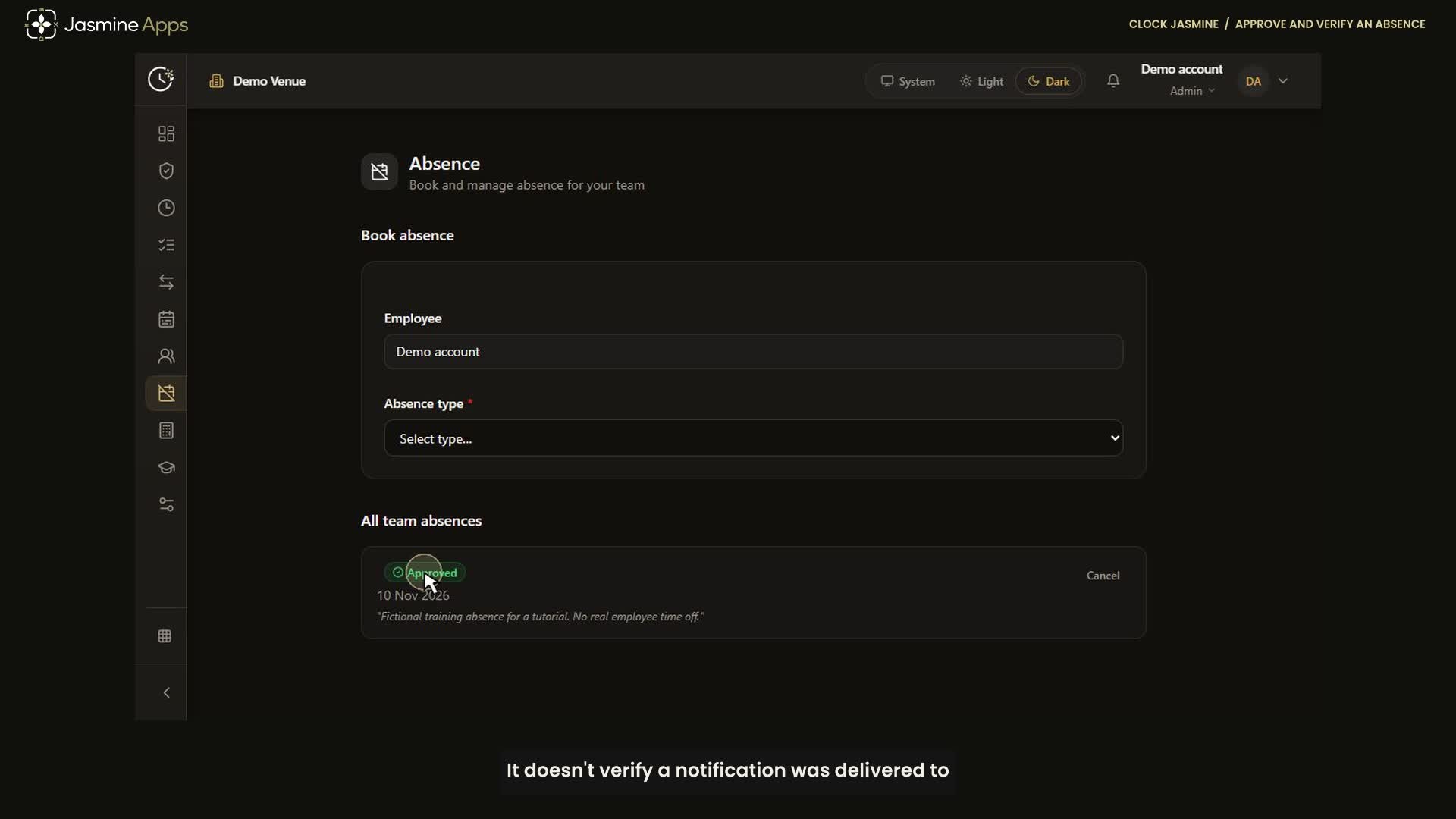
Open Absence and find the same date and note in the history. The admin view labels the section All team absences. The training entry now shows Approved.
Reload the page and compare the same booking again. The recording verifies that Approved remains after reload, alongside the intended date and training note.
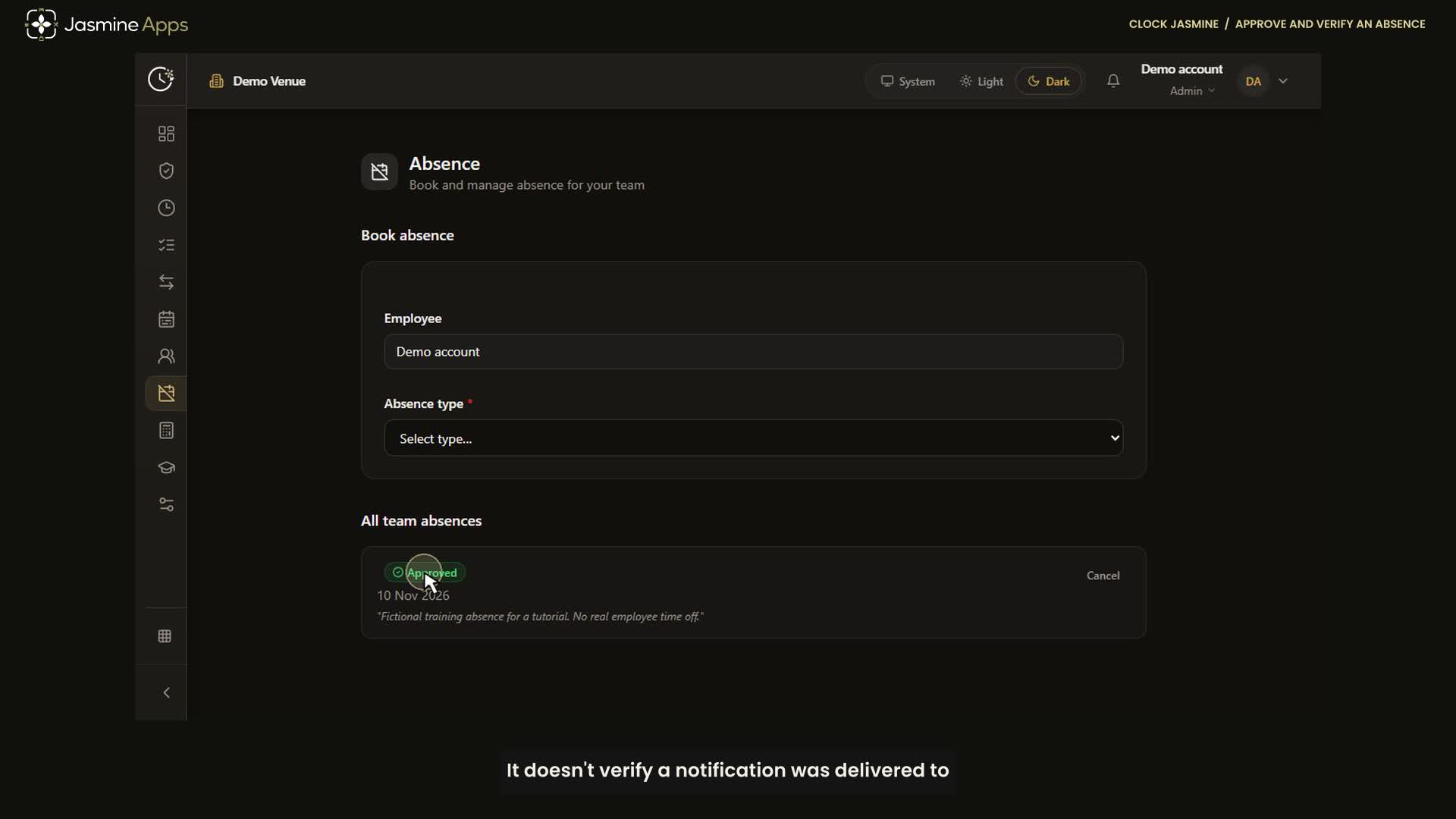
This confirms the stored decision in the same browser. It does not prove a notification reached an employee, that the employee viewed it on another device, or that a payroll calculation included the absence.
Separate other actions
Reject and Cancel are separate from approving a request. They are visible in the tested admin absence workflow, but the video does not submit either action or demonstrate their later effects. Review their current prompts and your workplace's process before using them.
Creating the absence is also separate. In the preparation test, the staff preview selected Unpaid Leave, chose the start date, checked that the end date matched and the summary said one day, added the fictional note and used Add absence. The saved history then showed Pending. Use the absence-booking guide for the demonstrated form workflow and its scope.
Paid leave availability depends on profile settings. The staff preview's page said annual leave is enabled by an admin on the employee profile and did not offer that type. The unpaid-leave result here should not be presented as verification of annual-leave balances.
Troubleshooting
- The upper approvals table is empty: scroll to Pending absence requests; absence requests have their own section.
- You cannot identify the requester: use the Employee / detail row in Approvals before deciding. Do not infer ownership from the Book absence form.
- No pending absence appears: confirm the venue and whether Add absence completed; an unsaved form is not a request.
- The row disappeared after a decision: check the matching booking in Absence history before retrying or creating another request.
- The status is still Pending: wait for processing, reload the intended venue and inspect the same booking.
- Annual leave is unavailable: review the employee's approved profile configuration through an authorised admin; this tutorial does not change eligibility.
- A notification has not been received: the saved Approved status does not verify delivery or employee receipt.
Continue learning
Book an absence · Review time corrections · Draft rota shifts · Attendance reports.