

TutorialIn-app guide
Clock Jasmine holiday pay: save an employee profile
· Jasmine Apps
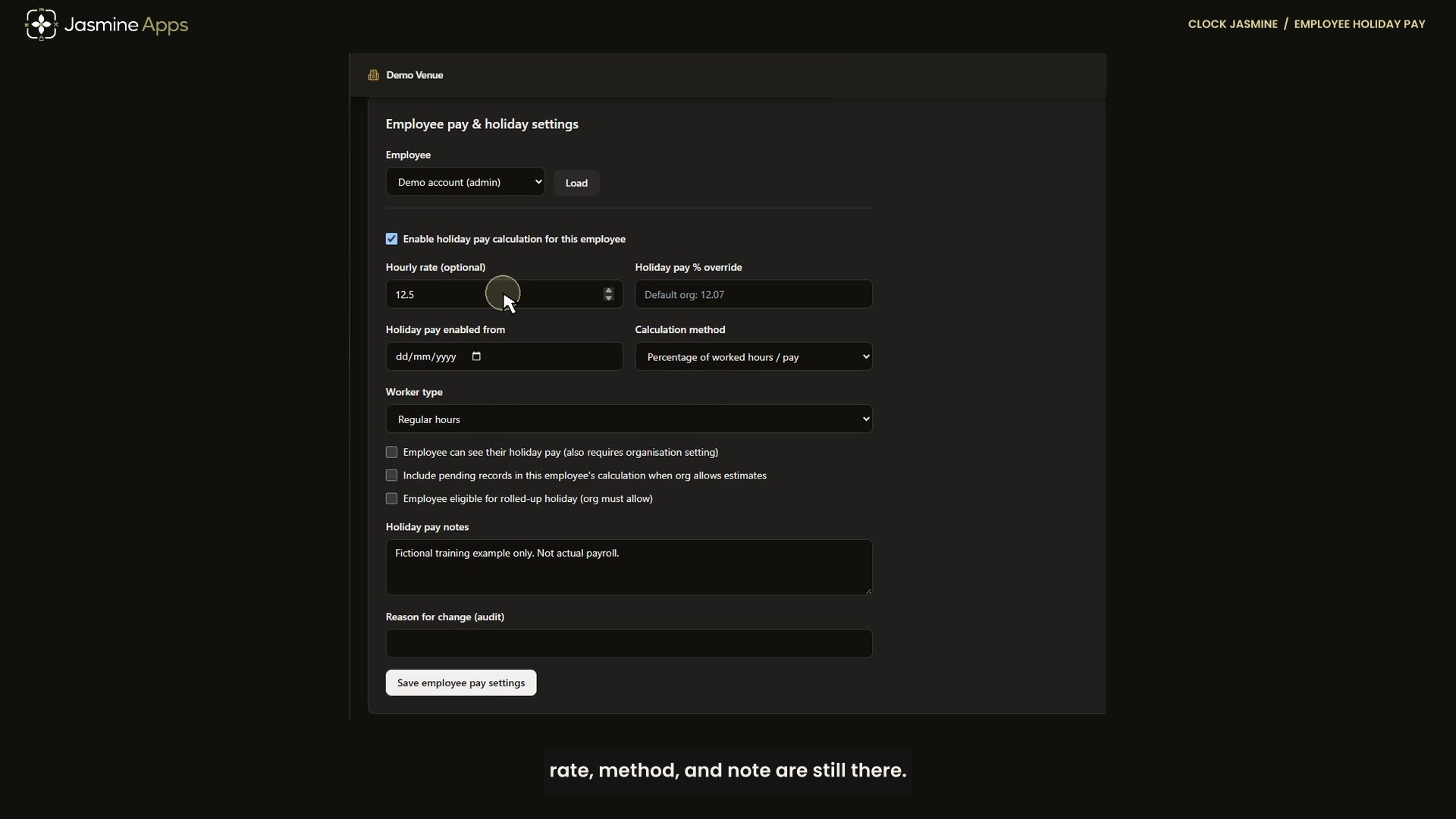
Set up an employee's holiday-pay profile in Clock Jasmine, save it and check the retained settings after reloading. This walkthrough demonstrates the profile configuration in Demo Venue. It does not calculate a pay period, mark a record paid or transfer money.
Before you start
Open Clock Jasmine for the intended venue using an account authorised to manage employee pay settings. The current page says Admin and Finance can configure rules. Managers can see amounts only when their membership access permits it.
Have the employee's approved pay details and calculation policy ready. This article explains the app controls; it does not select a legal calculation method, percentage or entitlement for your staff. The displayed defaults and fictional training rate are examples, not recommended payroll settings.
The recording contains only the verified fictional Demo account. Real employee pay details and private contact information are excluded.
Watch the walkthrough
Select the employee
Open Holiday pay in the Clock Jasmine sidebar. Review the selected venue, then find Employee pay & holiday settings.
Choose the intended Employee and use Load when changing which profile you are reviewing. Confirm the identity before entering values. The walkthrough starts with the existing Demo account already selected; it does not create an employee or grant access.
Organisation defaults is a separate section with its own Save organisation defaults button. Saving an employee profile does not save edits made in that section. Review the venue policy before changing shared defaults.
Review the profile fields
Select Enable holiday pay calculation for this employee when that configuration is intended, then review the fields together:
- Hourly rate (optional): the employee's approved rate. The demonstration uses a fictional £12.50 example.
- Holiday pay % override: an individual percentage field. In the recorded profile it is blank and its placeholder displays the organisation default. Review whether an override is required for your policy.
- Holiday pay enabled from: the profile's date field. The walkthrough leaves it blank.
- Calculation method: the available choices include percentage of worked hours/pay, manual/custom percentage, accrued holiday hours, rolled-up holiday pay and salaried/custom methods. The recording retains the existing percentage method; it does not determine which method is appropriate for another worker.
- Worker type: review the selected classification alongside the calculation method. The current options include regular hours, irregular hours, part-year, zero-hours/casual, salaried and custom. The example retains Regular hours.
The three employee checkboxes below these fields have separate purposes. Employee visibility also requires the organisation setting. Including pending records requires the organisation to allow estimates. Rolled-up eligibility requires the organisation to allow that option. Review both levels before expecting an employee checkbox to take effect. The walkthrough leaves all three unchecked and leaves organisation defaults unchanged.
Explain and save the change
Use Holiday pay notes for useful profile context. Enter Reason for change (audit) to explain why the change is being made. The training example explicitly identifies itself as fictional.
Choose Save employee pay settings and wait for the request to finish. Do not use Calculate & save draft as a substitute for saving the profile: it is a separate action in the next section.
Reload and verify
Reload the page, find the same employee profile and check the enabled state, rate, method, worker type and notes. The recording confirms that the fictional rate and note remain after reload. The brief reload wait is shortened in the video.
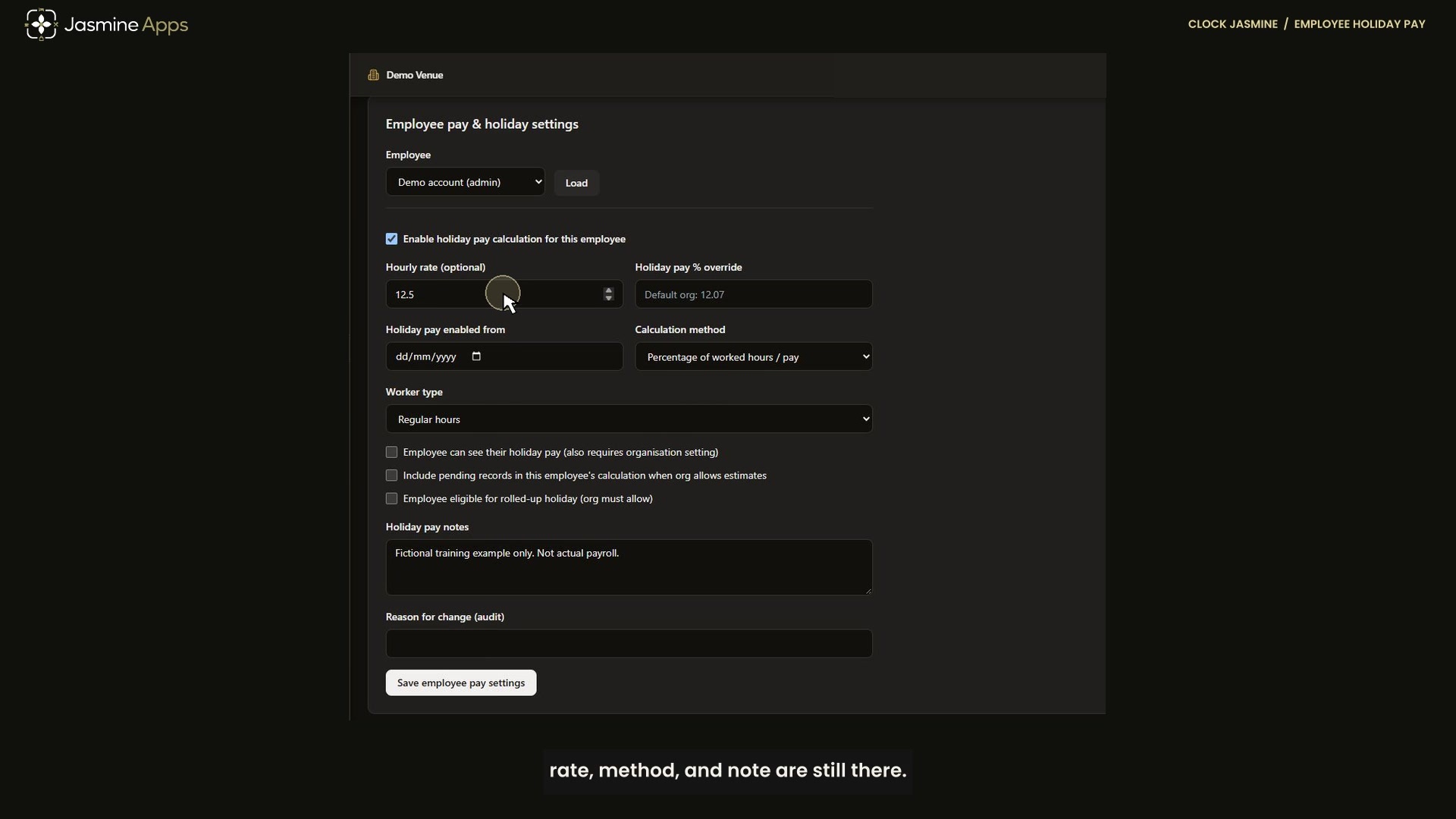
The reason field clears after saving in this observed workflow. A cleared field alone is not proof that every intended change was saved; verify the retained profile values. This walkthrough verifies the profile save rather than a new entry in the separate Recent audit table.
Understand the separate calculation
Calculate period (draft record) has its own start and end dates, optional audit note and Calculate & save draft button. The page explains that each successful run creates a new draft row and that calculations use approved clock-in/timesheet data and adjustments. Check records before repeating a request.
During verification on 6 November 2026 in Demo Venue, this separate calculation action opened a Please tap Refresh error screen. After refreshing, Holiday pay records still showed no records. Consequently, this guide demonstrates the working employee-profile save only. It does not claim a successful draft calculation, CSV export, payment or period lock.
If you encounter that error, refresh and inspect existing records before retrying. Record the error reference for support. Verify the calculation and its underlying attendance data with the person responsible for payroll before processing real pay.
Troubleshooting
- The employee is wrong: select the correct venue and employee, then load and review that profile before saving.
- A profile change disappears: use Save employee pay settings, wait for the request and verify the same profile after reload.
- A shared default was not saved: organisation defaults have their own save button.
- An employee cannot see an amount: review both organisation and employee visibility settings and the person's authorised access.
- Pending time is absent: check the organisation estimate option and employee pending-record option together.
- The saved profile exists but no period row appears: saving a profile and creating a calculation draft are different actions. Check the calculation result and error state.
- A figure looks wrong: check the period, attendance approval state, rate, overrides, worker type and method before treating an estimate as payable.