

TutorialIn-app guide
Clock Jasmine locations: create and verify an inactive zone
· Jasmine Apps
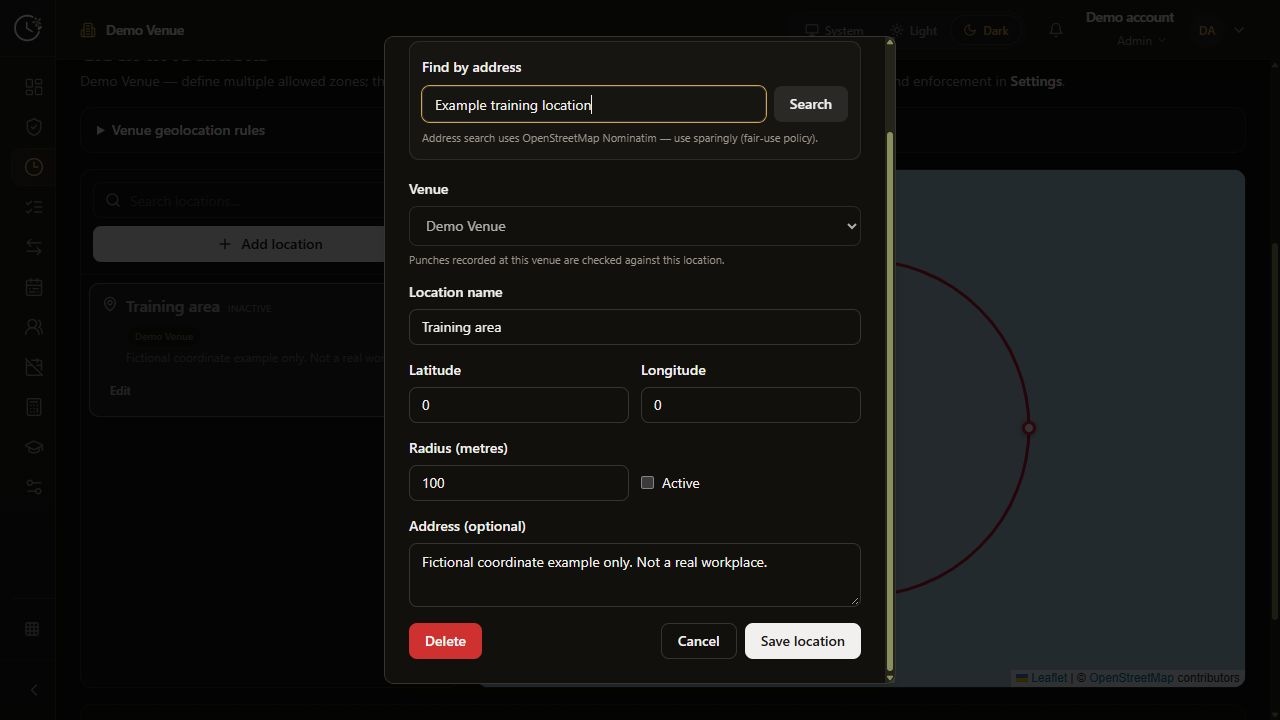
Create a Clock Jasmine location zone, keep the training example inactive, save it and verify it after reloading. The walkthrough uses fictional coordinates and a labelled training description. It does not expose a workplace's real location or demonstrate a GPS-verified punch.
Before you start
Use an account authorised to manage locations for the intended venue. For a real setup, have the approved workplace coordinates and boundary ready. Do not use a person's home address as an example or disclose private location data in training material.
This demonstration creates Training area in Demo Venue at latitude 0 and longitude 0, with a 100-metre radius and Active off. The coordinates are a fictional configuration example, not a workplace or a suggested operational zone. The description explicitly says it is not a real workplace.
No browser location permission is requested, no current GPS position is captured and no address search is submitted. The map's place labels are public map content, separate from a captured employee location.
Watch the walkthrough
Open the location form
Open Clock In → Location, or go to Clock-in locations. Confirm the venue and choose Add location. An empty list also offers Add your first location.
The video starts inside the already-open form. Its address-search field contains an illustrative training label; Search is not selected. The demonstrated route enters coordinates directly.
For an authorised real address search, the page identifies OpenStreetMap Nominatim as its provider. Review the result and intended site rather than assuming that a matching place name establishes the correct boundary.
Enter the zone details
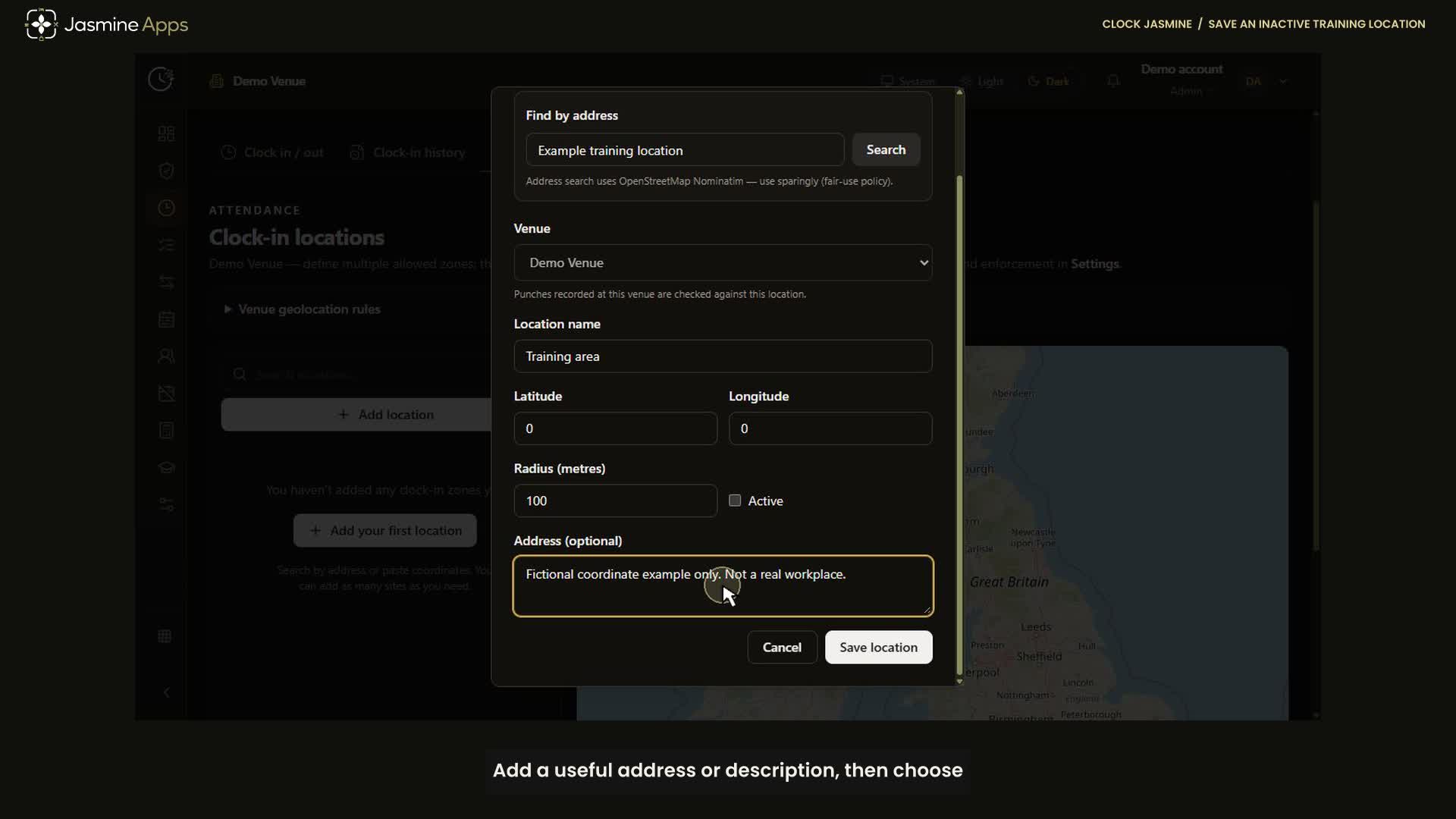
Check Venue, then enter a clear Location name. A recognisable building or entrance label helps distinguish several sites.
Enter Latitude and Longitude in their separate fields and compare them with your approved source. The walkthrough uses 0 in both fields solely as a fictional example. Do not copy those values into a live workplace setup.
Use Address (optional) for a useful site description. The example says: Fictional coordinate example only. Not a real workplace.
Review radius and Active
Radius (metres) describes the circular zone around the coordinates. The example retains 100 metres. A larger circle covers a larger area; choose a real boundary through your workplace's approved process rather than copying the training radius.
Review Active deliberately. The training example clears it before saving, and the list later shows Inactive. The page explains that enforcement accepts a punch when GPS falls inside any active zone; an inactive example is not evidence of an accepted punch.
Save and verify
Choose Save location and wait for the form to close. Check the new entry's name, description and Inactive label in the list.
Reload the page, find the same entry and select it on the map. Verify that the saved list details remain. The walkthrough completes this reload check instead of relying only on an unsaved form.
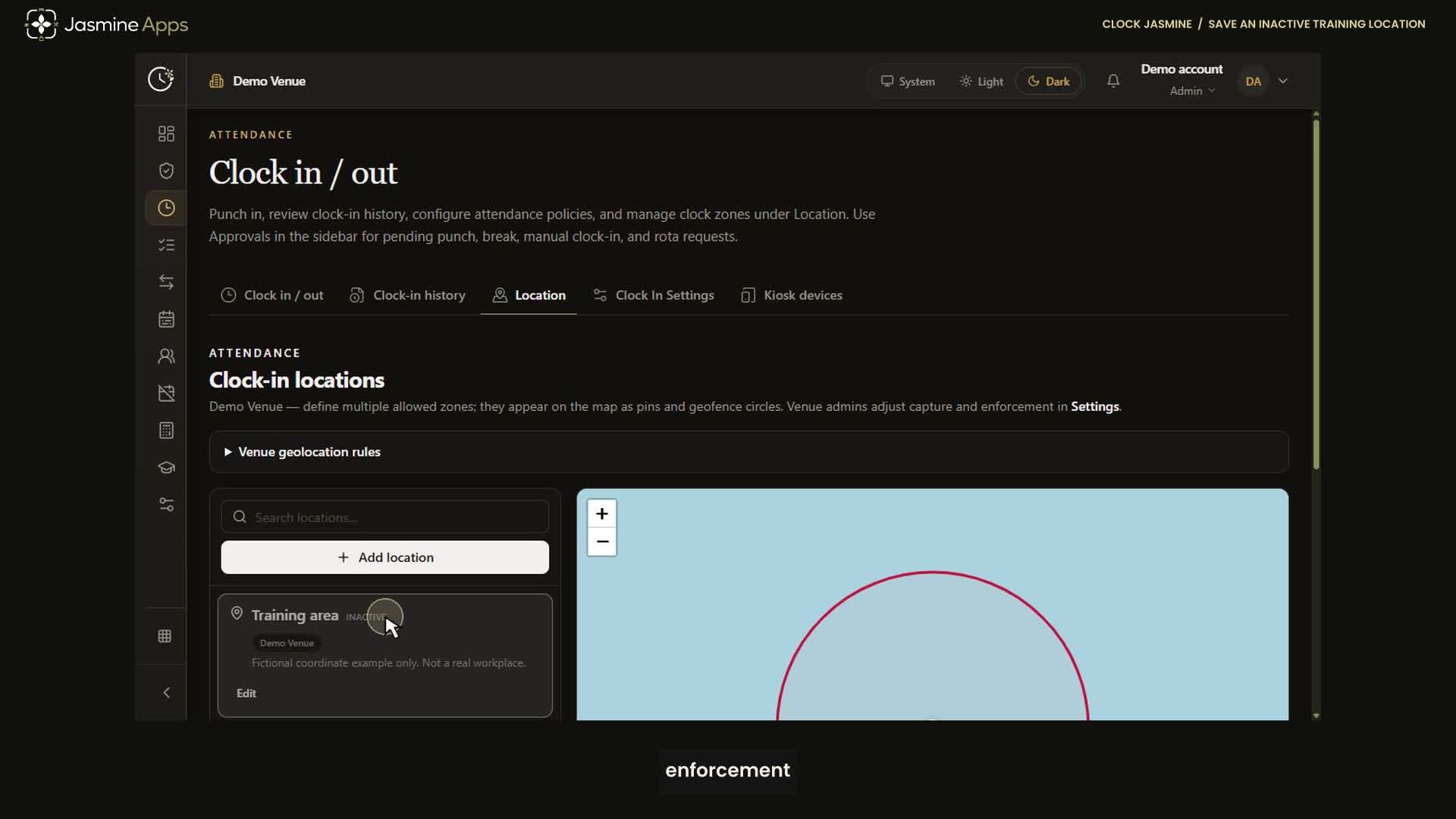
Use the list's search when several locations exist. Avoid creating another entry merely because the map or list took a moment to refresh.
Check the stored fields
Choose Edit on the saved location to review its stored coordinates, radius and Active state. In a separate post-recording check, the reopened training entry retained latitude 0, longitude 0, radius 100 and Active off. Use Cancel when closing a verification-only visit without changes.
The recording does not activate the zone, change a real venue's boundary or capture an employee's current position.
Separate setup from enforcement
A stored location and an enforced punch rule are separate. The page links to Clock Jasmine Settings for capture and enforcement. Clock In Settings also contains general clock-zone and mobile geofence controls, plus individual workforce-permission exceptions described by that page.
Check the required location-capture settings, active zones, device permissions and applicable employee rules before testing a real punch. Do not claim that a saved zone alone proves a GPS boundary works. This tutorial leaves enforcement unchanged.
Troubleshooting
- Save reports that a name is required: enter Location name and verify that its text is retained before saving again.
- The zone is not offered as active: inspect the saved Active setting; the demonstrated entry intentionally remains Inactive.
- The map points somewhere unexpected: compare both stored coordinates and their fields, then review the radius.
- The entry seems missing: clear Search locations, confirm the venue and reload before adding a duplicate.
- A punch is rejected: inspect active zones and the applicable capture/enforcement settings. This inactive training zone cannot establish a successful geofence test.
- Real location data appears during recording: stop and exclude or obscure it before saving any tutorial media.
Continue learning
Save rota grace periods · Clock in and out · Manual entries and breaks · Kiosk setup.