

TutorialIn-app guide
Clock Jasmine rota grace periods: save and verify the policy
· Jasmine Apps
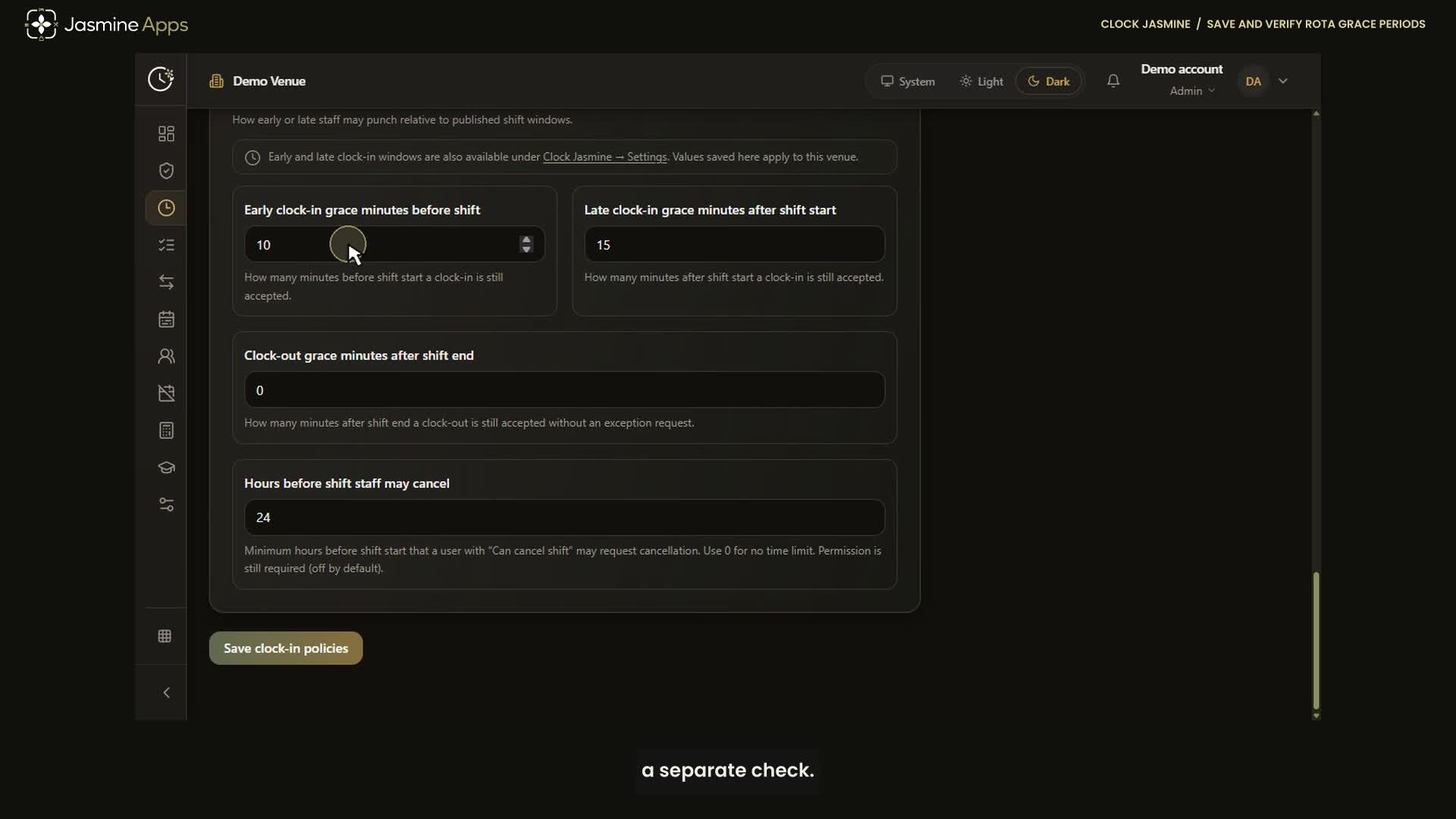
Set the venue's rota grace periods in Clock In Settings, save the policy and check the retained values after reloading. The walkthrough changes only the early clock-in window in Demo Venue; it does not change real staff attendance or enable a new enforcement rule.
Before you start
Use an account authorised to configure the intended venue's attendance policies. Have your approved scheduling rules ready and confirm the venue in the header before changing a shared setting.
The page says these settings apply to everyone in the venue, subject to individual workforce permissions. Staff whose geolocation or rota-link toggles are off can be exempt from the matching venue rule. Review both levels when checking an actual employee's behaviour.
The recording uses fictional training data. It changes Early clock-in grace minutes before shift from 15 to 10. Late clock-in stays at 15 minutes, clock-out grace stays at 0 minutes and cancellation notice stays at 24 hours. Those are test values, not recommended policy for every workplace. PIN, photo, geofence and kiosk restrictions are left unchanged.
Watch the walkthrough
Find the grace periods
Open Clock In → Clock In Settings, or use Clock In Settings. Scroll to Rota grace periods. The video starts at that section with the correct training venue selected.
The page notes that early and late clock-in windows are also available through the general Clock Jasmine Settings page. The demonstrated save is made on Clock In Settings and applies to this venue.
Choose the intended window
Read the unit and direction before entering a number:
- Early clock-in grace minutes before shift: how many minutes before the shift begins a clock-in may be accepted.
- Late clock-in grace minutes after shift start: the permitted window after the start.
- Clock-out grace minutes after shift end: the permitted window after the linked shift's end without an exception request.
- Hours before shift staff may cancel: a separate notice period, measured in hours. The page says 0 means no time limit, and the user still needs Can cancel shift permission.
Enter the approved value in the intended field. Review the other fields separately rather than copying one number into every window. Check dates and the published rota when testing a real shift; a grace value alone does not create a shift or grant cancellation permission.
Save the policy
Choose Save clock-in policies at the bottom of the page and wait for the request to finish. Editing a number without this save does not establish persistence.
Review all intended changes before saving because this is a venue policy form. This walkthrough leaves the other controls unchanged and does not request GPS, camera access or a selfie.
Reload and verify
Reload the page and return to Rota grace periods. Compare the retained early, late, clock-out and cancellation values with your intended settings. The verified example retains 10, 15, 0 and 24 respectively.
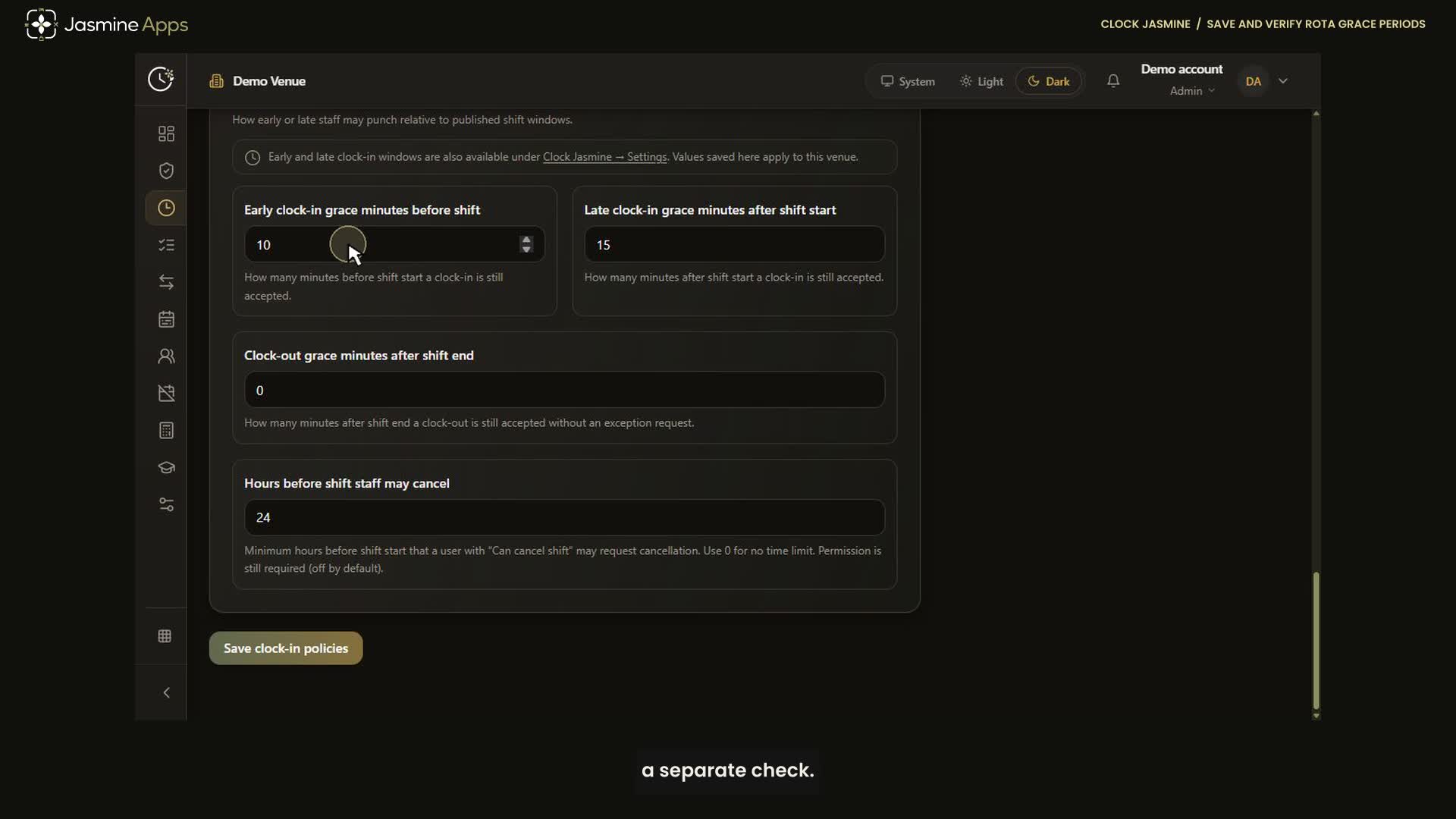
A stored value is one part of verification. Separately test any required enforcement using an authorised training employee, a published shift and the relevant permissions. This recording does not establish whether a punch at a particular time would be accepted or rejected.
Understand the related rules
The same page separates general venue clock policies from kiosk, mobile, photo and geofence controls. Review the requirement to clock in during a published shift and the linked-shift clock-out requirement alongside the individual rota-link permissions.
Kiosk-only directions, kiosk PIN and selfie requirements, mobile break exceptions and photo capture are distinct settings. The mobile geofence controls are also separate from the general allowed-clock-zone rule. The page warns when no geofence zones exist; saving grace periods does not create an active zone.
Use the location-zone guide for a verified fictional inactive-zone setup. Enable or change enforcement only through your venue's authorised policy and test the applicable devices separately.
Troubleshooting
- The value reverted: check whether Save clock-in policies completed, then reload the same venue before retrying.
- A punch behaves differently from the stored window: compare the published shift, linked-shift rules and the employee's workforce permissions.
- Cancellation is unavailable: the notice period does not grant Can cancel shift permission.
- The units seem wrong: the first three windows use minutes; cancellation notice uses hours.
- Mobile punching is blocked: review the displayed geofence warning and available active zones through the authorised setup process. Do not treat the grace-period save as a geofence test.
- A device requires a PIN or photo: those controls are separate from rota grace periods and are not changed in this walkthrough.
Continue learning
Draft rota shifts · Web clock-in and breaks · Correction approvals · Kiosk overview.