

Clock Jasmine CSV Missing Hours? Check Before Re-Exporting
· Jasmine Apps
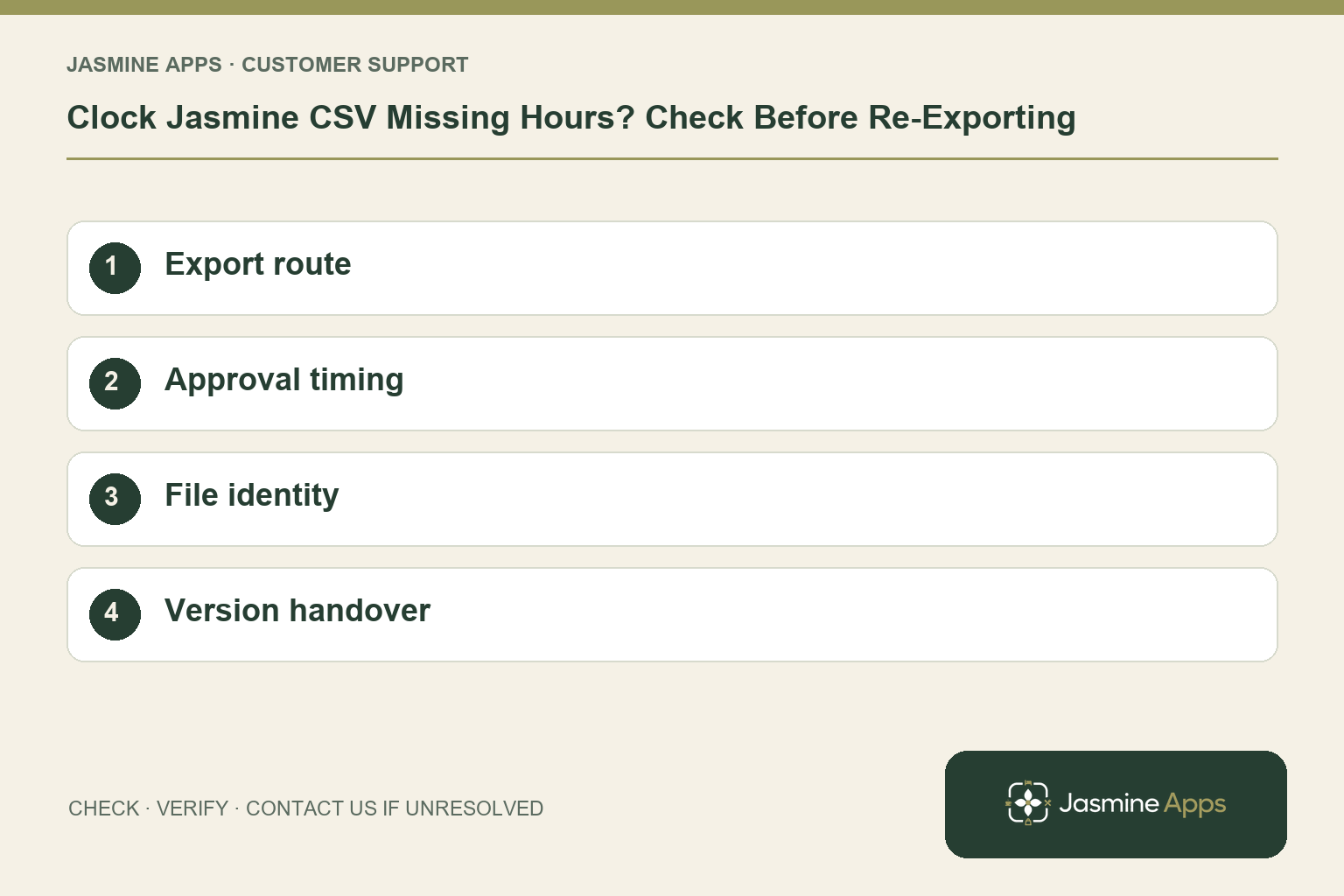
Customer support: Work through these checks in order. After each change, repeat the original action and check the result. If it remains unresolved, use Contact Us.
A payroll spreadsheet seems to omit a shift that the supervisor remembers approving. The first question is when that CSV was downloaded. A file already created cannot include a correction recorded afterwards, even if the current Clock Jasmine screen is now right.
Quick answer: Confirm approved punch history first, download a fresh hours CSV through your authorised export route, and control which file finance uses.
1. Where is the hours export?
Start with Clock-in history and check that the affected shift is closed and the correction has actually been recorded. Export access and navigation depend on the installed version and your role. If your account provides an hours CSV, inspect its recorded rows and download time; if the export control is unavailable, ask the authorised manager or Contact Us to confirm the supported route. Have finance check the dates included in the file rather than assume its name defines the pay period.
Check the result: The correct hours file is identified.
2. Why could an approved shift be absent?
Compare the correction's recording time with the CSV download time. The guide says to export after approvals; a punch approved later is not in a file already sent. Review Clock-in history and the Approvals queue, including pending absence requests. A manager's endorsement may still require admin recording. Establish what is saved before treating the issue as a failed download.
Check the result: A later correction triggers a controlled fresh export.
3. Is a clock-hawk file the wrong product?
Not necessarily. The documented file name may start with clock-hawk, the app's former name, while the data is the same. Inspect the contents and date of download rather than deciding from the prefix alone. Keep an untouched original for reference and compare affected punch rows. Do not rename an older file to make it look like a newer export.
Check the result: A former clock-hawk prefix is not rejected on name alone.
4. How should we replace a file already sent?
Coordinate with the authorised finance colleague before sending another version. Identify the superseded file, the corrected period and the newly recorded rows so the provider does not import both. Check the updated CSV against history. Downloading hours does not itself pay wages. Keep bank details out of general troubleshooting screenshots and use the established payroll transfer process.
Check the result: Finance does not import both versions.
Example from the actual app
The current Reports & exports page says Download recent clock punches as CSV for payroll workflows, displays the number of loaded punch rows and warns that a server cap applies. Download CSV therefore needs a coverage check: inspect the actual dates and columns in the file before using it for a pay-period handover. A missing old shift can be outside the loaded recent rows; a loaded punch is not, by itself, a calculated or approved payroll outcome.
Before you contact us
| Check | What to do | Result to verify |
|---|---|---|
| Export route | Use Reports & exports and inspect loaded rows. | The correct hours file is identified. |
| Approval timing | Compare recording time with download time. | A later correction triggers a controlled fresh export. |
| File identity | Inspect contents and download date. | A former clock-hawk prefix is not rejected on name alone. |
| Version handover | Agree which file replaces the previous export. | Finance does not import both versions. |
Record which check failed, the exact error wording and when it happened. Include the relevant venue and record reference, and say whether one device or several people are affected. If you changed a setting, identify that change and the retest outcome. This helps us investigate the actual failing stage instead of asking you to repeat the whole process.
Contact Us if the expected result still does not appear. Send only the information needed to investigate; keep passwords, active codes, payment details and unrelated customer records out of screenshots.
When to stop and ask for help
If the fresh CSV still lacks a recorded punch, provide support with the export time, affected date and internal record reference. Share the minimum necessary file extract privately. Preserve both versions while finance decides which one is authoritative.
Related support checks
- Staff Cannot See Their Clock Jasmine Shift?
- At Work but Clock Jasmine Refuses GPS Clock-In?
- Forgot to Clock Out in Clock Jasmine? What Happens Next?
Illustrations explain the workflow and are not product screenshots. Any numerical example is labelled illustrative and is not a customer result. Product wording and documented setup checks reviewed on 13 October 2026; confirm the features available in your current installation.