

Why Is My Product Not Showing on Till Jasmine?
· Jasmine Apps
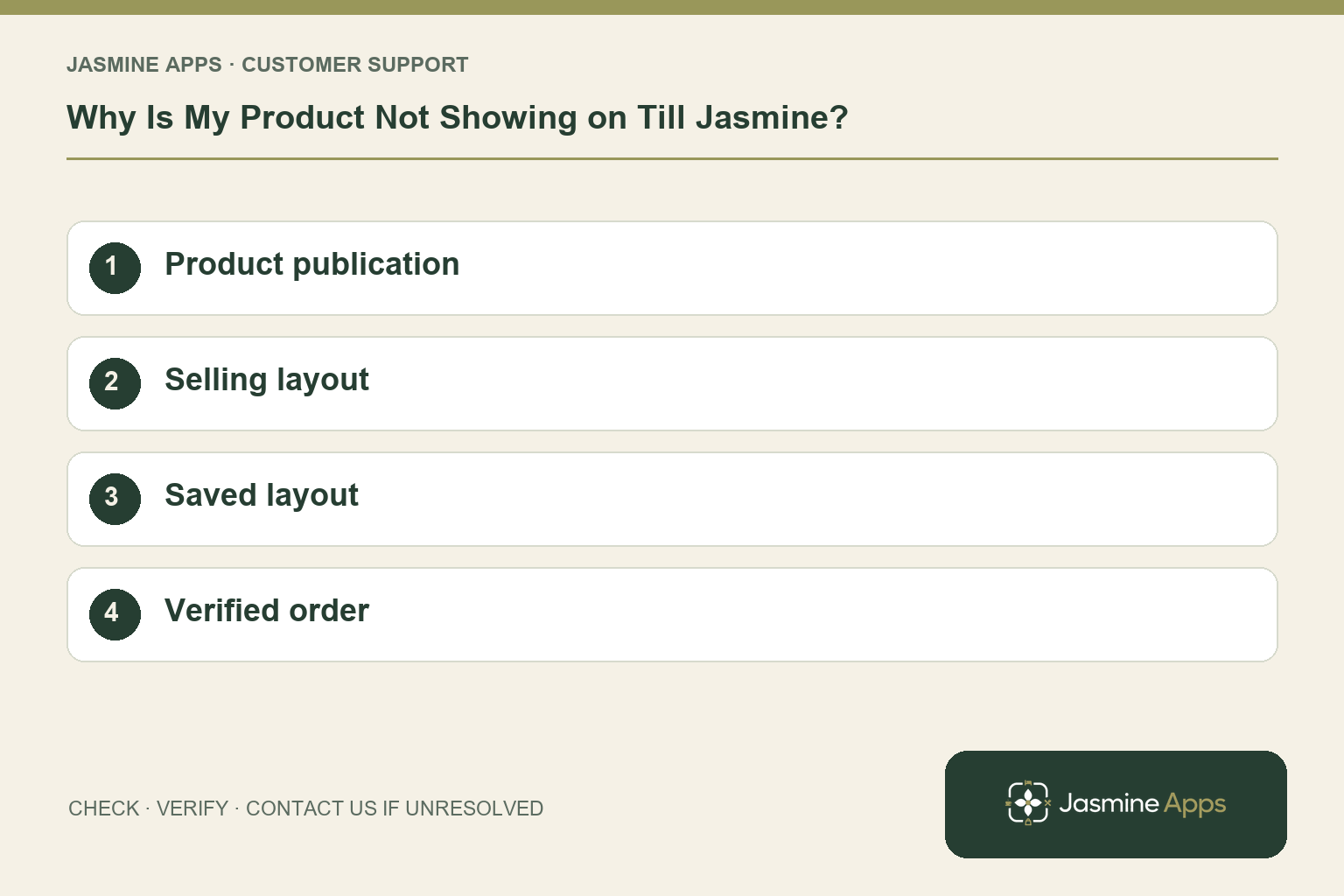
Customer support: Work through these checks in order. After each change, repeat the original action and check the result. If it remains unresolved, use Contact Us.
You have added a new drink, but the bartender cannot find it. A missing Till Jasmine product does not necessarily mean the save failed: the catalogue and the touch-screen layout are two separate checks. Follow the item from its record to the button staff actually use.
Quick answer: Check that the product is published, its category or button is on the selling layout, and the layout has been saved.
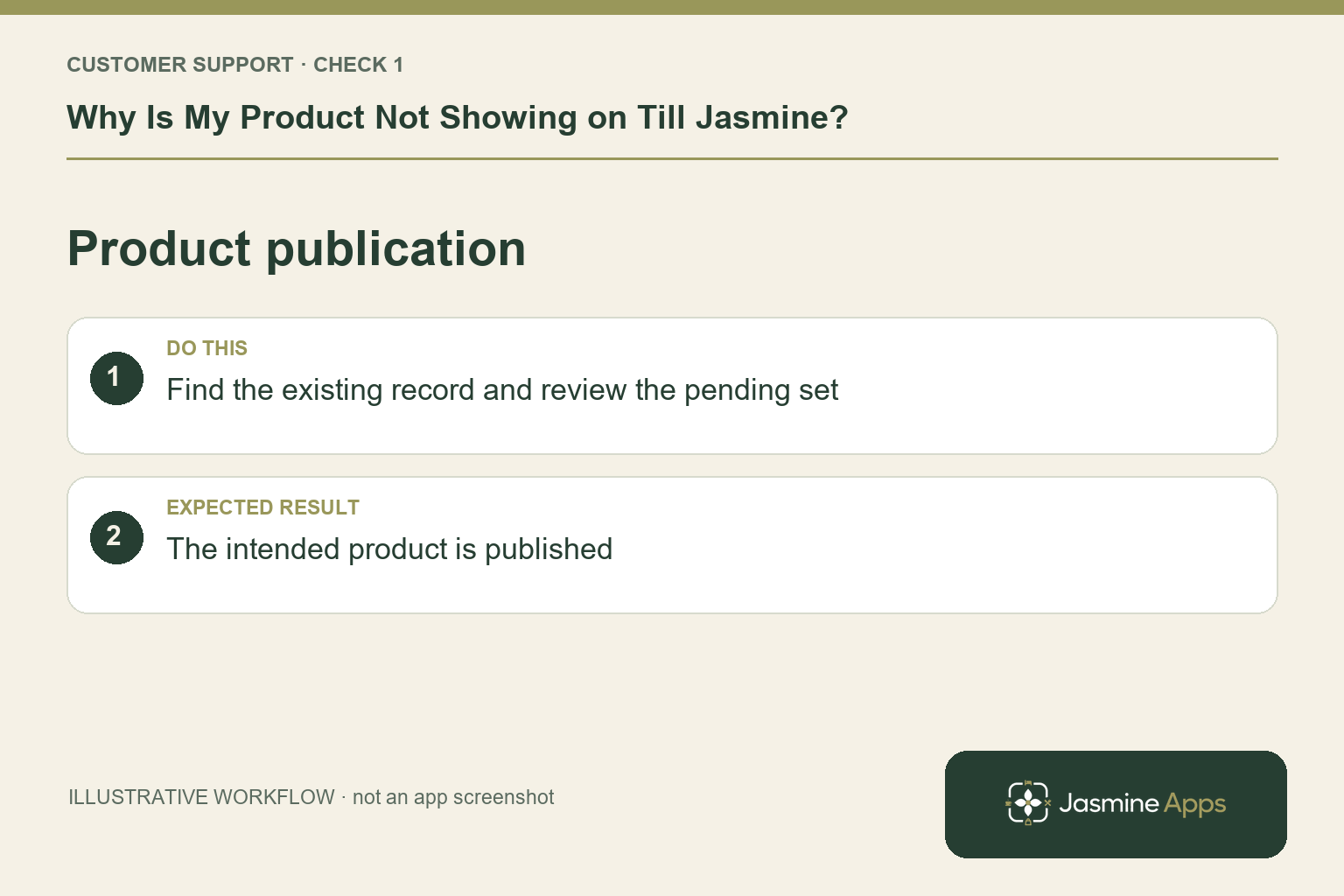
1. Is saving a product enough to make it live?
No. In Products & Categories, new products wait as drafts. Find the exact product, check its name and customer price, then use Publish when the authorised manager is ready to put it live. The count on the button shows waiting products. Review the whole pending set before publishing; another colleague may have unfinished items there. Avoid adding the same drink again simply because it is absent from the till.
Check the result: The intended product is published.
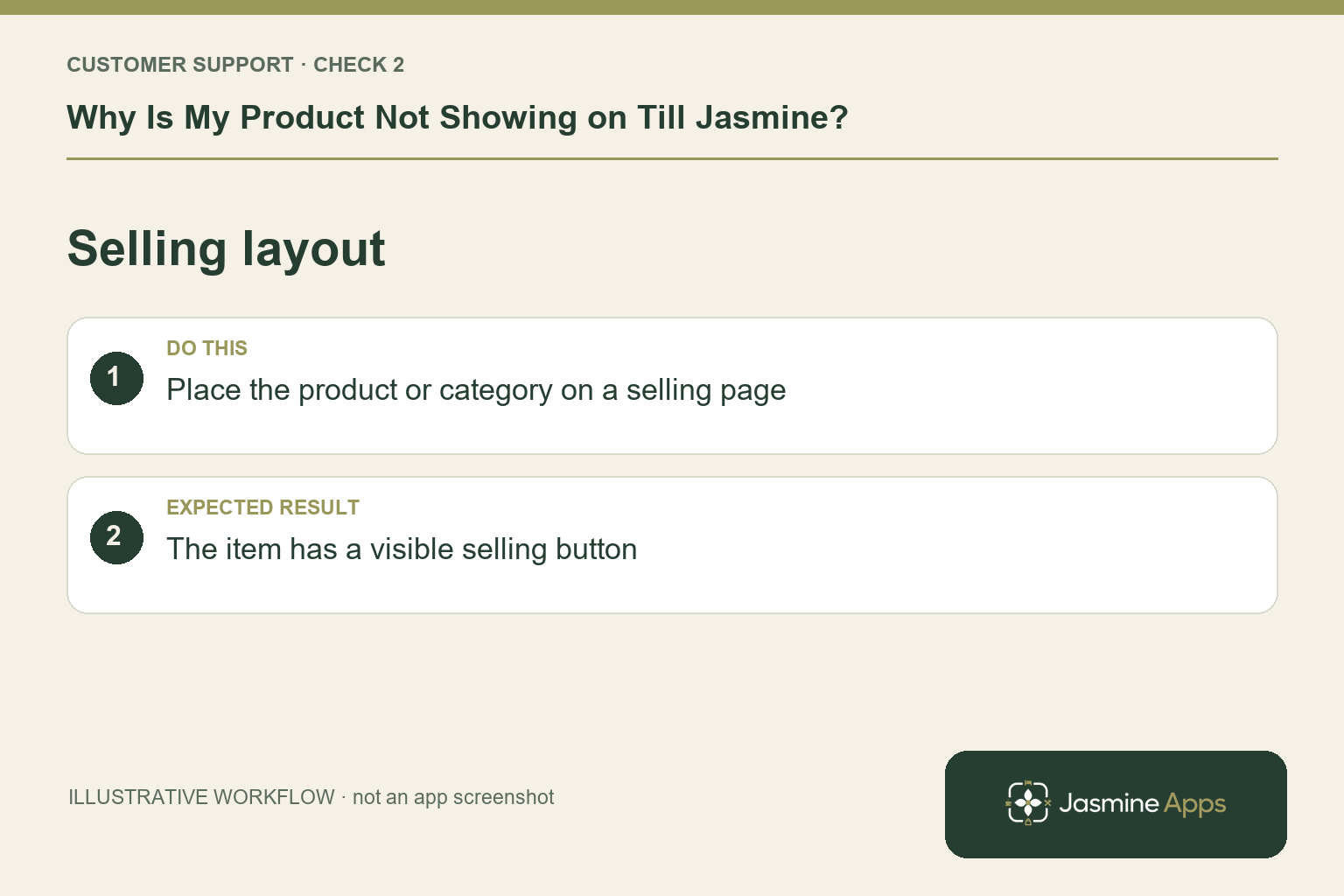
2. Where should I check after publication?
Open Till Layout and find the selling page or category folder where staff expect the item. Published products still need a place on the layout. Drag the relevant category from Import categories onto the grid, or use the available product controls. Shift-click a folder to arrange its contents. Check that the category is on a selling page rather than the separate Payment page.
Check the result: The item has a visible selling button.
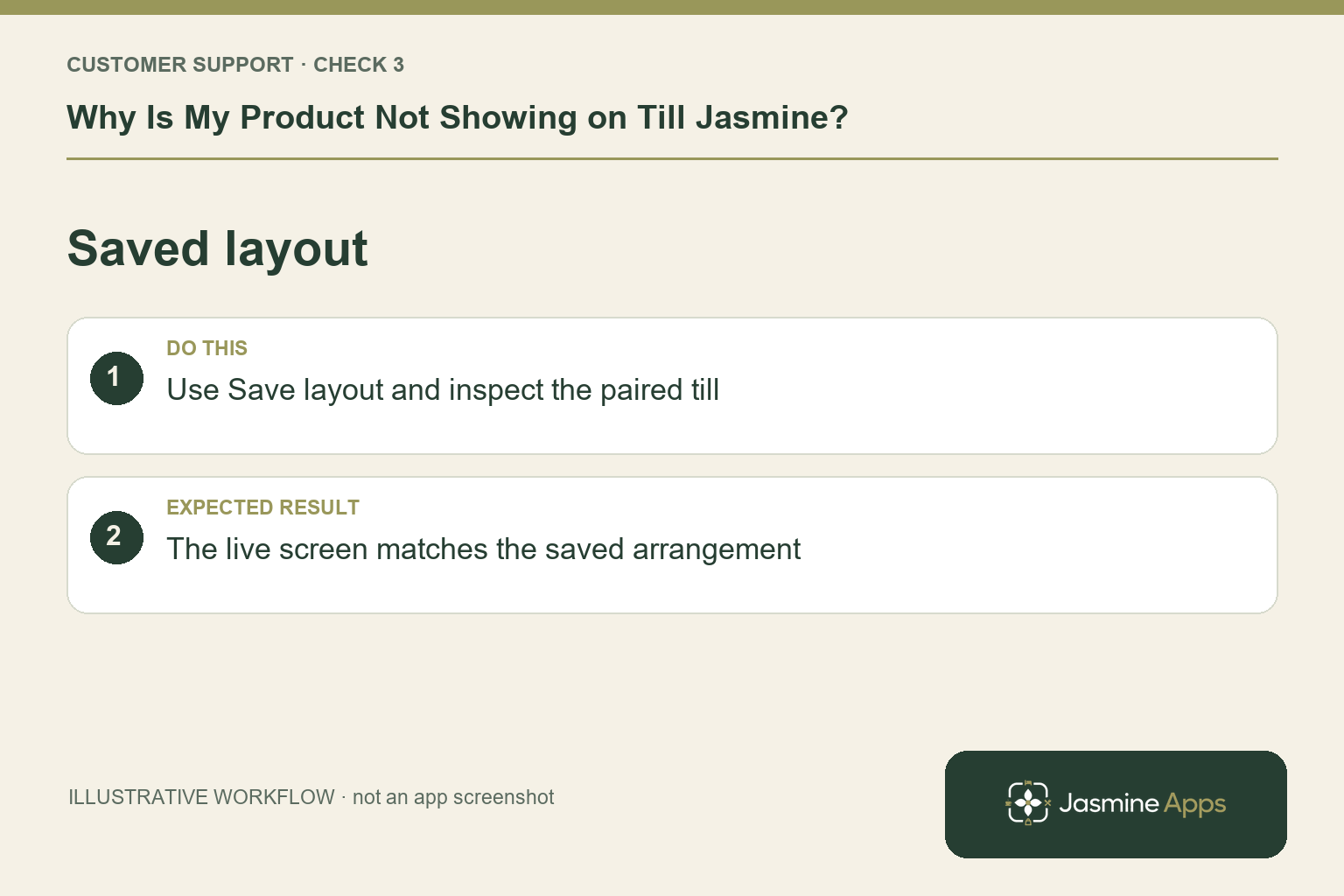
3. Why does the designer look right but the till look wrong?
The guide requires the layout’s Save control. Make the intended change, save it, and check for the Saved state. Then inspect the actual paired till and the relevant folder. If the back office is correct but a particular device still differs, note which till is affected and whether it is connected. Follow the supported refresh procedure; do not delete its local sales or re-pair it as a first guess.
Check the result: The live screen matches the saved arrangement.
4. How do I prove the fix before a busy service?
Ask a colleague to locate the product by its ordinary menu name on the actual touch screen. Confirm the serving size and displayed price in a training or approved test workflow. If other tills use the same intended layout, check those too. Add a short pre-service check for new menu items so the kitchen, printed menu and live selling buttons agree.
Check the result: A colleague can complete the approved test.
Example from the actual app
In the real catalogue, the Till filter offers All products, On till and Not on till. The page warns that staff cannot sell products without a button and provides Open till designer. Start by searching the existing product and checking that filter. If it is listed but not placed, investigate the layout rather than adding another copy.
Before you contact us
| Check | What to do | Result to verify |
|---|---|---|
| Product publication | Find the existing record and review the pending set. | The intended product is published. |
| Selling layout | Place the product or category on a selling page. | The item has a visible selling button. |
| Saved layout | Use the layout’s Save control and inspect the paired till. | The live screen matches the saved arrangement. |
| Verified order | Find the item and check size and price. | A colleague can complete the approved test. |
Record which check failed, the exact error wording and when it happened. Include the relevant venue and record reference, and say whether one device or several people are affected. If you changed a setting, identify that change and the retest outcome. This helps us investigate the actual failing stage instead of asking you to repeat the whole process.
Contact Us if the expected result still does not appear. Send only the information needed to investigate; keep passwords, active codes, payment details and unrelated customer records out of screenshots.
When to stop and ask for help
If a published item on a saved layout is still absent, give support the venue, product name, category, till name and time checked. Include a cropped screenshot of the relevant layout without guest information. State whether other tills can see it.
Related support checks
- Cash or Card Button Missing on Till Jasmine?
- Till Jasmine Pairing Code Rejected? What to Check
- Till Jasmine Shows the Wrong Change: Check Cash Entry
Illustrations explain the workflow and are not product screenshots. Any numerical example is labelled illustrative and is not a customer result. Product wording and documented setup checks reviewed on 13 October 2026; confirm the features available in your current installation.