

Cash or Card Button Missing on Till Jasmine?
· Jasmine Apps
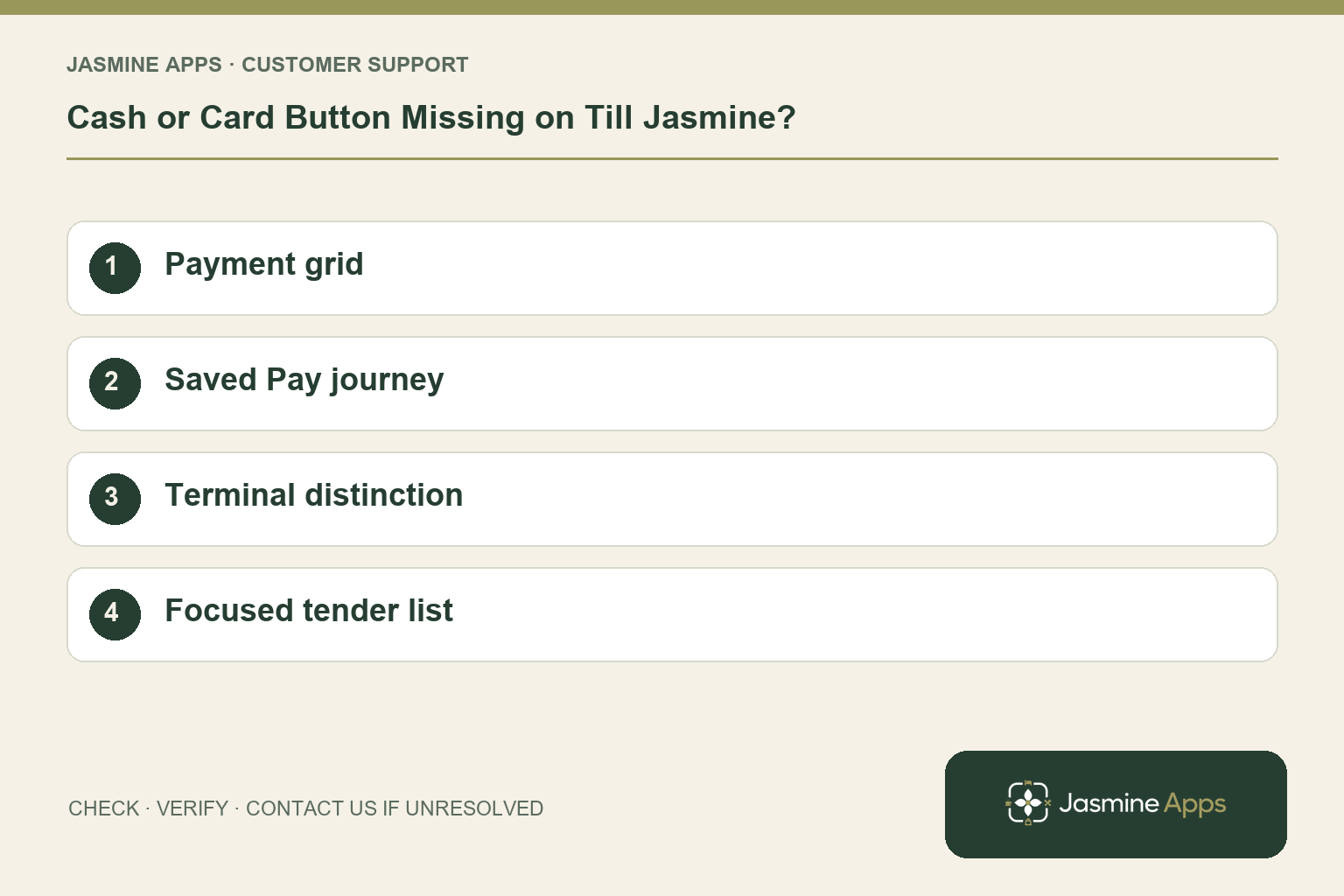
Customer support: Work through these checks in order. After each change, repeat the original action and check the result. If it remains unresolved, use Contact Us.
A guest is ready to pay, but the option staff need is missing. First distinguish a missing Till Jasmine payment button from a card terminal that cannot authorise payment. The fixes involve different parts of the setup, and repeating a payment blindly can create another problem.
Quick answer: Open the Payment page in Till Layout, place the required tender button there, save the layout, and test the Pay journey.
1. Where do payment buttons belong?
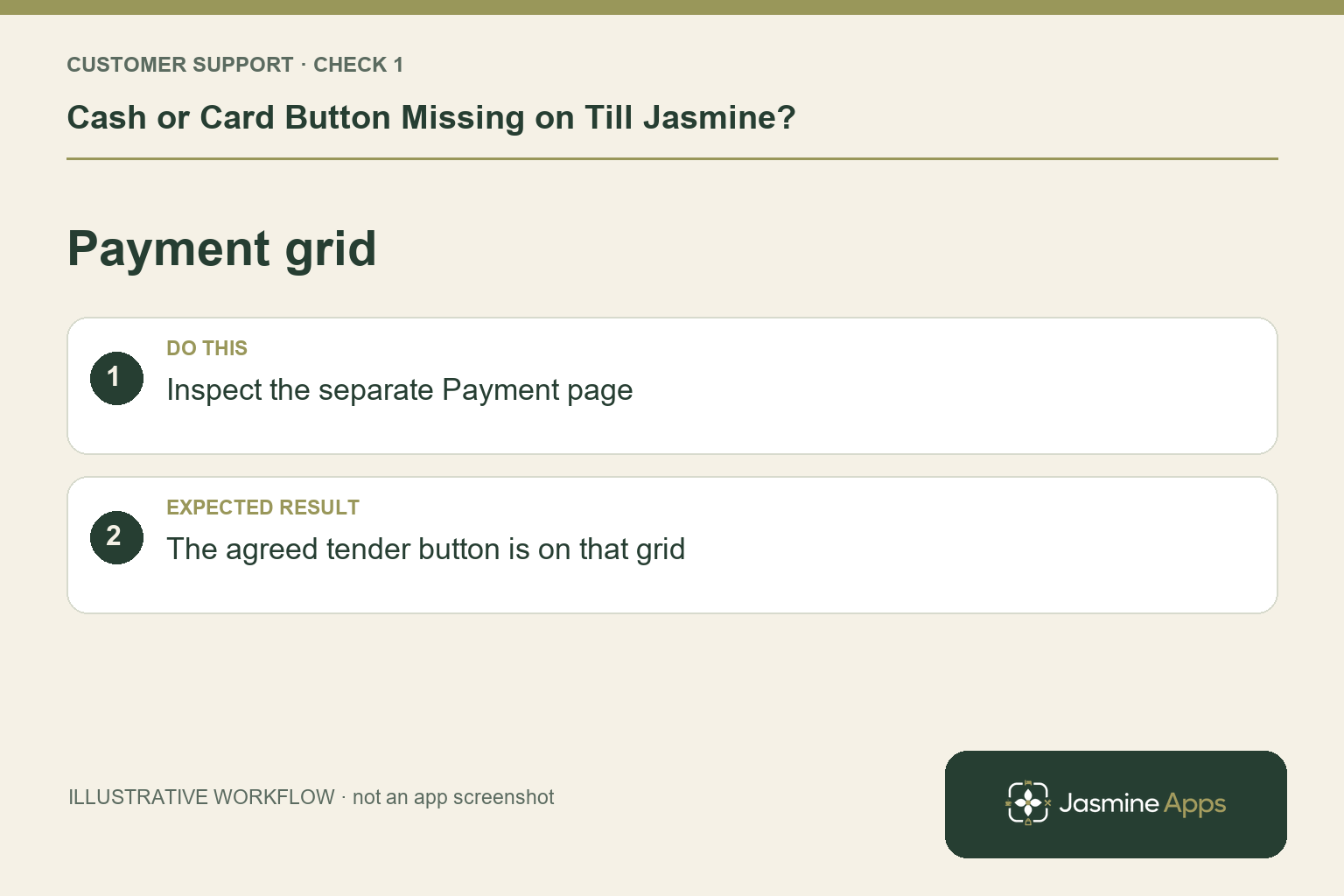
Till Layout separates selling pages from the Payment page. Open that tab and check the Payment buttons list. Cash, Card and other configured actions should be placed on that grid rather than among food and drink buttons. Use only the payment methods your venue has agreed to operate; the presence of an action in the designer does not establish a working external integration.
Check the result: The agreed tender button is on that grid.
2. What should I do after placing the button?
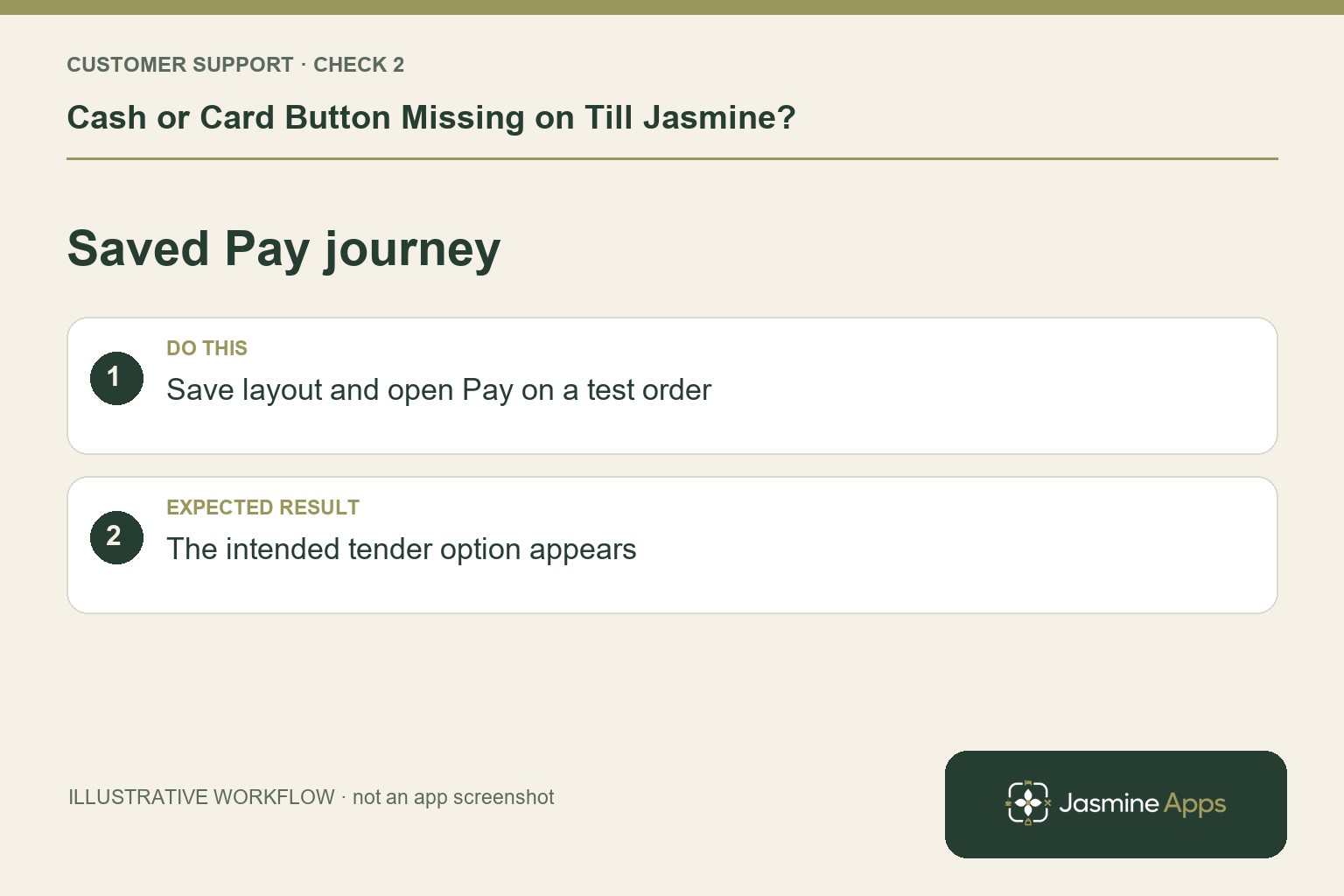
Click the layout’s Save control and verify the Saved state. On the actual till, use an authorised training or test order and press Pay. The relevant button should now appear on the payment page. Have a colleague follow the sequence without coaching. If the designer is saved but the till remains different, record the device name and connection status for support instead of rebuilding everything.
Check the result: The intended tender option appears.
3. The Card button is visible, but payment still fails. Is that the same fault?
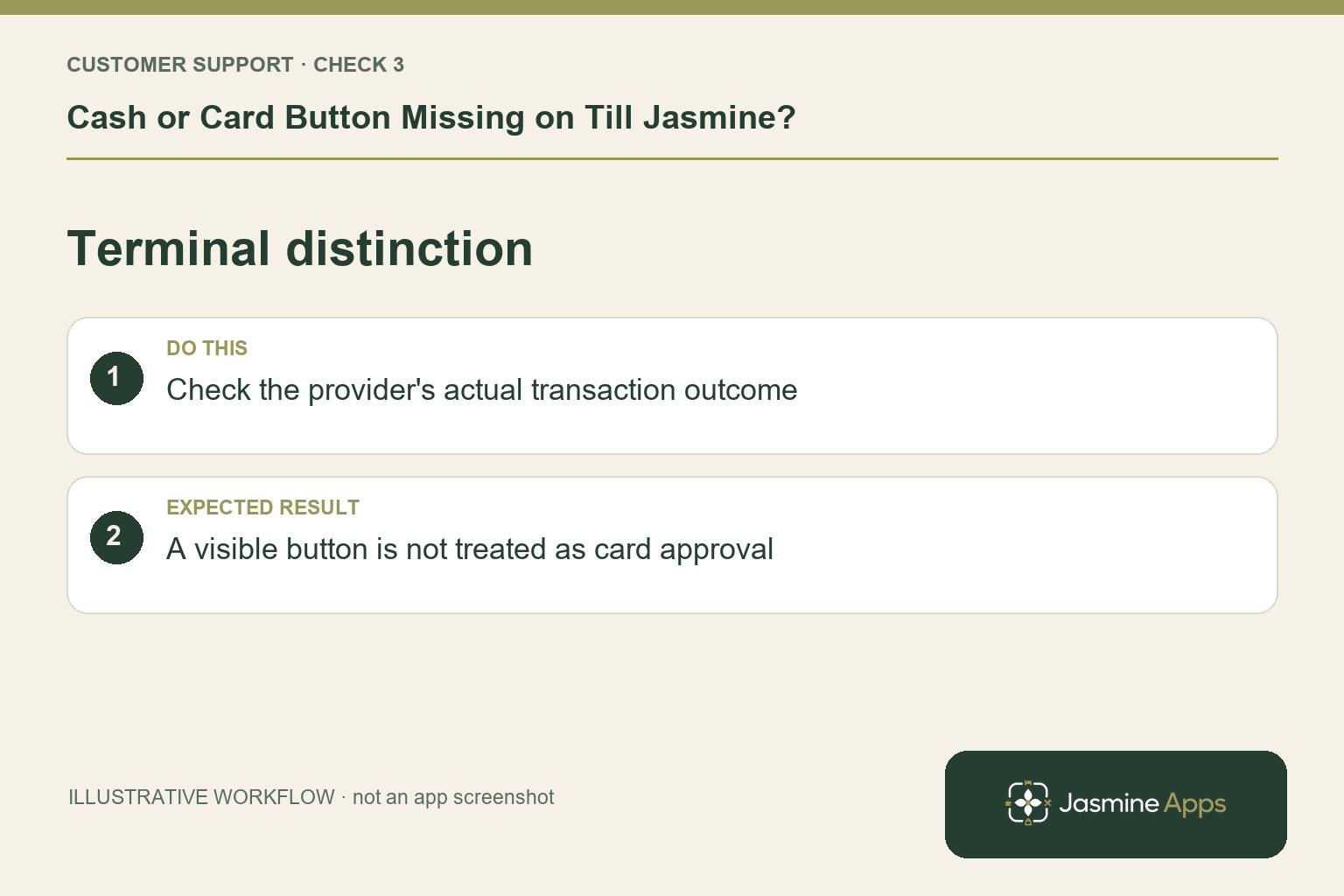
No. A visible Card option shows the till action is available; it is not proof that the terminal or processor approved the payment. Read the terminal message and use your provider's status-check procedure. Check an uncertain transaction before attempting it again. Avoid marking a card payment as successful merely because the till screen is usable, and keep any unresolved reference for the manager.
Check the result: A visible button is not treated as card approval.
4. Can I add every tender option to avoid future problems?
That usually makes the choice harder. Keep the payment page focused on the configured venue workflow and brief staff on exceptions such as deposits or service charges. Establish who may use each action. Before a busy function, test the actual payment path, terminal readiness and receipt supplies together. A tidy payment page helps only when the team understands what completes the transaction.
Check the result: Staff know which action completes payment.
Example from the actual app
The actual designer’s Payment page has its own Payment buttons list: Cash, Card, Discount, Wastage, Complimentary, Deposit, and Service charge. It says staff see this page after Pay. Check this grid specifically; a Cash label on an ordinary selling page is not the same configuration. The current layout save control is labelled Save and shows Saved after saving.
Before you contact us
| Check | What to do | Result to verify |
|---|---|---|
| Payment grid | Inspect the separate Payment page. | The agreed tender button is on that grid. |
| Saved Pay journey | the layout’s Save control and open Pay on a test order. | The intended tender option appears. |
| Terminal distinction | Check the provider's actual transaction outcome. | A visible button is not treated as card approval. |
| Focused tender list | Keep only the configured payment routine. | Staff know which action completes payment. |
Record which check failed, the exact error wording and when it happened. Include the relevant venue and record reference, and say whether one device or several people are affected. If you changed a setting, identify that change and the retest outcome. This helps us investigate the actual failing stage instead of asking you to repeat the whole process.
Contact Us if the expected result still does not appear. Send only the information needed to investigate; keep passwords, active codes, payment details and unrelated customer records out of screenshots.
When to stop and ask for help
Tell support whether the fault is a missing button, a saved-layout mismatch or a terminal error. For a processor problem, contact your payment provider through the approved route and supply the transaction reference, not a guest's full card details.
Related support checks
- Why Is My Product Not Showing on Till Jasmine?
- Till Jasmine Pairing Code Rejected? What to Check
- Till Jasmine Shows the Wrong Change: Check Cash Entry
Illustrations explain the workflow and are not product screenshots. Any numerical example is labelled illustrative and is not a customer result. Product wording and documented setup checks reviewed on 13 October 2026; confirm the features available in your current installation.