

TutorialIn-app guide
Till Jasmine: review linked and till-only tables
· Jasmine Apps
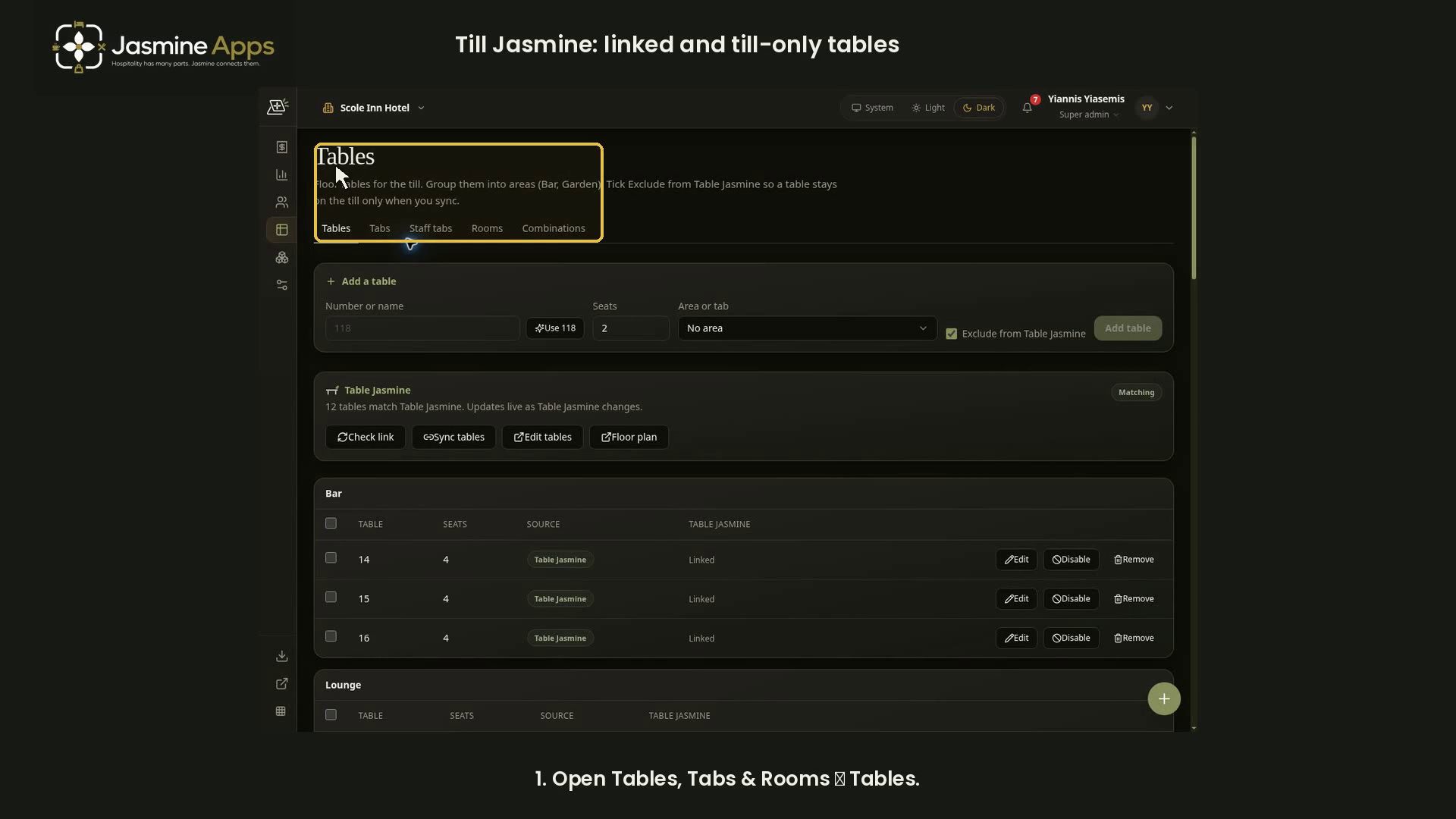
Review Till Jasmine table linking before changing the relationship between till tables and Table Jasmine. This dark-mode walkthrough follows the actual Tables page, with narration matched to the controls and table columns.
Watch the walkthrough
Before you start
Open the correct venue, then Tables, Tabs & Rooms → Tables, or open the Tables page. This guide reviews table configuration. For taking or charging an order, use the separate till transaction guide when available.
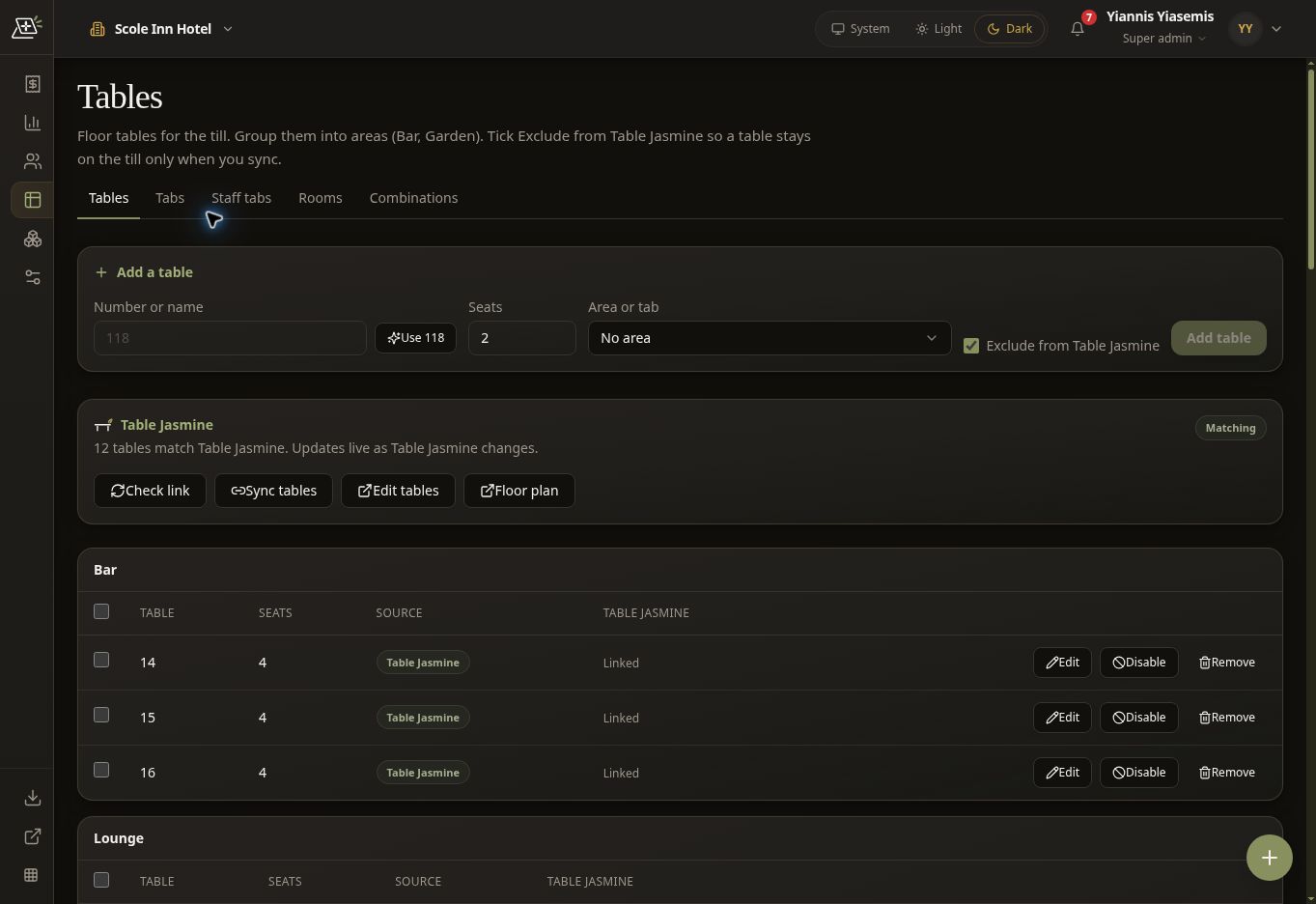
1. Review the number, seats and area controls
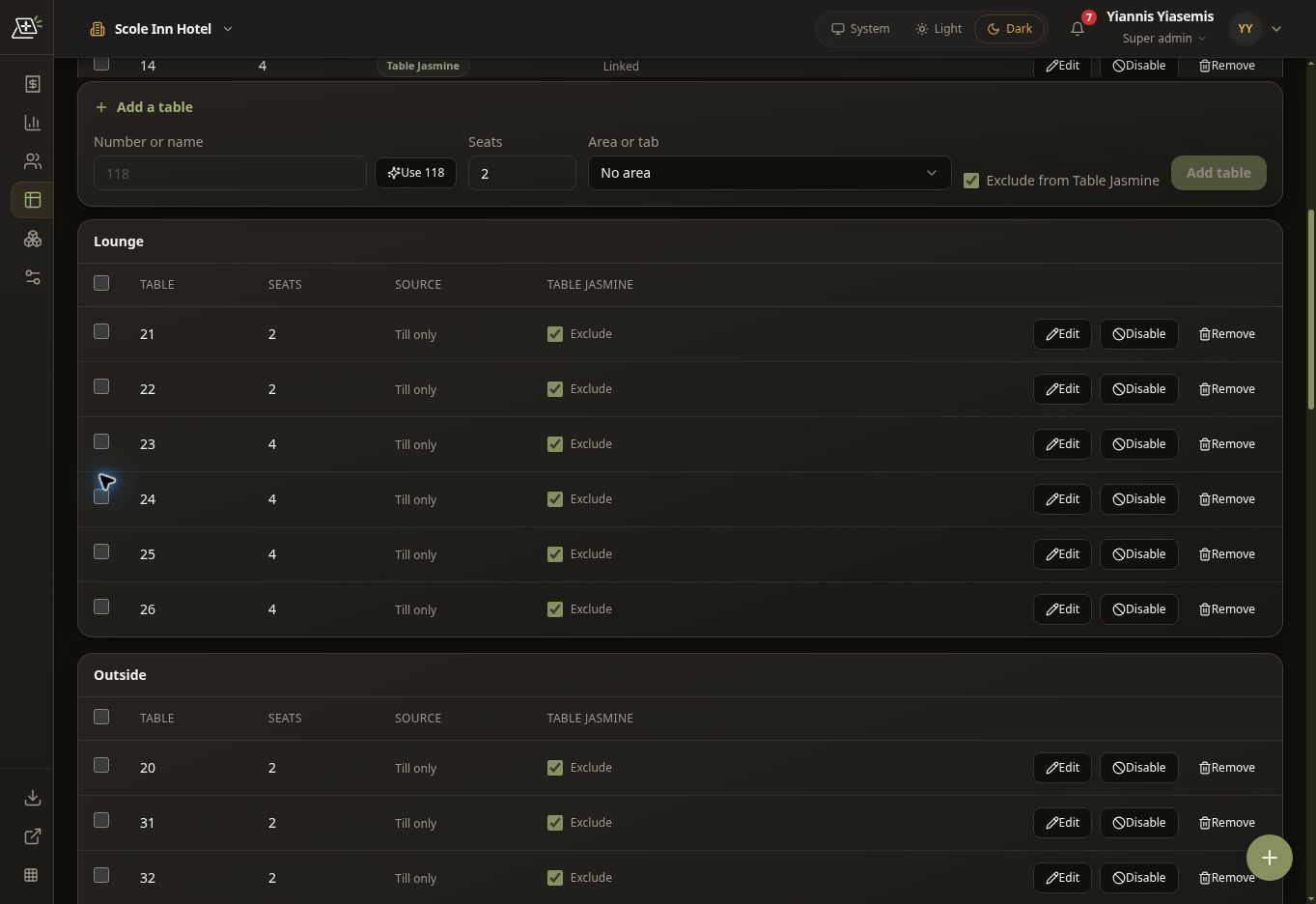
The Add a table panel has Number or name, Seats, Area or tab, and Exclude from Table Jasmine. Check the physical table label and capacity before adding a real table. The recorded form is left blank; the suggested number is not a table created by this tutorial.
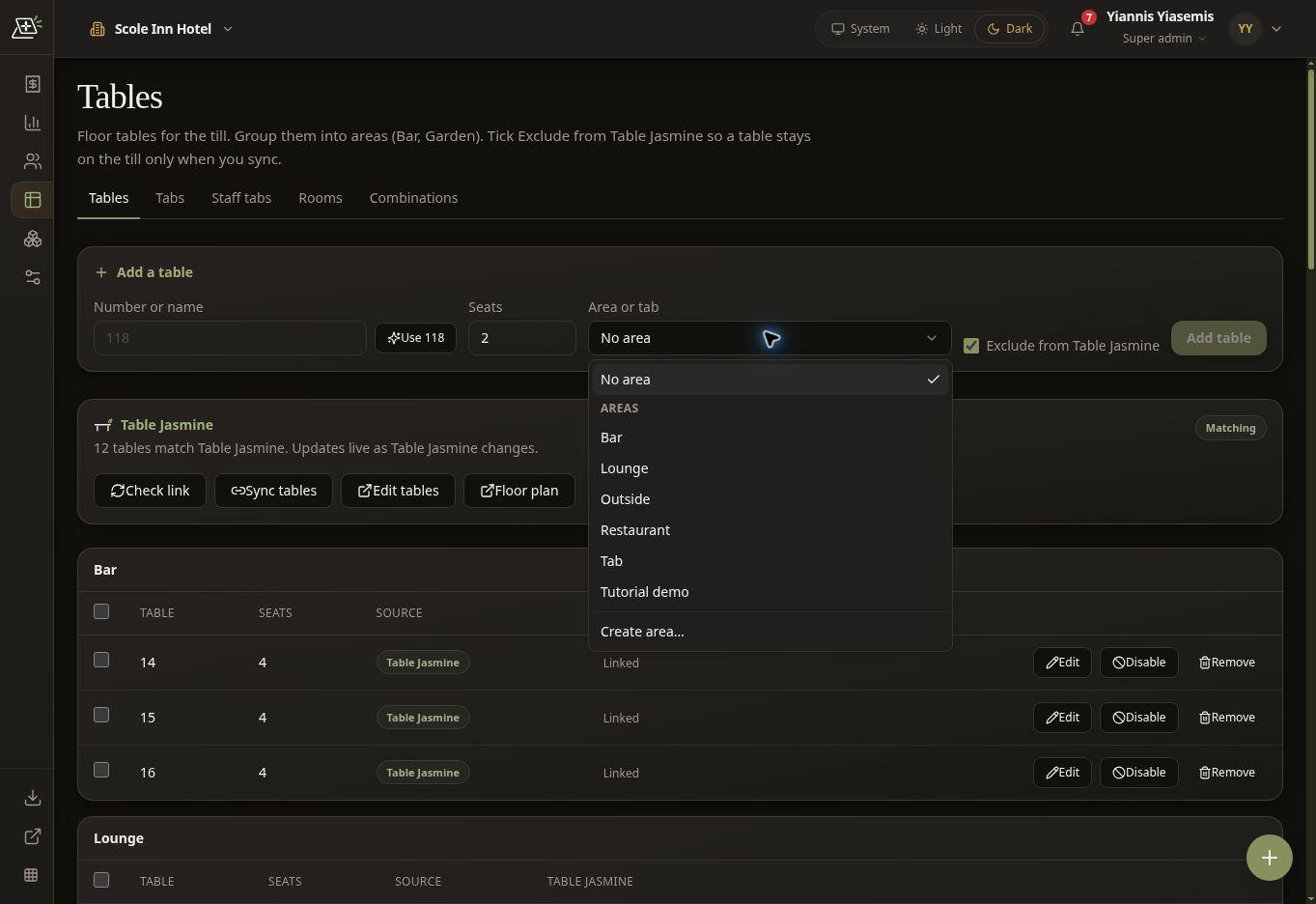
Open Area or tab to see the available areas. The demonstration opens the menu, then closes it without selecting a different area. It does not select Use 118, Create area… or Add table.
2. Read the Table Jasmine link status
The link panel displays Matching and 12 tables match Table Jasmine at the recorded venue. Its explanation says updates are live as Table Jasmine changes. Your venue's count and status may differ.
Review that status before considering Sync tables. The same panel provides Check link, Edit tables, and Floor plan. This walkthrough does not run a sync or change the linked table setup. For reservation-side table setup, see tables and dining areas in Table Jasmine.
3. Identify linked tables
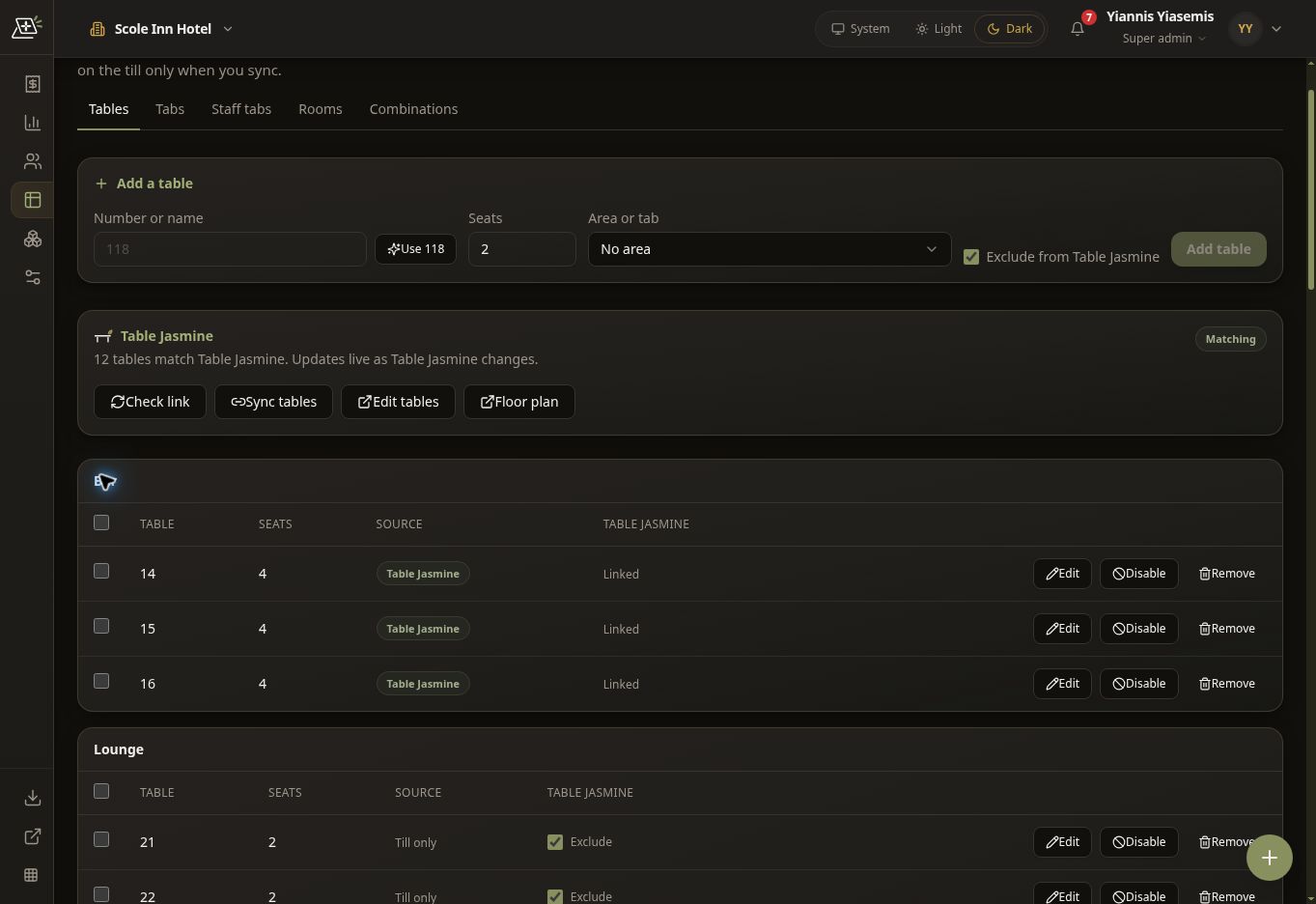
In the recorded Bar area, tables 14, 15 and 16 each show four seats. The Source column reads Table Jasmine, and the Table Jasmine column reads Linked. Read both columns together when checking where a table comes from.
4. Compare till-only tables and exclusions
The recorded Lounge area shows Till only in the Source column and a checked Exclude control on each row. The page explains that excluding a table keeps it on the till only when you sync.
Do not treat every till-only table as an error: compare it with the venue's intended setup first. This walkthrough leaves all exclusion controls unchanged.
5. Check before making a live change
Confirm the venue, table number, seats, area, source and intended Table Jasmine relationship before adding, editing, disabling, removing or syncing a real table. This recording reviews the setup without using those actions, and does not take a payment or change a reservation.
Related guides
Table Jasmine tables and dining areas · Table Jasmine floor plan · Till Settings walkthrough.