

TutorialIn-app guide
Till Jasmine: review trading day, lock screen and service charge
· Jasmine Apps
Review Till Jasmine settings before changing a venue's lock screen, trading-day cut-off, autolock or service charge. This guide follows the current settings page in dark mode, with voiceover matched to each panel. It changes no live settings.
Watch the walkthrough
Before you start
Open the correct venue, then Till Customisation → Till Settings. You can also open Till Settings. Review proposed changes with the person responsible for the venue before saving them. Do not disable autolock just to record a tutorial.
1. Review the lock-screen logos
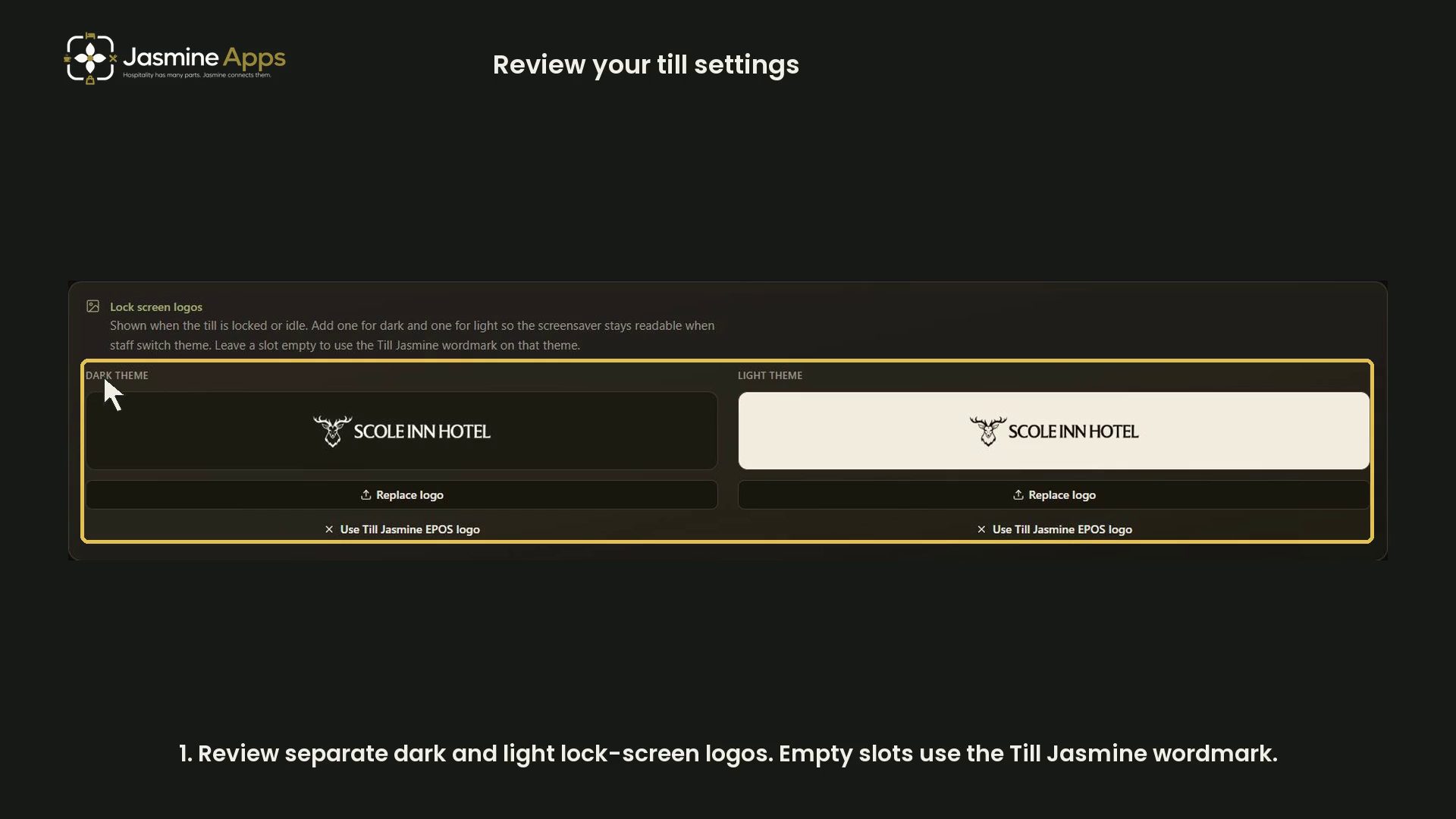
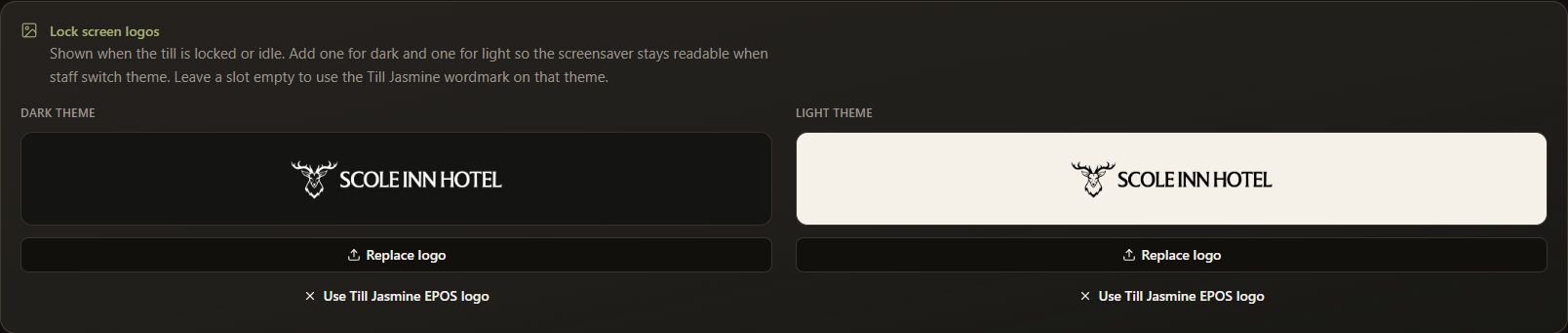
The Lock screen logos panel has separate Dark theme and Light theme slots. Check that each logo is readable against its preview background. The recorded venue uses its own hotel logo; your venue may use different branding.
Use Replace logo when preparing an approved replacement. The panel also offers Use Till Jasmine EPOS logo. Its explanation says that leaving a theme slot empty uses the Till Jasmine wordmark for that theme. This walkthrough reviews the controls without uploading or removing a logo.
2. Check the trading day and venue clock
Trading day shows the venue clock used for cash-up days. The recorded page shows Europe/London, with the day ending at 04:00. Its example explains that a 03:30 close still counts as the previous day. These are the recorded settings, not a recommended cut-off for every venue.
Review Day ends at 4:00am (venue time) and Day-end time together. The checkbox help says that unticking uses midnight instead. Opening the time control displays an hour and minute picker. The demonstration opens that picker, then closes it without selecting a different time.

3. Review autolock
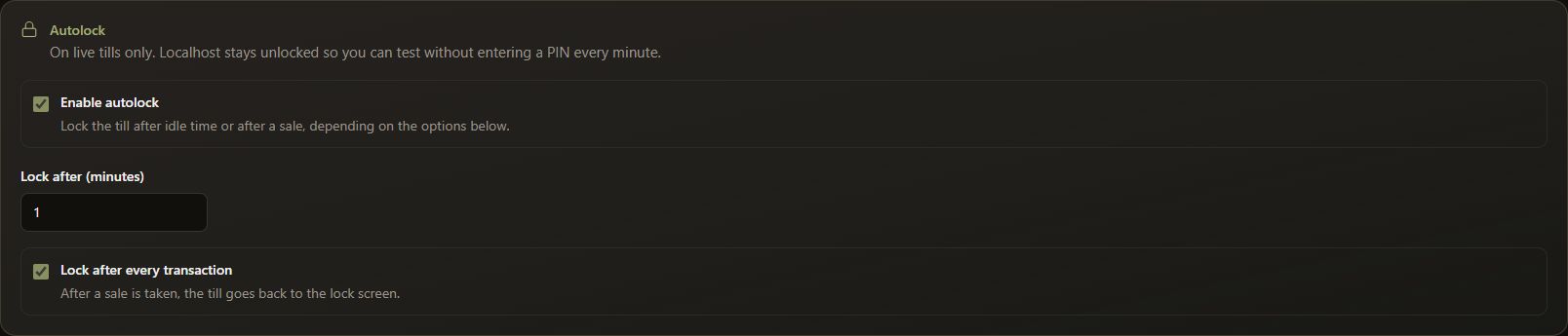
The Autolock panel contains Enable autolock, Lock after (minutes) and Lock after every transaction. These are separate controls: an idle timeout and a return to the lock screen after a sale describe different moments in service.
The recorded venue has autolock enabled, a one-minute idle timeout, and locking after every transaction enabled. The page says these controls apply on live tills. This tutorial leaves all security settings unchanged and does not unlock a till or display a staff PIN.
4. Review service-charge visibility and percent
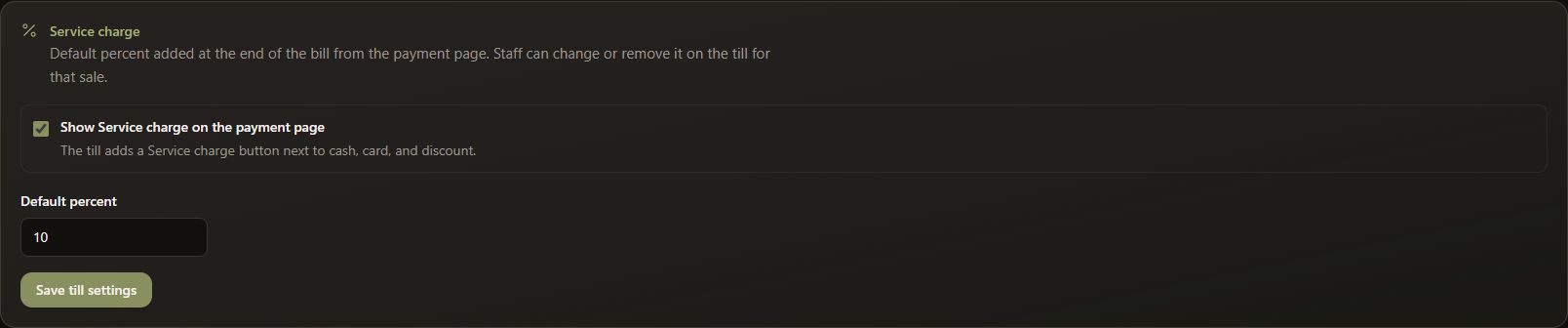
Under Service charge, review Show Service charge on the payment page and Default percent. The page explains that the button appears alongside cash, card and discount, and that staff can change or remove the charge for that sale.
The recorded default is 10%. It is an example of the venue's current value, not a pricing or compliance recommendation. This back-office review does not take a payment or verify the charge on an unlocked till.
5. Save only approved changes
Review the venue, theme previews, trading-day time, autolock controls and service-charge value before selecting Save till settings for a real change. The recording does not select that button. The displayed time, idle timeout and service-charge percent were checked afterwards and remained unchanged.
Related guides
Receipt QR codes and text · Reports and reconciliation · Staff permission controls.