

Till Jasmine Shows the Wrong Change: Check Cash Entry
· Jasmine Apps
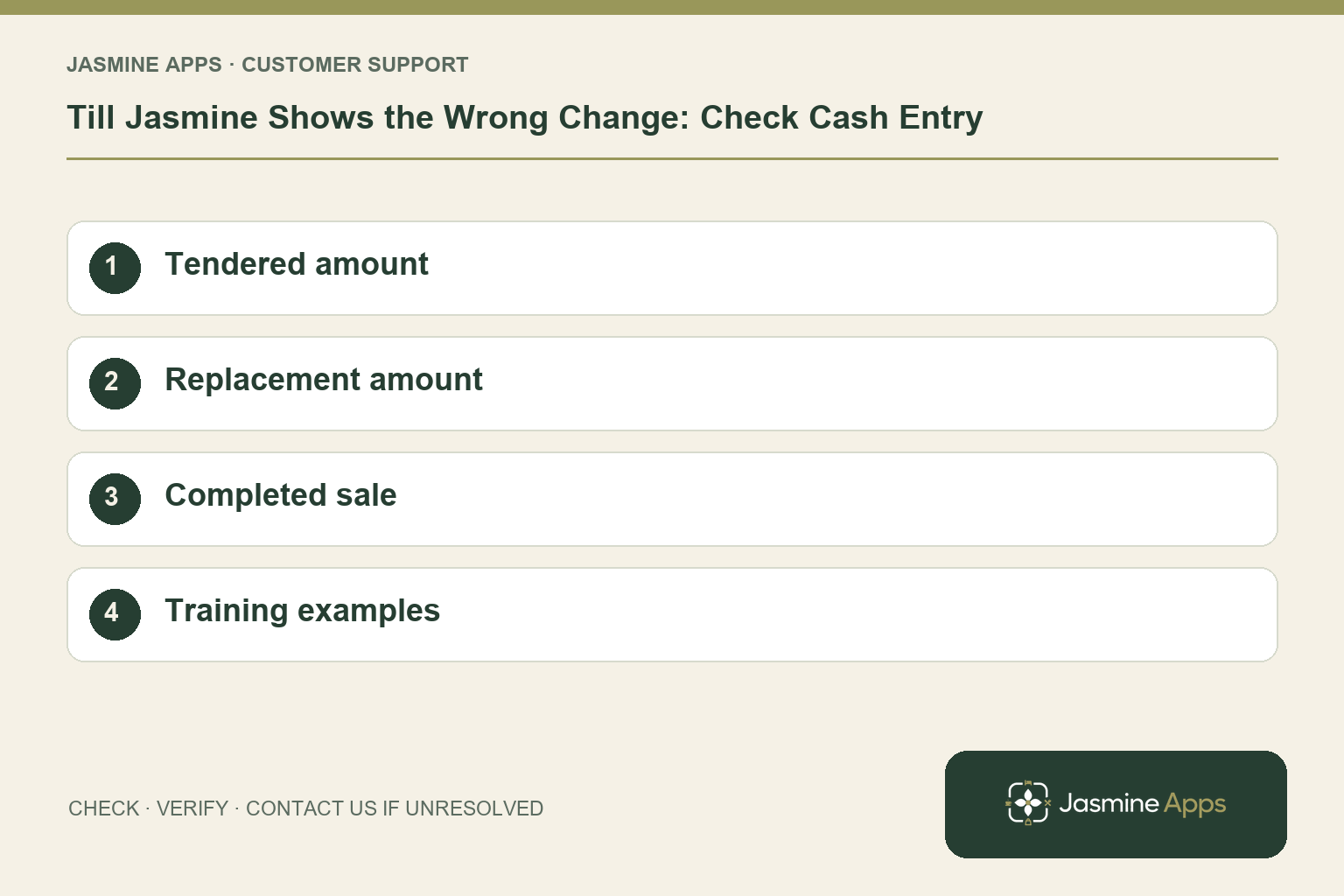
Customer support: Work through these checks in order. After each change, repeat the original action and check the result. If it remains unresolved, use Contact Us.
The customer hands over a £20 note and the change figure looks too high. Before blaming a calculation, check what the Till Jasmine cash keypad says was tendered. Quick-note buttons add to the current amount; they do not necessarily replace it.
Quick answer: Check the tendered amount. Use Clear before entering a replacement amount, or Exact when the guest hands over the precise total.
1. Why did tapping £20 produce an unexpected amount?
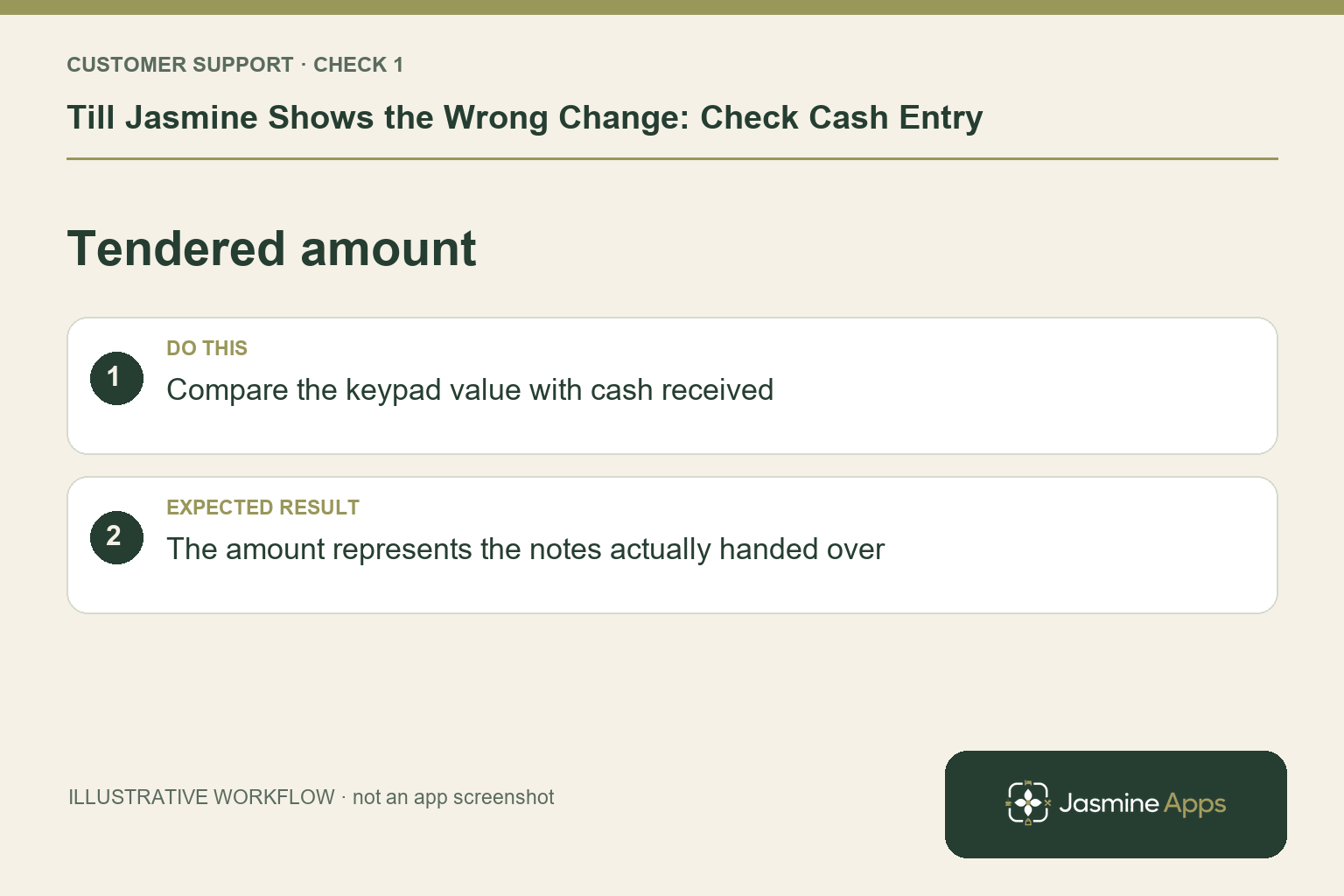
The documented cash box starts at the order total. Quick notes add to the value already there. If you tap £20 without clearing that starting value, the tendered figure can exceed the cash actually received. Compare the on-screen amount with the notes in your hand before taking payment. This is a cash-entry check, not a reason to change the product price.
Check the result: The amount represents the notes actually handed over.
2. What is the correct sequence for a different amount?
Press Pay, then Cash. Use Clear, enter the amount handed over or tap the appropriate quick-note buttons, and inspect the change shown underneath. If the guest gives exact money, Exact restores the order total. Only choose Take cash once the tendered amount and order are correct. Keep the cash visible while confirming the calculation, then count change back using your venue routine.
Check the result: Change equals received cash minus order total.
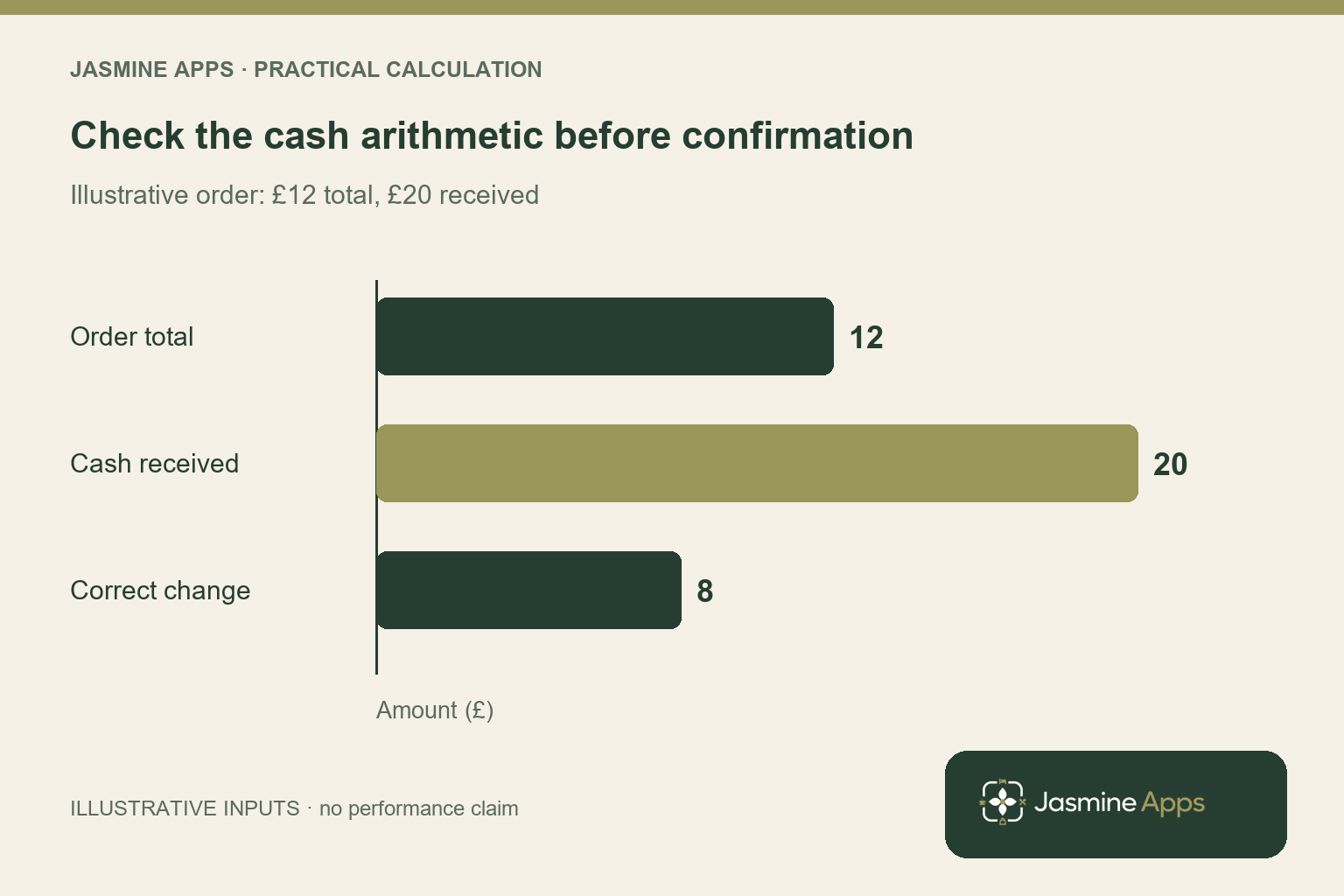
Illustrative cash check: A £12 order paid with a £20 note requires £8 change: £20 − £12 = £8. The received amount should show £20. If an additive quick-note action instead leaves £32 entered, the displayed £20 change reflects that incorrect input. Correct the entry before completing payment; do not use the example to alter an already completed receipt.
3. What if I have already completed the sale?
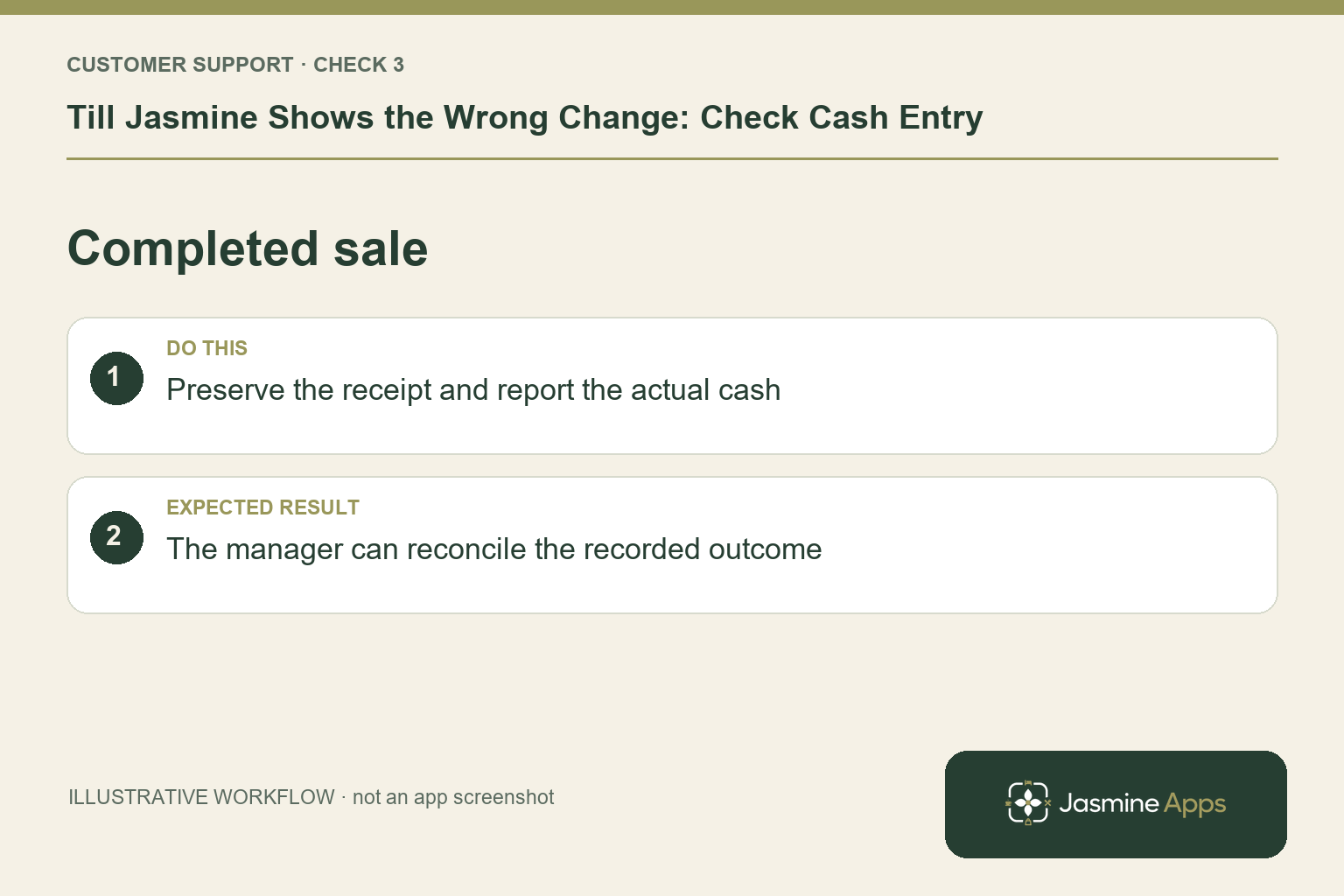
Do not enter another sale to force the drawer total into line. Preserve the receipt and tell the duty manager what cash was actually received and handed back. The manager should use the approved correction and reconciliation process for the installation. This guide does not assume there is a universal undo button after payment. An accurate incident note is more useful than an unexplained balancing entry.
Check the result: The manager can reconcile the recorded outcome.
4. How can we prevent this on busy shifts?
Practise three examples in training: exact cash, a larger single note and a mixture of notes. Ask staff to read the tendered amount before confirming, especially after using quick notes. Keep the explanation near the cash-training checklist rather than covering the screen with notices. A short rehearsal helps newcomers understand that adding £20 and replacing an amount with £20 are different actions.
Check the result: Staff distinguish adding from replacing an amount.
Example from the actual app
The actual Products & Categories page separates the product record from its On till placement, and the Till Layout screen separates selling pages from the Payment page. Use those real checks for this workflow. The dashboard’s hourly and payment-method views report the venue’s recorded sales; a layout change should be tested on the intended device before its effect on service is assessed. For this article’s tendered amount check, compare the keypad value with cash received. Verify the amount represents the notes actually handed over.
Before you contact us
| Check | What to do | Result to verify |
|---|---|---|
| Tendered amount | Compare the keypad value with cash received. | The amount represents the notes actually handed over. |
| Replacement amount | Clear, enter the received amount and review change. | Change equals received cash minus order total. |
| Completed sale | Preserve the receipt and report the actual cash. | The manager can reconcile the recorded outcome. |
| Training examples | Practise exact cash, one note and mixed notes. | Staff distinguish adding from replacing an amount. |
Record which check failed, the exact error wording and when it happened. Include the relevant venue and record reference, and say whether one device or several people are affected. If you changed a setting, identify that change and the retest outcome. This helps us investigate the actual failing stage instead of asking you to repeat the whole process.
Contact Us if the expected result still does not appear. Send only the information needed to investigate; keep passwords, active codes, payment details and unrelated customer records out of screenshots.
When to stop and ask for help
If the entered amount is correct but the displayed change is still inconsistent, record the order total, tendered amount and shown change in a non-live example. Raise that with support. Keep guest payment details and unrelated receipts out of screenshots.
Related support checks
- Why Is My Product Not Showing on Till Jasmine?
- Cash or Card Button Missing on Till Jasmine?
- Till Jasmine Pairing Code Rejected? What to Check
Illustrations explain the workflow and are not product screenshots. Any numerical example is labelled illustrative and is not a customer result. Product wording and documented setup checks reviewed on 13 October 2026; confirm the features available in your current installation.