TutorialIn-app guide
Till Jasmine: enter and correct an order
· Jasmine Apps
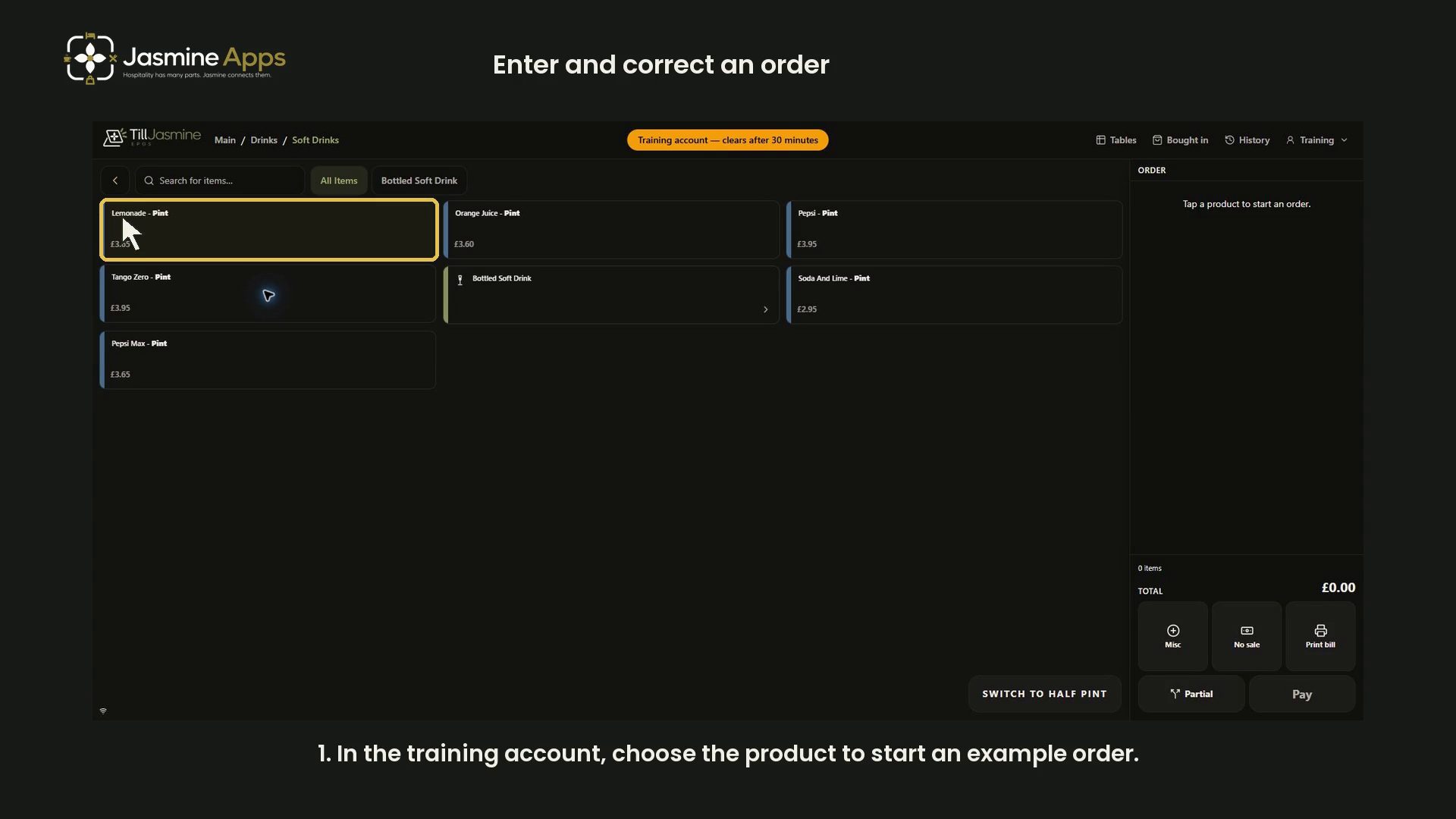
Practice Till Jasmine order corrections in an isolated training account. This walkthrough shows full dark-mode screens with synchronized narration, gold highlights and click effects.
Watch the walkthrough
Before you start
Open Till Jasmine and use an authorised training account. The recorded account displays a training banner and says its local tables, bookings and receipts clear after about 30 minutes. Do not record PIN entry. The example prices are the recorded venue's values.
1. Find and add the product
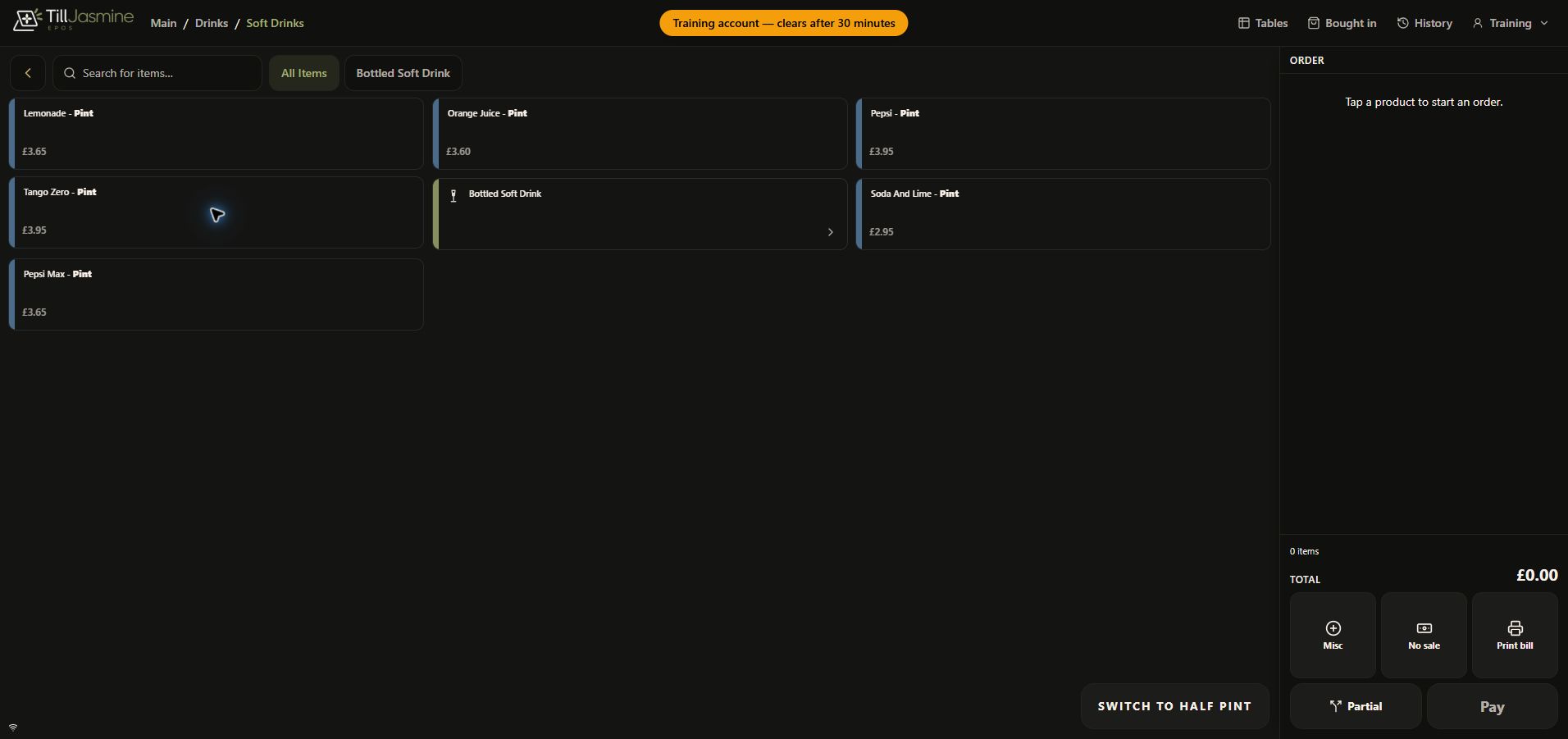
Open Drinks → Soft Drinks. Tap Lemonade - Pint twice. The example produces two items at £3.65 each. Always check the exact product name and price rather than assuming every venue uses this layout.
2. Correct the quantity
Review the order panel: the two-item example totals £7.30. Use Remove one Lemonade - Pint to reduce it to one, and check the updated £3.65 total. The plus control adds one; the line's void control removes the line through the reason prompt.
3. Add a line note
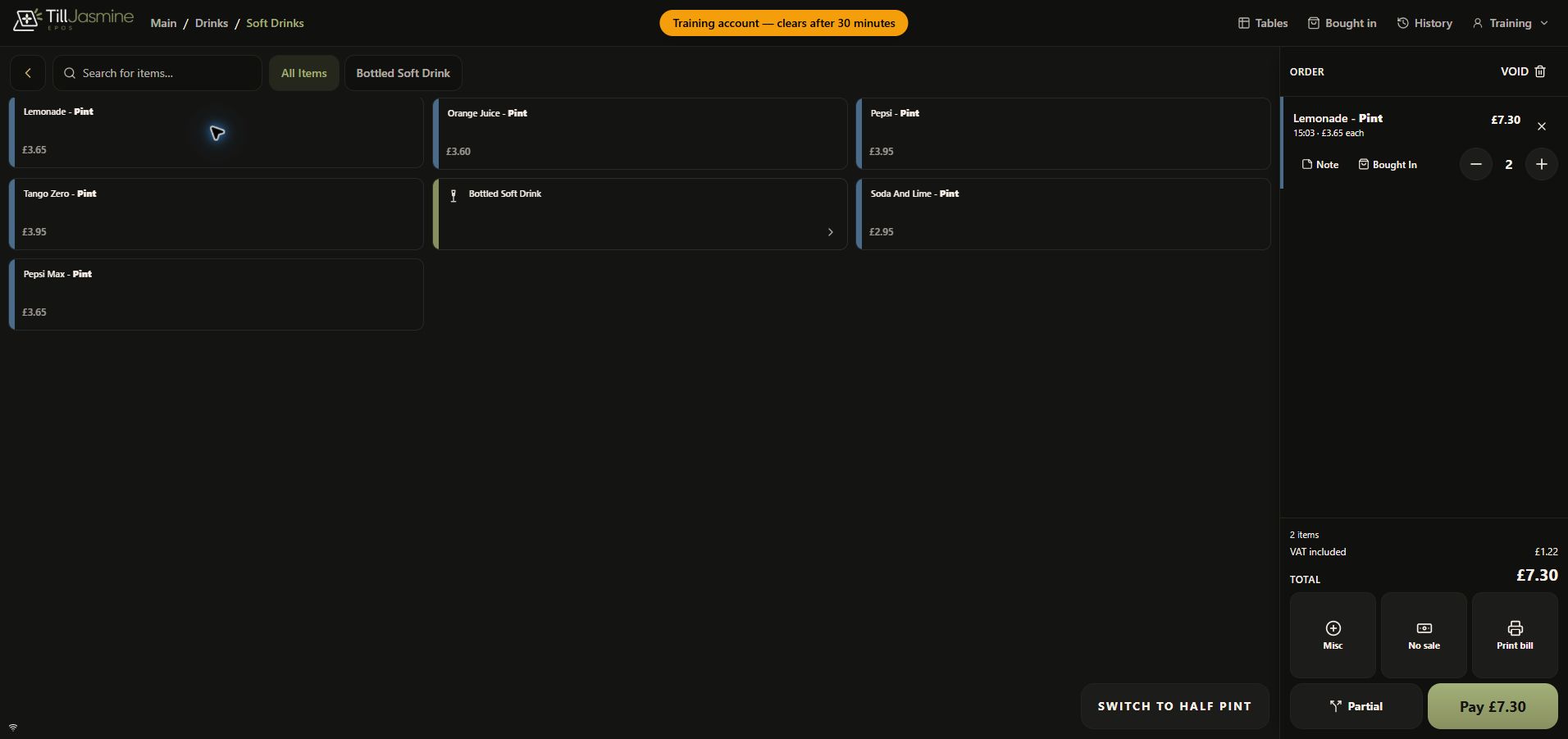
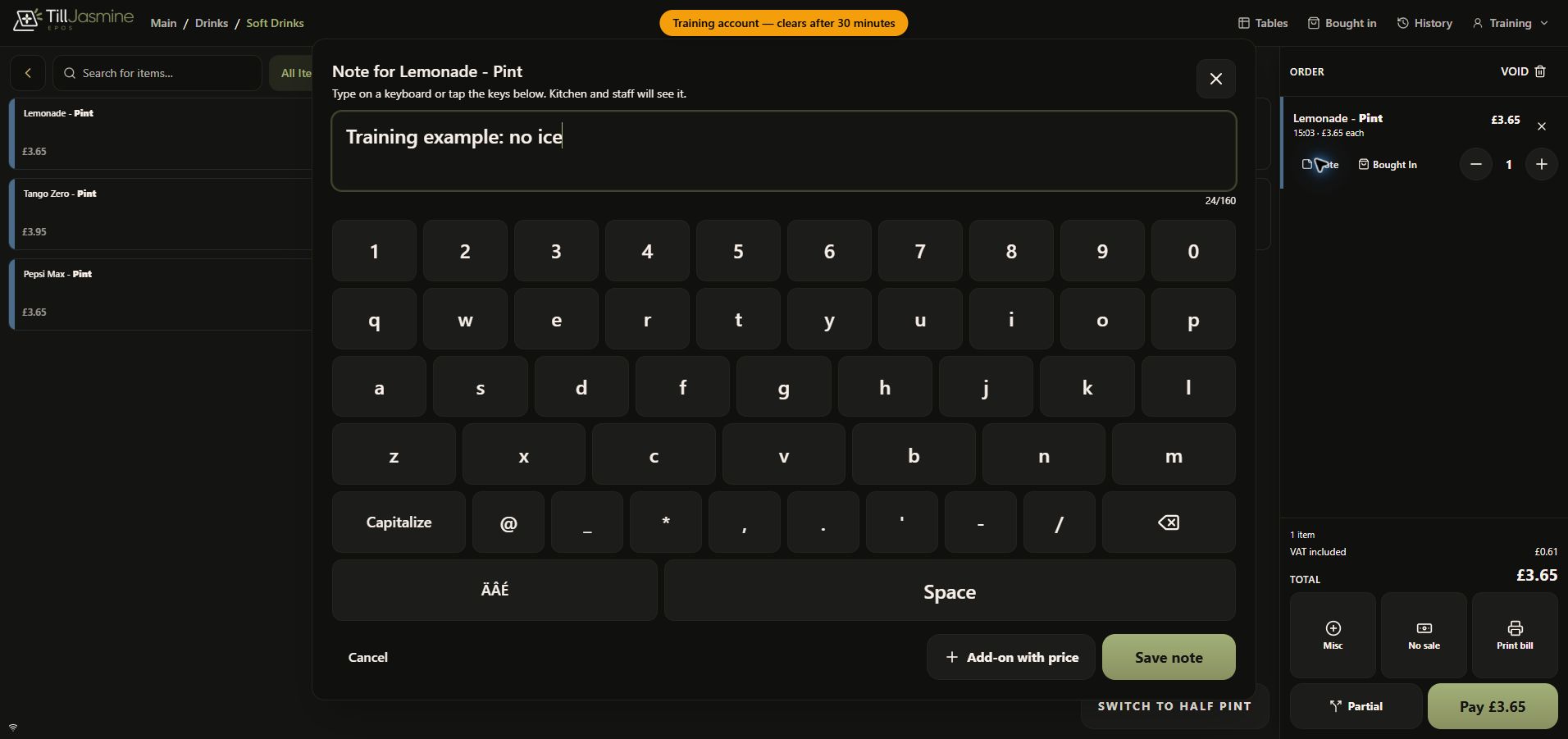
Select Note on the product line. Enter a short instruction such as Training example: no ice, then select Save note. The note editor explains that kitchen and staff will see it. Keep notes relevant to the order and exclude personal or payment details.
4. Remove a line with the right reason
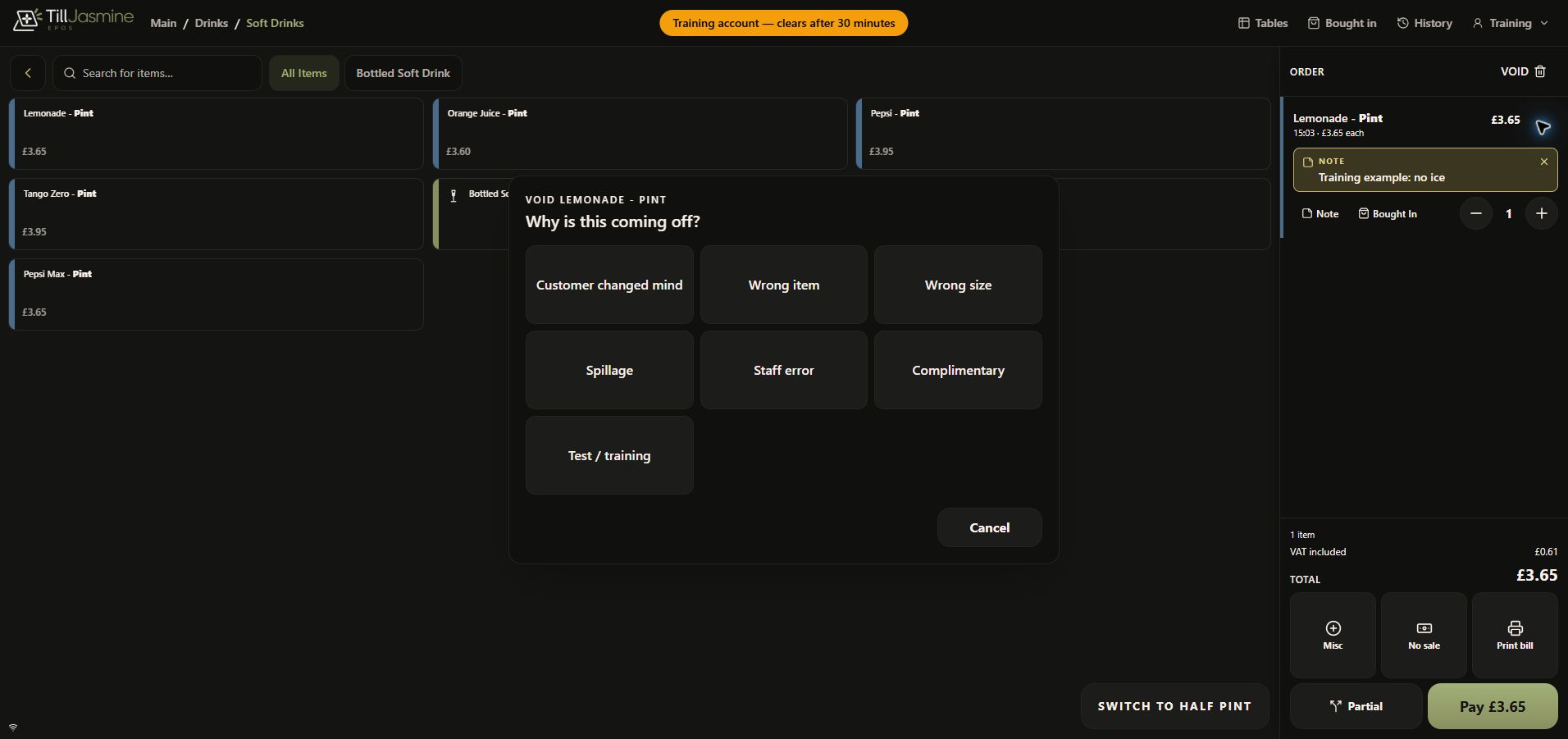
Select the line's Void Lemonade - Pint control. In Why is this coming off?, choose the truthful reason. The recording selects Test / training for its demonstration item. This clears the line. For a real correction, choose the reason that describes what actually happened.
5. Review before taking payment
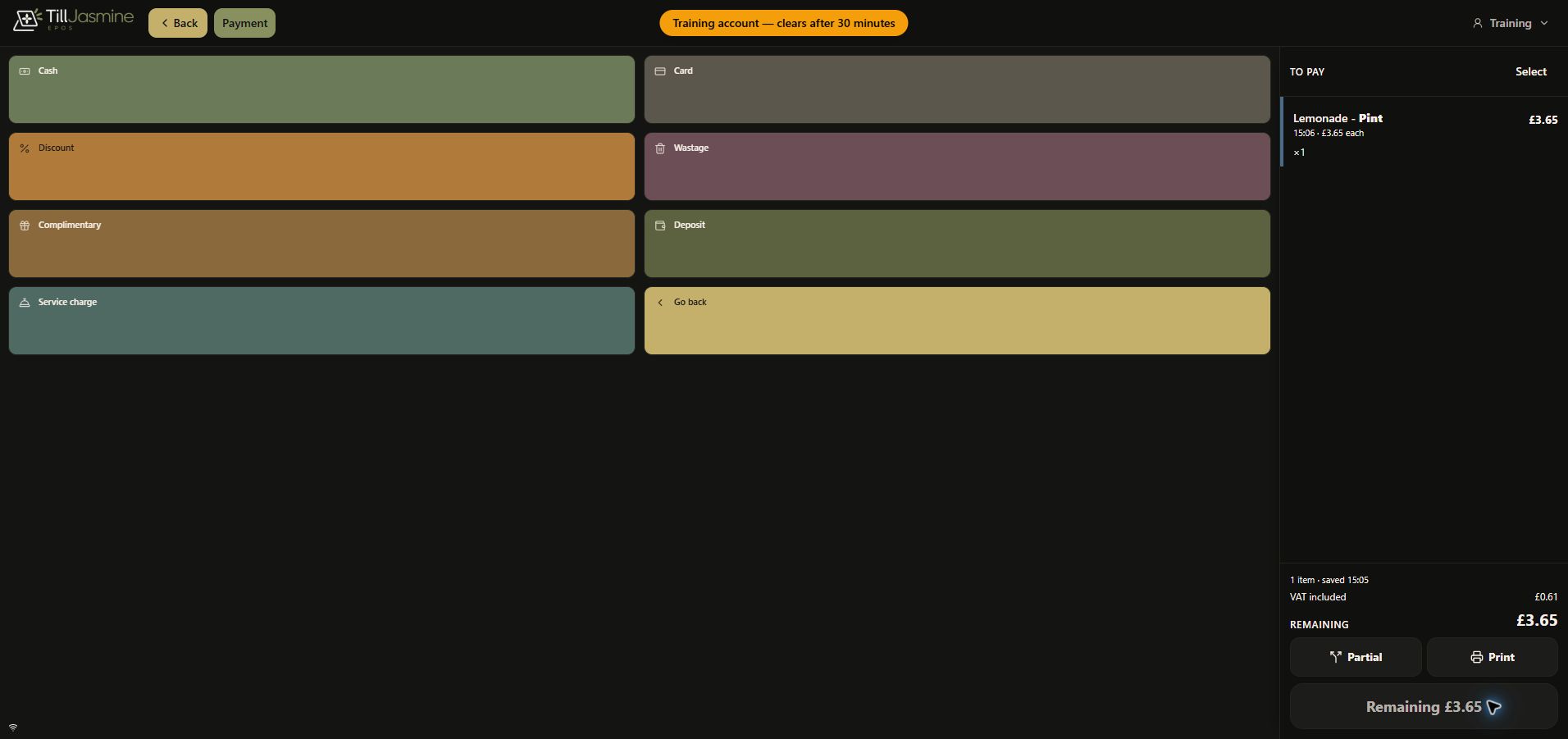
A fresh one-item example is opened with Pay £3.65 so the walkthrough can show the payment review screen. Check the item and Remaining amount. Use Go back if the order needs correcting. The recording does not choose a payment method or complete a payment.