

Till Jasmine Pairing Code Rejected? What to Check
· Jasmine Apps
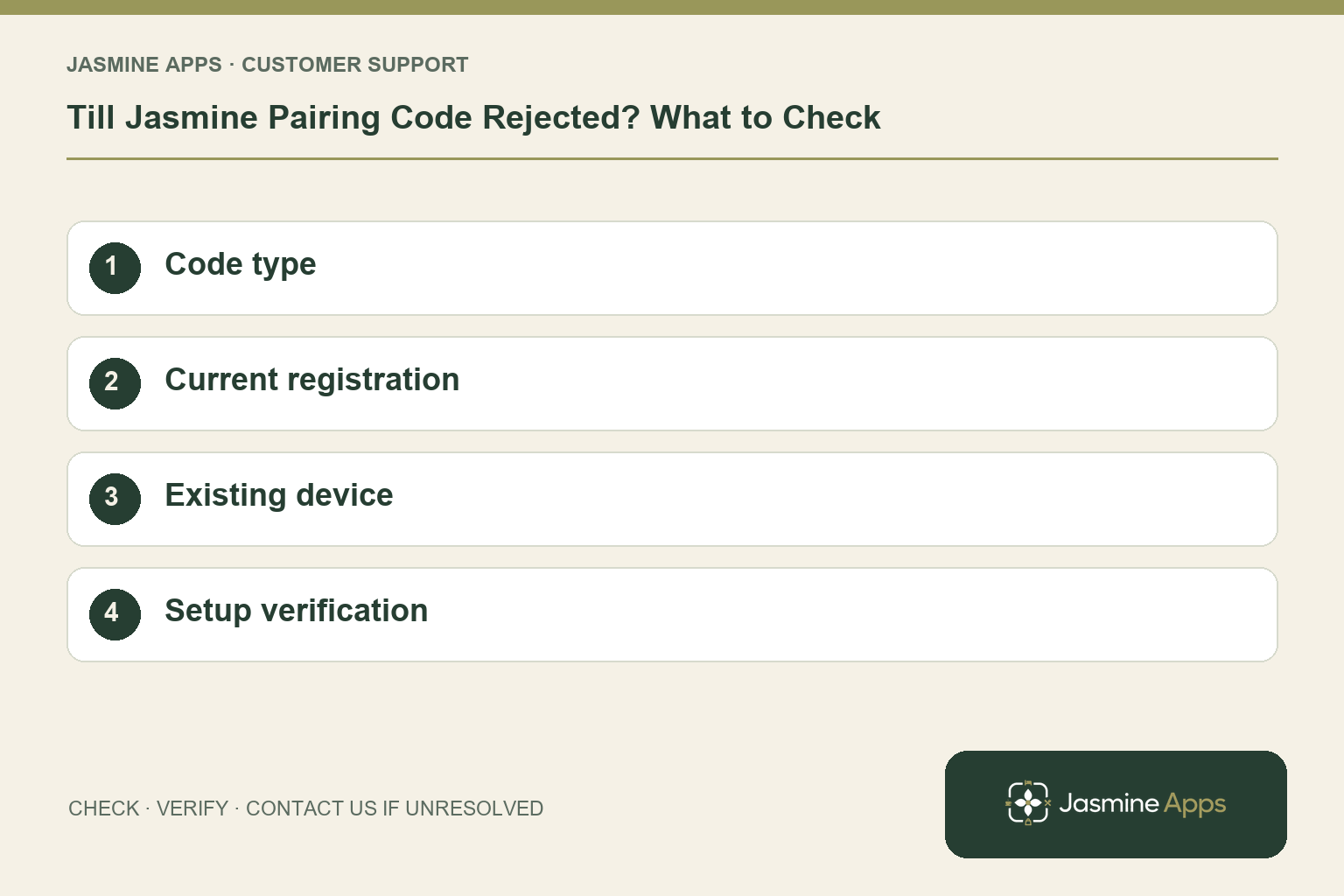
Customer support: Work through these checks in order. After each change, repeat the original action and check the result. If it remains unresolved, use Contact Us.
A newly installed till asks for a code, but the code you were sent does not work. Till Jasmine device pairing is separate from a staff PIN or an email login. Checking which code you are entering often saves a long installation detour.
Quick answer: Use a current till code created by an authorised manager in Active Tills. Expired codes need replacing.
1. Is the pairing code my staff PIN?
No. The dedicated Windows till is paired once with a device code; staff subsequently unlock it with their own four-digit PIN. A manager's email and password are not the device-pairing method in the setup guide. Read the screen carefully so you know whether it is asking to register the till or identify the person taking sales.
Check the result: The code matches the screen's request.
2. How do I get a replacement code?
On the manager computer, open Active Tills. Under Add a till, enter a recognisable name such as Restaurant till 1 and choose Create till code. Enter the new code on the intended till. The guide says codes expire, so an older screenshot or message may no longer be usable. Keep the code private and confirm the venue before registration.
Check the result: The intended venue and till are registered.
3. Should I remove an existing till to try again?
Do not remove a working registration as a routine troubleshooting step. Removing a till stops that device taking sales and requires an authenticator check. If the PC previously traded successfully and unexpectedly asks for registration, preserve the device and its sales records. Ask support to inspect the situation before reinstalling, clearing storage or creating multiple registrations with confusingly similar names.
Check the result: Local sales are retained while support checks it.
4. How do I check that setup is actually complete?
Confirm the manager can identify the registered device, then check that the intended staff have accepted their venue invitations. Users showing Not set need their PIN configured through the documented user process. In an approved test workflow, verify the saved layout and opening routine before the first live order. Pairing alone does not create products, staff permissions or a finished selling screen.
Check the result: Pairing is followed by an approved test order.
Example from the actual app
The actual Products & Categories page separates the product record from its On till placement, and the Till Layout screen separates selling pages from the Payment page. Use those real checks for this workflow. The dashboard’s hourly and payment-method views report the venue’s recorded sales; a layout change should be tested on the intended device before its effect on service is assessed. For this article’s code type check, distinguish device pairing from personal PIN. Verify the code matches the screen's request.
Before you contact us
| Check | What to do | Result to verify |
|---|---|---|
| Code type | Distinguish device pairing from personal PIN. | The code matches the screen's request. |
| Current registration | Use a fresh code from Active Tills. | The intended venue and till are registered. |
| Existing device | Preserve a previously working registration. | Local sales are retained while support checks it. |
| Setup verification | Check staff access and saved layout. | Pairing is followed by an approved test order. |
Record which check failed, the exact error wording and when it happened. Include the relevant venue and record reference, and say whether one device or several people are affected. If you changed a setting, identify that change and the retest outcome. This helps us investigate the actual failing stage instead of asking you to repeat the whole process.
Contact Us if the expected result still does not appear. Send only the information needed to investigate; keep passwords, active codes, payment details and unrelated customer records out of screenshots.
When to stop and ask for help
If a fresh code is rejected, note the exact error, till name, venue, Windows setup and time the code was created. Do not include the code itself in a public screenshot. Let support determine whether registration or connectivity is failing.
Related support checks
- Why Is My Product Not Showing on Till Jasmine?
- Cash or Card Button Missing on Till Jasmine?
- Till Jasmine Shows the Wrong Change: Check Cash Entry
Illustrations explain the workflow and are not product screenshots. Any numerical example is labelled illustrative and is not a customer result. Product wording and documented setup checks reviewed on 13 October 2026; confirm the features available in your current installation.