

Restaurant Booking Widget Not Loading on Your Website?
· Jasmine Apps
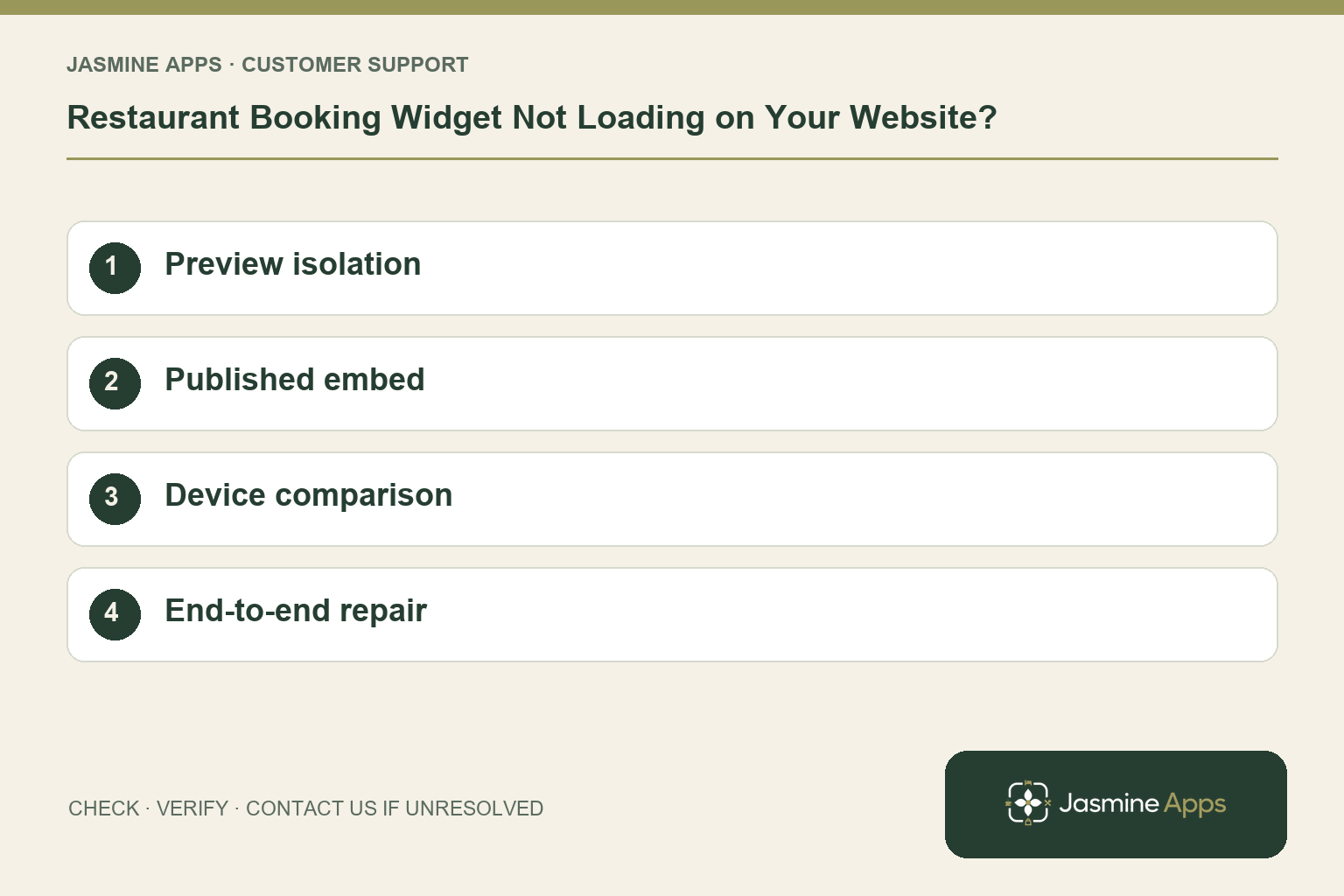
Customer support: Work through these checks in order. After each change, repeat the original action and check the result. If it remains unresolved, use Contact Us.
A blank booking area can look like a reservations outage when the issue is confined to one web page. Compare the Table Jasmine preview with the published website before rebuilding the booking system. The comparison gives your website editor a clearer starting point.
Quick answer: Confirm Widget Enabled, save settings, refresh Live Preview, and compare the approved embed with the published website page.
1. What is the quickest way to isolate the fault?
Open Booking Widget and check Widget Status. Set it to Widget Enabled for online bookings. Use Save Settings and Refresh in Live Preview. If the preview works but the website remains blank, focus on the embed and page. If both fail, note any warning about opening times, tables or booking rules before changing website code.
Check the result: The team knows whether the preview works.
2. How do I check the website embed?
Scroll to Embed Code and use its copy icon. Ask the authorised website editor to compare that code with the booking component on the published page. Confirm the correct venue's embed is used and page changes are published. A working editor preview is not always the page a guest visits. Avoid adding a second widget over the first as a trial fix.
Check the result: The correct venue's widget is embedded once.
3. Should I test on a phone as well?
Yes. Open the live page on a representative phone and desktop. Note whether the form is blank, clipped or below the visible section. If Live Preview works, give the website editor the device, browser and page address. Have them review page layout and site restrictions. Do not ask guests to disable security protections to make a booking.
Check the result: A page-specific layout problem is identified.
4. What counts as a successful repair?
A visible form is the first check. Guests must also be able to read fields, select an expected slot and reach a clear result. Use an approved test booking and verify its record before repeating. Check the success message and enquiry alternative. Keep a direct contact route visible while the editor resolves a page-specific problem.
Check the result: The form works beyond simply appearing.
Example from the actual app
The actual Embed Code section warns that an iframe on WordPress or another website needs a full https address including the venue slug. A relative /widget/… path can be resolved against the restaurant’s own domain and produce a 404. Ask the website editor to inspect the actual iframe src. The live widget preview also warns that submitted bookings are real; do not submit casually as a visual test.
Before you contact us
| Check | What to do | Result to verify |
|---|---|---|
| Preview isolation | Enable, save and refresh Live Preview. | The team knows whether the preview works. |
| Published embed | Compare the approved code with the live page. | The correct venue's widget is embedded once. |
| Device comparison | Check a representative phone and desktop. | A page-specific layout problem is identified. |
| End-to-end repair | Verify a test completion and its record. | The form works beyond simply appearing. |
Record which check failed, the exact error wording and when it happened. Include the relevant venue and record reference, and say whether one device or several people are affected. If you changed a setting, identify that change and the retest outcome. This helps us investigate the actual failing stage instead of asking you to repeat the whole process.
Contact Us if the expected result still does not appear. Send only the information needed to investigate; keep passwords, active codes, payment details and unrelated customer records out of screenshots.
When to stop and ask for help
Send support the public page, device/browser and whether Live Preview works. Ask the website editor to provide relevant embed details through the approved channel. Leave guest details and private website-admin credentials out of the report.
Related support checks
- Table Jasmine Widget Shows No Availability?
- Cannot Find a Table Jasmine Reservation? Check These First
- Table Assignment Missing or Wrong in Table Jasmine?
Illustrations explain the workflow and are not product screenshots. Any numerical example is labelled illustrative and is not a customer result. Product wording and documented setup checks reviewed on 13 October 2026; confirm the features available in your current installation.