

TutorialIn-app guide
Table Jasmine: invite a team member and check their access
· Jasmine Apps
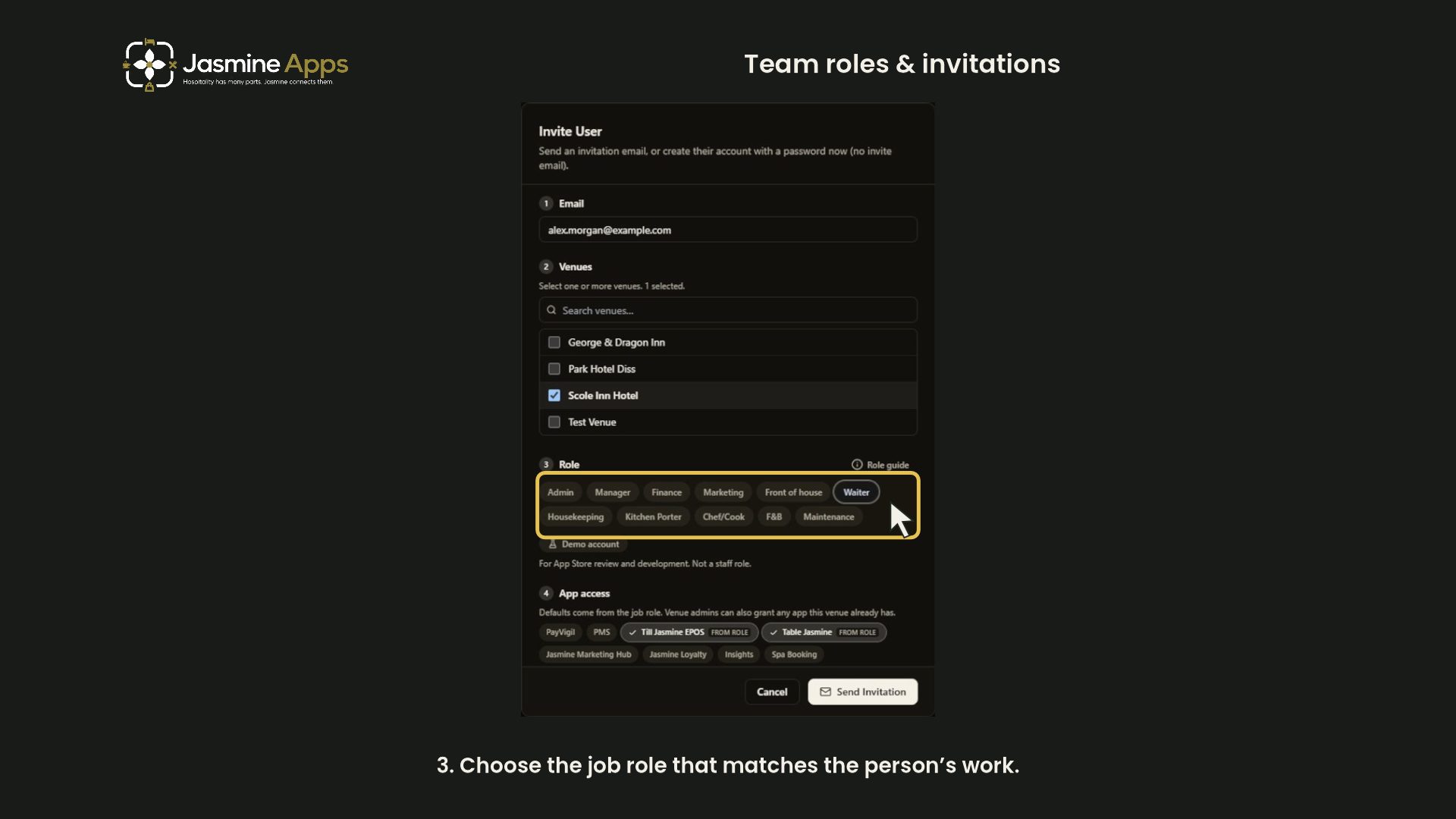
Invite a colleague to Table Jasmine with the right venue, role and app access. This guide takes you through the invitation form, sending the invitation, and checking the colleague’s status in Users & Permissions.
Quick route: Settings → Users & Permissions → Invite User → Role guide.
Watch the walkthrough
The current video illustrates the form fields and role guide. It ends with Cancel; follow steps 5 and “Check the result” below to complete a real invitation. A revised video covering that completion sequence is being prepared.
Before you start
- Open the correct venue and check that your account can review users and permissions.
- Have the colleague’s intended job role and required venues clear before preparing their invitation.
- Use the displayed role guide to check access for your venue. Defaults can differ between venues.
- Confirm the colleague’s email address and that you are authorised to invite them with the selected access.
1. Review the invitation
Open Settings, then Users & Permissions, and choose Invite User. Check the intended email address and select only the venues relevant to the person’s work.
Before proceeding, confirm you are preparing the invitation for the right person. A similar name or an old email address is not enough to identify a colleague correctly. Enter the colleague’s correct email address before continuing.
2. Check the role guide
Choose the role that matches the job, then open Role guide. Check the venue shown beside Defaults at and search for the role you want to review.
The example searches for Waiter. Its card describes floor service and shows which apps are included by default at the selected venue. Read the included and not-included indicators rather than assuming every role receives the same access.
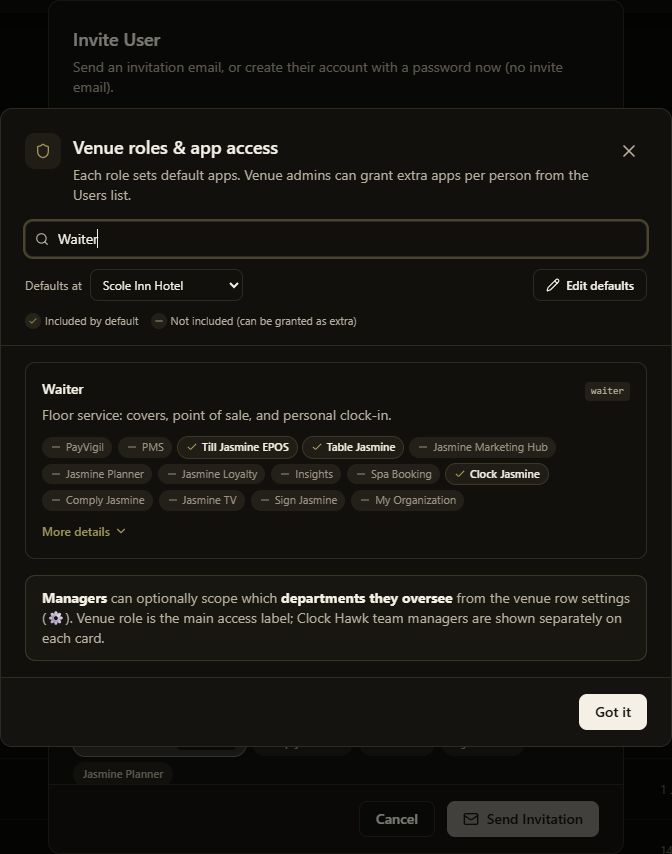
Check both the role name and Defaults at before drawing a conclusion: the same job title can have different defaults at another venue. Searching for a role in the guide is a lookup; return to the invitation and check its selected role separately.
Select Got it to return to the invitation. Reviewing the guide does not require selecting Edit defaults.
3. Review app access
In App access, check the selected apps. FROM ROLE identifies access included by the chosen role. Compare the selection with the person’s responsibilities and review any extra apps separately.
The illustrated role includes Till Jasmine EPOS, Table Jasmine and Clock Jasmine. Your venue’s configuration may differ; use its current role guide as the reference.
4. Check onboarding options
Review Require personal details questionnaire. The example has this selected and explains that the person must complete the onboarding wizard before accessing the app.
Check Employment contract template separately. The example displays No contract required; choose the option appropriate to your organisation’s process when preparing a real invitation.
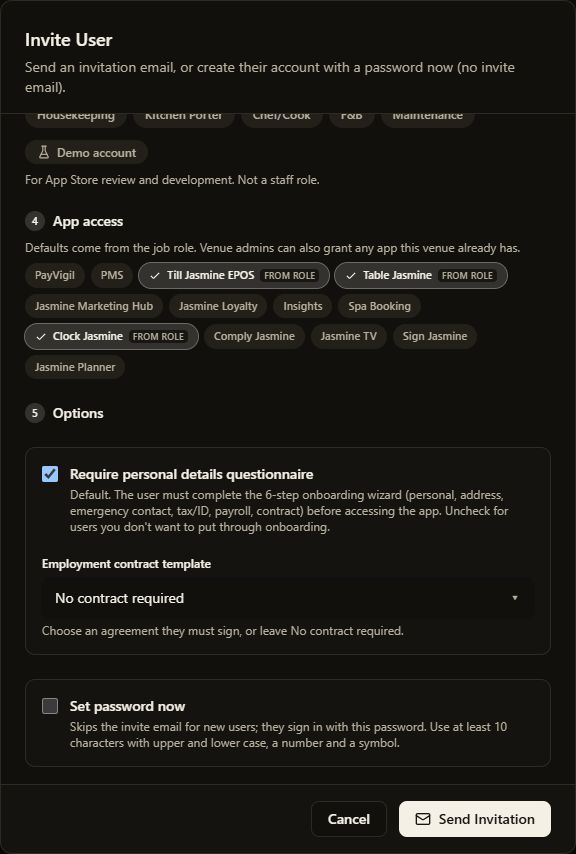
The form also offers Set password now, which the page describes as a different account-creation route that skips the invitation email for new users. Leave it unselected when you want to use the invitation-email route.
5. Send the invitation
Check the email, venues, role, app selection and onboarding options together. When everything is correct, select Send Invitation. This is the completion button for this workflow; there is no separate Save action.
Allow the request to finish and check any confirmation or error displayed. If the form reports an error, correct it before trying again. Do not assume the invitation was sent simply because you clicked the button.
Check the result
Before finishing, you should be able to answer these five checks:
- Person: Is the intended email address confirmed for the right colleague?
- Venue: Are only the required venues selected, and did you review the correct venue under Defaults at?
- Role: Does the role selected in the invitation match the job you reviewed?
- Apps: Have you distinguished FROM ROLE access from any additional apps?
- Onboarding: Are the questionnaire and contract choices appropriate for this invitation?
Return to Settings → Users & Permissions and locate the colleague by their email address in the member list. Check the Role and Status columns.
Invite pending identifies an outstanding invitation; it is not the same as Active. The list also offers Resend invite for a pending invitation. If the colleague has not received the email, first confirm the address and ask them to check junk or spam before resending.
After the colleague completes the invitation process, check the status again. Once their account is active, ask them to sign in and confirm they can access the intended venue and apps. A list entry alone does not verify that every permission is correct.
Common checks
- Users & Permissions or Invite User is unavailable: Confirm the venue and ask the person responsible for user access to check your permissions.
- An expected app is missing: Confirm the selected role and the venue in Defaults at, then review the app indicators.
- Too many apps are selected: Separate role defaults from extra access and review what the person actually needs.
- The options differ from the example: Check your venue’s current settings instead of copying the screenshot.
- No invitation email arrived: Confirm the email address, check the member’s status, and use Resend invite on the correct pending row if needed.
- The member is still Invite pending: Check whether they have completed the invitation process; do not describe pending access as active.
Continue learning
Continue with Create a reservation, or review Booking closures and venue rules.