

Table Assignment Missing or Wrong in Table Jasmine?
· Jasmine Apps
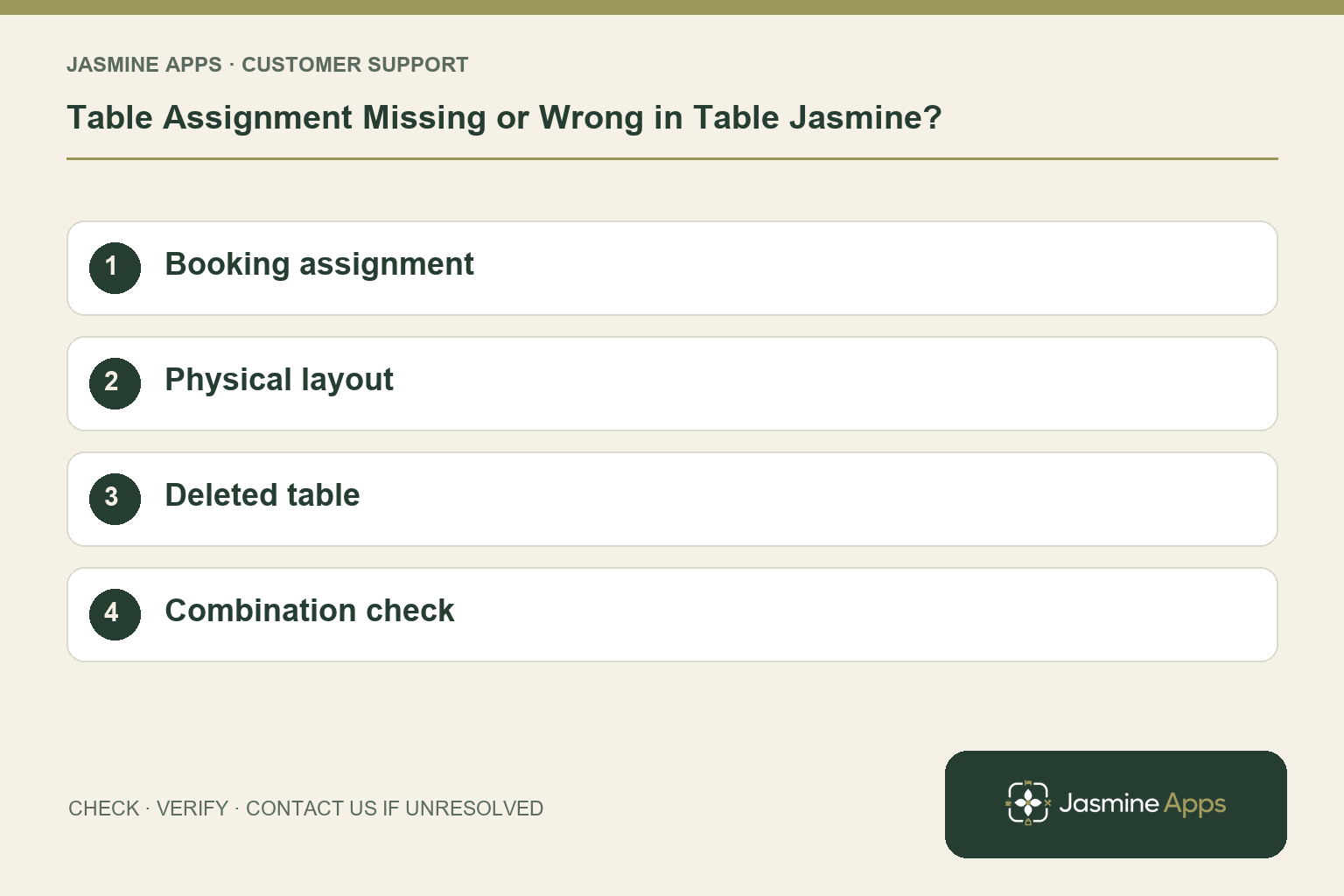
Customer support: Work through these checks in order. After each change, repeat the original action and check the result. If it remains unresolved, use Contact Us.
The booking is present, but the seating plan looks wrong. Table Jasmine links reservations to table records, while the floor plan describes their positions and properties. Identify which part is incorrect before rebuilding the room.
Quick answer: Check Table Assignment in Quick Edit, then review the existing table's area, seats and saved layout.
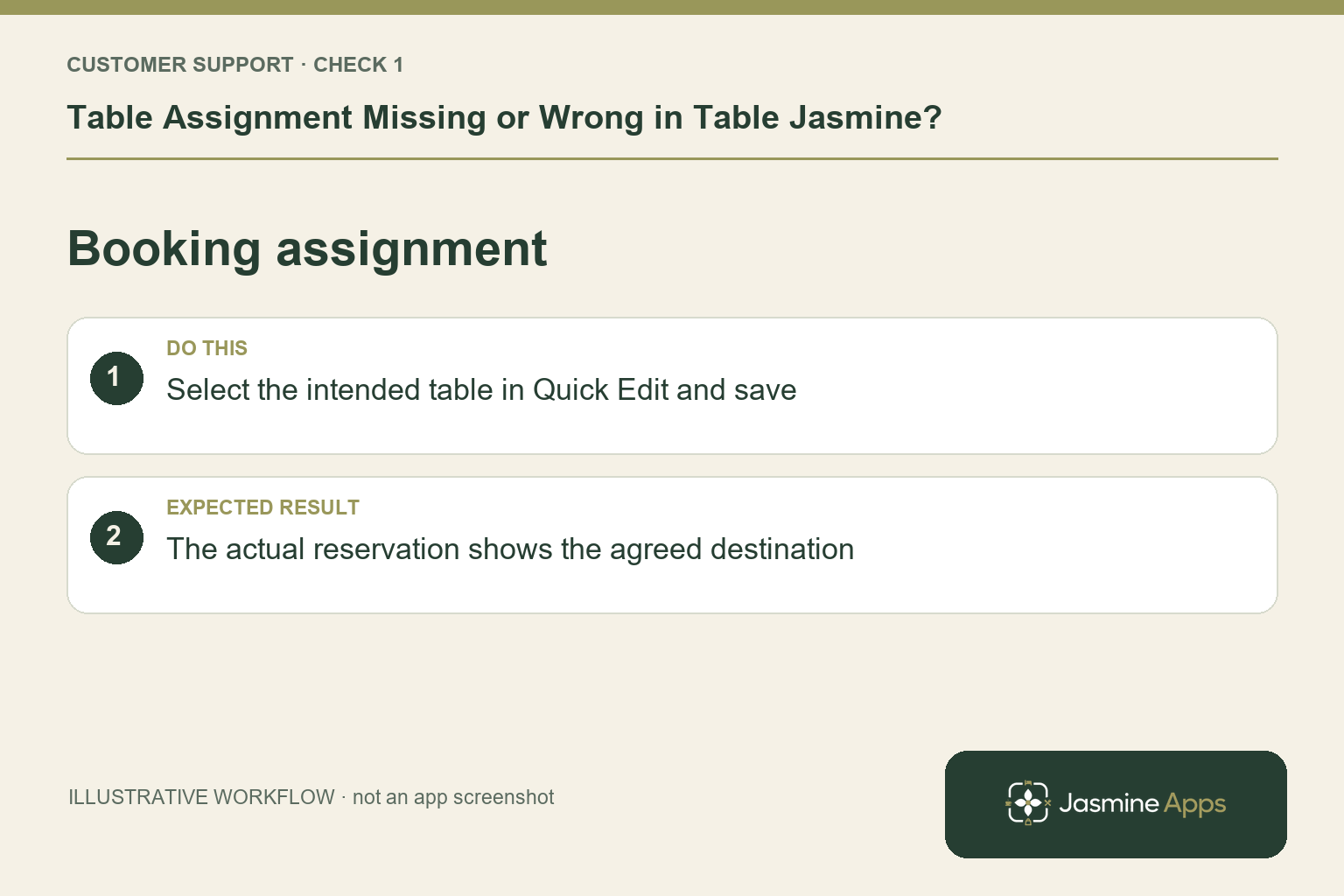
1. How do I correct one booking's table?
Open the reservation to reach Quick Edit. Use Select table under Table Assignment, choose the agreed destination and Save. Check date, time and party size before moving it so other bookings are considered. Tell the floor team too; the screen becoming correct does not automatically inform the colleague escorting guests. Verify the final assignment on the actual booking.
Check the result: The actual reservation shows the agreed destination.
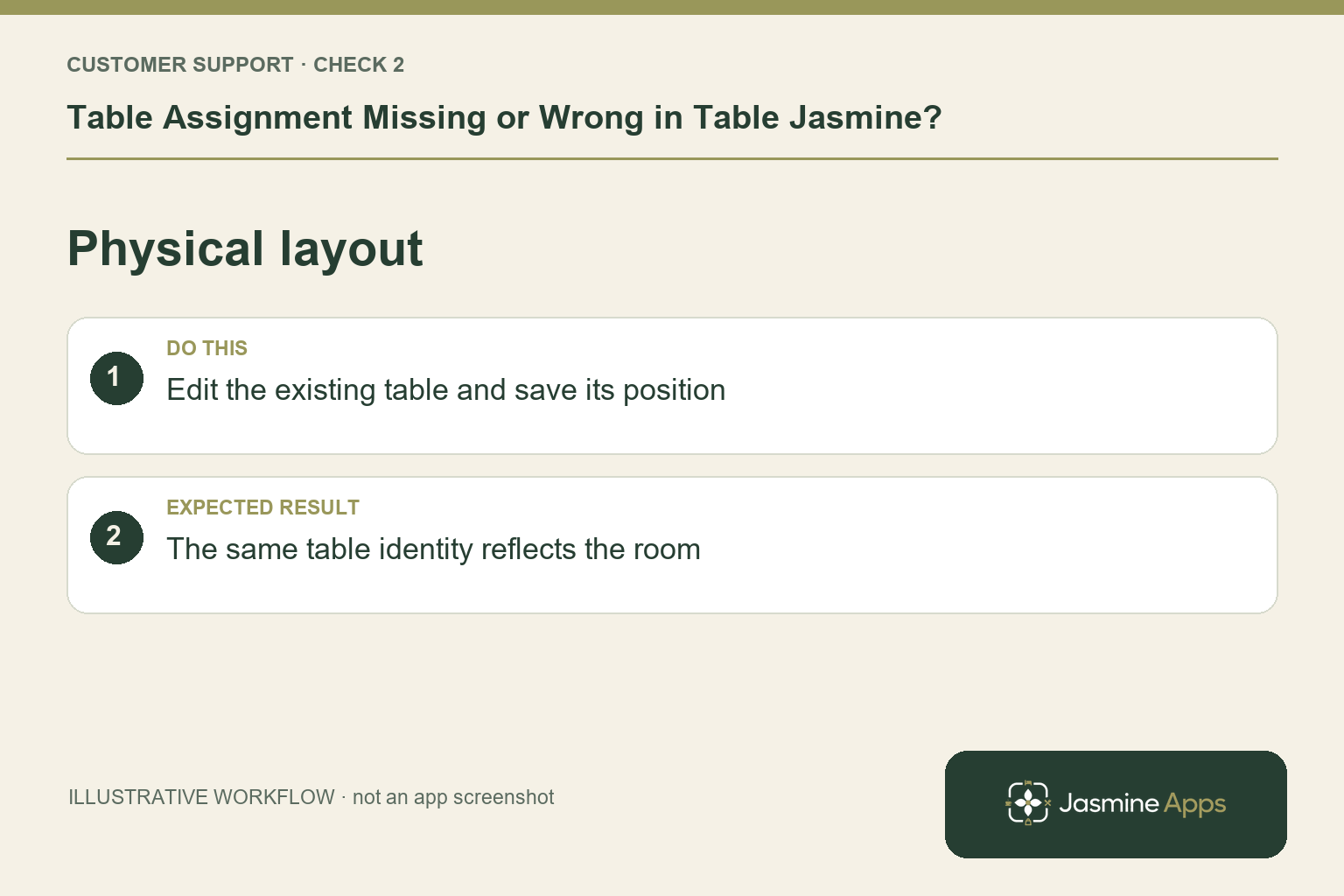
2. What if the table itself is in the wrong place?
Open Tables & Areas, then Floor Plan and Edit Layout. Select the existing table and review Table Properties: shape, seats, rotation and area. Move or resize it to reflect the room, then Save Layout. A position edit differs from a reservation reassignment. Keep the table's identity recognisable so every shift uses the same names.
Check the result: The same table identity reflects the room.
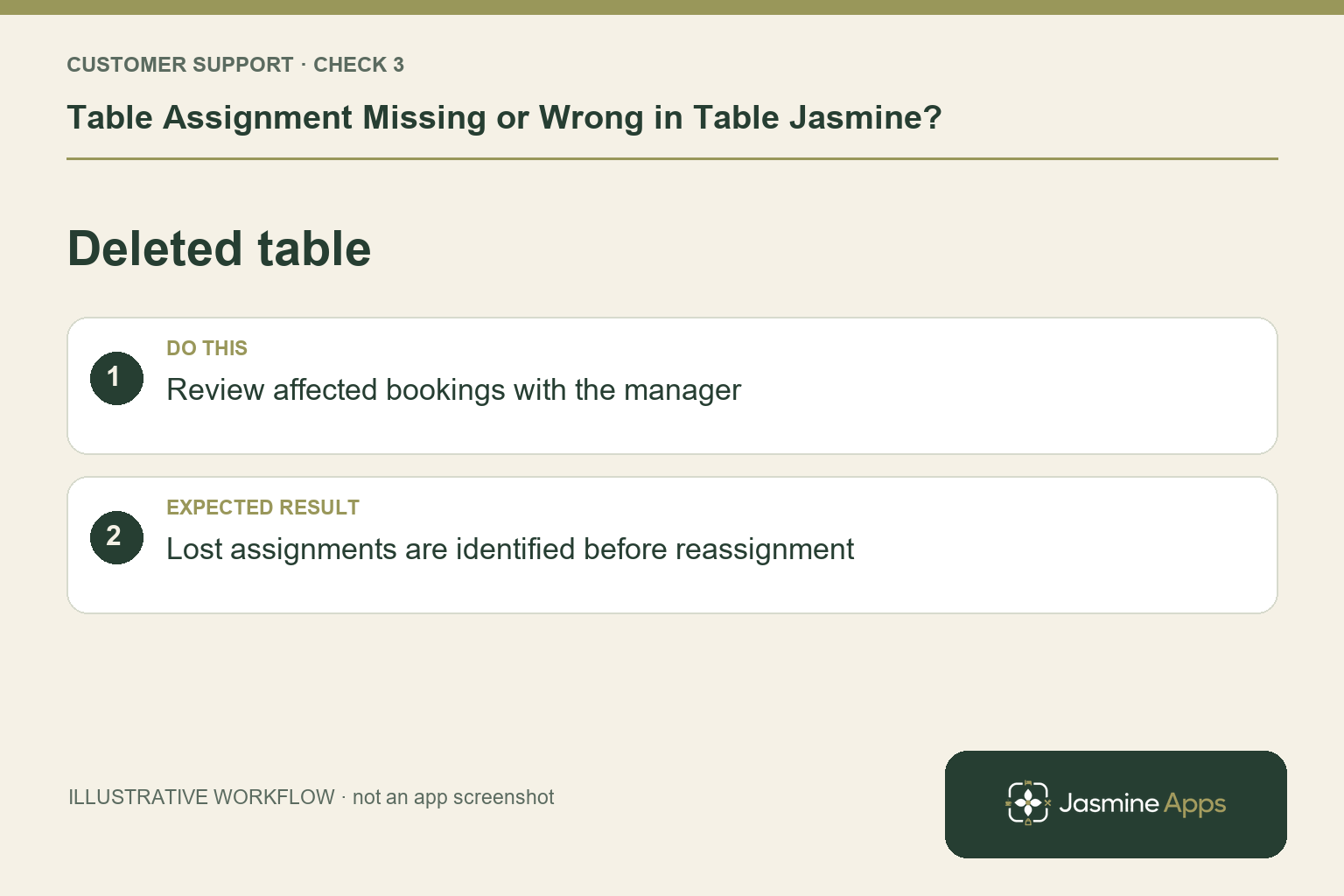
3. Why did bookings lose their table after a tidy-up?
Delete in Table Properties removes the table itself, not just its position. Bookings on it lose their assignment. Do not delete and recreate a table to move its drawing. If a record was removed accidentally, have the manager review affected reservations and ask support about recovery. Reassign carefully; a replacement name does not establish that every old link is restored.
Check the result: Lost assignments are identified before reassignment.
4. How should we handle a larger party?
For a genuine combined arrangement, use Edit Layout, Ctrl-click the relevant tables, Create Combination and Save. Large parties can be booked on that combination. Check physical seating and existing occupancy first. Function Layouts are separate from the everyday floor plan, so a private event does not need to distort the normal room. Make the agreed arrangement clear to the service team.
Check the result: The larger party has a usable agreed arrangement.
Example from the actual app
The actual reservation list distinguishes Confirmed, Arrived/Waiting, Seated, Has Left, No Show and Cancelled. Booking Widget has its own saved service limits, party-size cap and reservation gap. Check the relevant record and rule for this service rather than treating every empty table, started form or calendar entry as the same booking outcome. For this article’s booking assignment check, select the intended table in Quick Edit and save. Verify the actual reservation shows the agreed destination.
Before you contact us
| Check | What to do | Result to verify |
|---|---|---|
| Booking assignment | Select the intended table in Quick Edit and save. | The actual reservation shows the agreed destination. |
| Physical layout | Edit the existing table and save its position. | The same table identity reflects the room. |
| Deleted table | Review affected bookings with the manager. | Lost assignments are identified before reassignment. |
| Combination check | Review seating and saved combinations. | The larger party has a usable agreed arrangement. |
Record which check failed, the exact error wording and when it happened. Include the relevant venue and record reference, and say whether one device or several people are affected. If you changed a setting, identify that change and the retest outcome. This helps us investigate the actual failing stage instead of asking you to repeat the whole process.
Contact Us if the expected result still does not appear. Send only the information needed to investigate; keep passwords, active codes, payment details and unrelated customer records out of screenshots.
When to stop and ask for help
Give support the venue, reservation reference, original table and intended table. Note recent deletion or layout changes. Keep a checked seating list while investigating and exclude guest notes unrelated to the problem.
Related support checks
- Table Jasmine Widget Shows No Availability?
- Restaurant Booking Widget Not Loading on Your Website?
- Cannot Find a Table Jasmine Reservation? Check These First
Illustrations explain the workflow and are not product screenshots. Any numerical example is labelled illustrative and is not a customer result. Product wording and documented setup checks reviewed on 13 October 2026; confirm the features available in your current installation.