

Table Jasmine Widget Shows No Availability?
· Jasmine Apps
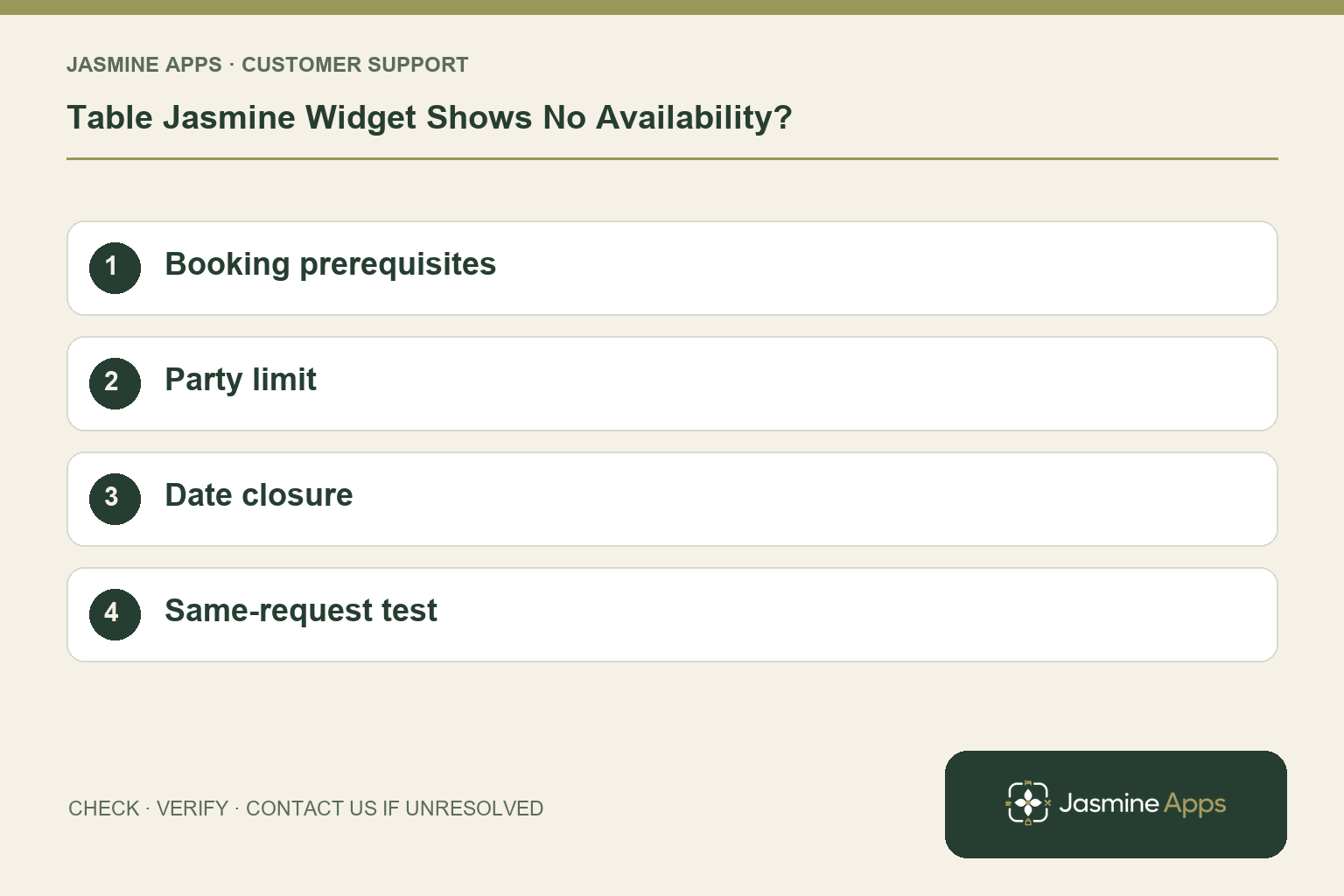
Customer support: Work through these checks in order. After each change, repeat the original action and check the result. If it remains unresolved, use Contact Us.
Your restaurant has empty seats, but the website offers no booking times. Table Jasmine online availability depends on configured rules, tables and closures. An empty dining room alone does not tell you which check is preventing a particular request.
Quick answer: Check the exact date and party size against opening times, tables, online limits and closures, then save and refresh the widget preview.
1. Which setup items can stop times appearing?
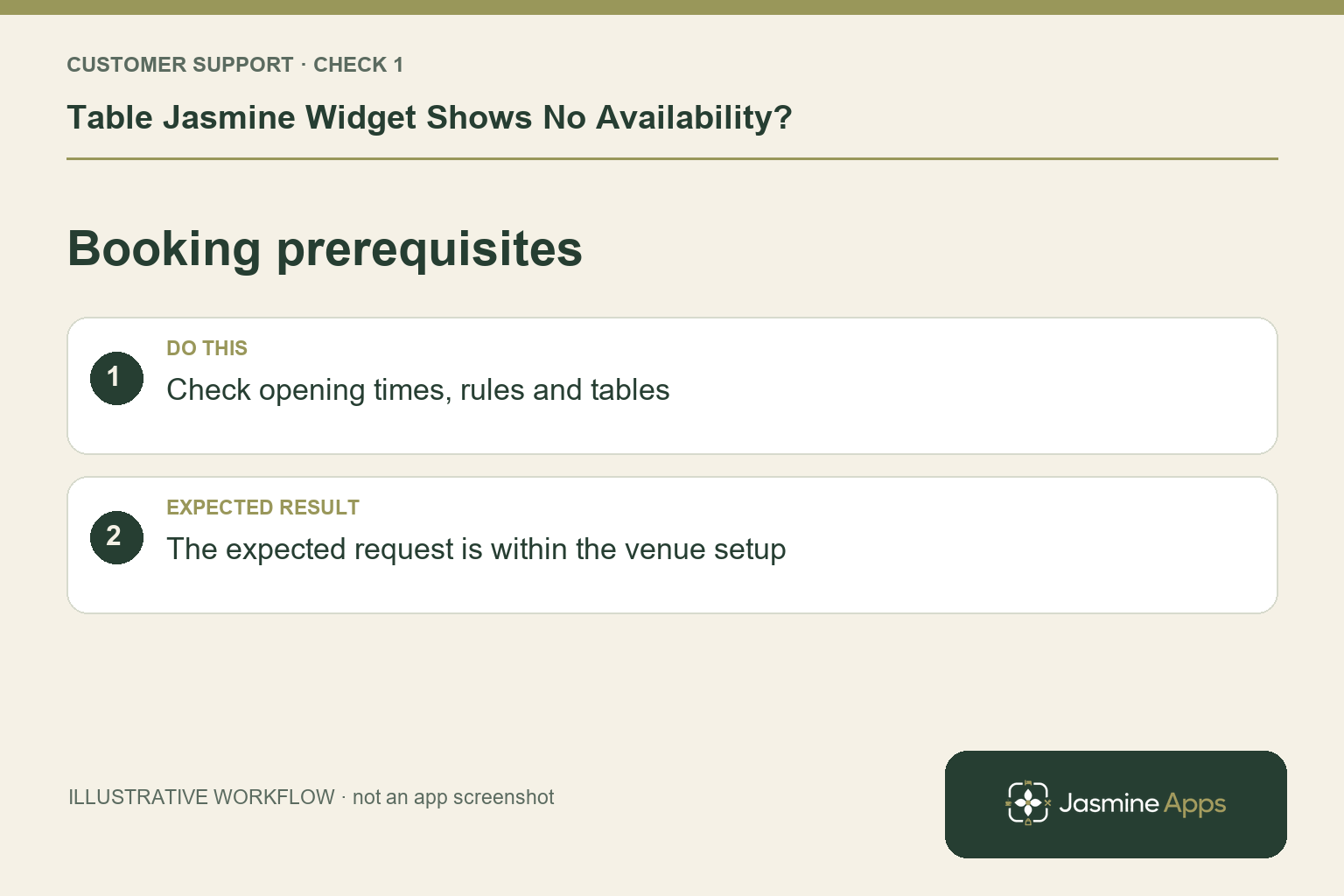
The widget guide requires opening times, booking rules and tables first, and warns when these are missing. Review Tables & Areas and Edit Details for the intended venue. Confirm the service times and table capacities reflect how you operate. Start with one ordinary date and party size that you expect to be bookable; changing several settings together makes it harder to identify the cause.
Check the result: The expected request is within the venue setup.
2. Could the requested group be too large?
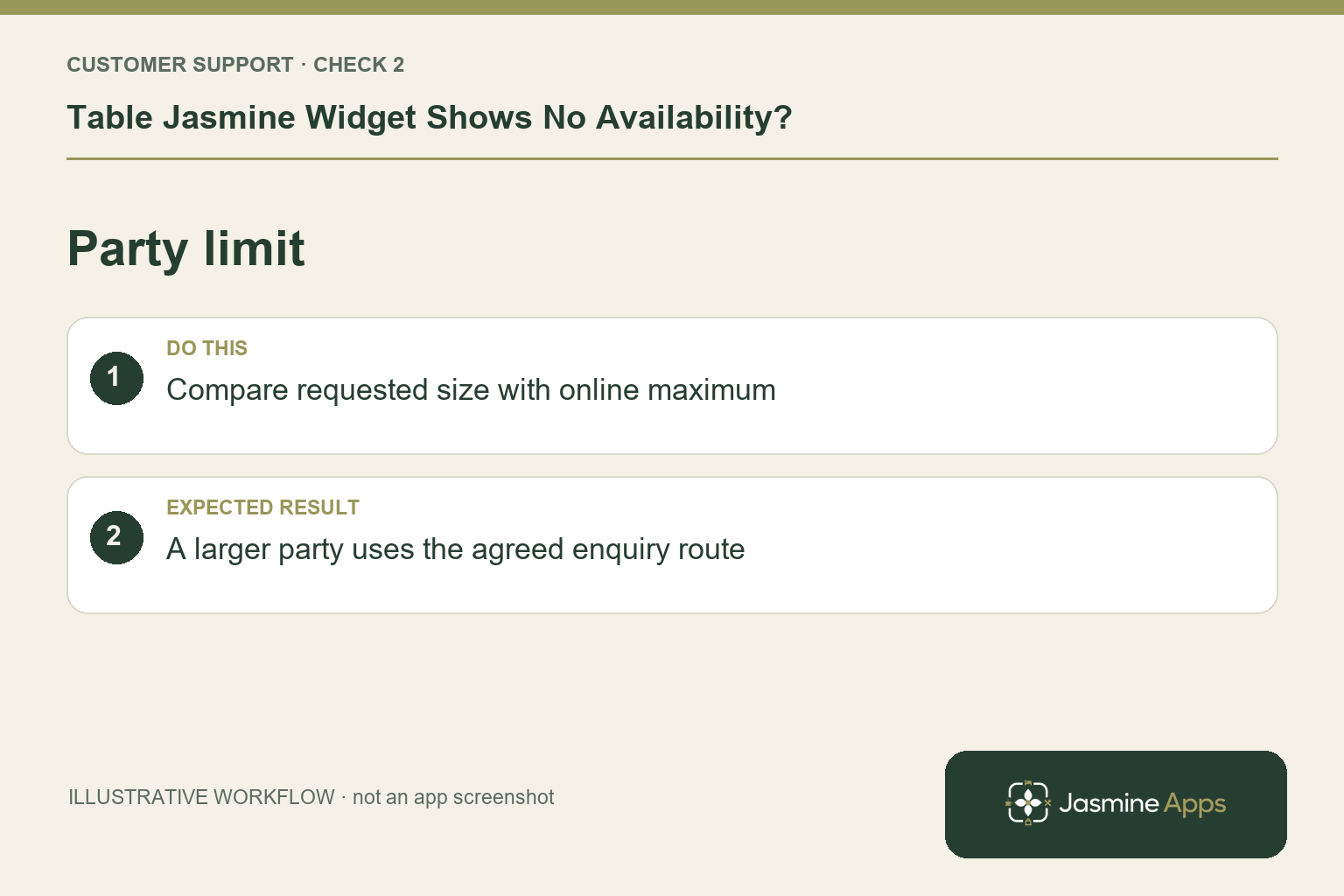
Check Max Party Size under the widget's Content settings. That limit applies online only. Staff can still discuss a larger booking by phone using New Reservation, subject to actual capacity. Offer a clear enquiry route for larger parties rather than raising the online maximum to a size you cannot seat reliably. For combined tables, verify the planned arrangement exists and is suitable.
Check the result: A larger party uses the agreed enquiry route.
3. Where do I check a date-specific closure?
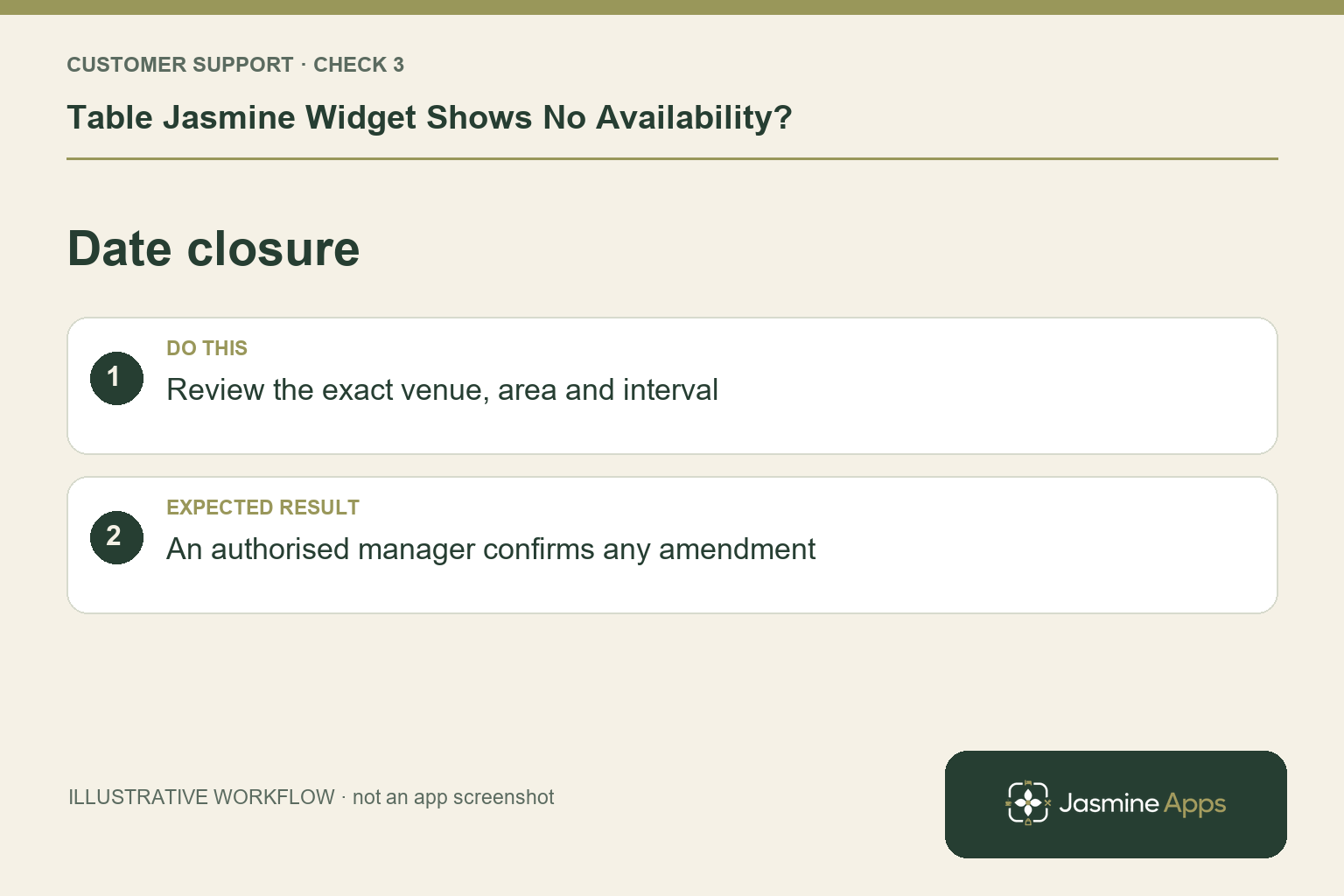
Open Settings and Booking Closures. Check whether a closure covers all day, a time interval, several dates, the entire venue or one area. Compare it with the guest's requested time. Amend only a closure an authorised manager confirms is incorrect. A closure for a private event may be deliberate even if part of the room looks empty.
Check the result: An authorised manager confirms any amendment.
4. How can I tell whether the change worked?
Save Settings, then use Refresh in Live Preview. Try the same date and party size again. Also test the website form because it could use a different or older embed. Use a venue-approved test and check whether it created a reservation before repeating. Restore temporary settings and brief the team on the final rules.
Check the result: Preview and public website show the expected result.
Example from the actual app
The real widget page separates Default slot interval, Max guests per slot, Max tables per slot and Reservation gap. Max guests caps overlapping guests, while Max tables limits how many reservations start in the interval. Reservation gap is measured after a booking’s end. Check the rule matching the refused request instead of changing all four together. Live Preview uses saved availability values.
Before you contact us
| Check | What to do | Result to verify |
|---|---|---|
| Booking prerequisites | Check opening times, rules and tables. | The expected request is within the venue setup. |
| Party limit | Compare requested size with online maximum. | A larger party uses the agreed enquiry route. |
| Date closure | Review the exact venue, area and interval. | An authorised manager confirms any amendment. |
| Same-request test | Save and retry the same date and party size. | Preview and public website show the expected result. |
Record which check failed, the exact error wording and when it happened. Include the relevant venue and record reference, and say whether one device or several people are affected. If you changed a setting, identify that change and the retest outcome. This helps us investigate the actual failing stage instead of asking you to repeat the whole process.
Contact Us if the expected result still does not appear. Send only the information needed to investigate; keep passwords, active codes, payment details and unrelated customer records out of screenshots.
When to stop and ask for help
If an expected slot remains absent, give support the venue, requested date and party size, area and relevant rules. Include the public page address and whether Live Preview behaves differently. Keep guest contact details private.
Related support checks
- Restaurant Booking Widget Not Loading on Your Website?
- Cannot Find a Table Jasmine Reservation? Check These First
- Table Assignment Missing or Wrong in Table Jasmine?
Illustrations explain the workflow and are not product screenshots. Any numerical example is labelled illustrative and is not a customer result. Product wording and documented setup checks reviewed on 13 October 2026; confirm the features available in your current installation.