

TutorialIn-app guide
Table Jasmine deposits: record, save and verify a payment
· Jasmine Apps
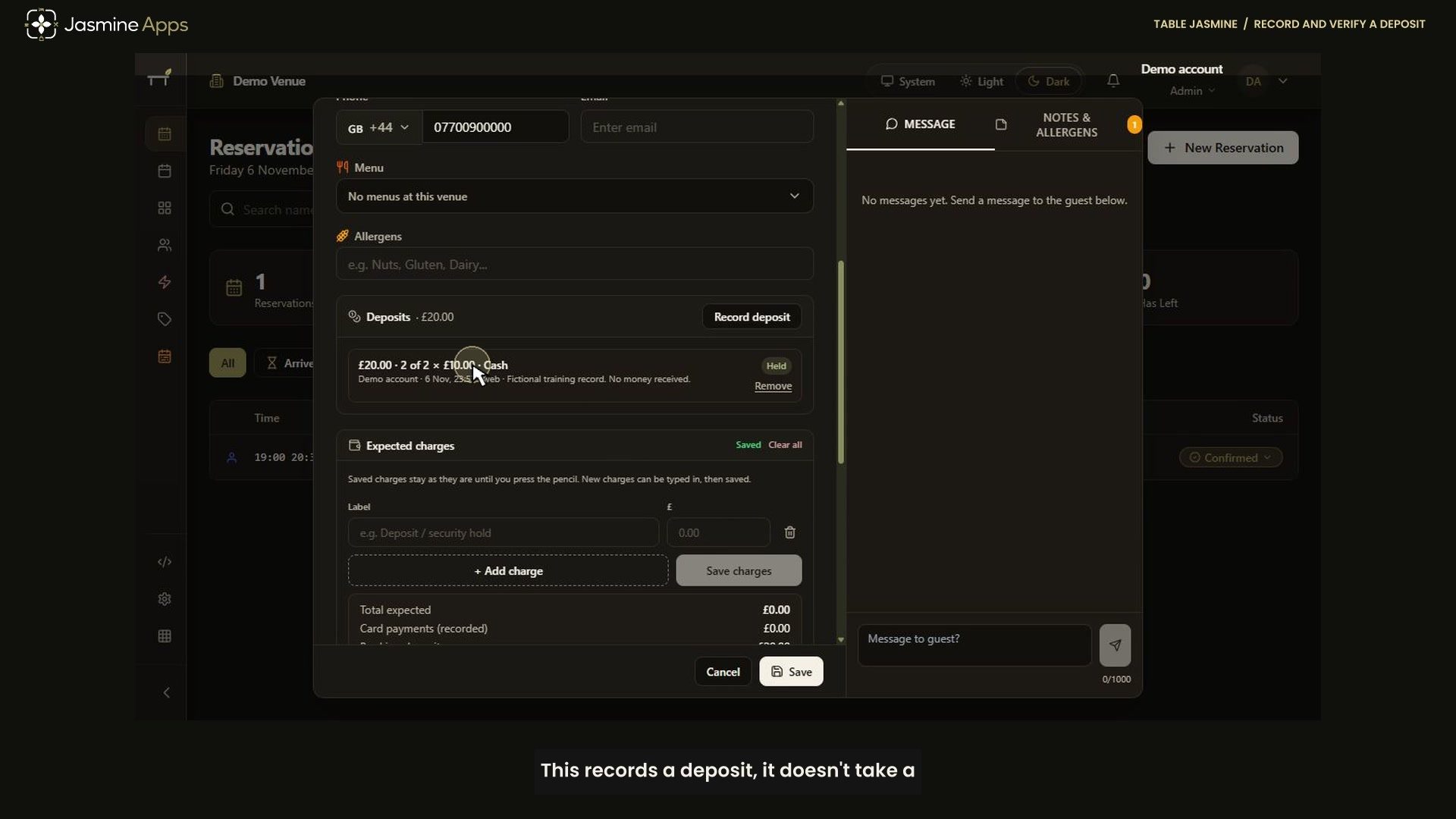
Record a Table Jasmine deposit against the correct booking, then reload and verify the saved amount and payment method. The walkthrough records a fictional cash deposit in Demo Venue. It does not collect money, charge a card, send a guest message or demonstrate a refund.
Before you start
Use the correct venue and an account authorised to record booking payments. Start with an existing reservation. Confirm the booking date, guest and party size before assigning a deposit.
For real service, record money that has actually been received and reconcile it through your venue's normal process. The tutorial is a disposable training example: two people, £10 each, a £20 total and Cash selected. No real funds are received or transferred.
All visible guest details are fictional. The example address alex@example.test is only illustrative text in a training note; it is not a receiving mailbox. The booking's email field is blank, and no message is sent.
Watch the walkthrough
Find the correct booking
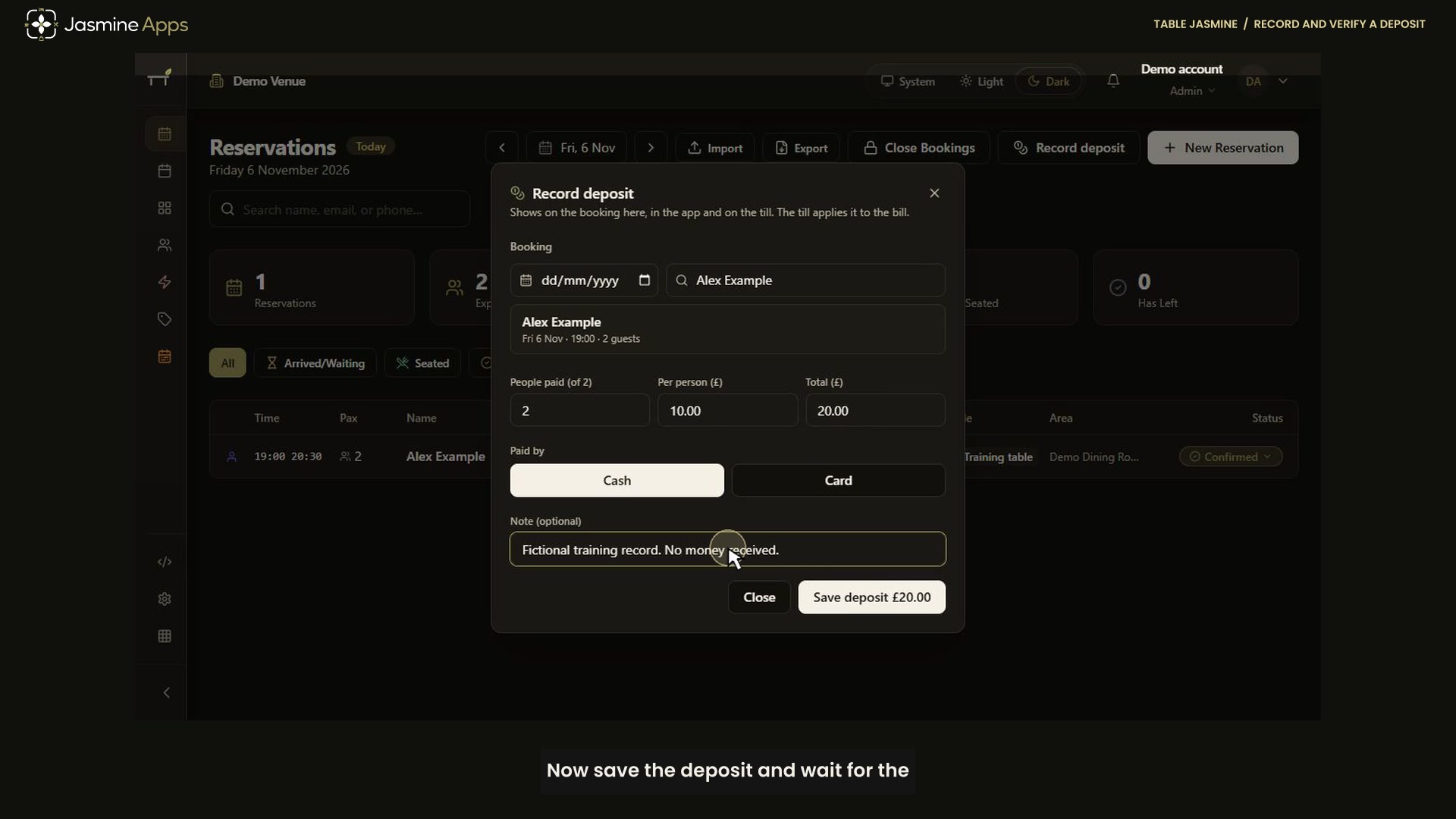
Open List View in Table Jasmine and choose Record deposit above the reservation list. The same action is available inside a booking's Deposits section.
Use Booking date, Guest name, or both to find the reservation. Wait for matching bookings to appear, then compare the guest, date, time and guest count before selecting a result. Typing a name alone does not attach a deposit to a booking.
The recording selects the existing fictional Alex Example reservation in Demo Venue. It does not change its table, time, guest count or status.
Enter the deposit
Review People paid (of …) against the selected booking's party size. Enter how many guests the deposit covers, then enter Per person (£). The demonstrated form calculates Total (£) from those two values: 2 × £10 becomes £20.
Check the resulting total before saving. The form also has a Total field; this walkthrough verifies the people-and-per-person route. Review all amount fields if entering the deposit differently rather than assuming an entered total also establishes how many guests paid.
These figures are a training example, not a required deposit policy. Use the amount agreed for the actual booking.
Choose the method and reference
Choose Cash or Card to identify how the deposit was received. The video selects Cash. These method buttons are part of recording the deposit; choosing Card here is not a demonstration of a card being charged.
Add a useful Note (optional), such as your payment reference or the context needed for reconciliation. Do not enter card numbers, security codes or private banking details into this note.
The example explicitly says that it is a fictional training record and that no money was received. Review the selected booking and total together before continuing.
Save and verify
Choose Save deposit. The button shows the amount that will be recorded. Wait for the dialog to close, then check the reservation list. In the verified example, the row displays Deposit £20.00 and £20.00 held.
Reload the list and reopen the same booking. A reload can return the list to today's date, so choose the booking's date again when needed. Scroll to Deposits in Quick Edit.
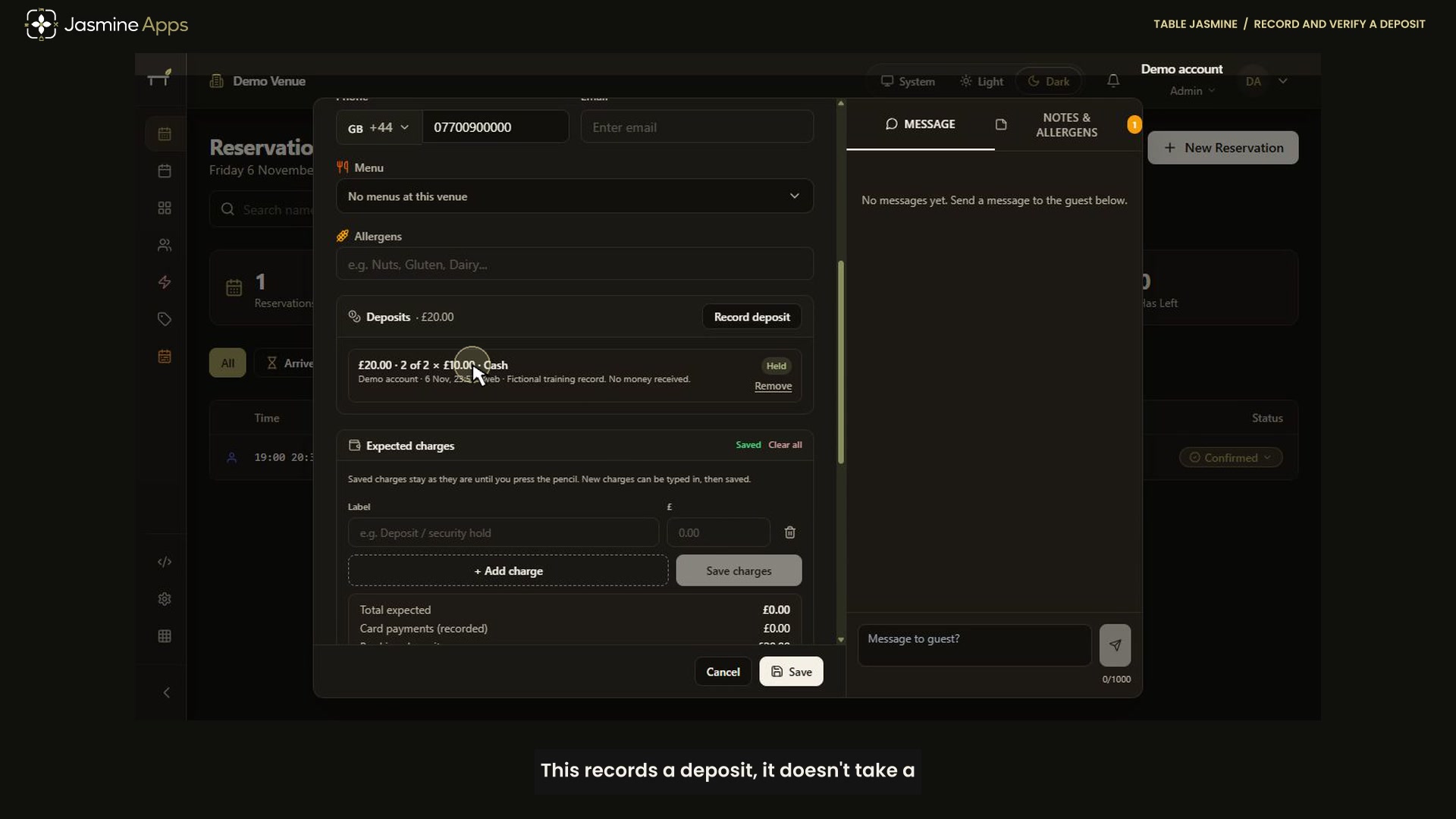
Check the saved amount, people covered, per-person amount, method, note and status. The demonstrated record remains £20.00 · 2 of 2 × £10.00 · Cash, with Held status. The recording verifies the result after reload; the brief reload wait is shortened.
Avoid submitting another deposit merely because the first save took a moment. Reopen and inspect the existing record before retrying.
Separate deposits from expected charges
Deposits and Expected charges are separate parts of the booking. Expected charges describe amounts requested or due; a saved expected charge alone does not establish that money was received.
After saving the example deposit, Quick Edit shows Booking deposits £20.00, Total paid (recorded) £20.00, Card payments (recorded) £0.00 and Total expected £0.00. This illustrates why the expected-charge total and recorded-payment total answer different questions.
The deposit form explains that the deposit is available on the till. This walkthrough verifies its saved state in Table Jasmine only. It does not demonstrate applying the deposit to a till bill, taking a new card payment or refunding a guest.
A deposit's Remove control is separate from a refund process. Removing an entry should not be described as evidence that money was returned. The tutorial leaves the saved training deposit in place.
Troubleshooting
- No booking appears: check the selected venue, booking date and guest search, and wait for results.
- Save deposit is disabled: select a matching booking and review the people, amount and payment method.
- The total is unexpected: compare people paid and the per-person amount before saving.
- The booking disappears after reload: reselect its date before creating a duplicate reservation.
- The deposit seems missing: reopen the same booking and inspect Deposits rather than only Expected charges.
- You are unsure whether the save succeeded: check the existing record before submitting another payment record.
- A card needs charging or a refund is required: use the venue's authorised payment workflow; this recording does not verify those actions.
Continue learning
Create a reservation · Change or cancel a reservation · Save and reopen till orders.