

TutorialIn-app guide
Table Jasmine: update stale reservation statuses
· Jasmine Apps
Use Bulk Guest Status to resolve past reservations that still show Confirmed or Seated. Review the records first, update only the selected bookings and verify the saved result in the diary. This walkthrough uses one fictional past-date reservation in Demo Venue, on a staff-only practice table.
Watch the walkthrough
The recording uses fictional Demo records. No real guest, private contact information or payment is shown. Waiting and the browser’s native confirmation dialog are omitted from the edit; both the cleared queue and the stored booking outcome are checked afterwards in a fresh view.
Review stale bookings
Open Settings → Bulk Guest Status, or use the bulk status page. It lists reservations from past dates that remain Confirmed or Seated. Check the venue, guest, date, time, table and current status before choosing any records.
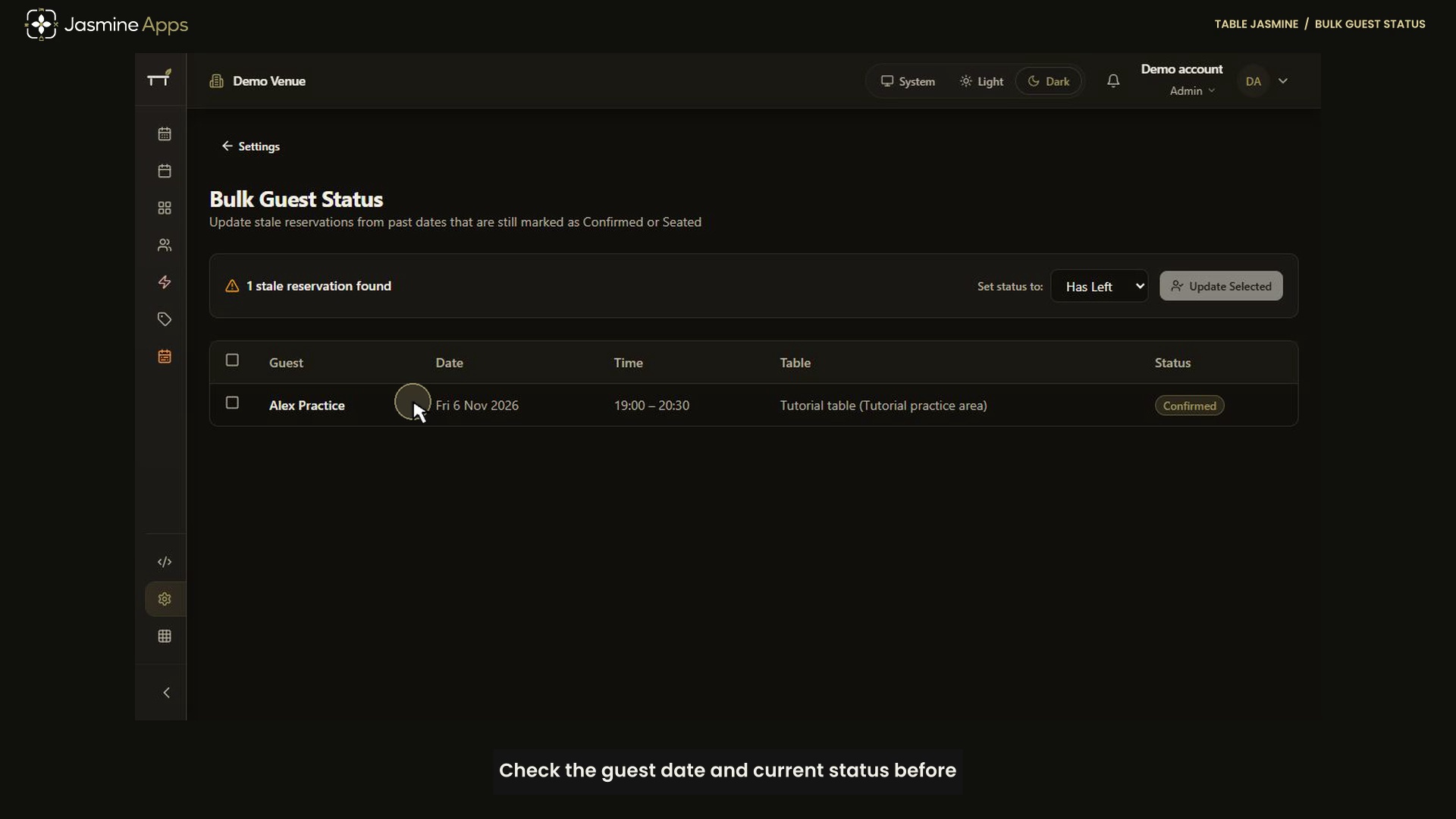
The example is a two-person training booking from the previous day, with an explicit fictional-training note in the diary. Its age makes it eligible for this list; it does not establish what happened to an actual guest.
Select records and outcome
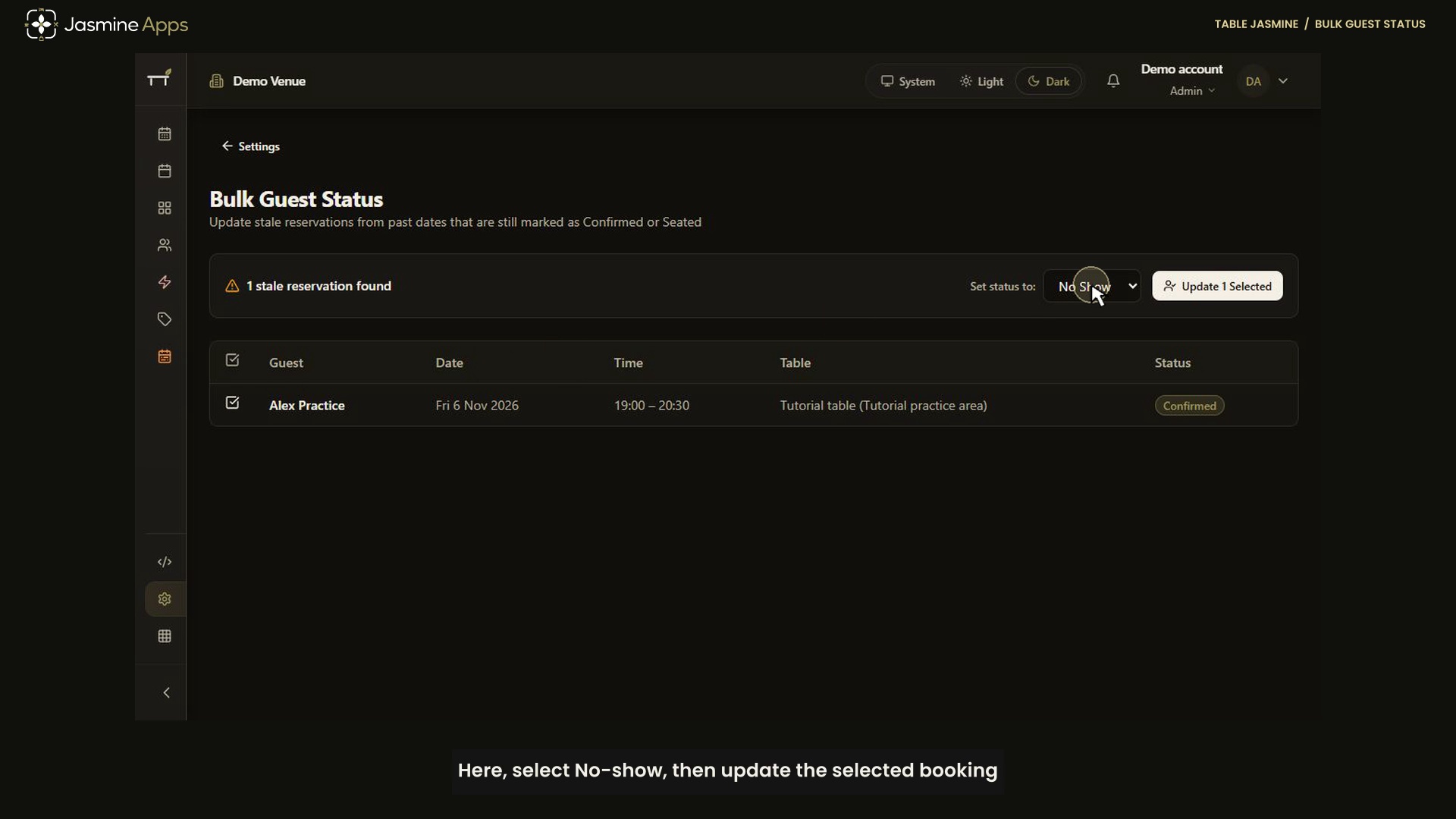
Select the checkbox beside each booking you intend to update. The action button includes the selected count; this example shows Update 1 Selected. Review that count before proceeding. Do not select the entire list simply because all records are old.
Choose the actual outcome under Set status to. The available choices in this recording are Has Left, No Show and Cancelled. The practice example selects No Show.
Confirm the update
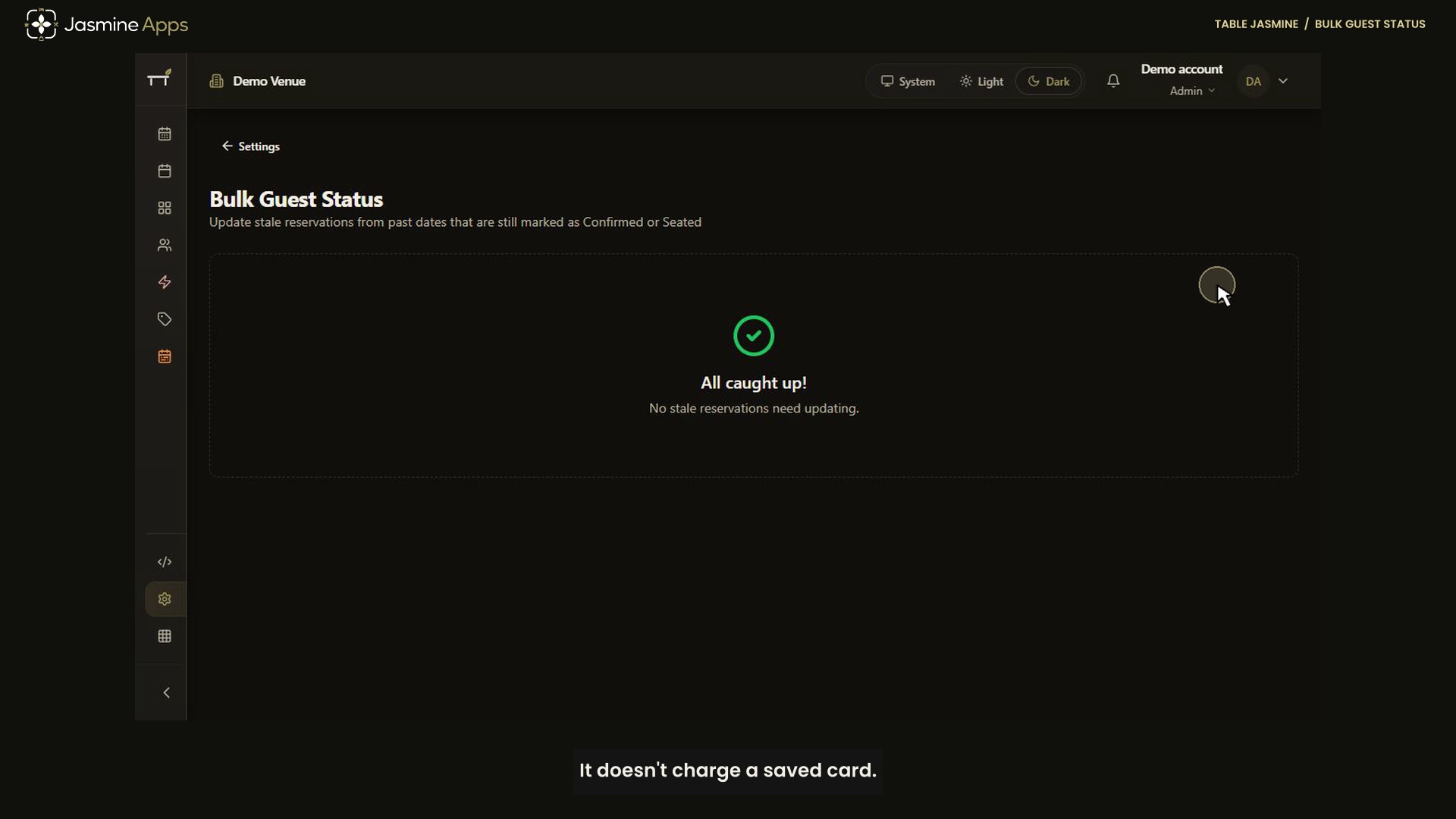
Choose Update 1 Selected (or the corresponding count), then read the confirmation before accepting it. For No Show, the confirmation states that the selected bookings will be marked as no-shows and that this does not charge any saved cards. Status housekeeping is separate from taking a payment or applying a no-show charge.
Wait for the update to finish. In this example the selected booking leaves the stale list and the page shows All caught up! No stale reservations need updating. If other eligible bookings remain, they can still appear; an empty list is only the result for this one-record example.
Verify the stored result
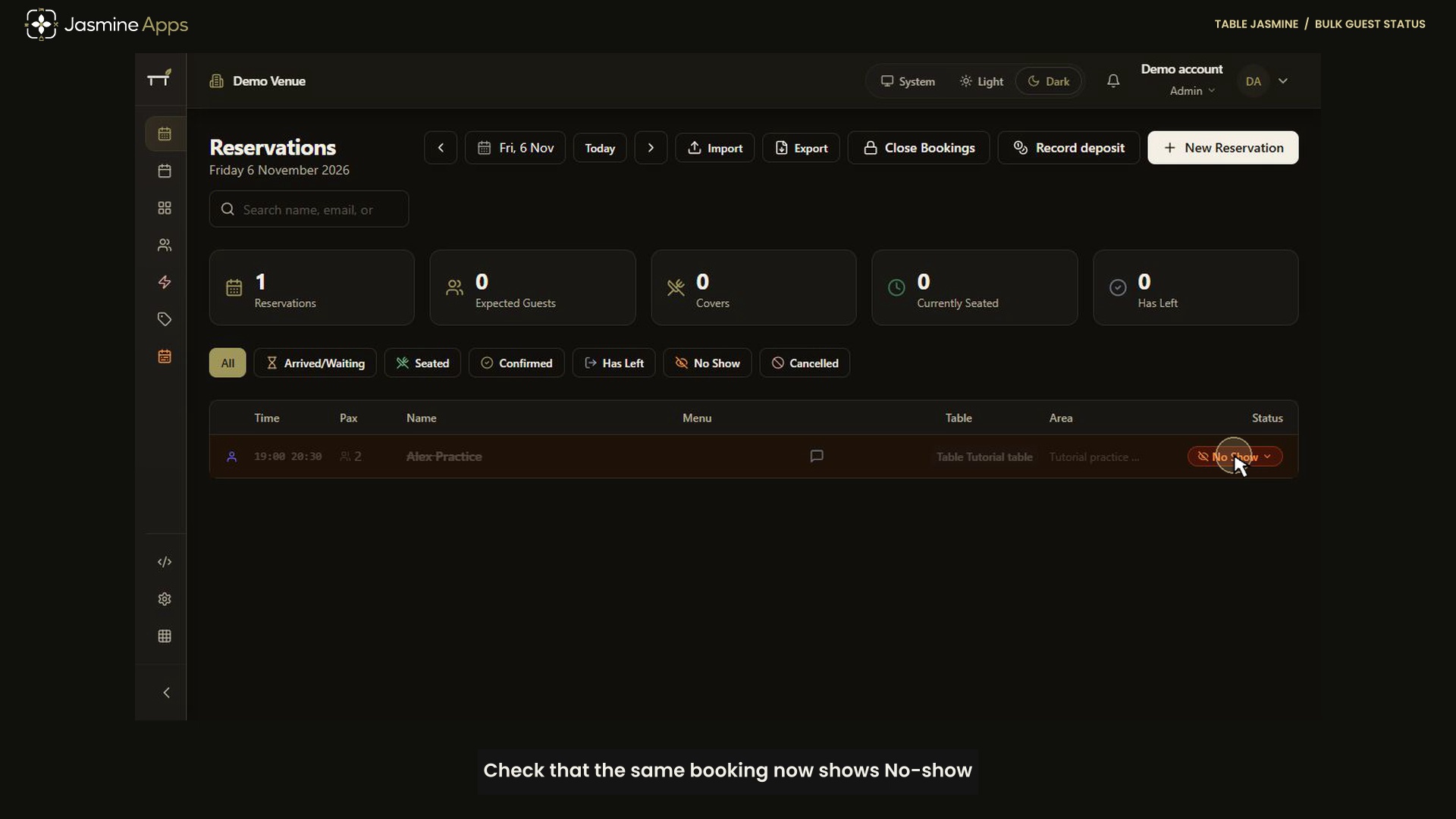
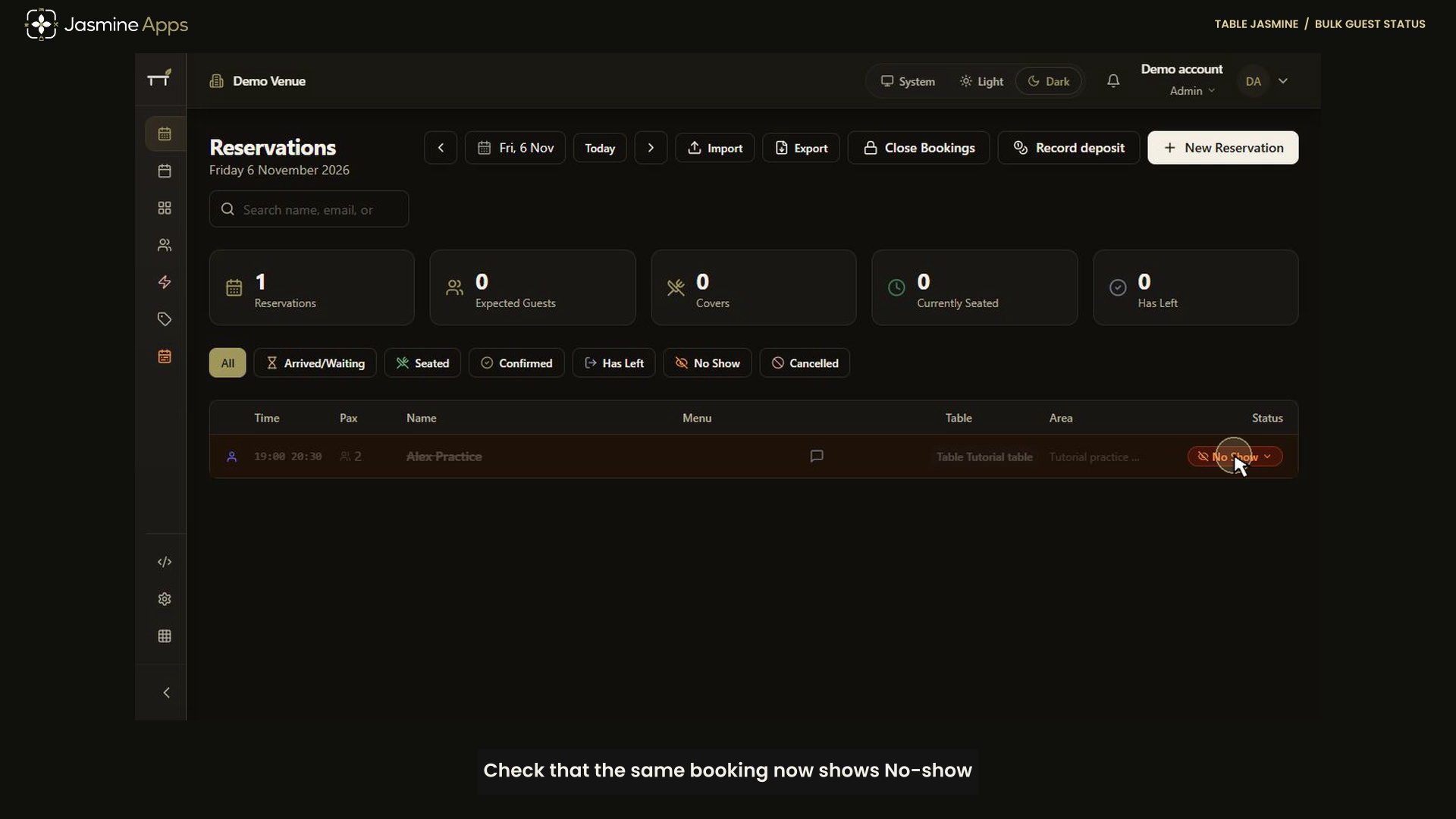
Return to List View and select the booking’s original date. Find the same guest, time and table, then check the saved status. The example’s diary entry shows No Show after the bulk update, independently confirming the result.
Common checks
- All caught up appears before you start: there are no currently eligible stale reservations; no update is needed.
- Update Selected is disabled: select the intended booking rows first.
- A booking is absent: check its date and existing status. This tool targets past Confirmed or Seated reservations.
- The selected count is wrong: adjust the selection before submitting.
- You need a no-show payment: this recorded status change does not charge saved cards. Use a separately verified payment workflow when applicable.
- You are unsure whether an update finished: reopen the original-date diary and inspect the stored status before repeating the action.