

TutorialIn-app guide
Table Jasmine activity logs: find and review booking events
· Jasmine Apps
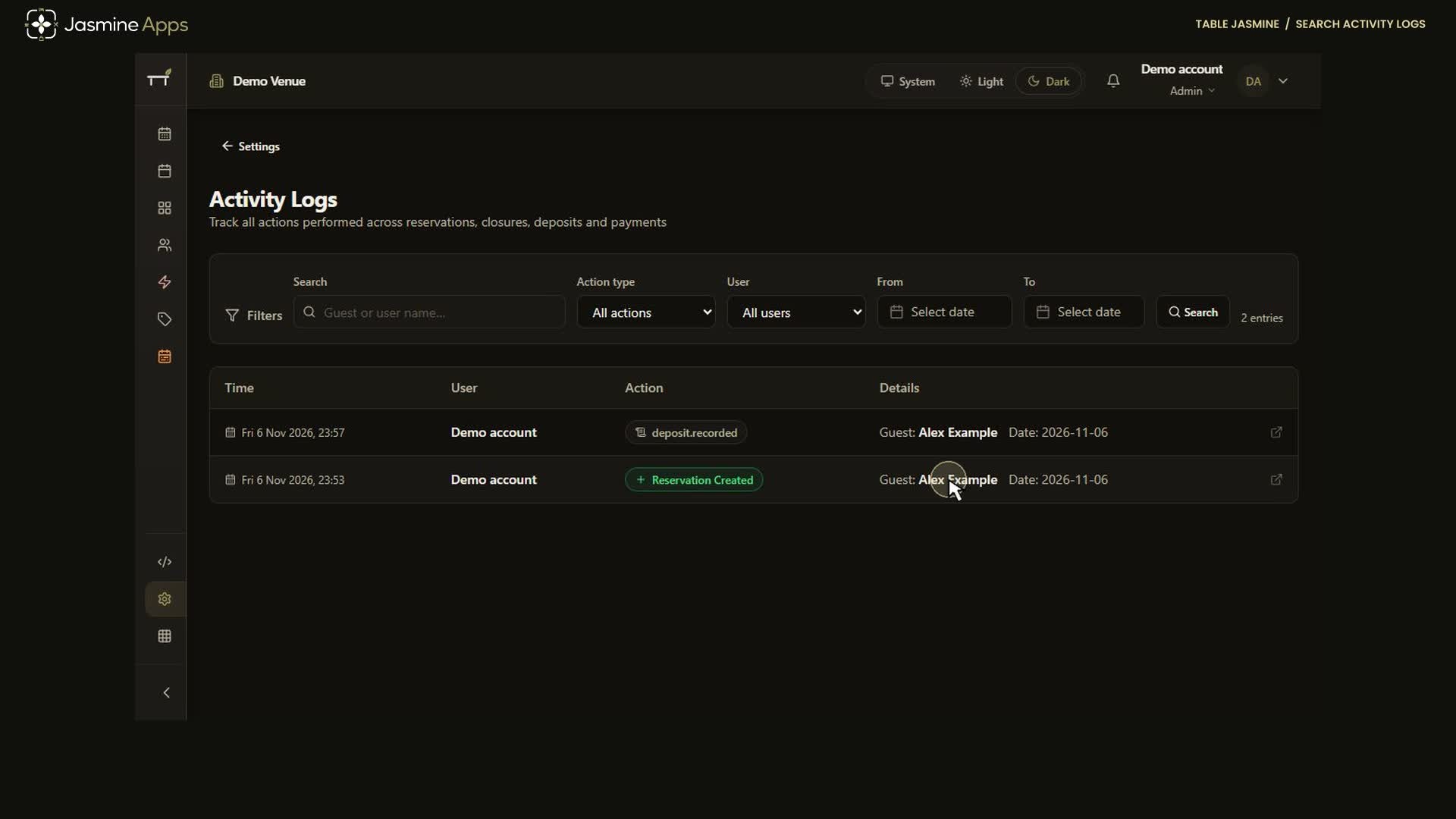
Use Table Jasmine activity logs to review recorded booking actions, narrow a reservation search and restore the wider history. This walkthrough reads existing fictional training events in Demo Venue. It creates no bookings, payments or staff records.
Before you start
Open the intended venue with permission to view Table Jasmine settings and activity. Confirm the venue before inspecting a record. Activity history can contain staff identities and guest information; use verified fictional records when recording or sharing a tutorial, and hide unrelated private details.
The recording uses Demo account and Alex Example, both fictional training identities. The displayed dates identify the example booking. No real guest, private email address, payment credentials or member list appears.
Watch the walkthrough
Open activity logs
From Settings, choose Activity Logs, or open Activity Logs. The page describes actions across reservations, closures, deposits and payments.
Read the current filters before interpreting the list. Search, Action type, User, From and To narrow the view. Changing a control is separate from choosing Search to apply it. Allow the result list to finish updating before drawing a conclusion.
Filter reservation events
Choose Reservations under Action type. Enter the relevant staff member's name in the search box, then choose Search.
The verified example enters Demo, applies the search and returns one Reservation Created event by Demo account. The recording leaves the separate User selector at All users and both date filters unset. It does not demonstrate a date-range search or a separate User-selector filter.
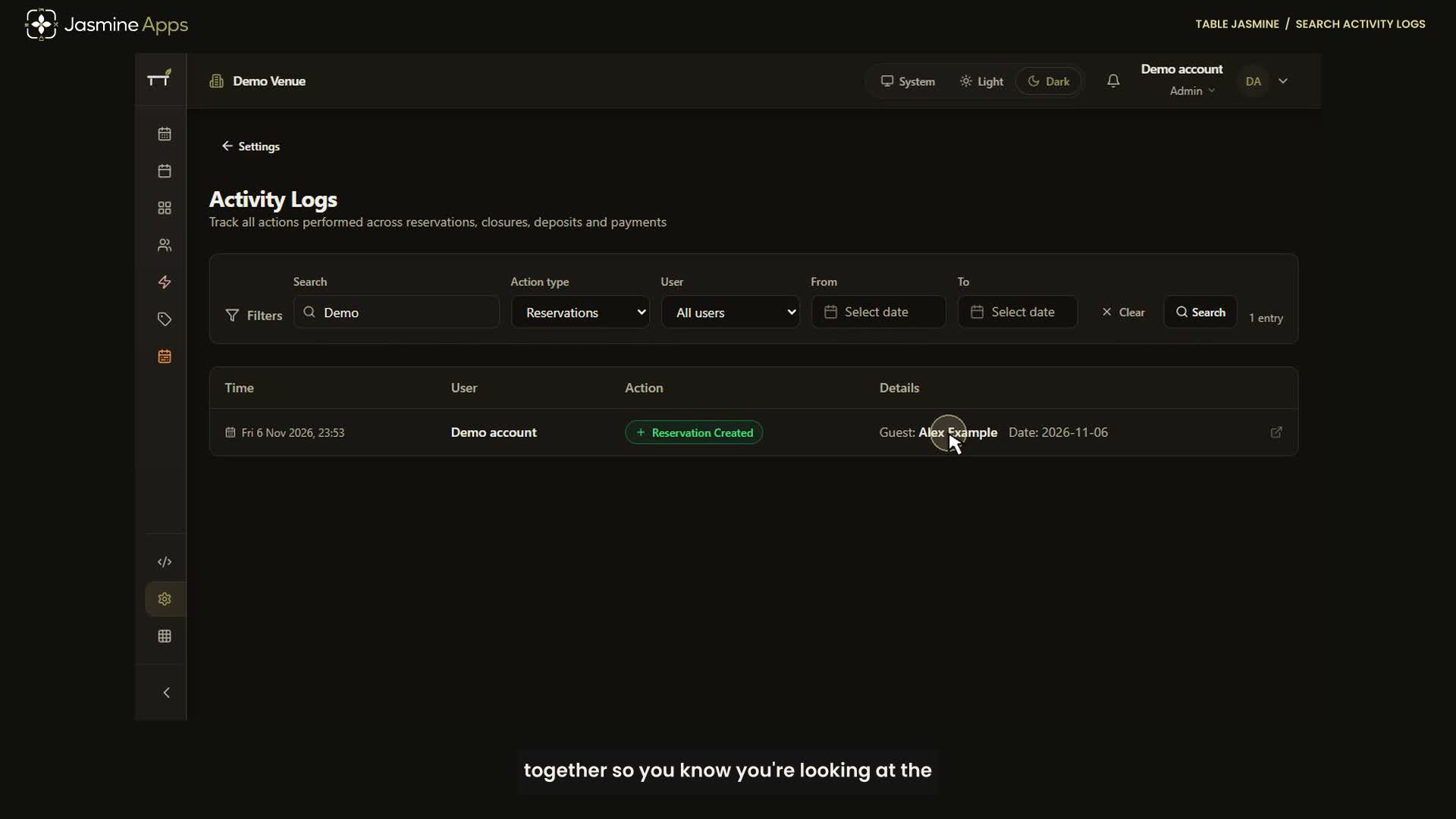
The search box's current placeholder says Guest or user name…, but guest-name searches did not return the displayed fictional guest event during verification. The staff-name search shown in the video did work. See the limitations below before assuming an empty result means no activity occurred.
Read the matching event
Read Time, User, Action and Details together. Check that the guest and booking date in Details belong to the record you intended to review. The event time and the booking date answer different questions; compare both with the booking context.
The example's event is Reservation Created, with the fictional guest and booking date visible in Details. An activity row records an application action. It does not by itself establish that a guest received an email, a card payment settled or a refund reached the guest.
The walkthrough reviews the row in place. It does not open the row's external-link control, edit the reservation, download an export or delete history.
Restore the wider history
Clear the search text, switch Action type back to All actions, then choose Search again. Wait for the list to update.
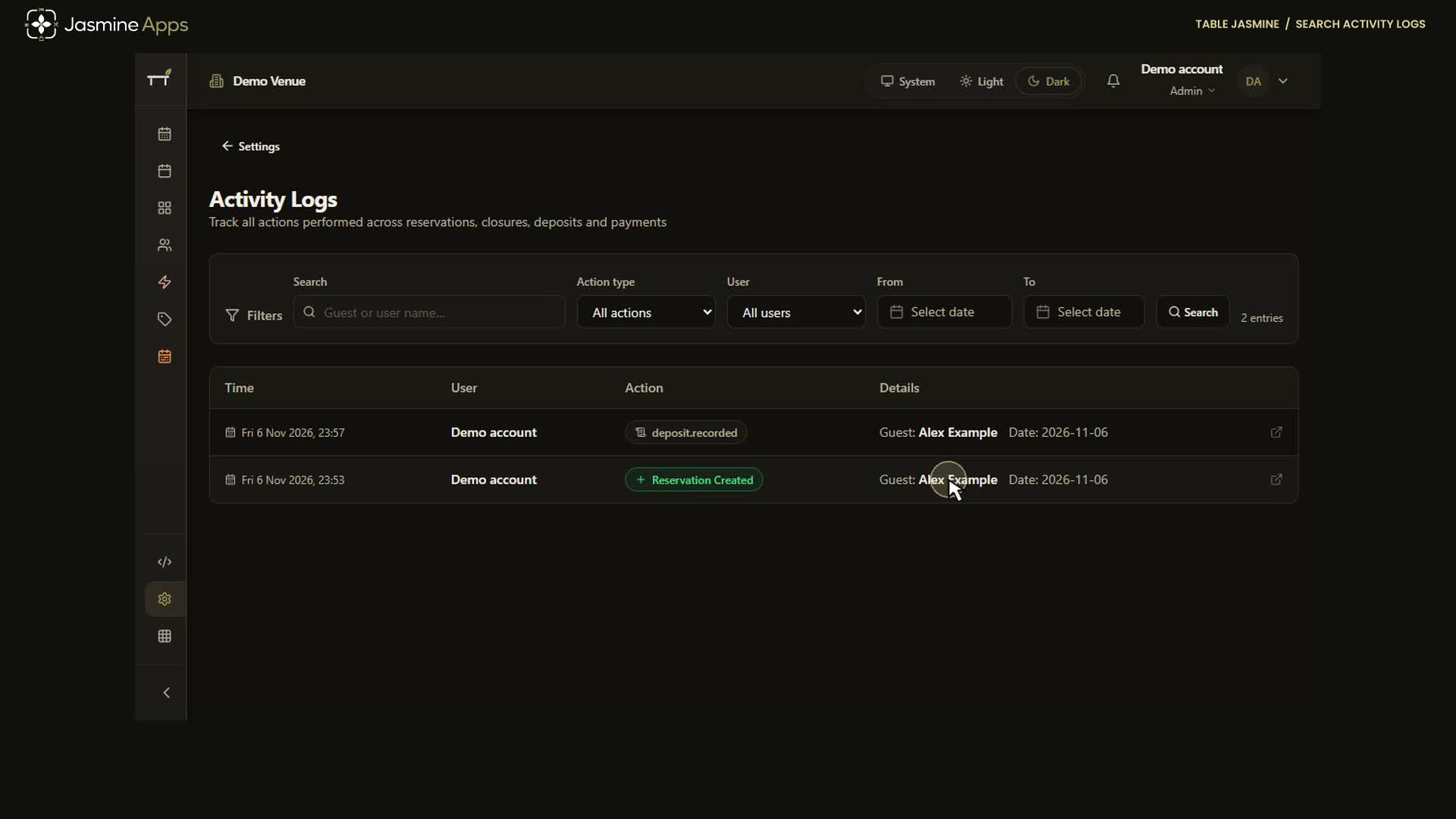
In the verified example, both existing events return: Reservation Created and deposit.recorded. This is a read-only review. The video does not create a second deposit or change the original booking.
A deposit log entry and the deposit record should be checked together when reconciling a booking. A logged record does not replace your payment-provider or cash reconciliation process. Follow the separate deposit guide to understand the distinction between recording an amount and collecting money.
Current filter limitations
During verification on 7 November 2026, the Deposits action filter returned no rows even though deposit.recorded appeared under All actions. Searching the displayed guest's full name or first name also returned no rows; searching the staff name with Reservations selected returned the expected reservation event.
These are observed limitations in the training venue, not evidence that every venue has identical behaviour. If an expected event disappears, restore All actions and clear the text and date filters before concluding that the underlying action is missing. Compare the booking directly and report the discrepancy through your normal support route. Do not repeat a payment or reservation submission just to make a filtered log appear.
Troubleshooting
- No activity appears: confirm the selected venue, clear restrictive filters and apply Search again.
- A guest search finds nothing: retry using the staff member's name or inspect All actions; the guest search did not return the expected example during verification.
- A deposit disappears under Deposits: inspect All actions and compare the saved booking deposit separately.
- The list looks unchanged: wait for the request to finish after choosing Search before interpreting the result.
- An event's date seems wrong: distinguish the event Time column from the booking date in Details.
- You need proof of delivery or settlement: use the authorised email or payment workflow; a log row alone is insufficient.
- You need to share the screen: remove or obscure real guest and staff information first. Keep only verified fictional training details readable.
Continue learning
Create a reservation · Change or cancel a reservation · Record a deposit · Configure confirmation email templates.