

TutorialIn-app guide
Table Jasmine confirmation emails: save a preset and subject
· Jasmine Apps
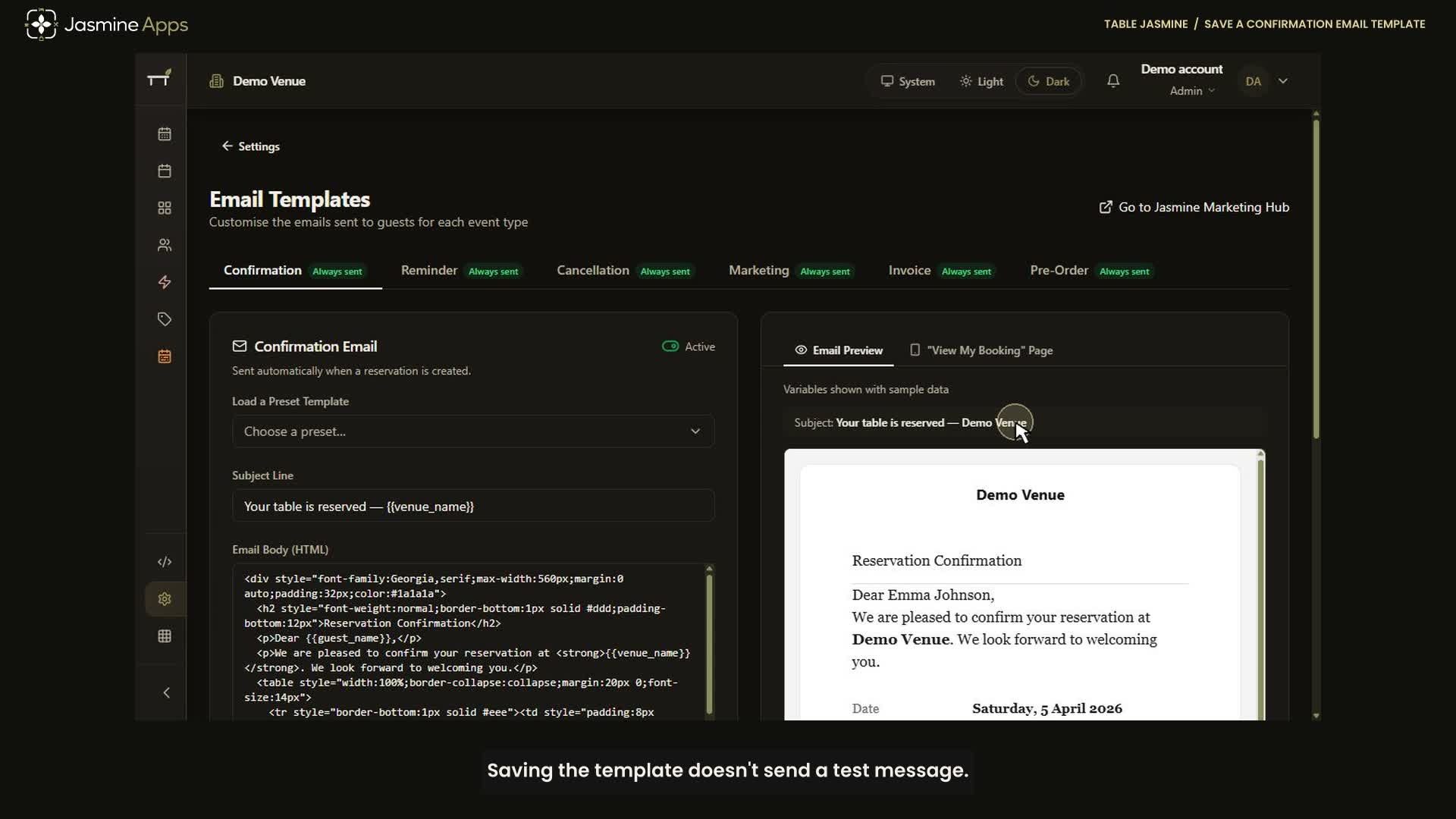
Set up a Table Jasmine confirmation email with a built-in preset, edit its subject, review the sample preview, save and verify it after reloading. This walkthrough uses Demo Venue and sends no test email.
Before you start
Open the intended venue with permission to manage its email templates. Have your approved guest-facing wording ready. Confirmation emails are sent automatically when a reservation is created, so review a real venue's active template before relying on it for service.
Loading a preset changes the editor's message layout and wording. Preserve any existing approved custom HTML before replacing it. The recording uses the disposable training venue's built-in sample, chooses Formal Confirmation, and changes only the subject after loading that preset.
The preview is explicitly labelled Variables shown with sample data. Its name, booking date, time and guest count are sample values, not an actual guest's details. No private contacts, live bookings or received emails are used.
Watch the walkthrough
Choose the email type
Open Settings → Email Templates, or go to Email Templates. Select Confirmation and check the Confirmation Email heading before editing.
The page also offers Reminder, Cancellation, Marketing, Invoice and Pre-Order types. Those are separate templates. This walkthrough changes Confirmation only; it does not establish that a change is automatically copied to every type.
The demonstration leaves the existing Active state unchanged. Read that state alongside the description explaining when the selected message is sent.
Load a preset
Open Choose a preset… and choose the intended option. The current confirmation menu offers Friendly Confirmation and Formal Confirmation. The video chooses Formal Confirmation.
Look at the editor and preview after the selection. The rendered message changes to a Reservation Confirmation heading with a formal greeting and booking details. A preset is a starting point for review, not proof that the final message has been saved.
Edit the subject
Enter a clear subject that helps guests recognise the booking message. Keep supported variable syntax intact. The recorded subject is Your table is reserved — {{venue_name}}.
The preview substitutes the sample venue name in place of that variable. This is preferable to accidentally hard-coding the wrong venue into a reusable message. Review the rendered subject as well as the field's raw text.
The available variables include guest and venue names, date, start and end times, party size, table, area, package/menu name and the reservation link. Use the page's exact supported variable names; a similar-looking label is not necessarily a valid placeholder.
Review the preview
Use Email Preview to inspect the selected template's subject, wording, booking details and layout. Scroll inside the preview if its lower content is outside the panel. The HTML editor and preview are separate scrollable areas from the page itself.
Compare the message with the intended booking journey. Check that a greeting and booking details remain readable and that the booking-management link is included when required by your approved template.
The demonstration uses the built-in formal body. It does not manually rewrite the HTML or validate every possible email client. The sample preview does not establish successful delivery, a genuine booking link or the appearance of an actual received message.
Save and verify
Scroll the page down to Save Template, select it and wait for the save to finish. Be careful to scroll the outer page rather than only the HTML box when looking for the save controls.
Reload Email Templates and return to Confirmation. Check the retained subject and the rendered Reservation Confirmation layout. The verified example keeps the edited subject and formal message after reload.
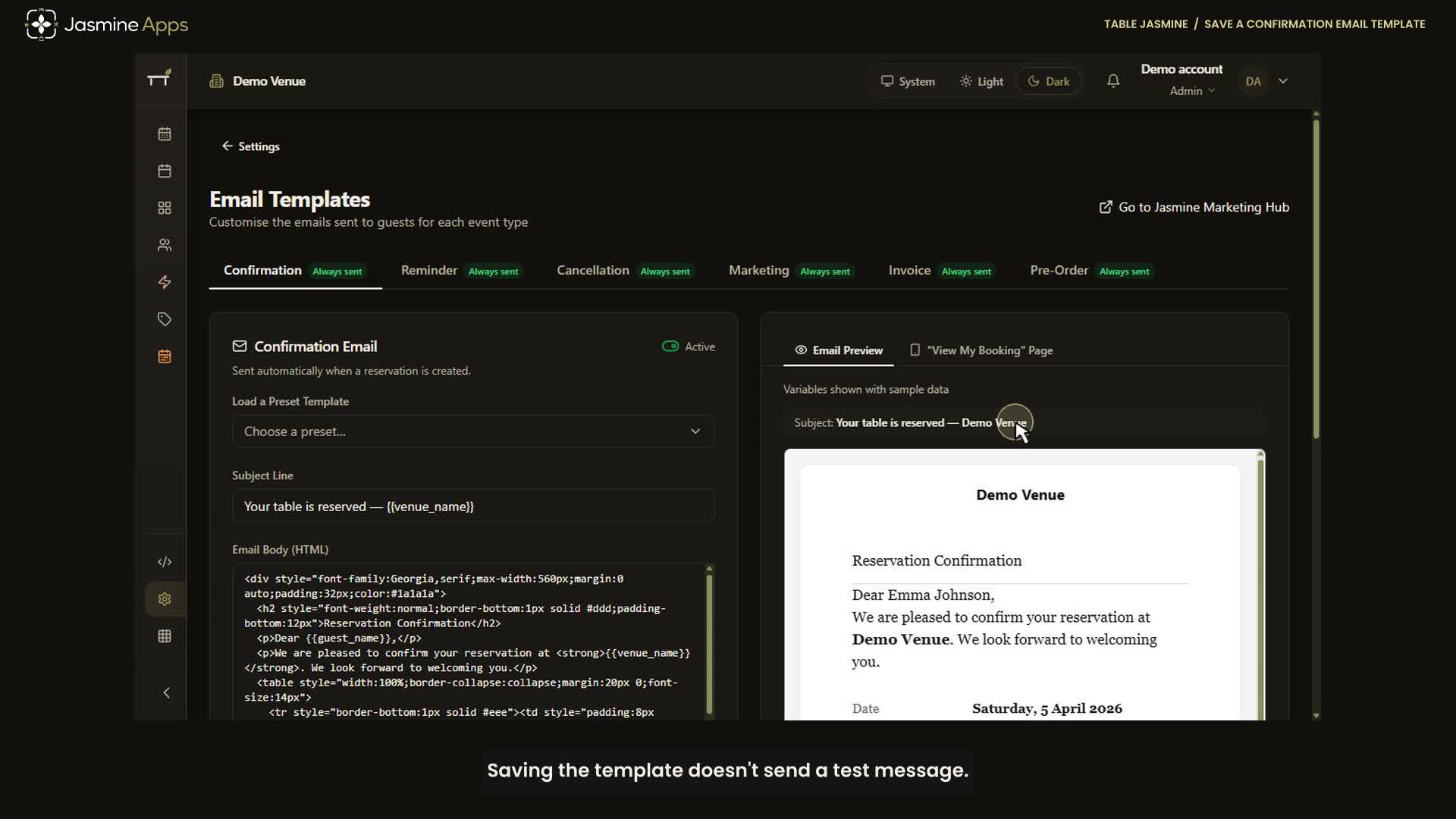
The preset picker can still say Choose a preset… after loading or saving a preset. It is a control for loading content; verify the retained message and subject instead of expecting the preset's name to be displayed as the saved result.
Understand separate actions
Send Test Email is separate from saving the template and is not used in this recording. A delivery check needs a controlled receiving inbox and inspection of the actual message. Do not claim that the preview proves delivery or send a test to an illustrative example address.
The View My Booking Page preview is also separate from the email preview. This walkthrough does not open a real guest's self-service link, amend a booking or send a guest message. Use an authorised fictional booking to test that journey separately.
Saving Confirmation does not configure a different email type or publish an event. The existing template's activation state is preserved during this walkthrough.
Troubleshooting
- The wrong email changed: check the selected type and editor heading before editing or saving.
- The subject shows a raw variable unexpectedly: compare its spelling and braces with the supported variables, then review the sample rendering.
- The save controls seem missing: scroll the outer page; scrolling inside the HTML editor moves only that box's content.
- The preset name disappeared: inspect the saved body layout and subject rather than relying on the preset picker label.
- The wording reverted: reload the same venue and type, check whether Save Template completed and inspect the retained message before retrying.
- No test email arrived: this recording does not send one. Saving and sample preview are not evidence of inbox delivery.
- A real guest appears while recording: stop and remove or obscure private data before sharing any footage or screenshot.
Continue learning
Create a reservation · Change or cancel a reservation · Guest notes and messaging · Booking widget.