

TutorialIn-app guide
Change or cancel a reservation in Table Jasmine
· Jasmine Apps
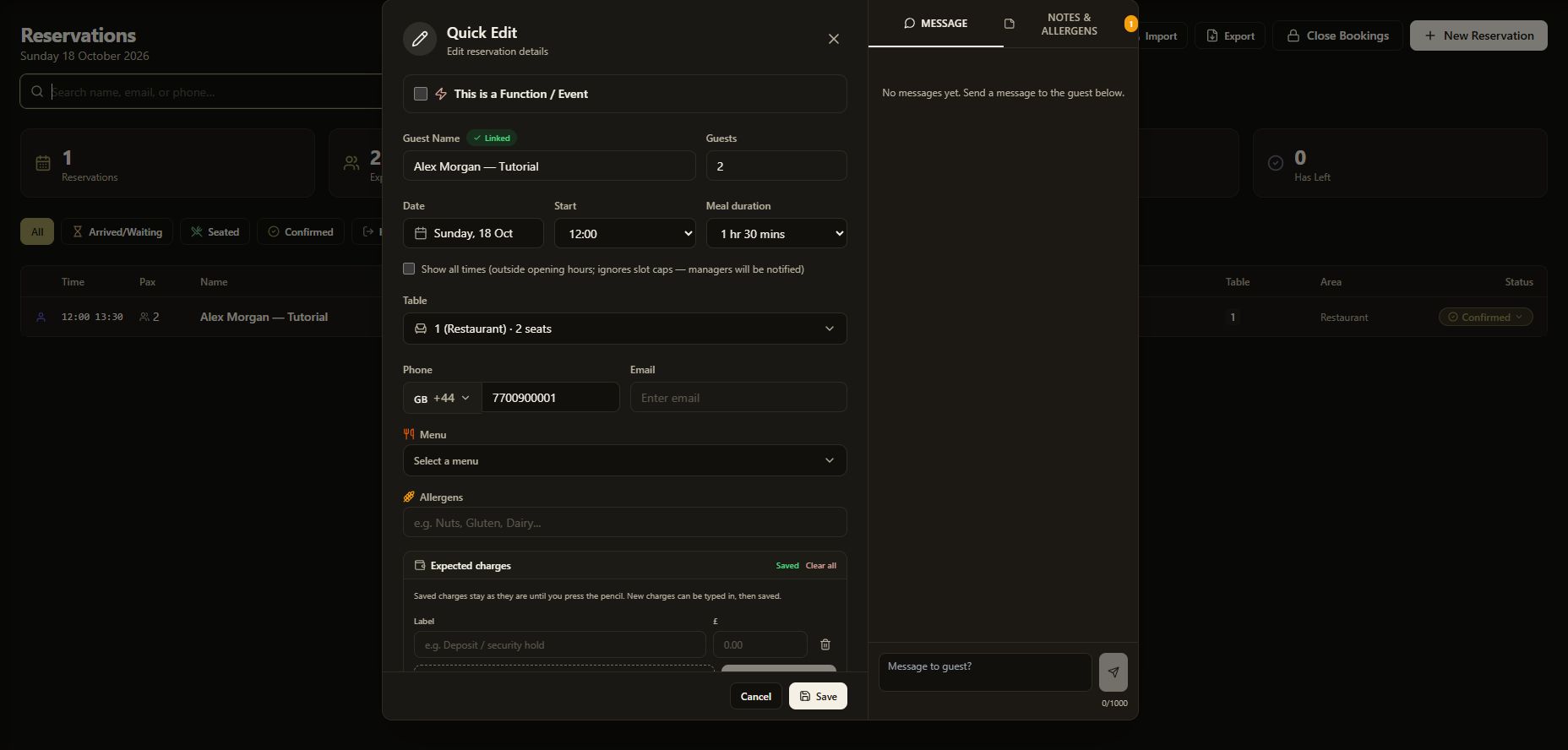
Change or cancel a Table Jasmine reservation, then check the saved result. This walkthrough follows the previous guide to creating a reservation, using the same fictional booking and dark theme.
Watch the walkthrough
Before you start
- Open the correct venue and select the booking date in List View.
- Confirm the guest’s request before changing or cancelling their booking.
- Check the guest, date, time and party size so you update the correct reservation.
Choose your task: Changing a table and cancelling a booking are separate actions. For a table change, follow steps 1–3. For cancellation, check the booking in steps 1–2, then follow steps 4–5. If the list and Quick Edit disagree, resolve the discrepancy before either task.
1. Find the reservation
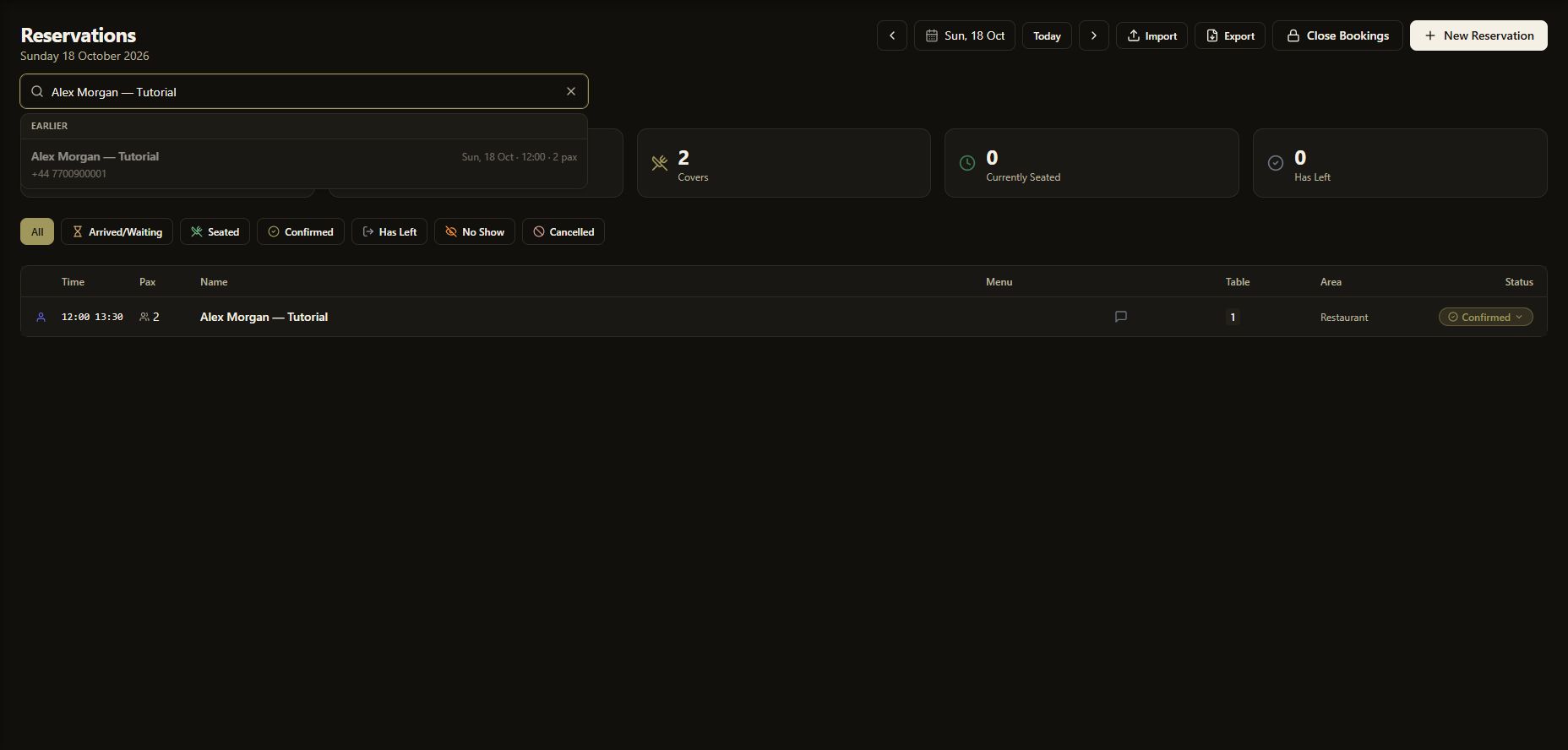
Use Search name, email, or phone… and open the matching result. Search results show the date, time and party size. Check these details before continuing.
Open this screenshot full size
2. Check Quick Edit
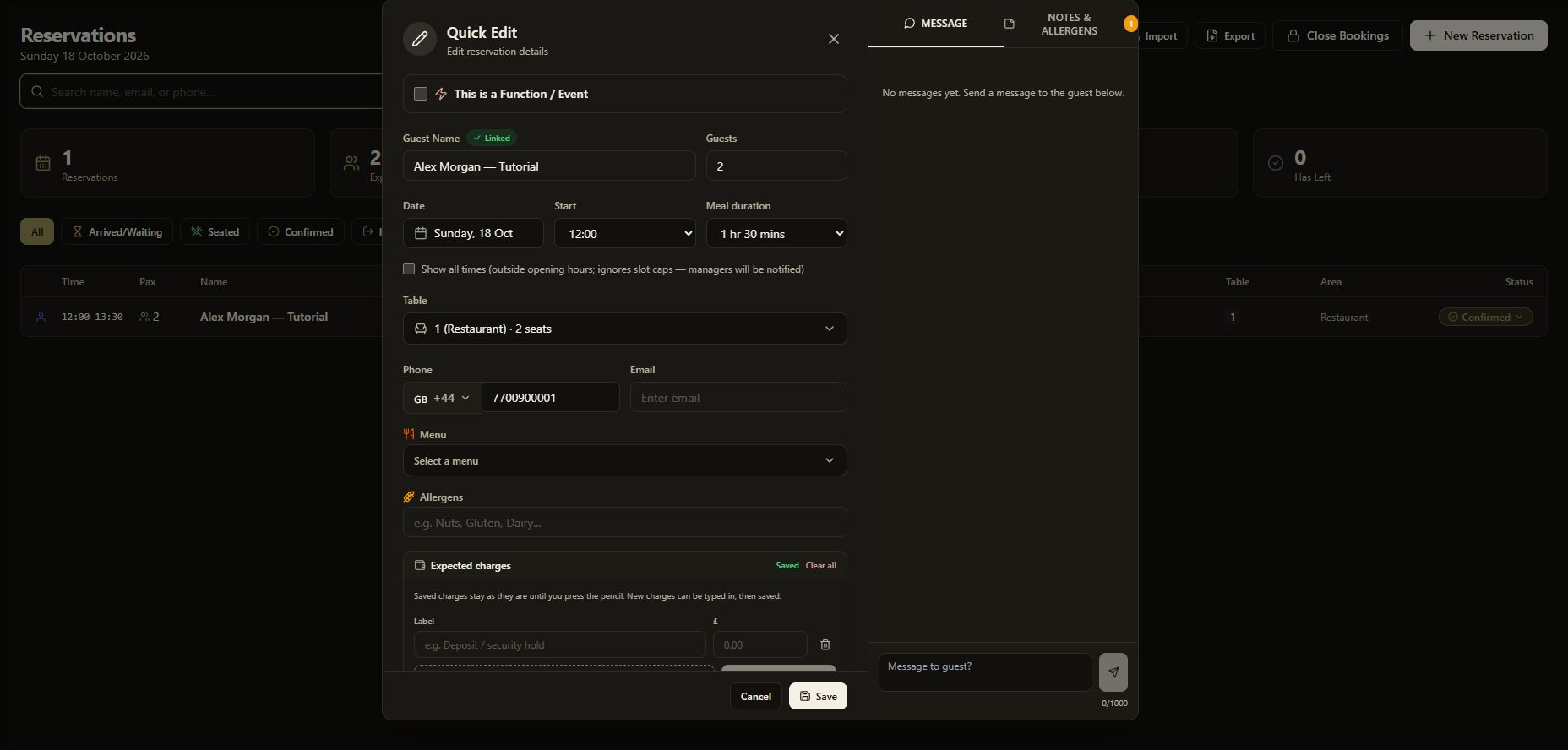
In Quick Edit, review the guest name, date, start time and number of guests. Keep the existing details unless the guest has asked you to change them.
Open this screenshot full size
3. Move the booking to another table
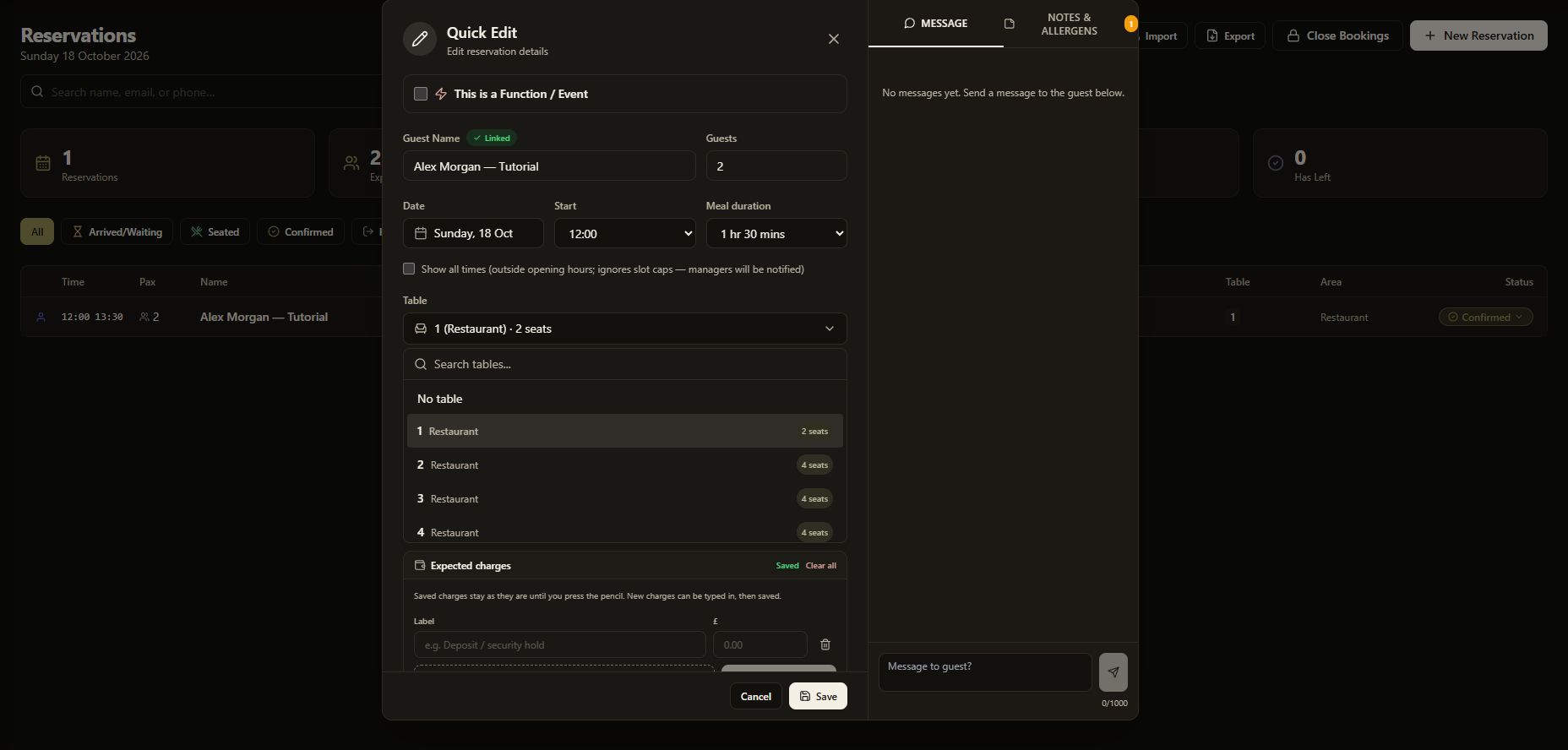
Open Table, choose a suitable replacement and check its area and seating capacity. Select Save. Back in the reservation list, check the table number on the saved row.
Open this screenshot full size
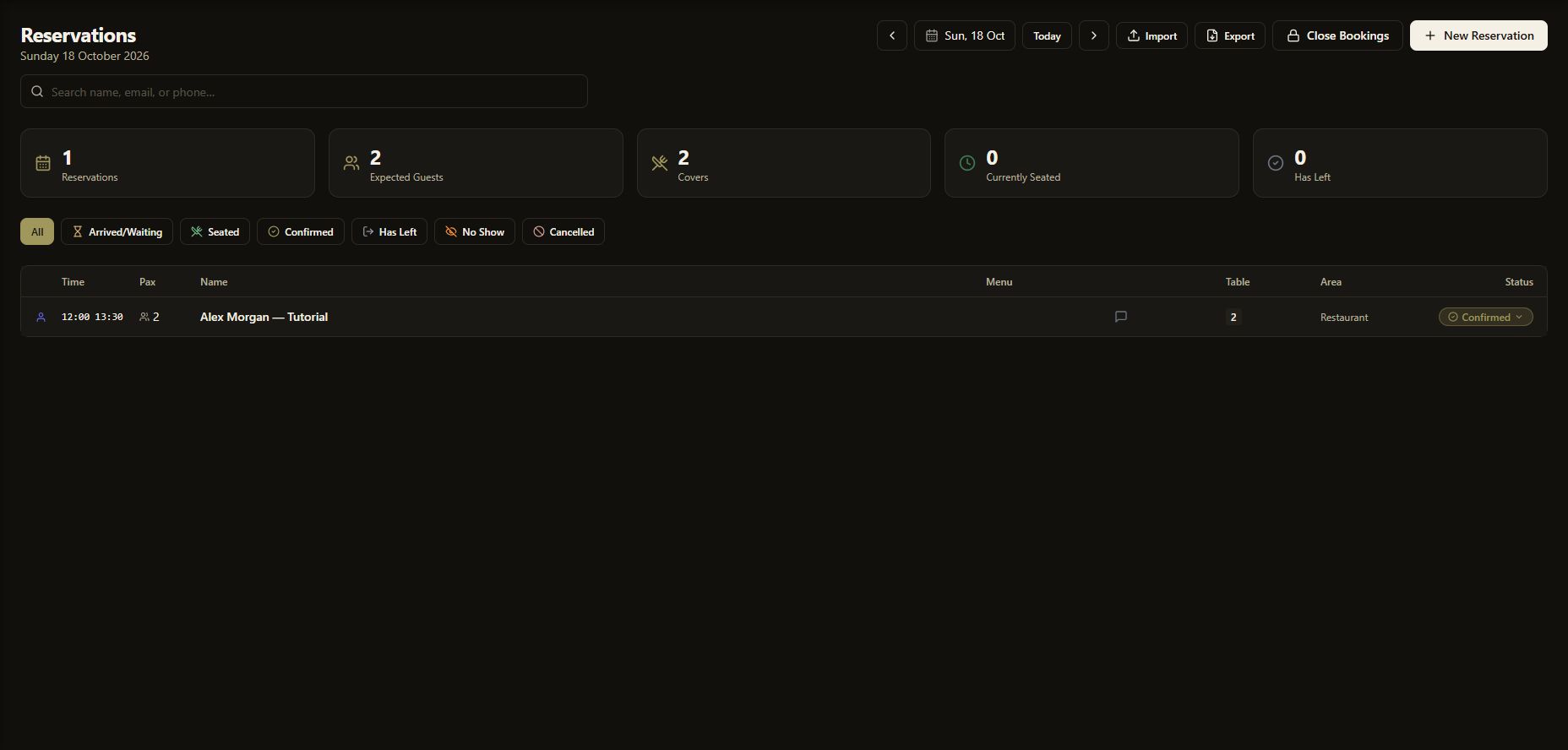
Open this screenshot full size
Check before saving again: During this walkthrough, the saved list showed the new table while a reopened Quick Edit displayed the older table. If these views disagree, close Quick Edit with Cancel without saving further changes. Check the list and ask your manager to resolve the mismatch before continuing.
4. Cancel a reservation — separate workflow
Start with a booking whose details agree in the list and Quick Edit. Do not continue from an unresolved table mismatch.
Open the booking and scroll down to Status. Select Cancelled when the guest has cancelled the booking.
Read the confirmation carefully, including its guest-email notice. In this fictional example there is no email address, so the confirmation says the guest will not be emailed. Select Cancel booking to continue, or Keep booking to stop.
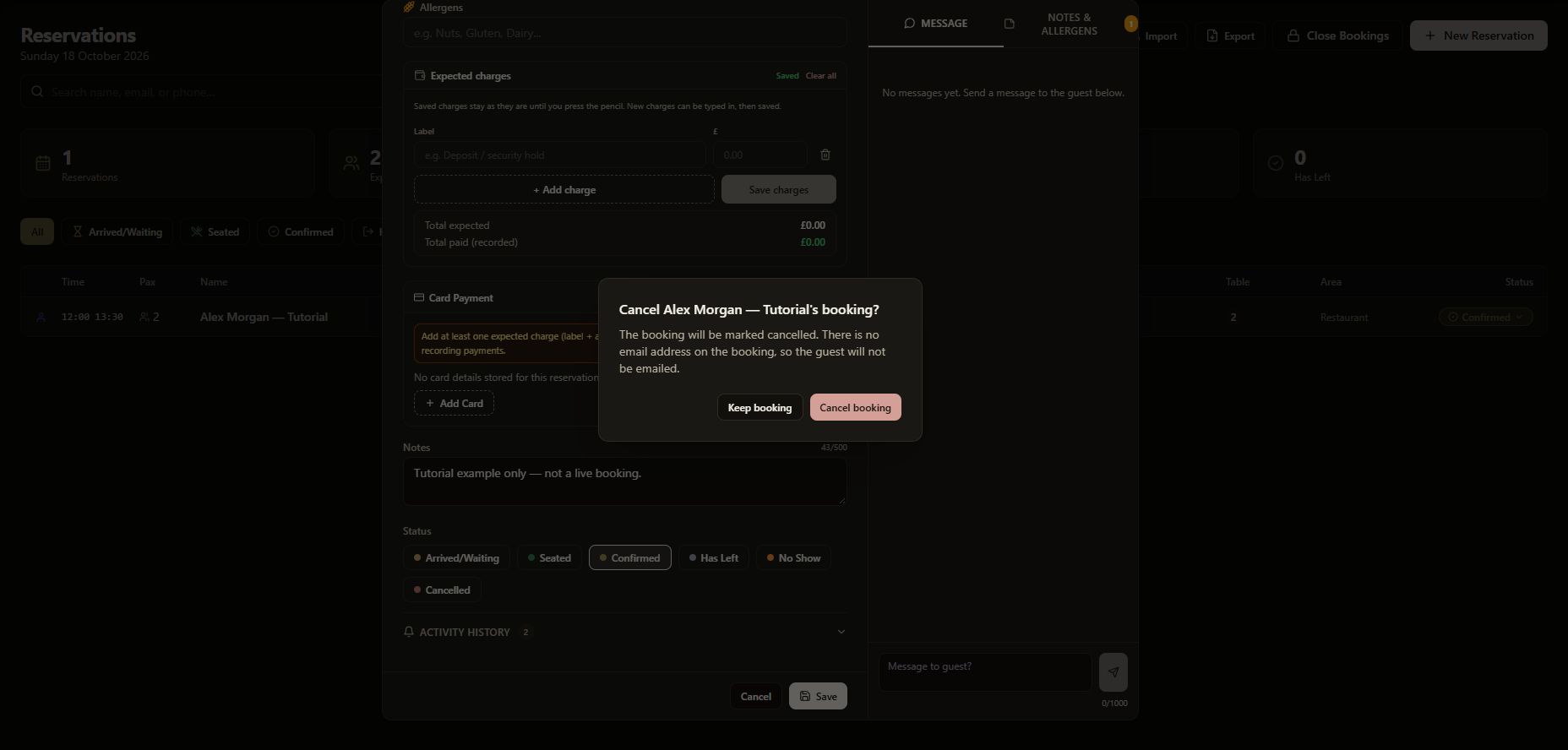
Open this screenshot full size
5. Save and verify the cancellation
Select Save in Quick Edit. Wait for saving to finish, then check that the booking’s row says Cancelled. Use All or the Cancelled filter if it is hidden by another status filter.
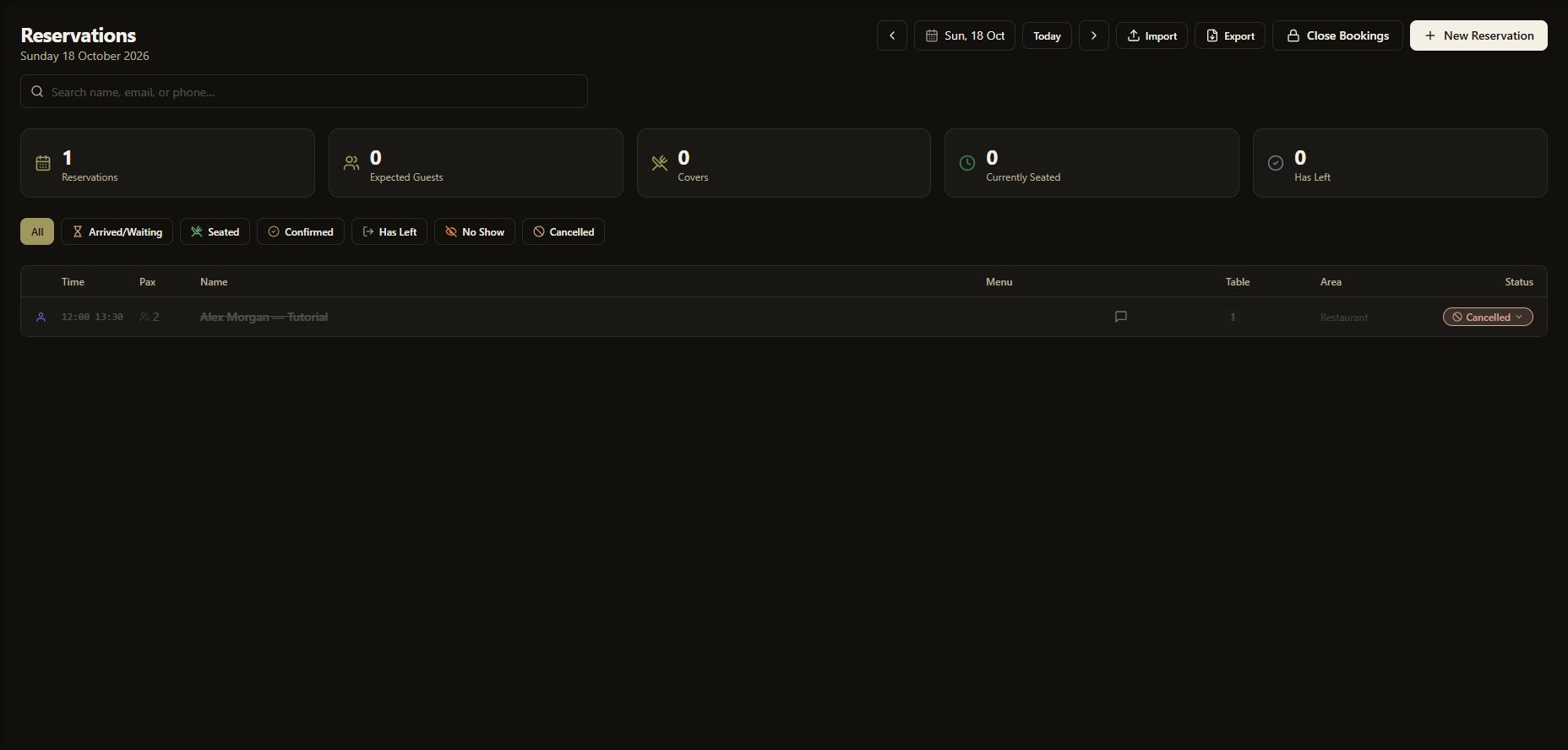
Open this screenshot full size
Reopen the booking and check that Cancelled is selected under Status. The example was refreshed and reopened to verify that the change persisted.
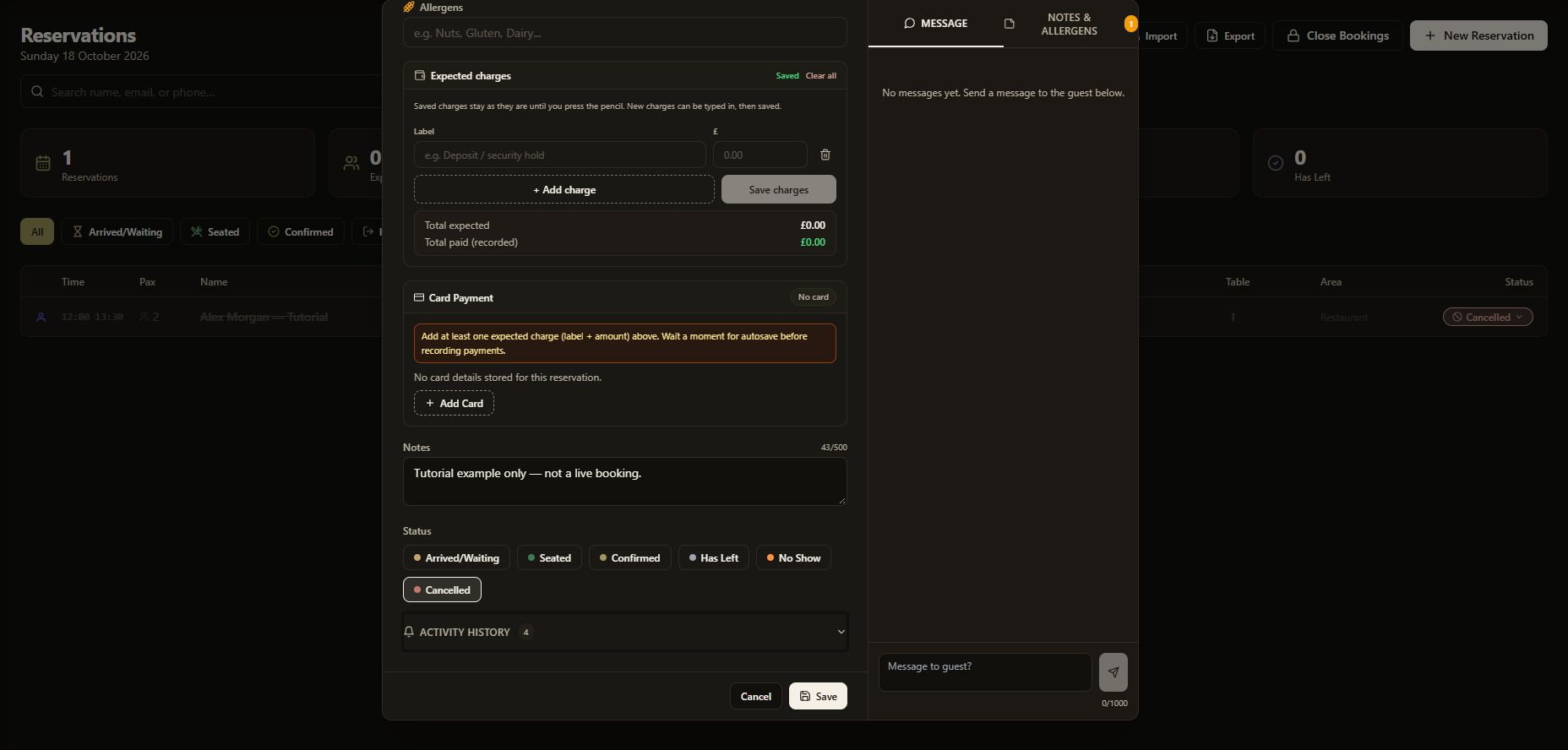
Open this screenshot full size
Check the result
After a table change, both the list and reopened Quick Edit must show the intended table. After cancellation, confirm Cancelled remains selected when reopened. Closing the editor with Cancel does not cancel a booking.
Cancelled or No Show?
- Cancelled: the guest cancelled their booking.
- No Show: the guest did not arrive.
Use the outcome that actually happened. Do not record a cancellation as a no-show.
Common checks
- Cannot find it: check the booking date, search text and status filter before creating a duplicate.
- Status has not changed: confirm the cancellation and complete the final Save.
- Closing Quick Edit: Cancel closes the editor; Cancelled is a booking status.
- Different table values: stop further edits and resolve the mismatch before saving again.
Previous guides
Return to Create a reservation in Table Jasmine or review Table Jasmine opening hours.