

TutorialIn-app guide
Create a reservation in Table Jasmine
· Jasmine Apps
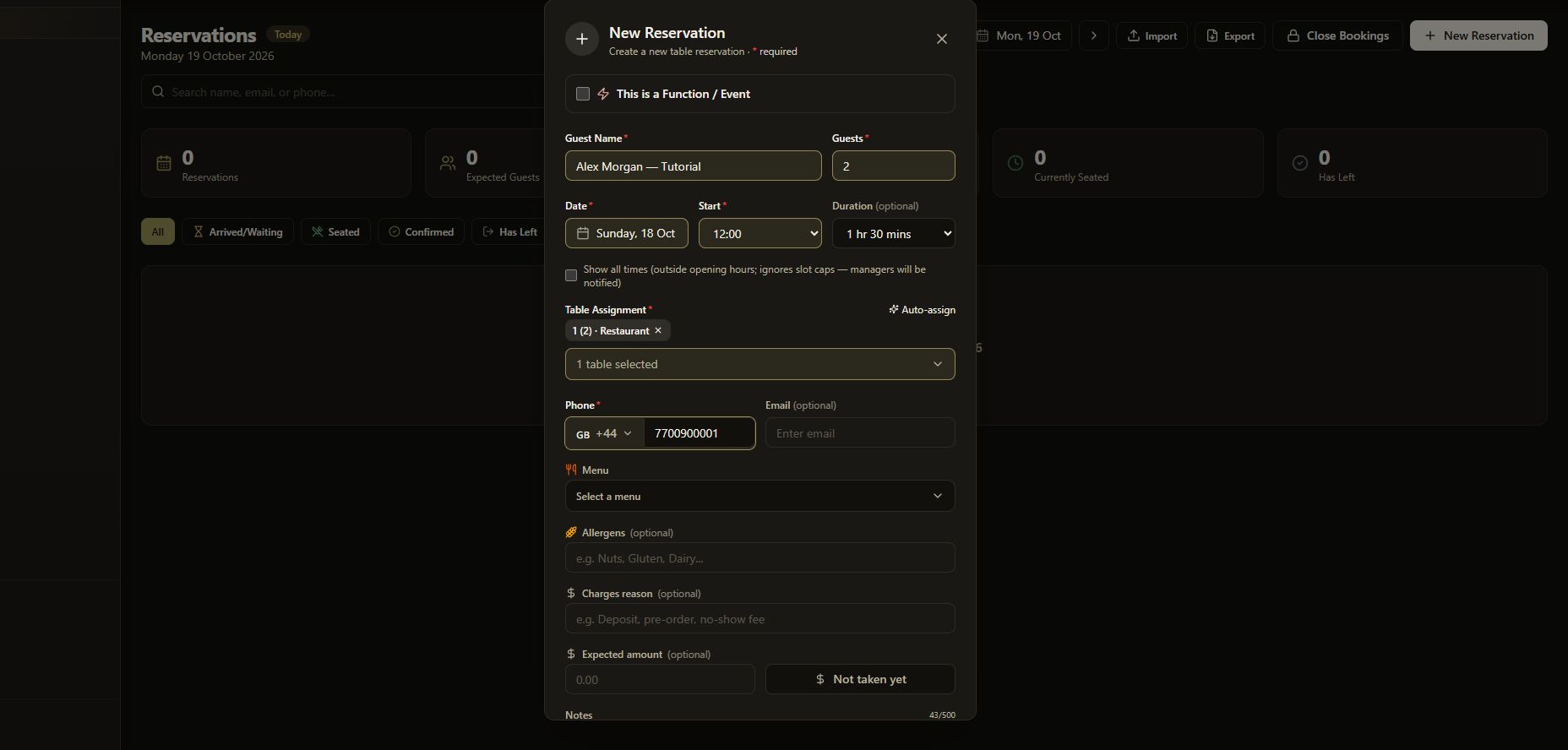
Create Table Jasmine reservations, assign a suitable table, then reopen the booking to check the saved details. The screenshots below use the dark theme and fictional tutorial details. Dates shown are examples; select the date needed for your booking.
Watch the walkthrough
Before you start
- Open the correct venue in Table Jasmine.
- Check that your opening hours and tables are set up.
- Have the guest’s name, party size, date, start time and phone number ready.
1. Open New Reservation
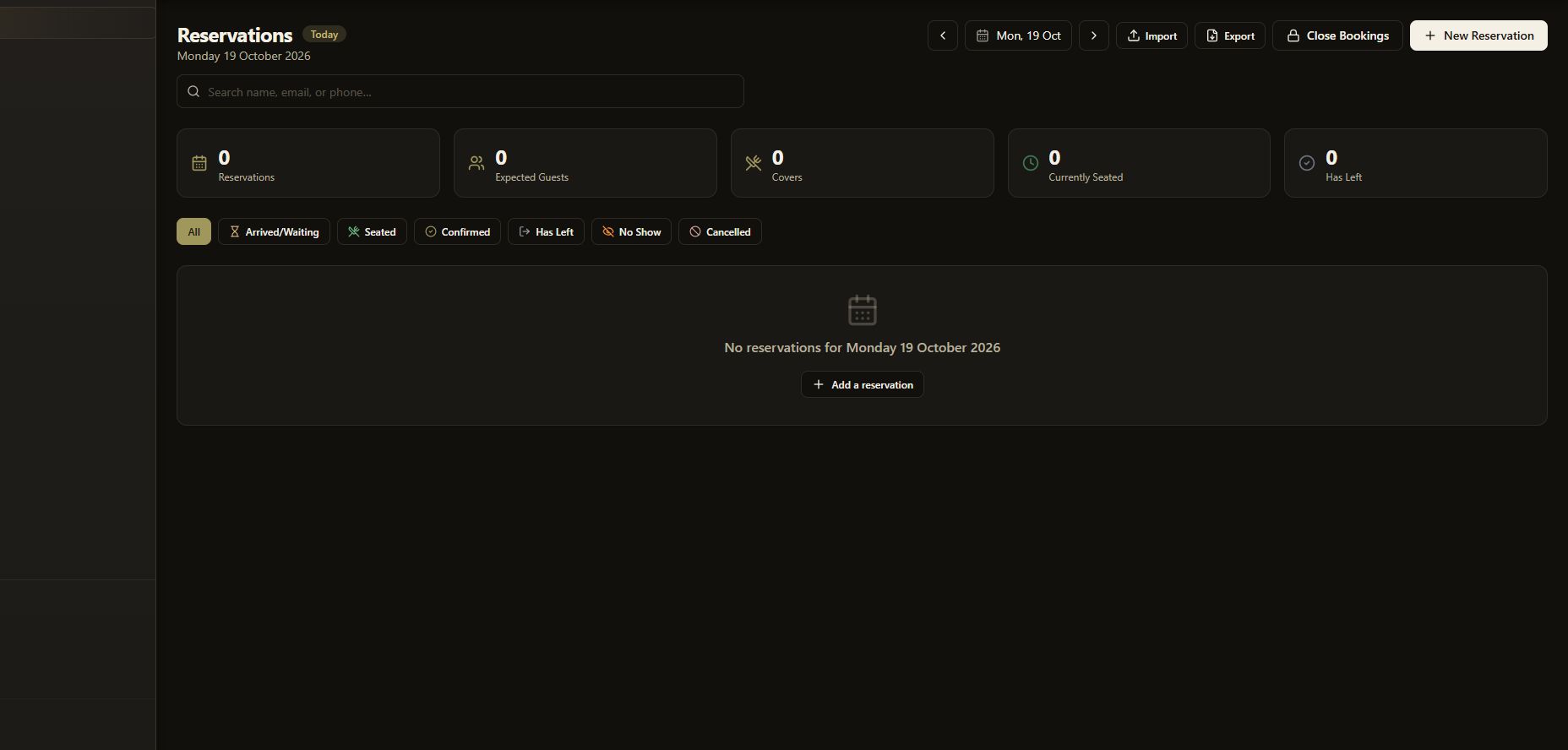
Open List View. On the Reservations page, select New Reservation.
Open this screenshot full size
2. Enter the guest and party size
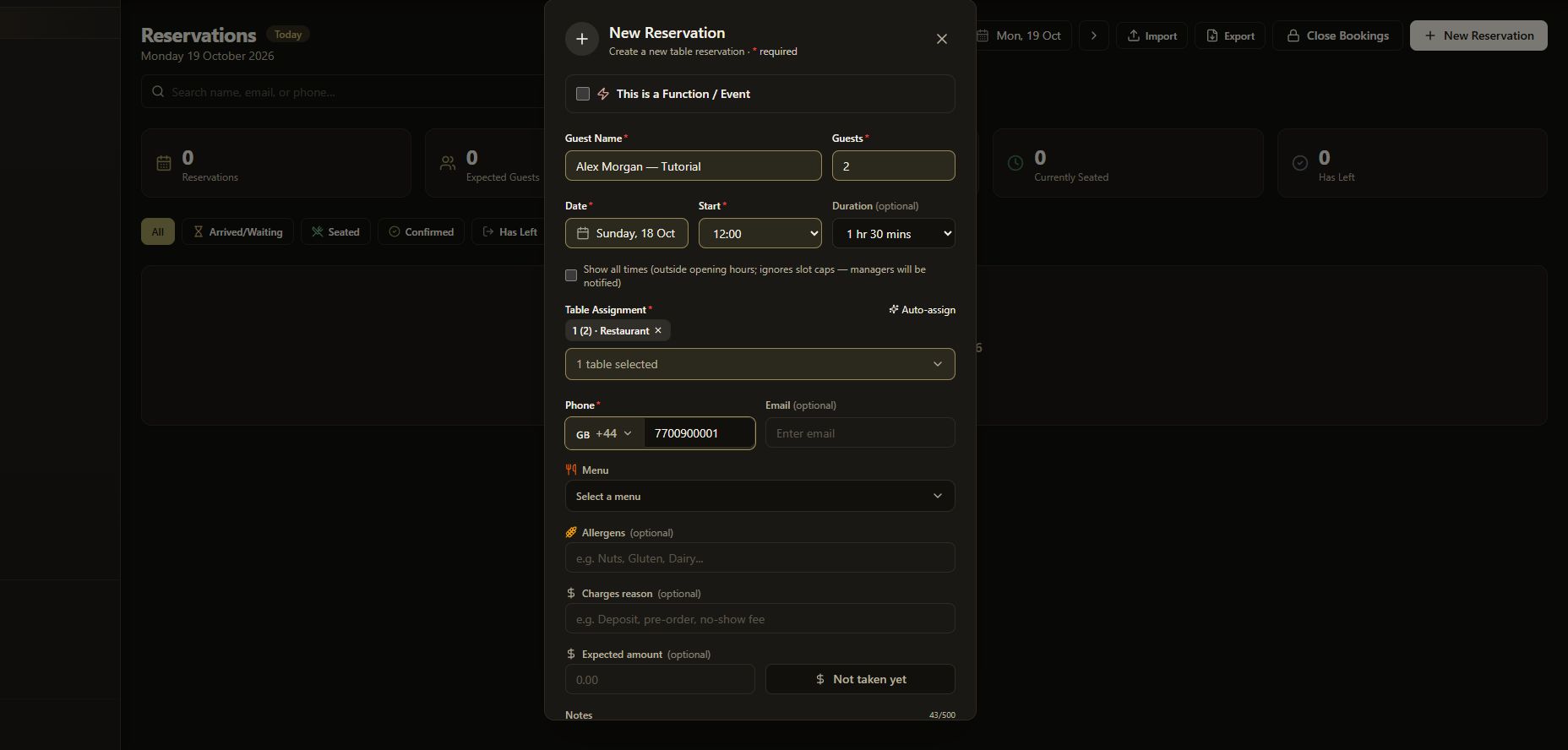
Enter Guest Name and Guests. Use the number of people who will attend, so you can choose a table with enough seats.
Open this screenshot full size
3. Choose the date and start time
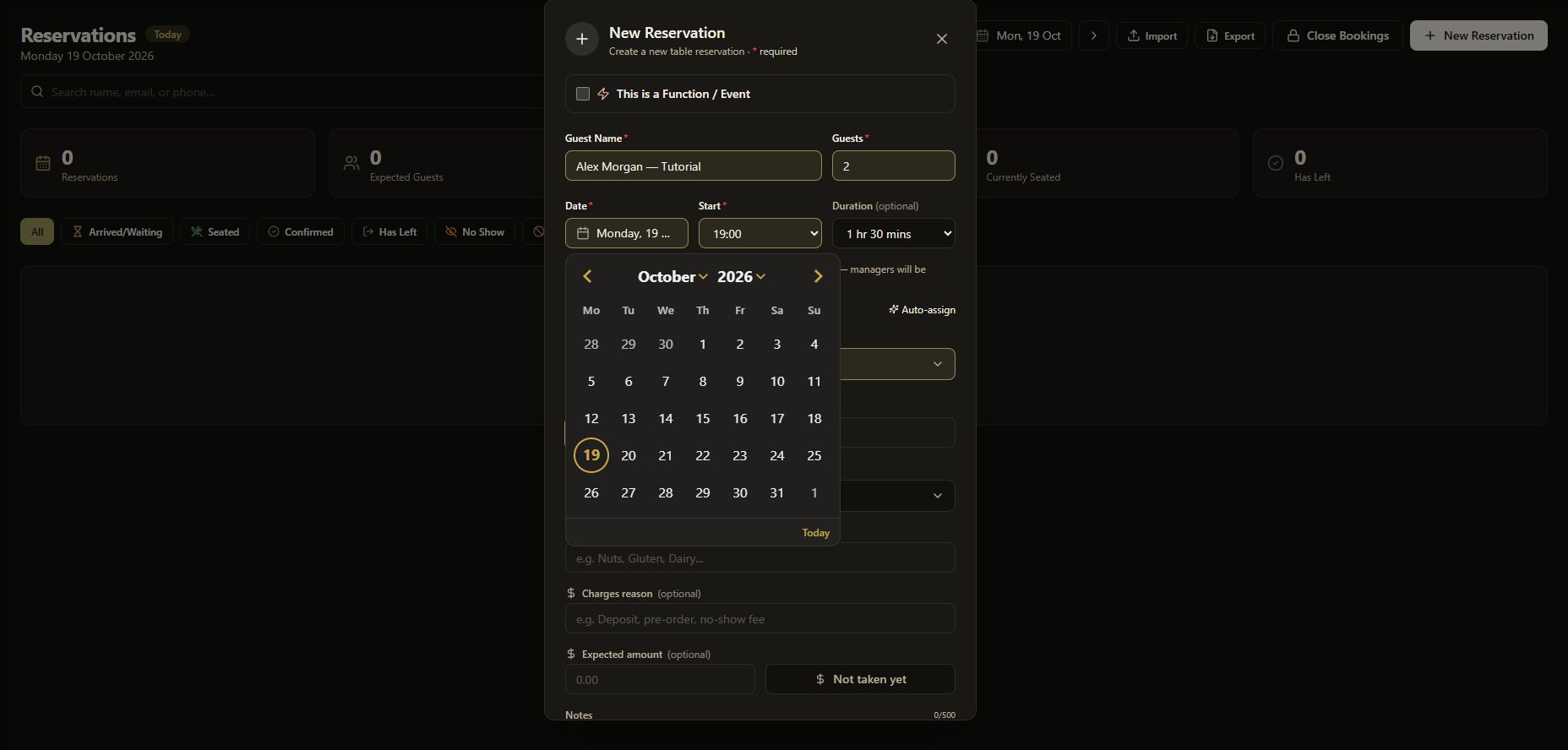
Open Date and choose the booking date. Select the Start time and check Duration (optional). Review the date again before continuing.
Open this screenshot full size
Opening-hours check: Use the normal available times for a routine booking. Show all times is an override for outside opening hours and slot caps; the app warns that managers will be notified.
4. Assign a table
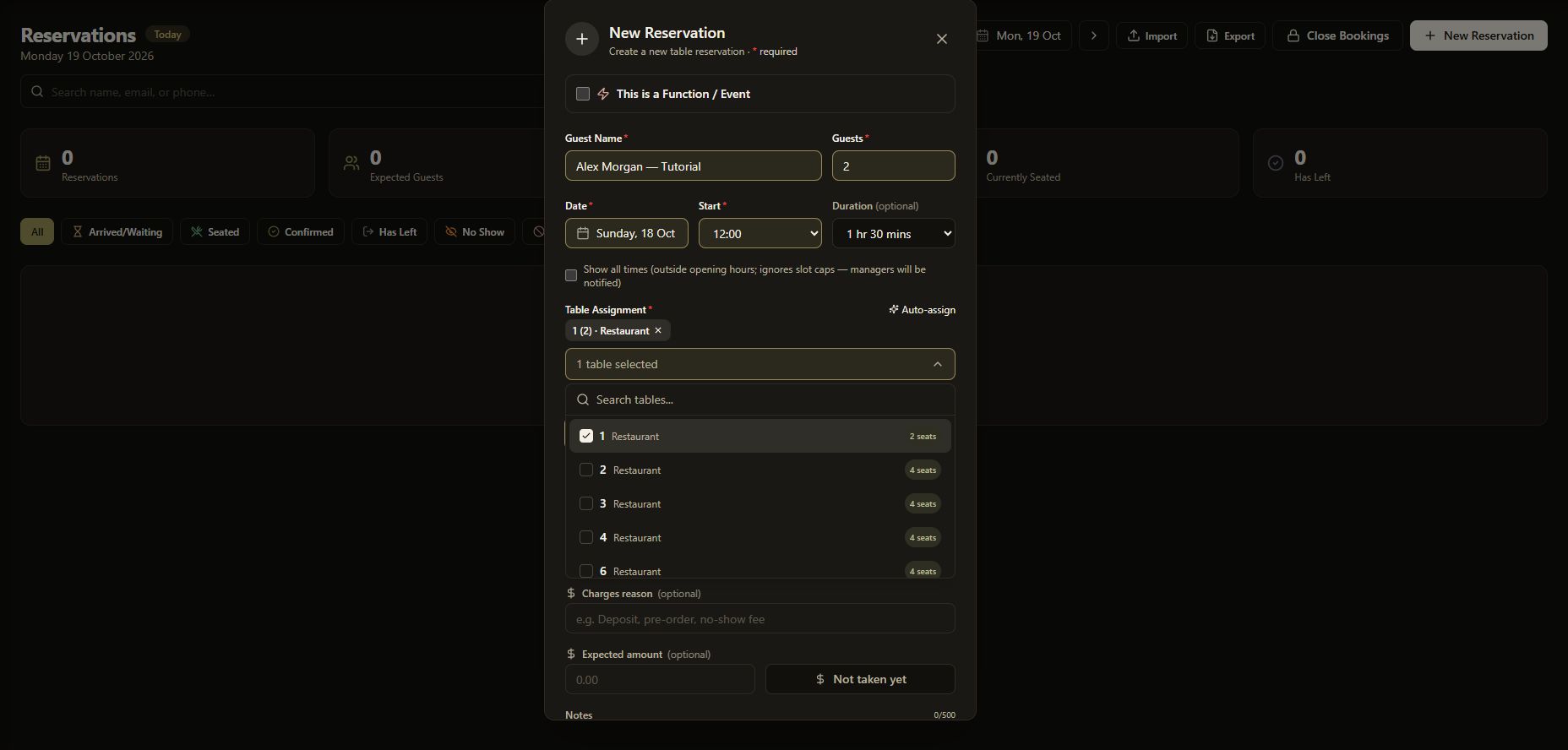
Under Table Assignment, open the table selector and choose a suitable table. The options show the area and number of seats. You can also use Auto-assign, then check which table was selected.
Open this screenshot full size
5. Add contact details and notes
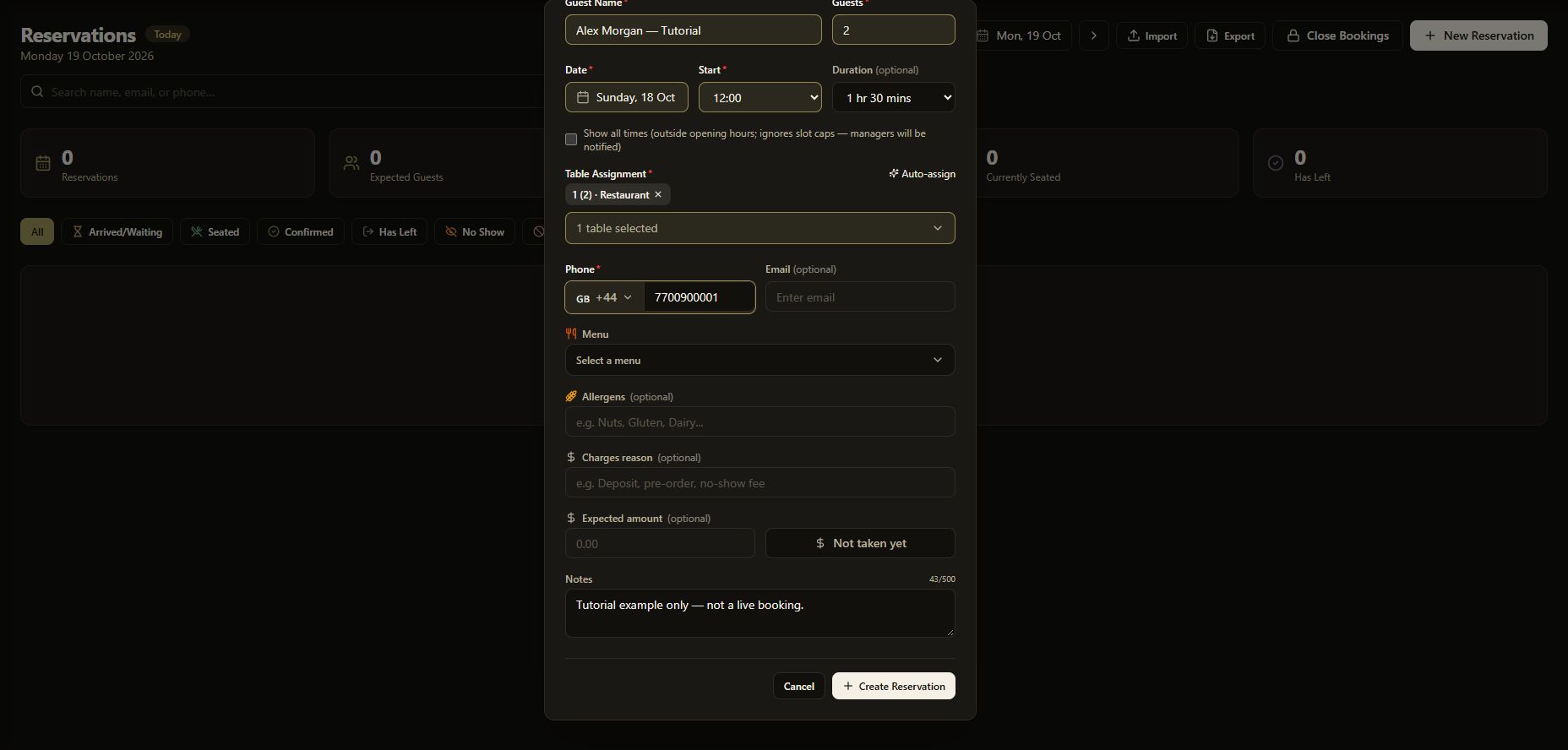
Choose the correct country code and enter the guest’s Phone number. Add Email (optional) when needed.
Scroll down to add any relevant Allergens and Notes. Keep the information clear for the floor and kitchen teams. Menu and charge fields are optional; use them only when they apply to this booking.
Open this screenshot full size
6. Review and create the reservation
Check the guest name, party size, date, start time, duration, selected table and contact details. Select Create Reservation once the information is correct.
7. Find and verify the saved booking
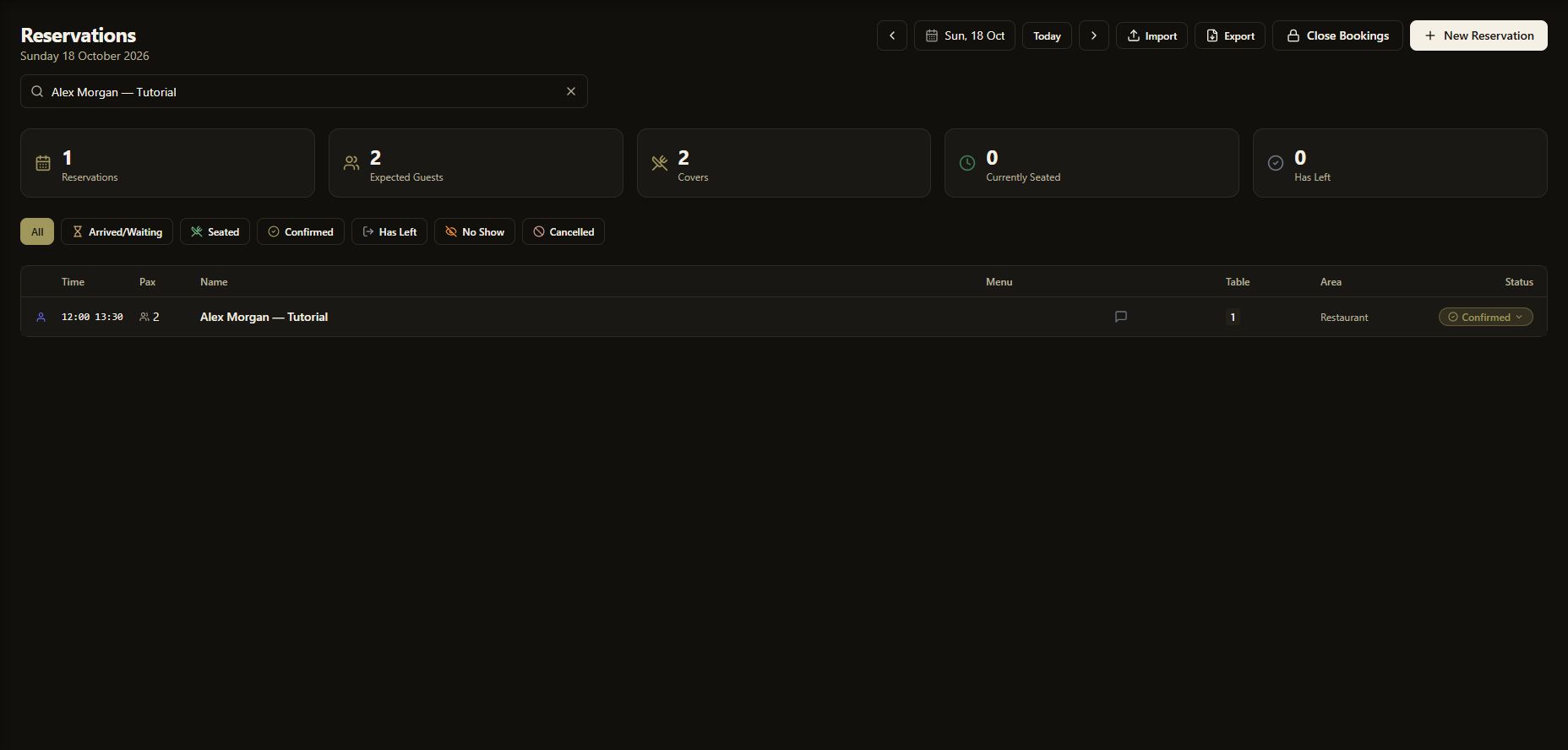
Select the booking’s date in the list. Use Search name, email, or phone… to find it. Check that the row shows the correct time, party size, table and status.
Open this screenshot full size
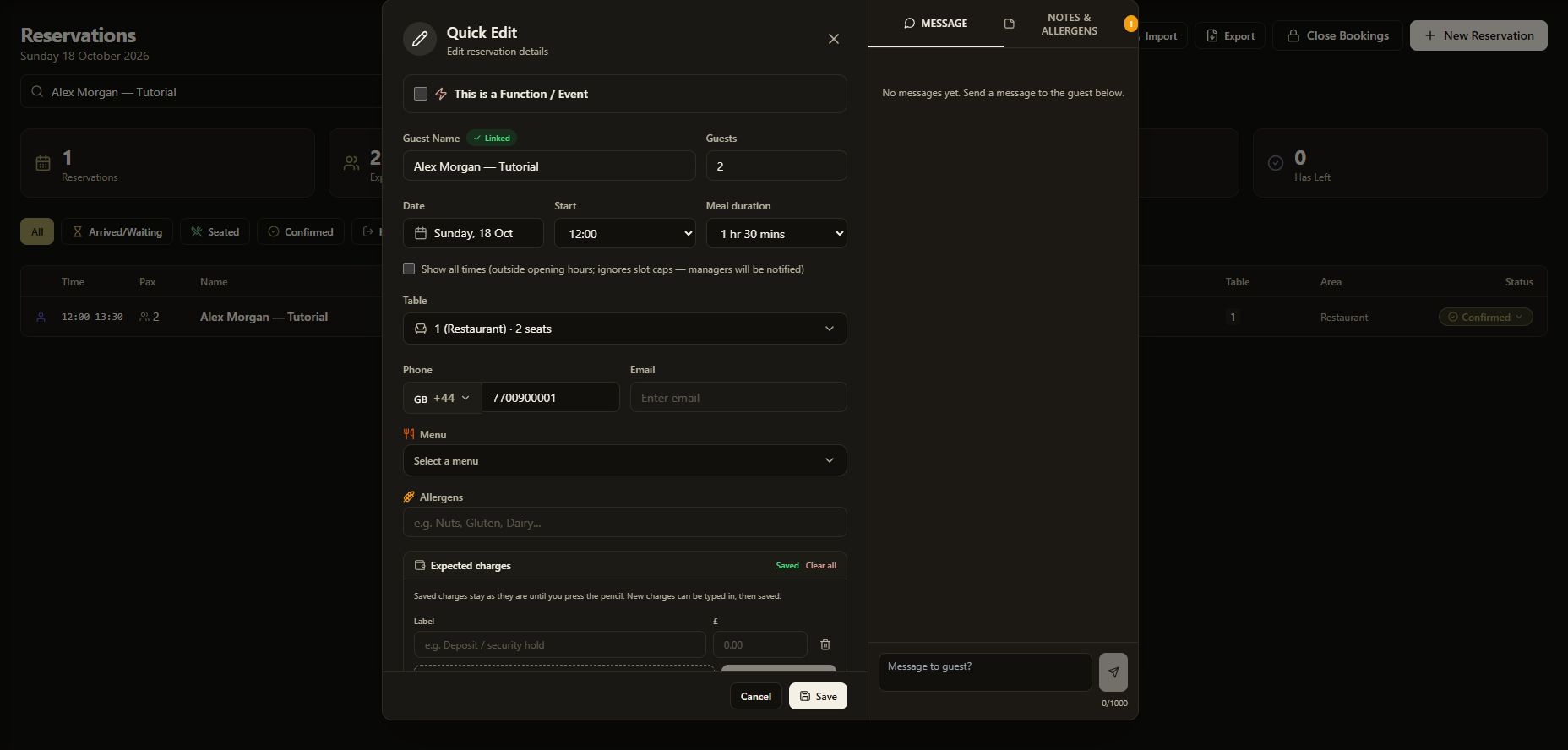
Open the booking to bring up Quick Edit. Confirm that the saved guest, date, start time, duration and table match what you entered.
Open this screenshot full size
Common checks
- The booking is missing: Check the selected date, search text and status filter before creating a duplicate.
- Create Reservation is unavailable: Check the required guest, party, date, time, table and phone fields.
- The wrong table is selected: Reopen the booking and check its table before saving a correction.
Continue learning
Next, follow Change or cancel a reservation. For availability setup, review Opening hours.