

TutorialIn-app guide
Table Jasmine guests and messaging
· Jasmine Apps
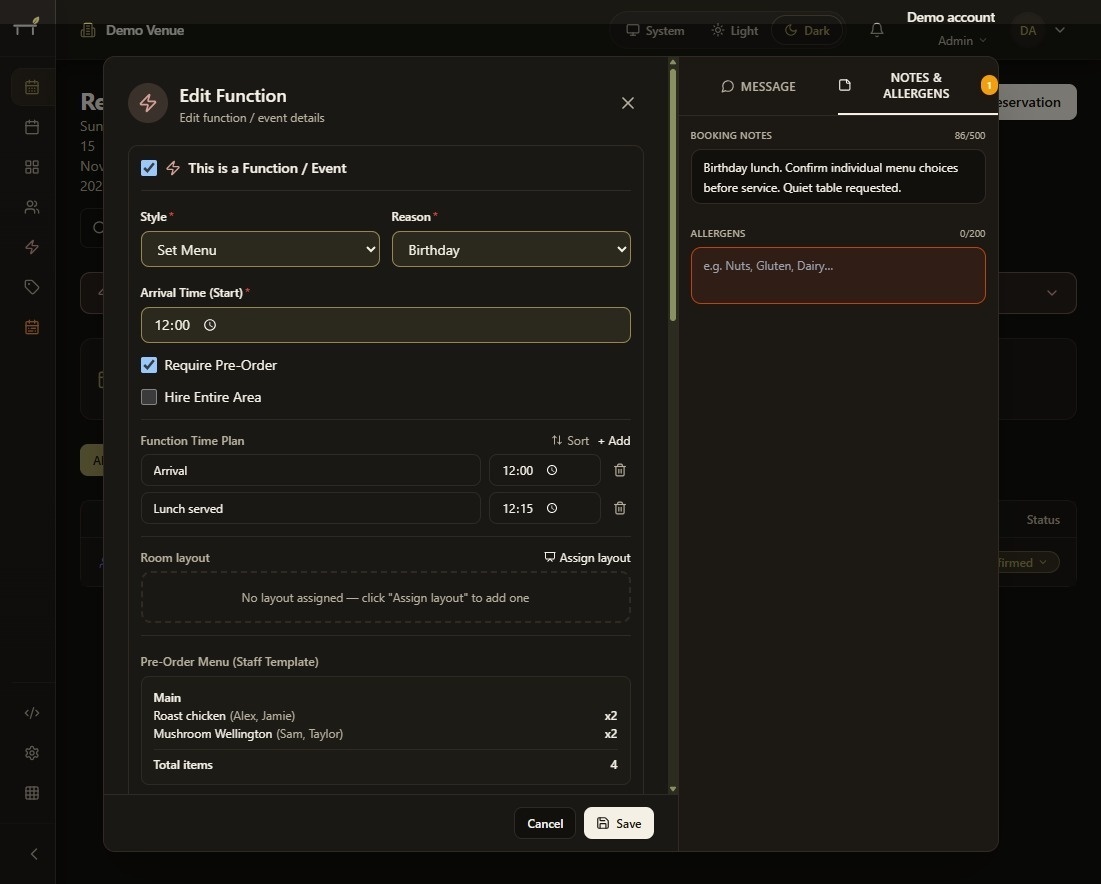
Table Jasmine guests and messaging keeps guest preferences, booking notes and conversations in their proper places. This walkthrough saves a profile preference, prepares and clears an unsent message, then saves a booking-specific note and checks both records after reloading.
Watch the walkthrough
The recording uses fictional training records in Demo Venue. Demo names remain readable; real private details are excluded.
Before you start
Select the correct venue and use an account with permission to manage guests and bookings. Confirm which guest and reservation you need before editing. The recording uses fictional details and a test phone number in a training venue. It saves real example notes but does not send a message or demonstrate delivery or a reply.
A guest profile holds information useful across visits. Booking notes apply to one reservation. The message composer is separate from both: typing a message or saving a note does not mean a message has been sent.
1. Update the guest profile
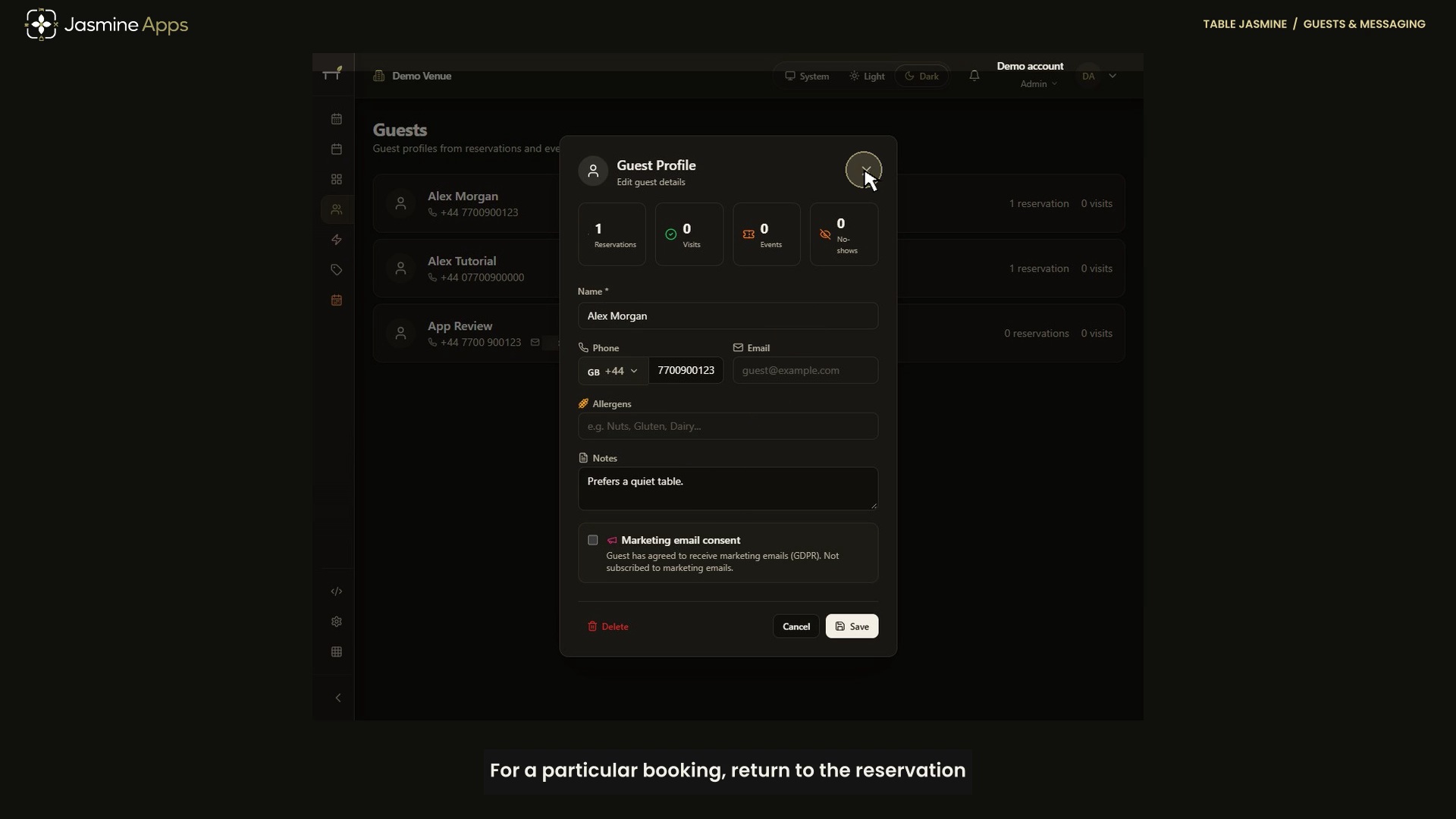
Open Guests and choose the profile. Review Reservations, Visits, Events and No-shows, then check the name and contact details. Add a concise, useful preference in Notes. Only update Allergens with confirmed information, and only change Marketing email consent when the guest has agreed.
Click Save and wait for the profile to close. Reload the page, reopen the same guest and check that the note remains. The example keeps allergens blank and marketing consent unticked.
2. Find the booking
Return to List View. Choose the booking date using the date picker, then open the correct guest's reservation. Check its date, time and party size before making a change. The recording uses an existing function booking, so its editor is labelled Edit Function and includes additional function details.
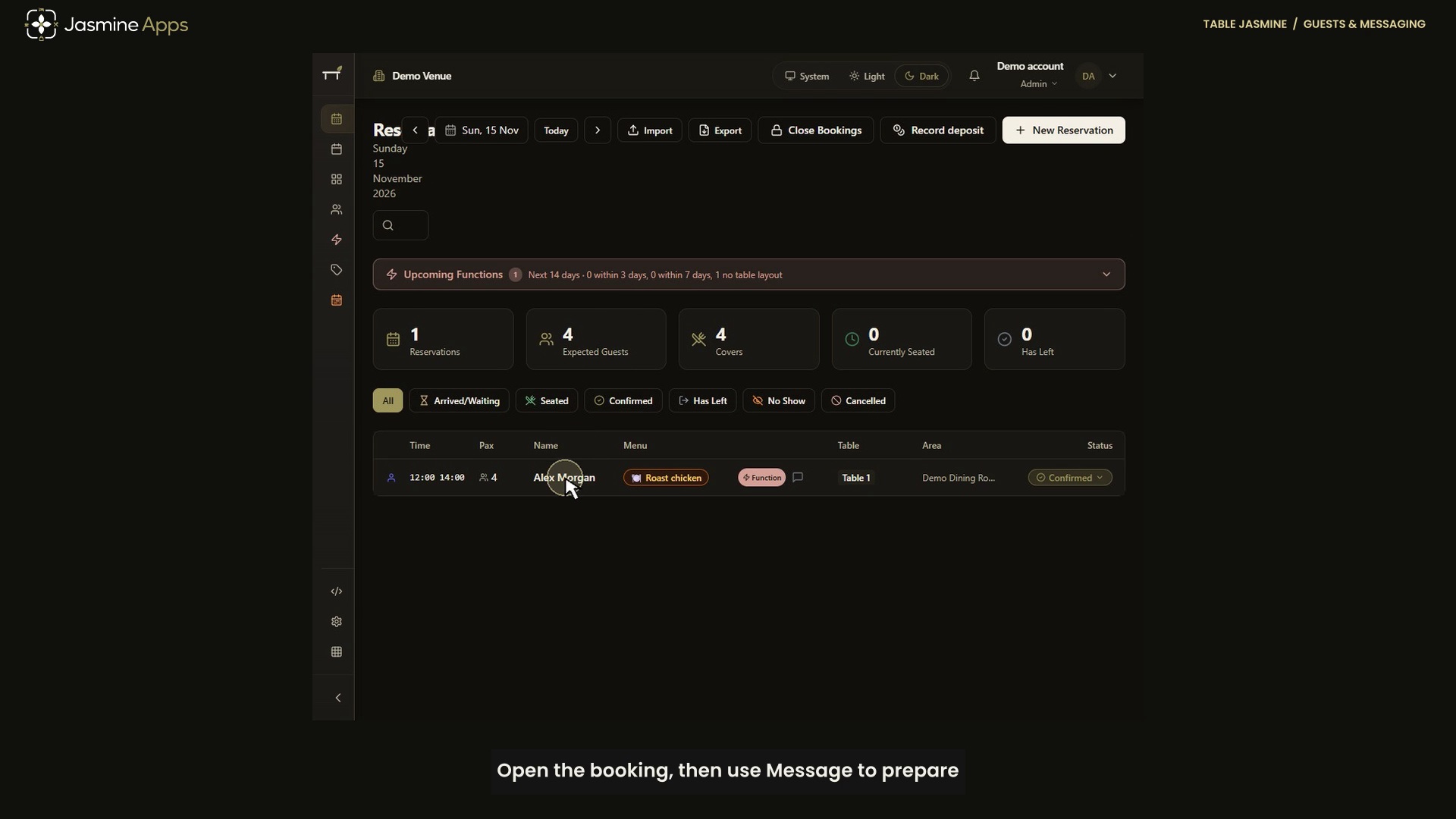
Reloading the list returns it to today in the recorded workflow. If the booking appears to have disappeared after a reload, choose its date again before creating another reservation.
3. Prepare a message
Choose Message on the right. Enter your question in the message composer. Keep it friendly, specific and easy to answer. Review the wording, booking and intended recipient before using the send icon.
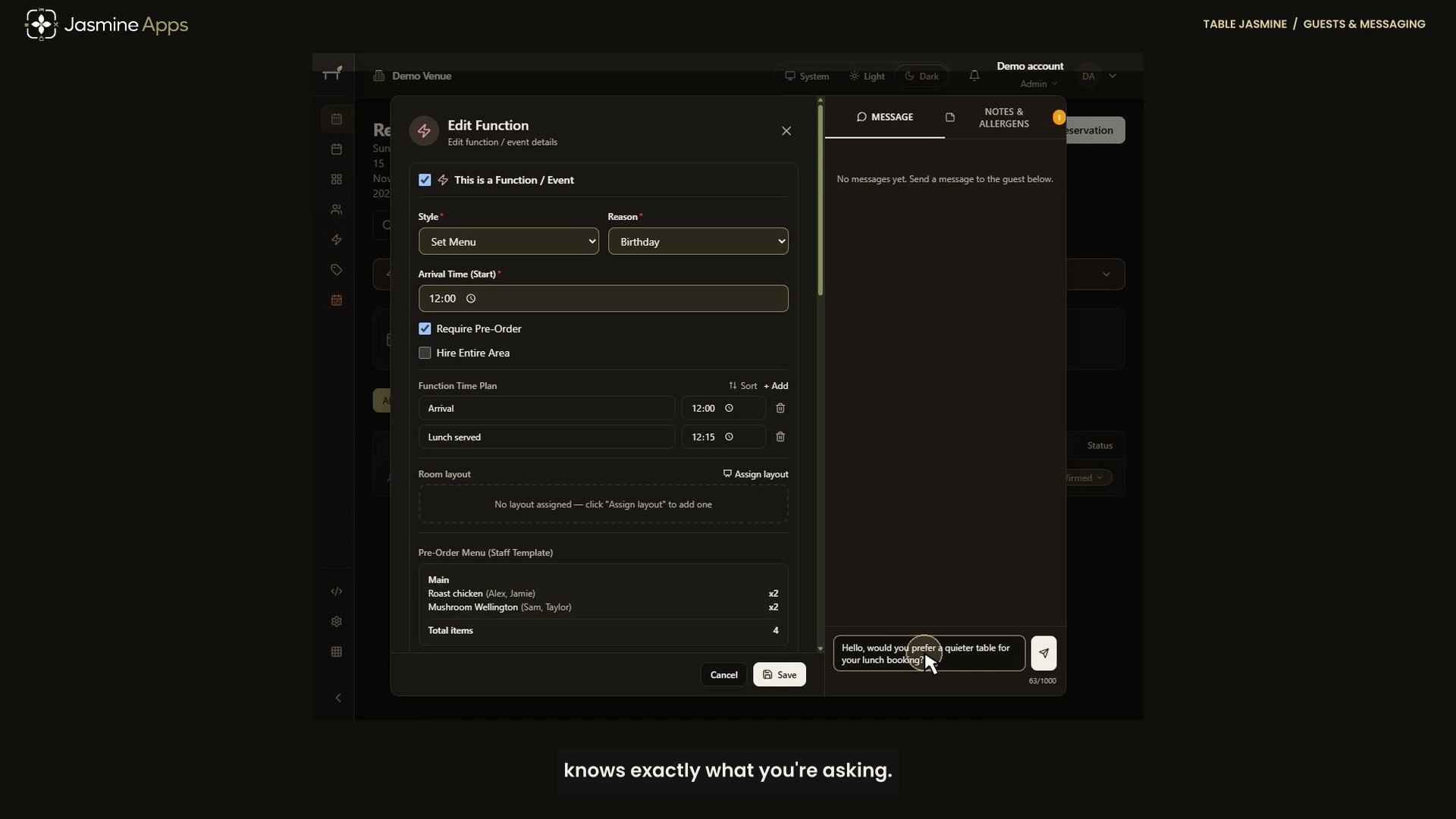
The walkthrough clears this draft without sending it. An empty conversation and text in the composer are not evidence of delivery. Saving a booking does not send the prepared question. For a real conversation, verify the recipient and review the resulting message state after sending; this recording does not test that step.
4. Save booking notes
Open Notes & Allergens. Use Booking Notes for information the team needs for this visit. Keep useful existing details and add the new request. Allergens is a separate field; do not infer an allergy from a seating preference or dish choice.
Click Save and wait for saving to finish. The example adds a booking-specific quiet-table request while preserving the existing service note. It does not change the booking date, party size, table, pre-order or marketing consent.
5. Verify the result
Reload the list, choose the same booking date and reopen the reservation. Return to Notes & Allergens and confirm that the complete note remains. Check the profile separately when verifying a profile preference.
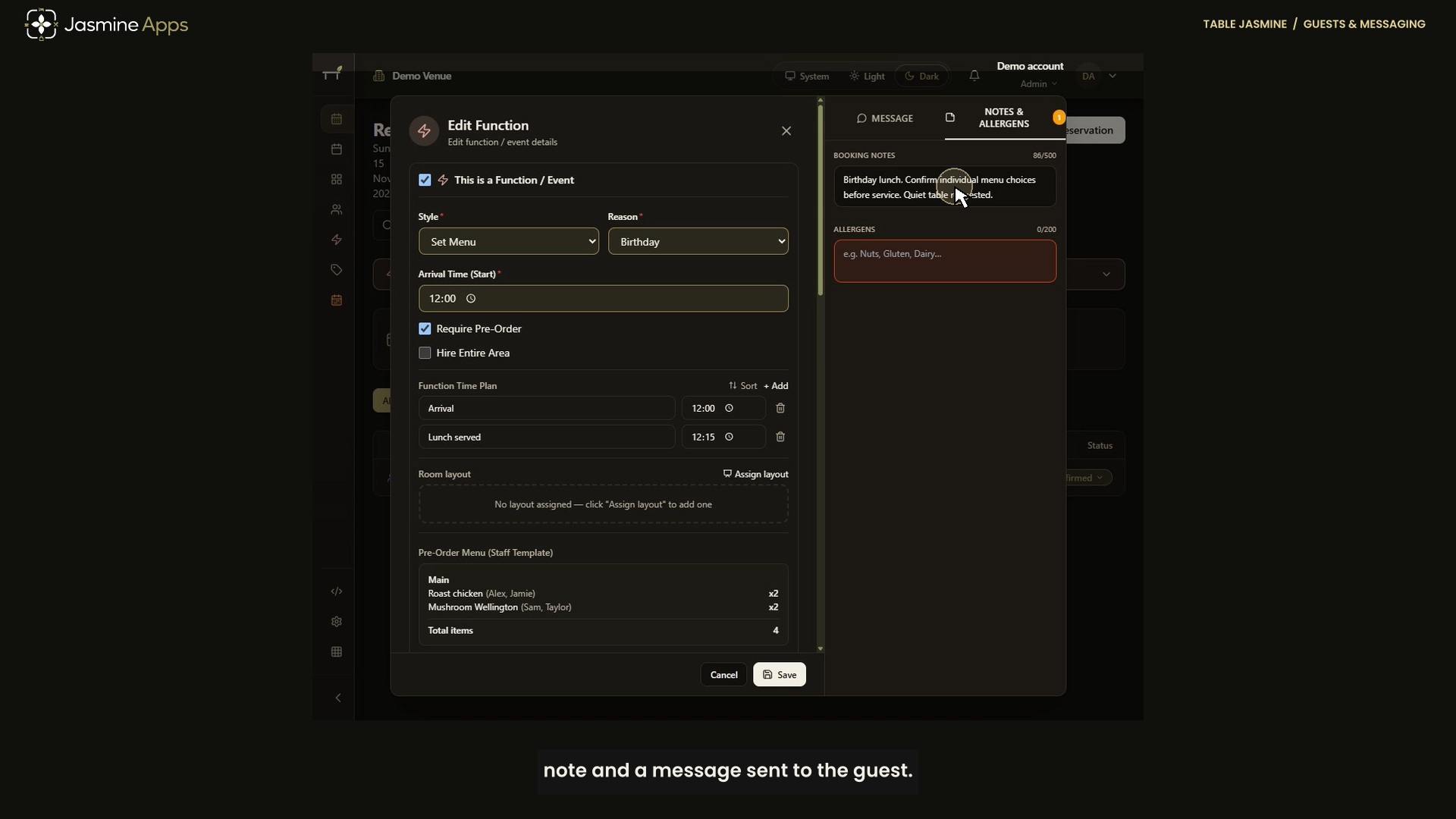
The completed example has a saved guest preference and a saved booking note. The sample message was cleared, so no message was sent to the guest.
Common checks
- The booking is missing: confirm the venue and date; a reload can return the list to today.
- A note is missing: check whether it belongs to the guest profile or the booking, then reopen that same record.
- A change disappears: wait for Save to finish before navigating away and verify it after reloading.
- A message is unfinished: clear the composer if you do not intend to send it. Do not treat it as a saved conversation.
- Contact or dietary details are uncertain: confirm them through the venue's normal process before updating the record.
- Consent is unclear: leave the marketing setting unchanged until the guest's choice is confirmed.
Continue learning
Create a reservation · Functions and pre-orders · Menus and offers.