

TutorialIn-app guide
Table Jasmine functions and pre-orders
· Jasmine Apps
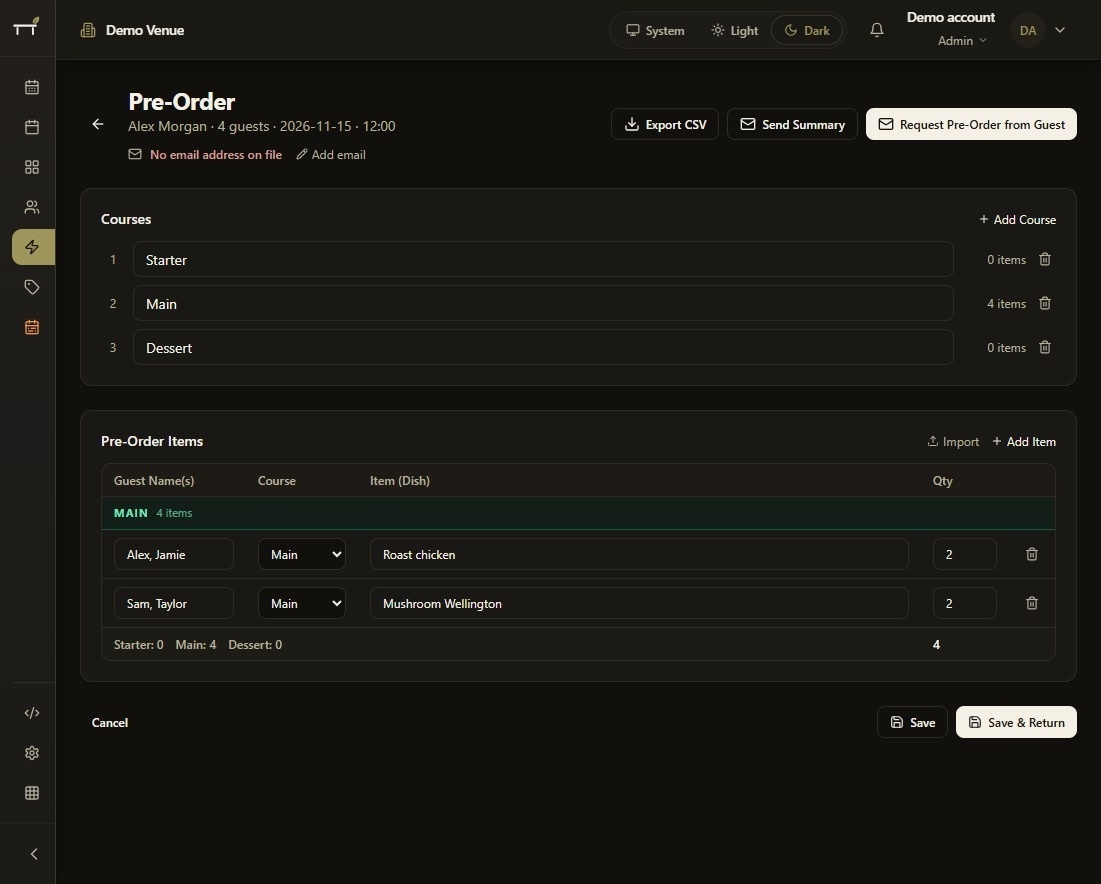
Table Jasmine functions and pre-orders bring a private-dining booking and its food choices together. This walkthrough creates a function, saves its service plan, enters guest selections and checks that the booking and pre-order remain after reopening.
Watch the walkthrough
The recording uses fictional training records in Demo Venue. Demo names remain readable; real private details are excluded.
Before you start
Select the correct venue and use an account with permission to manage functions. Agree the date, party size, menu, table assignment and service schedule with the organiser. Have their correct contact details and confirmed food choices ready.
The recording uses fictional guests and a test phone number in a training venue. It saves an actual example function and pre-order. Use your own booking details; do not copy the example names or number. No guest email or summary is sent in this walkthrough.
1. Set up the function
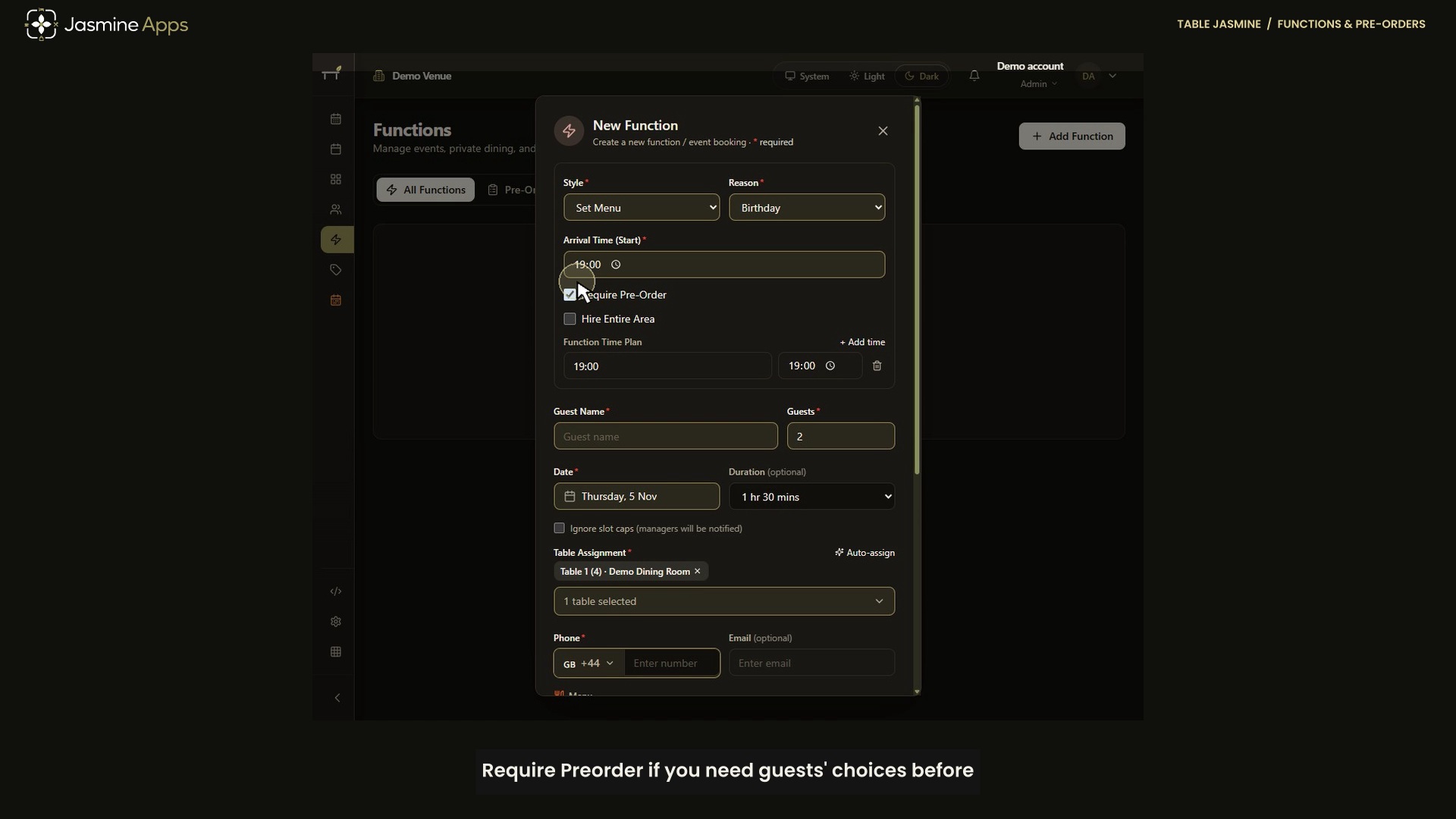
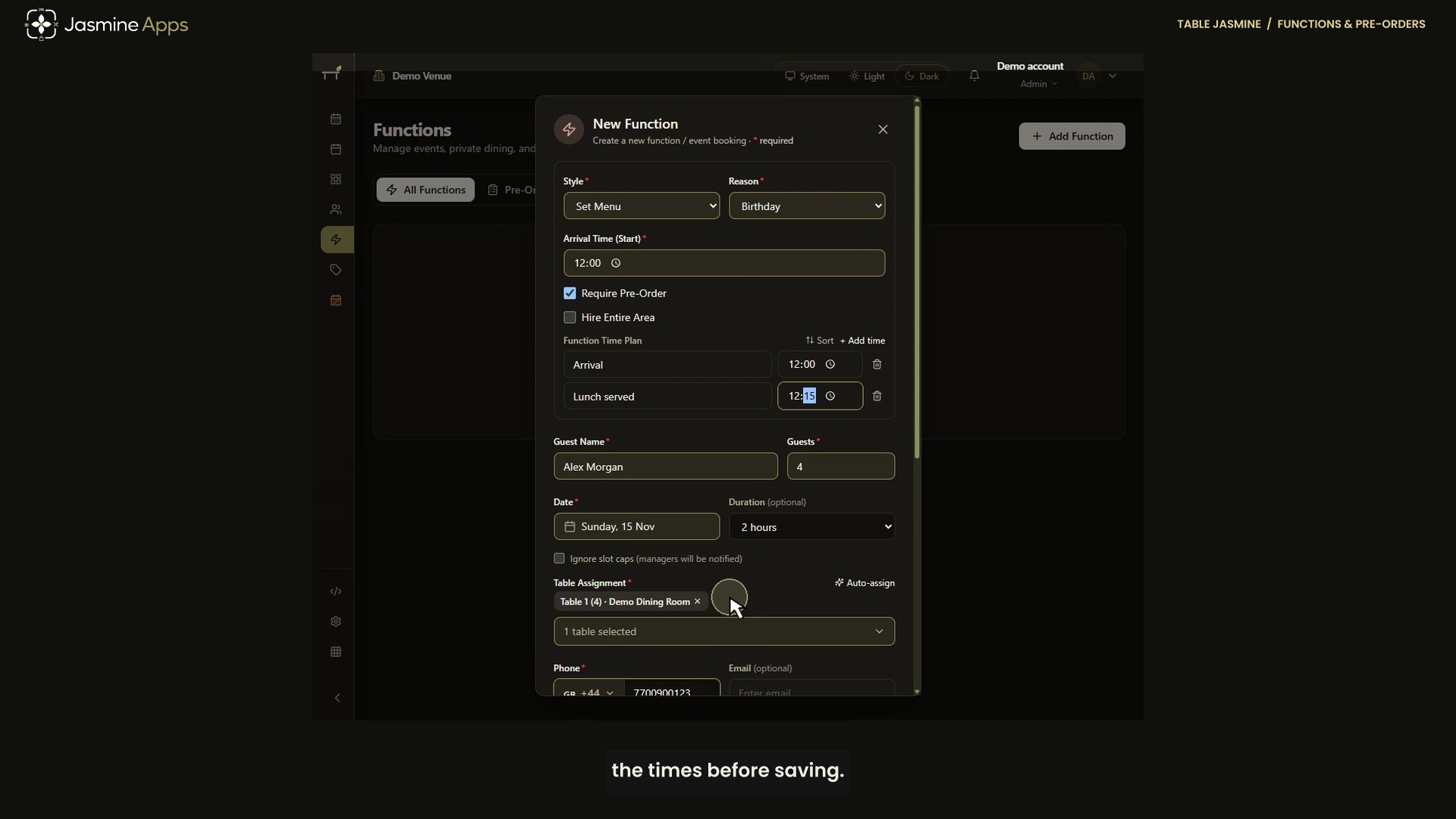
Open Functions and choose Add Function. Select Style and Reason, then tick Require Pre-Order when you need food choices before service. Set Arrival Time (Start).
Use Hire Entire Area only when the booking needs exclusive use. The example leaves it unticked and uses a normal table assignment.
2. Check the booking details
Enter the lead Guest Name, number of Guests, Date and Duration. Check Table Assignment and the selected dining area. Keep availability limits in place; do not use an override simply to make the form save.
Enter the required Phone number with the correct country code. Email is optional in this example. The recording uses a four-person lunch booking with a two-hour duration.
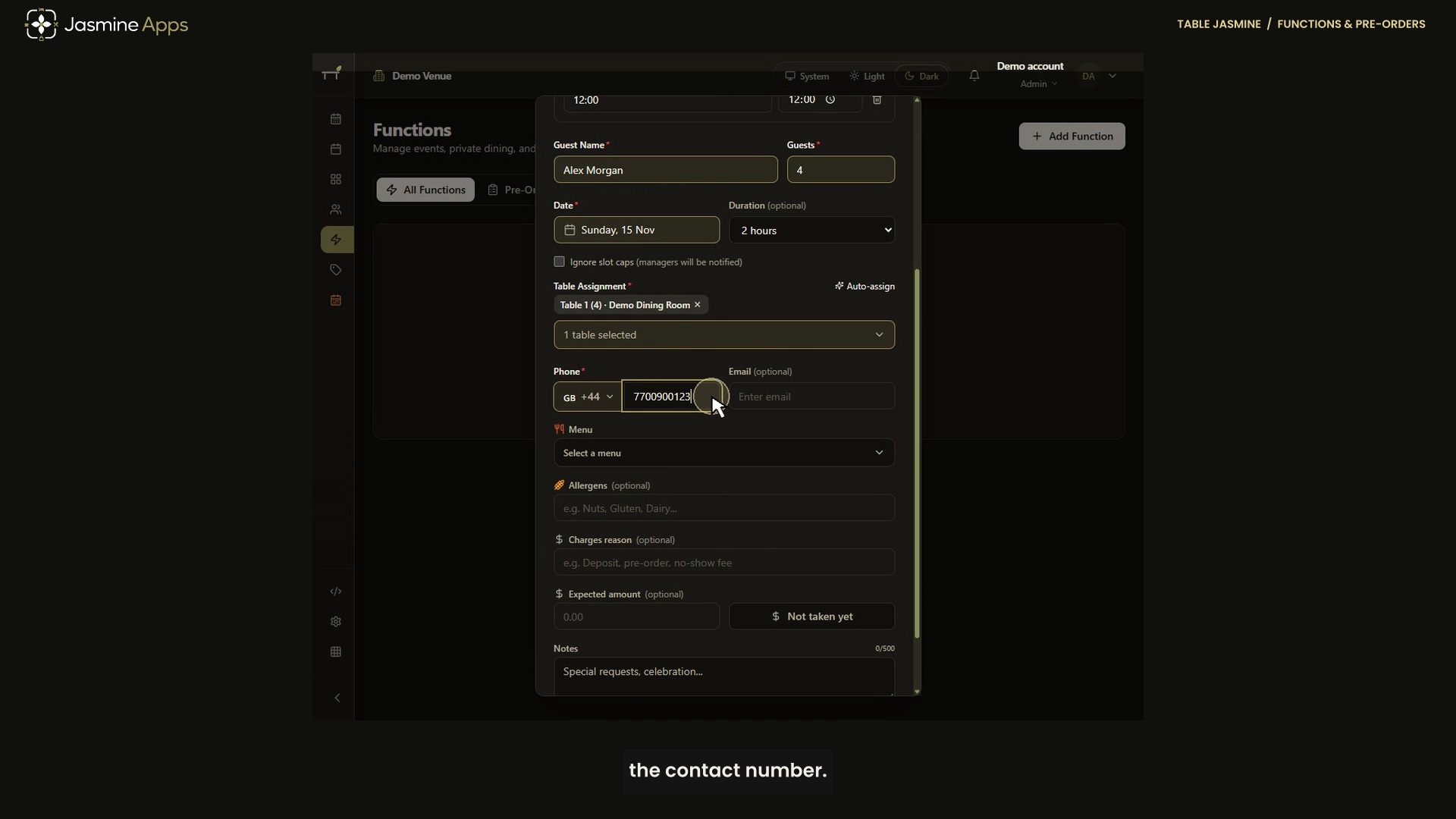
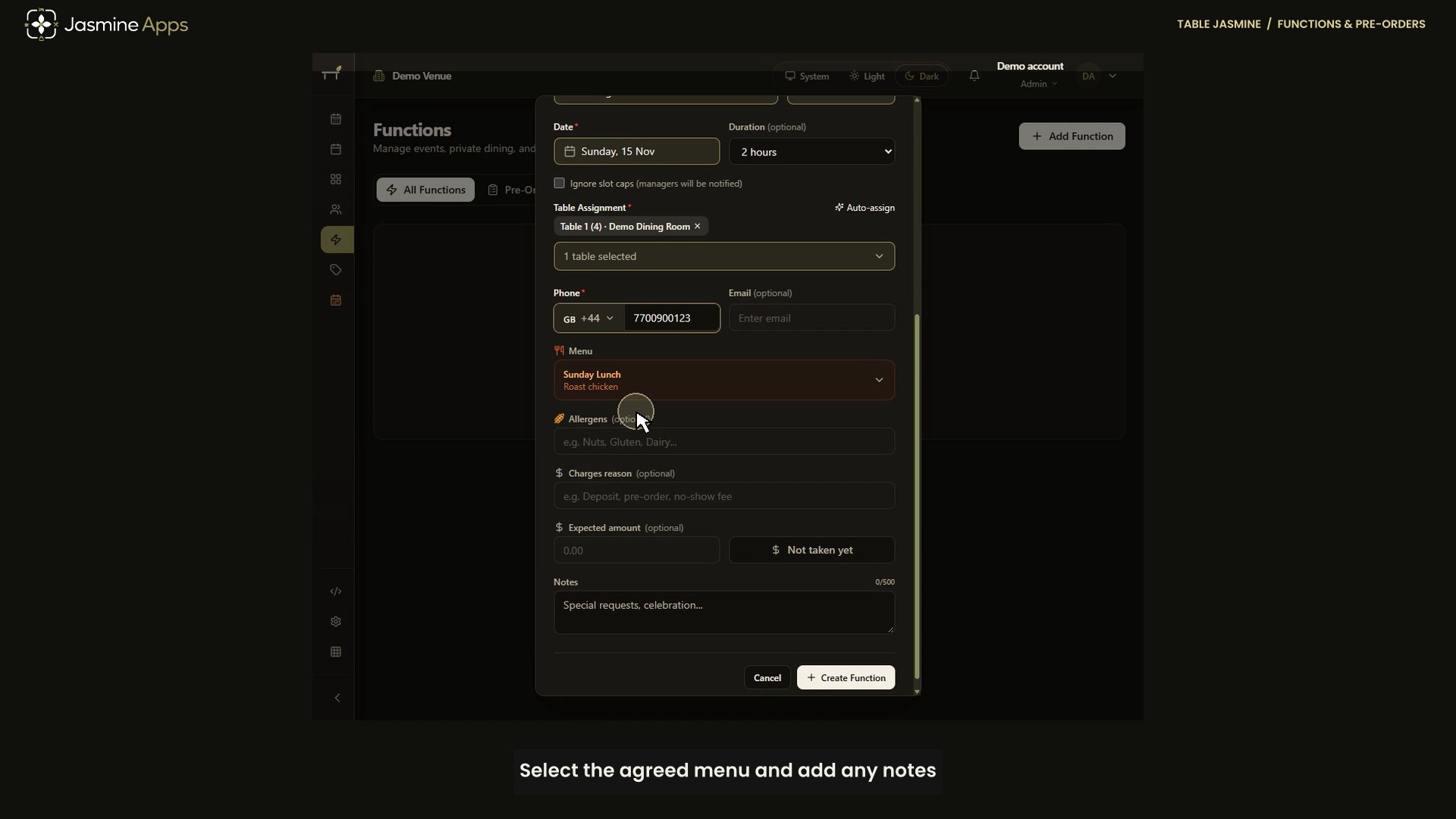
Choose the agreed Menu and add useful Notes. The recording selects a saved lunch-menu choice and asks the team to confirm individual selections before service. The detailed pre-order is entered separately after saving the function.
3. Build the service plan
Under Function Time Plan, replace a time-only label with a useful description such as Arrival. Click + Add time for another milestone, give it a clear label and set its time. Check that every entry belongs within the agreed service schedule.
The example contains an arrival and a later lunch-service entry. Adding a plan entry does not replace checking the booking's main start time and duration.
4. Save and reopen
Click Create Function and wait for the booking to appear. Reload the list, open the saved function and check the date, party size, booking time range, table, area and Function Time Plan.
The current detail card may show a separate Arrival Time field as a dash even when the header and time plan contain the saved times. Verify the header and plan explicitly rather than treating that empty field as confirmation of a time.
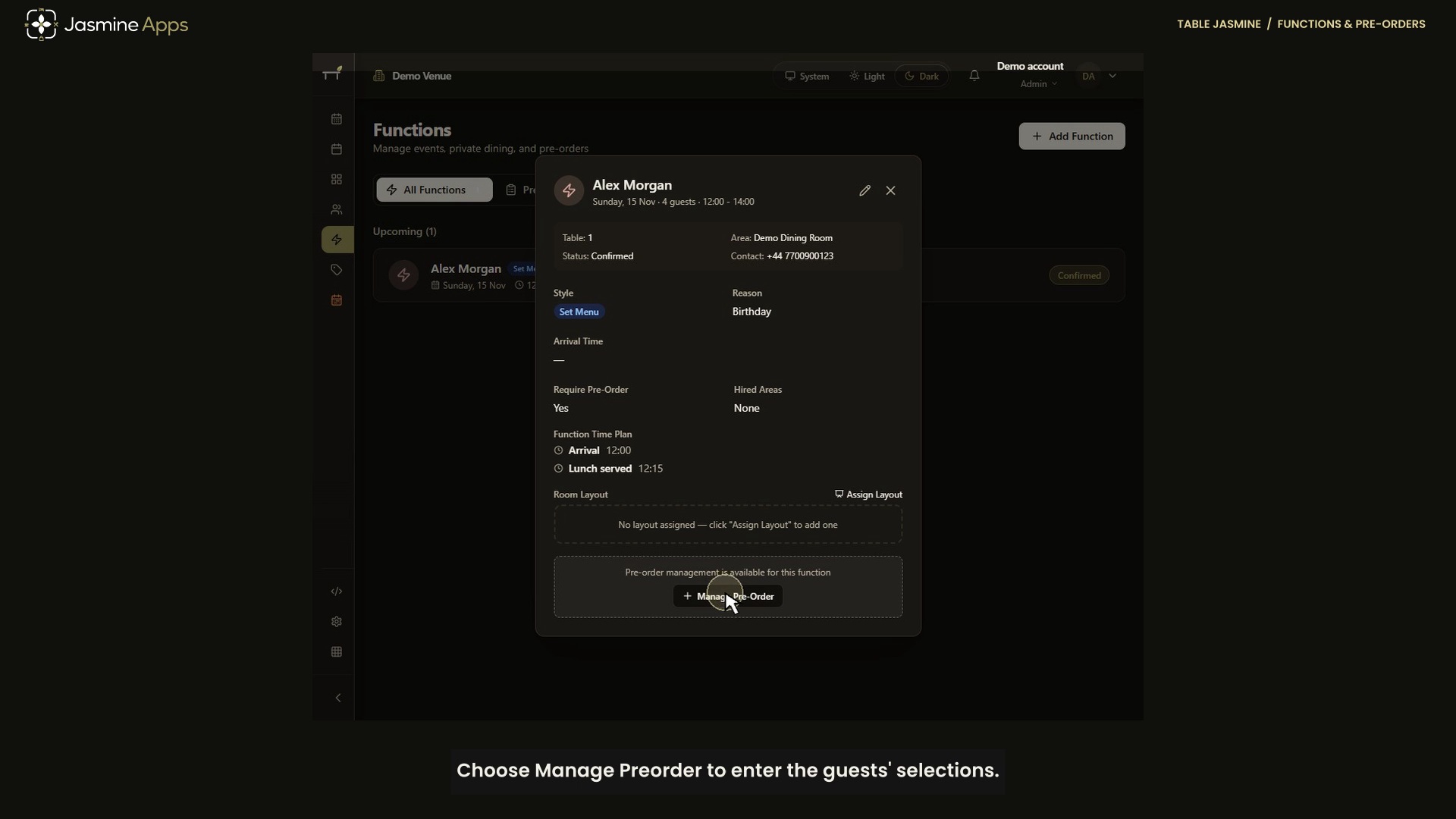
A table assignment and a Room Layout are separate. No layout assigned refers to the optional function room layout; the assigned table and area are shown above. This recording does not assign a room layout.
Choose Manage Pre-Order to enter the guests' food selections.
5. Enter the pre-order
Review the course names. The page starts with Starter, Main and Dessert; use Add Course if another course is needed.
Click Add Item. Enter the guest names, select the course, enter the dish and set Qty. Guests sharing the same dish can share one line, with their names separated by commas. Check the quantity separately: the number of names does not replace the quantity field.
Add another line for a different dish. In the recording, two main-course choices each have a quantity of two, making four main-course items for four guests. Check totals for each course according to your menu; a multi-course meal can have more total items than guests.
Click Save & Return. Save is also available when you want to remain on the page. Wait for saving to finish before navigating away.
6. Review the saved result
The function list now shows Pre-order submitted. This indicates that the pre-order was saved; the recording does not send it to the organiser.
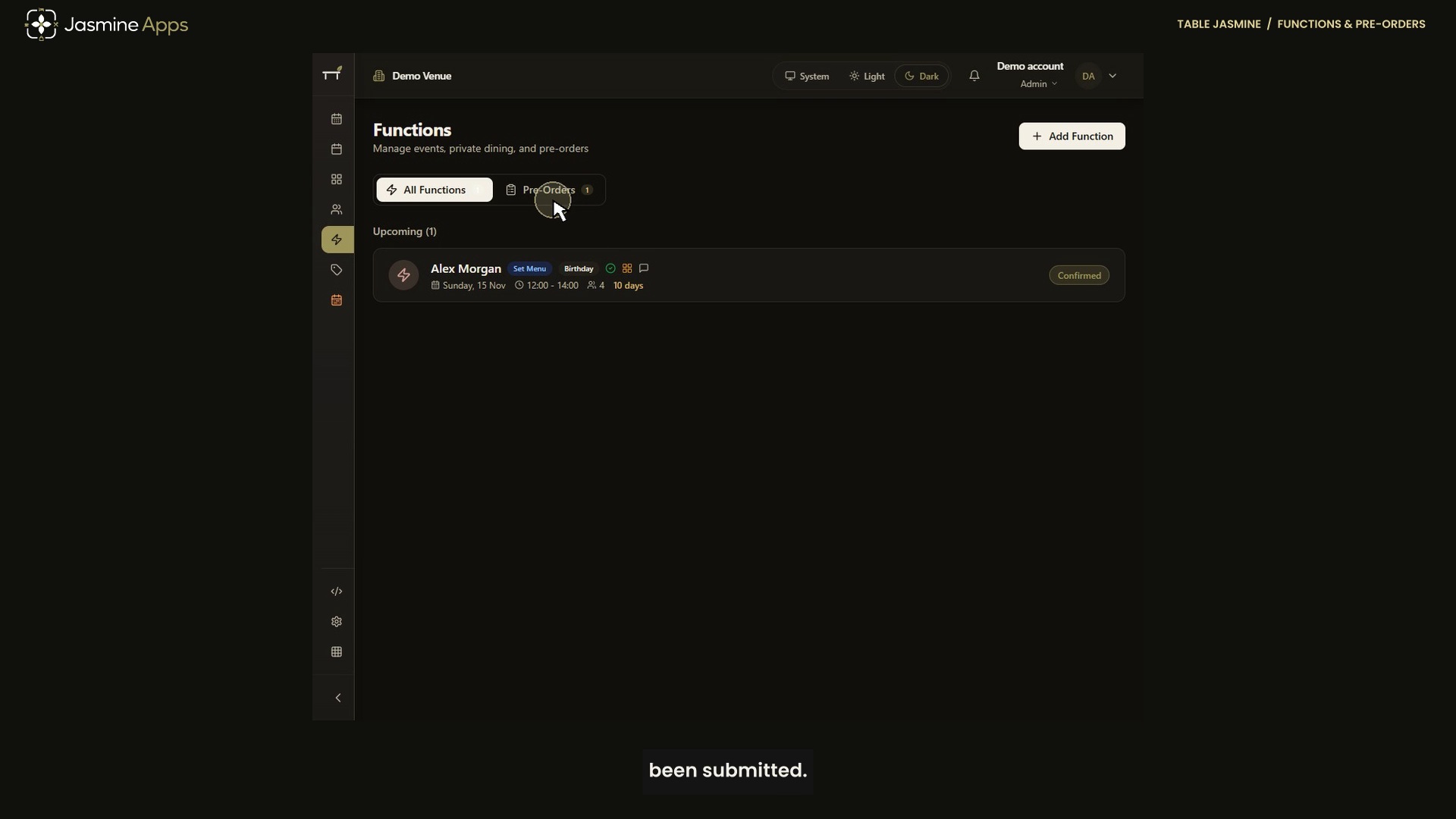
Open Pre-Orders and choose View to inspect the course breakdown, guest names, dishes and quantities. Use Edit to reopen the saved selections, then reload and confirm that they remain.
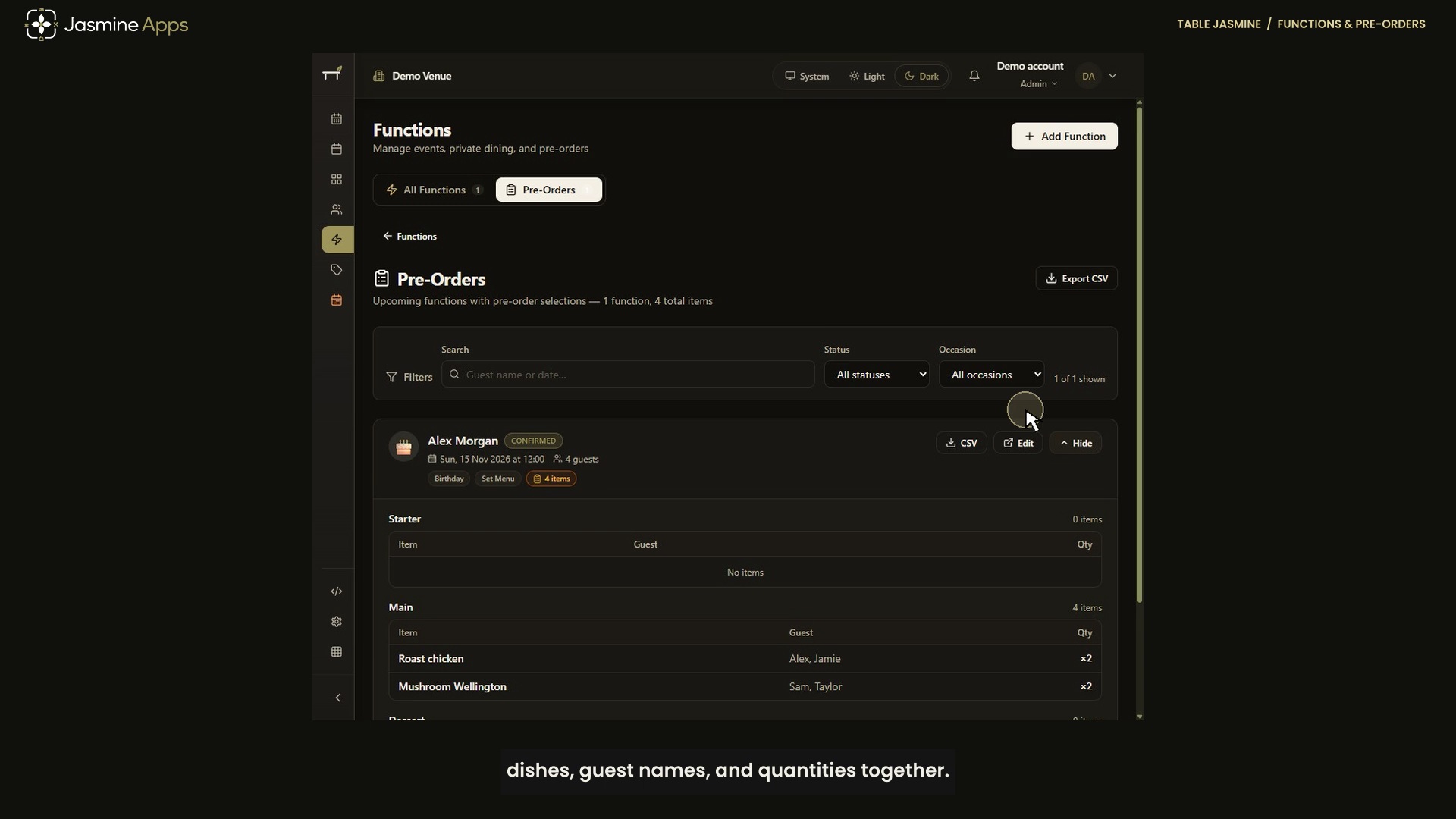
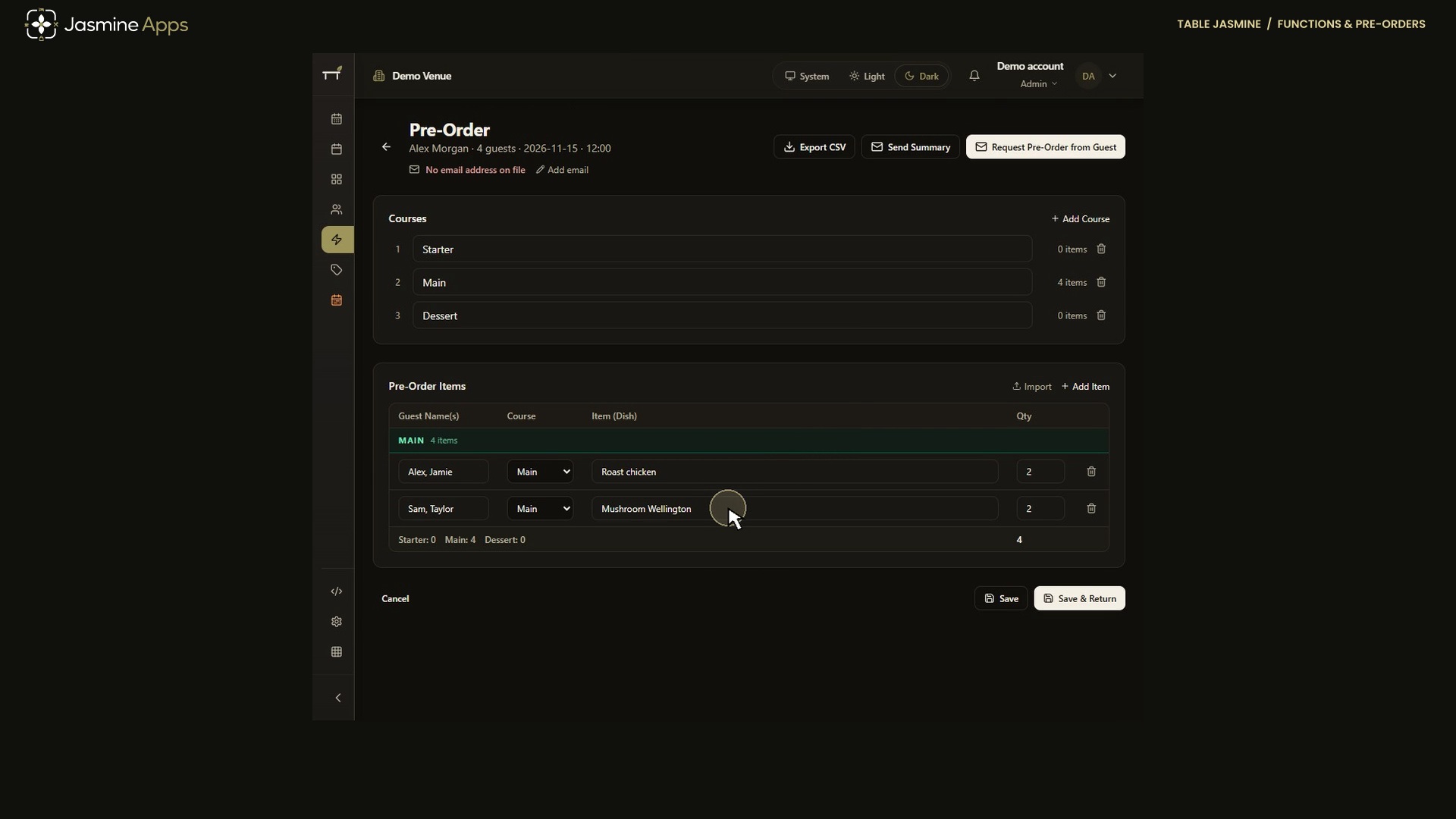
Export CSV, Request Pre-Order from Guest and Send Summary are available on the pre-order page. Check the intended recipient before using the communication actions. The example has no email address on file and demonstrates saving and reviewing only.
Common checks
- Create Function is unavailable: complete the required fields and review the party size, date, time and table assignment.
- The function is missing: check the selected venue and both Upcoming and Past before creating another record.
- No pre-order management appears: check that Require Pre-Order is enabled for the function.
- The saved choices look unchanged: use Save or Save & Return, then reopen the same function.
- Quantities do not match: check each row and each course total against the agreed guest selections.
- No email address is on file: verify the organiser's contact details before sending a request or summary; saving a pre-order does not require sending a message.
- Dietary details are incomplete: confirm them with the organiser using your venue's normal process rather than inferring them from dish names.
Continue learning
Menus and offers · Tables and dining areas · Creating a reservation.