

TutorialIn-app guide
Table Jasmine menus and offers: create and preview
· Jasmine Apps
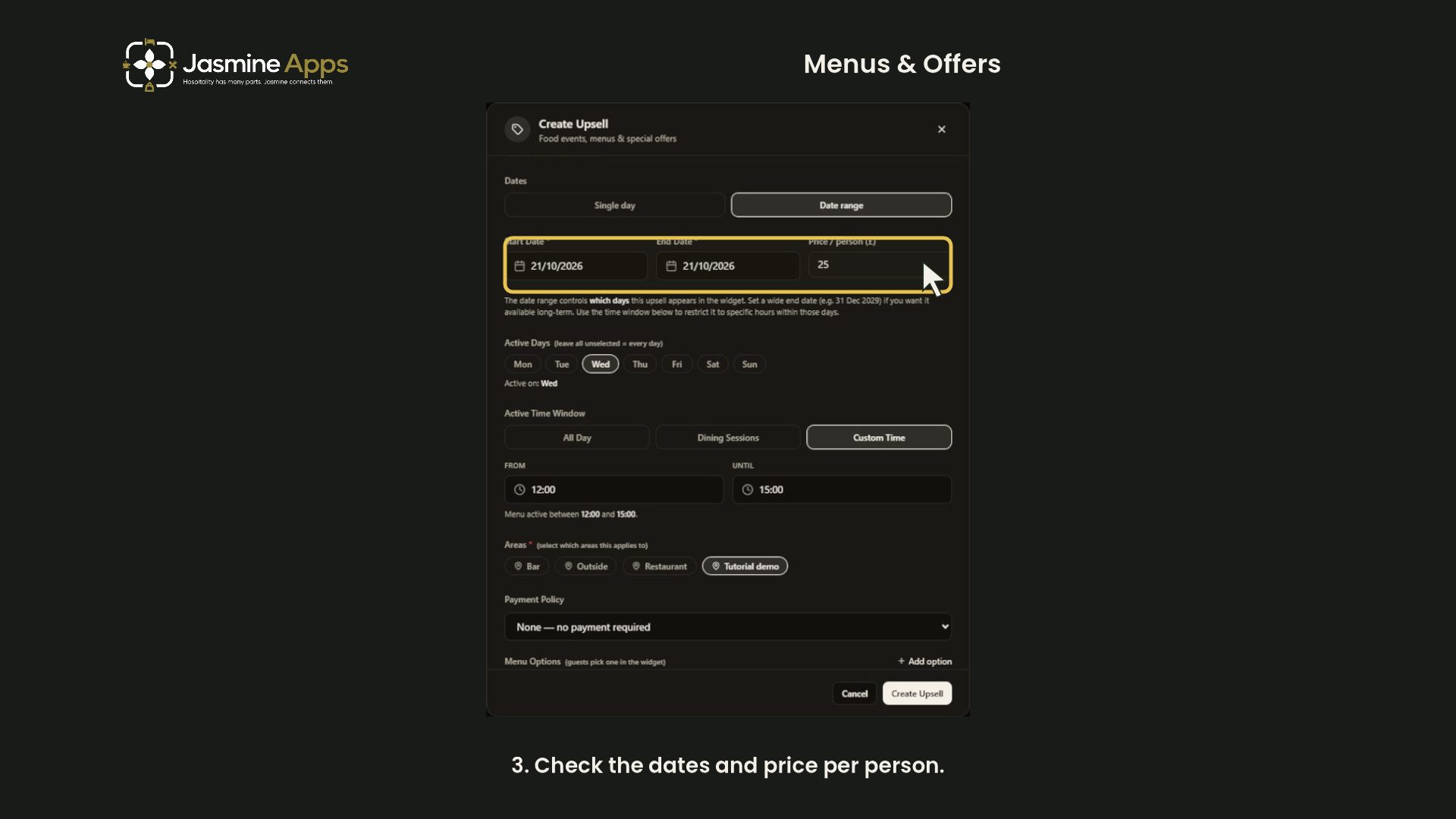
Follow this narrated dark-mode walkthrough of menus and offers. It uses tutorial examples and leaves live records unchanged.
Watch the walkthrough
Before you start
Open Menus and Offers, then New Upsell, for the correct venue. Prepare the offer wording, availability, prices and payment policy before publishing a real offer.
1. Name and describe the offer
Enter a clear name, choose Menu Choice or Special Offer, then select an icon and description. The example is clearly labelled as tutorial-only.
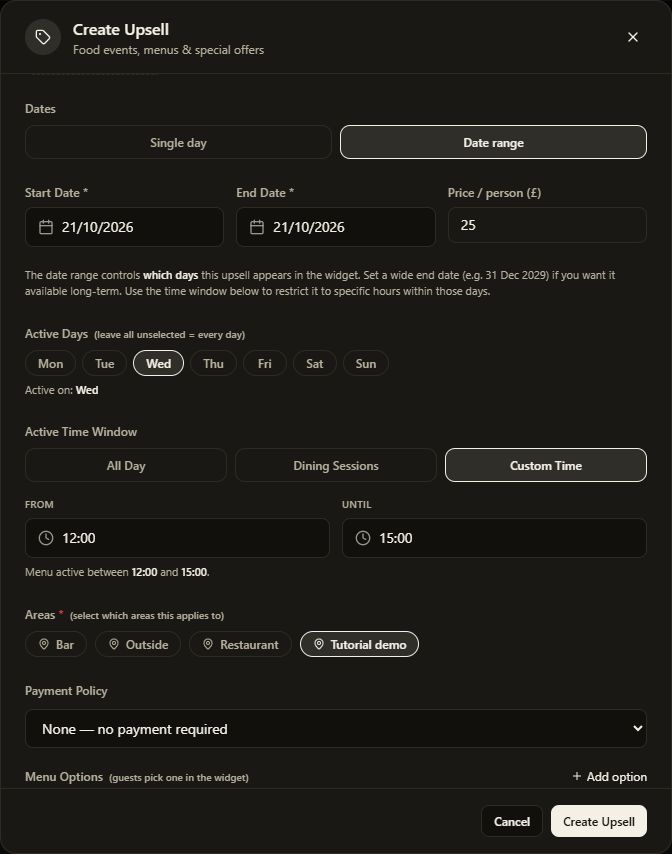
2. Set availability and price
Check the start and end dates and price per person. Select active days; no days selected means every day. Set the time window and applicable areas.

3. Review payment and menu options
Review the payment policy. The tutorial example requires no payment. Add menu options with their names, prices and descriptions when preparing an approved real offer.
4. Preview and discard the example
Use Preview options to review an existing menu guest choices. The new tutorial example is closed with Cancel and is not published.