

TutorialIn-app guide
Set up tables and dining areas in Table Jasmine
· Jasmine Apps
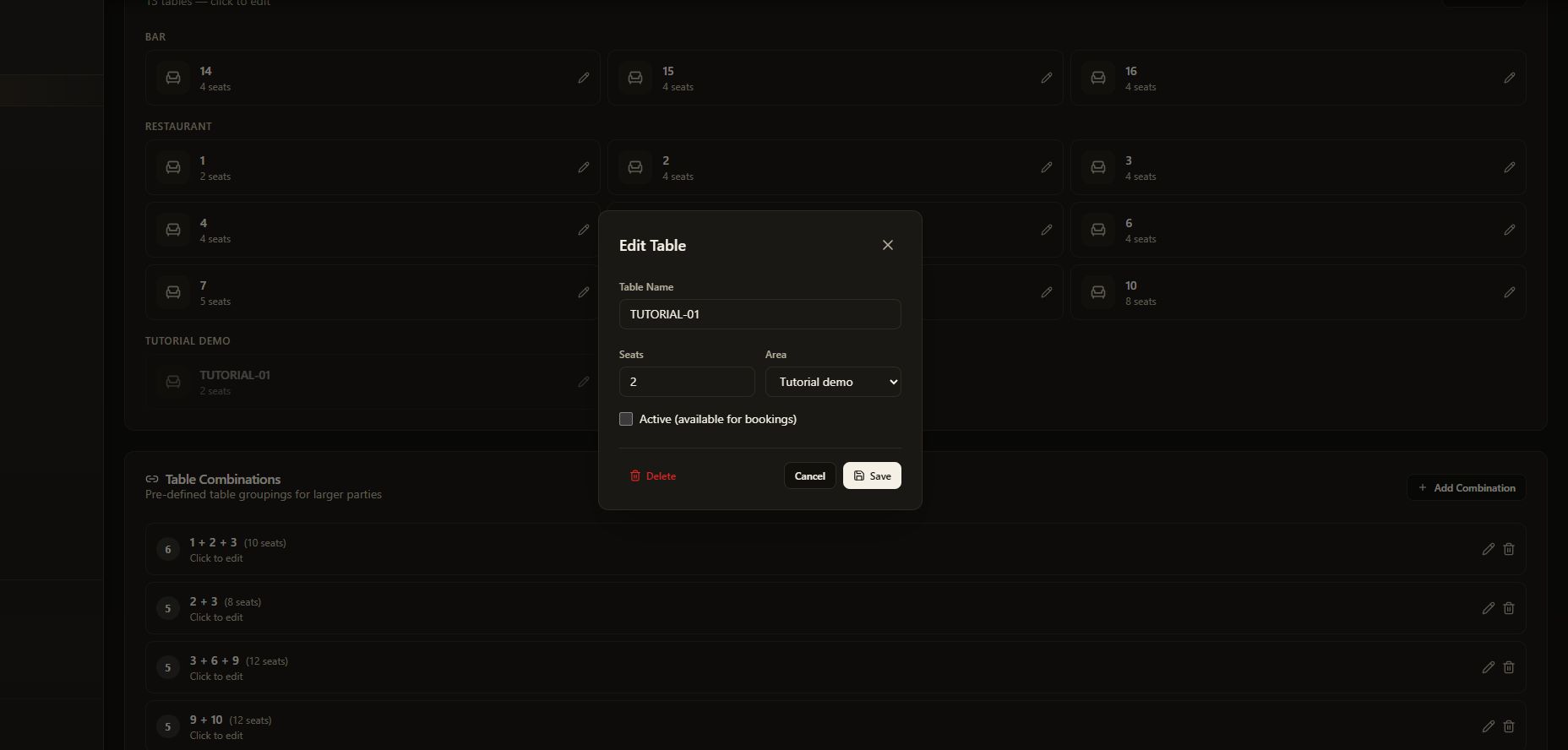
Set up Table Jasmine tables and dining areas so each table has a clear name, the right number of seats and the correct area. This guide uses a labelled tutorial example in dark mode. The saved tutorial table is left inactive.
Watch the walkthrough
Before you start
- Open the correct venue in Table Jasmine with permission to manage tables.
- Have a list of your table names, physical seats and dining areas.
- Review your opening hours. Opening hours, table details and booking limits are separate settings.
1. Open Edit Details
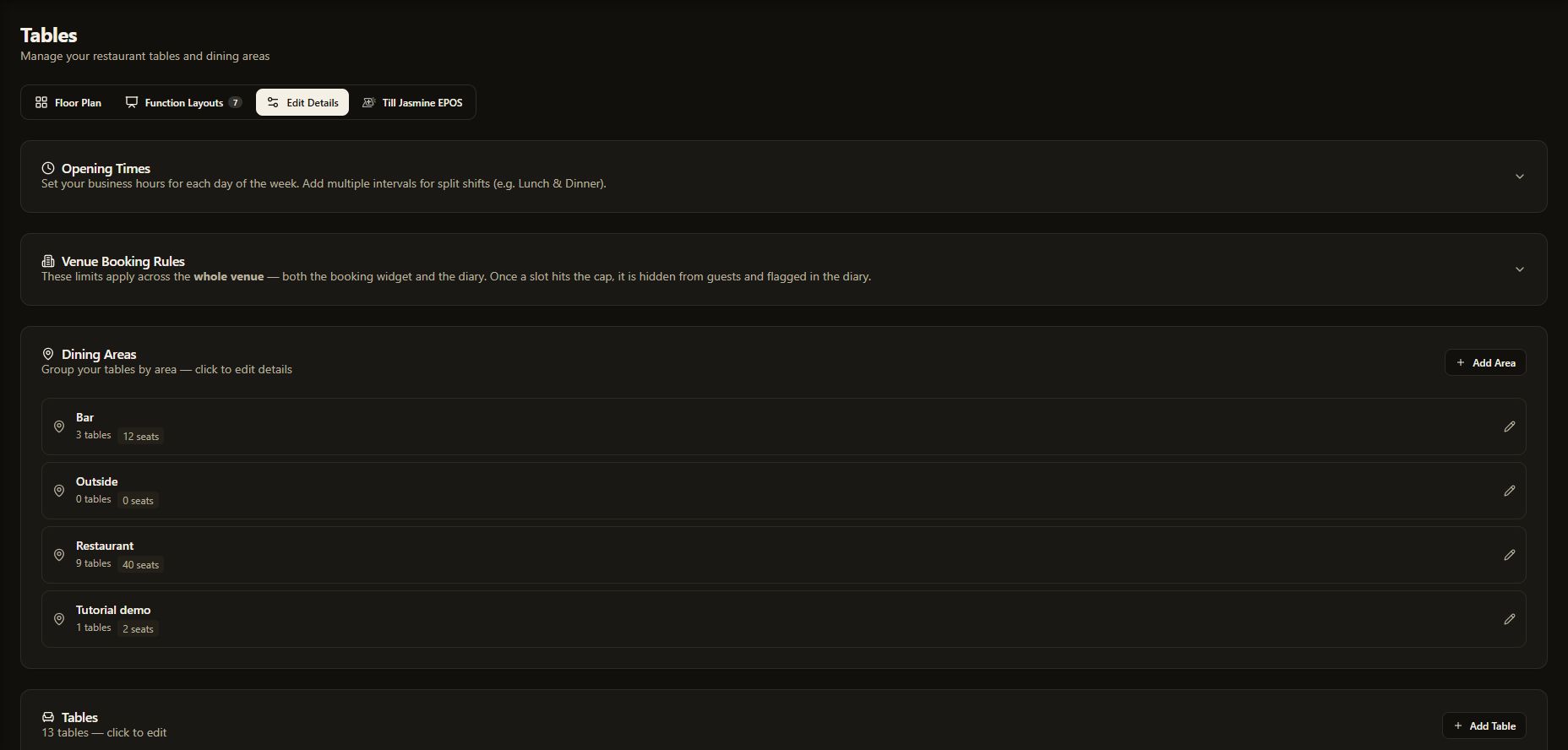
Open Tables & Areas in the sidebar, then Edit Details. The page contains Dining Areas and Tables, alongside Opening Times and Venue Booking Rules.
Open this screenshot full size
2. Add a dining area
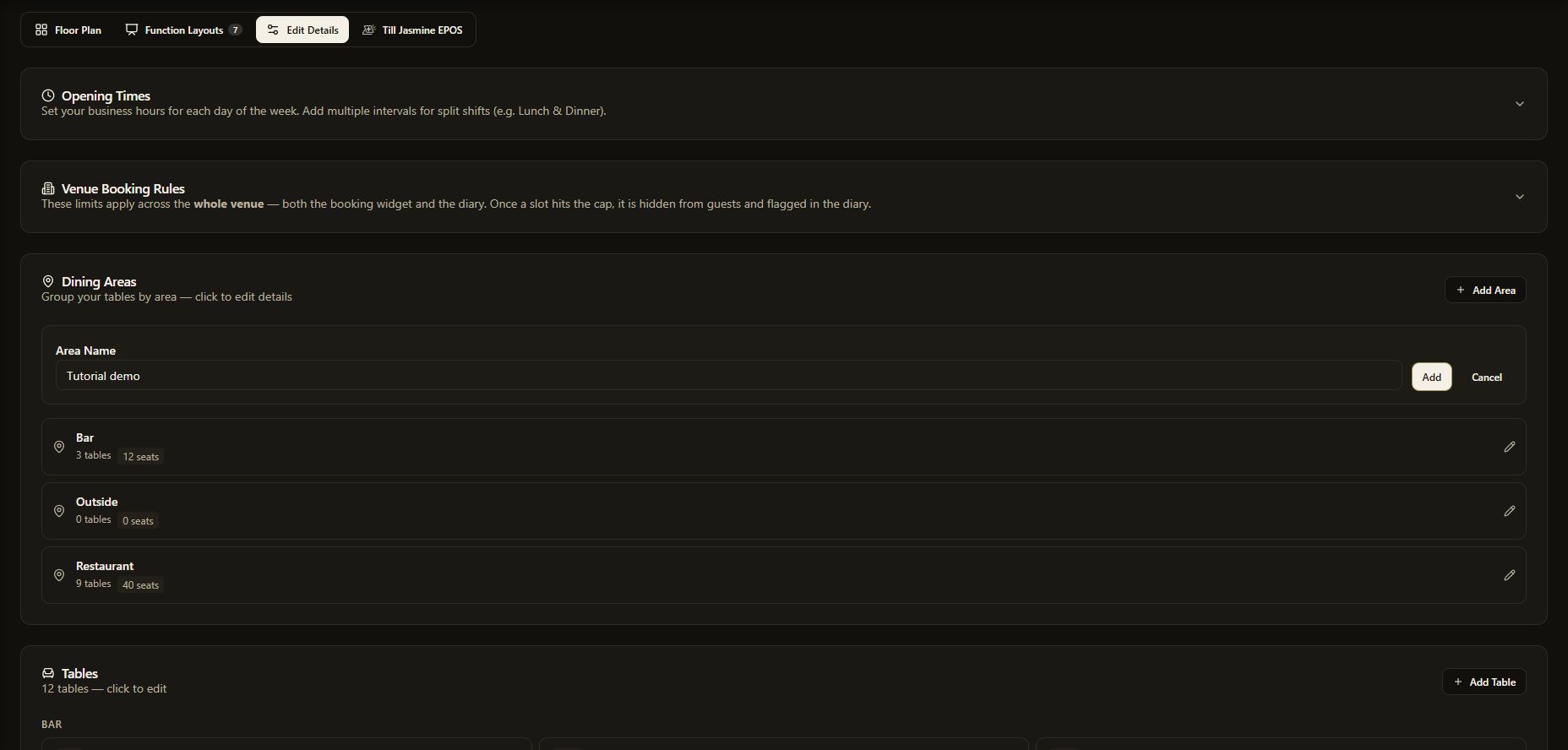
Under Dining Areas, select Add Area. Enter a clear Area Name, such as Restaurant or Terrace, then select Add. Check the saved area appears in the list.
The demonstration area is named Tutorial demo.
Open this screenshot full size
3. Add a table
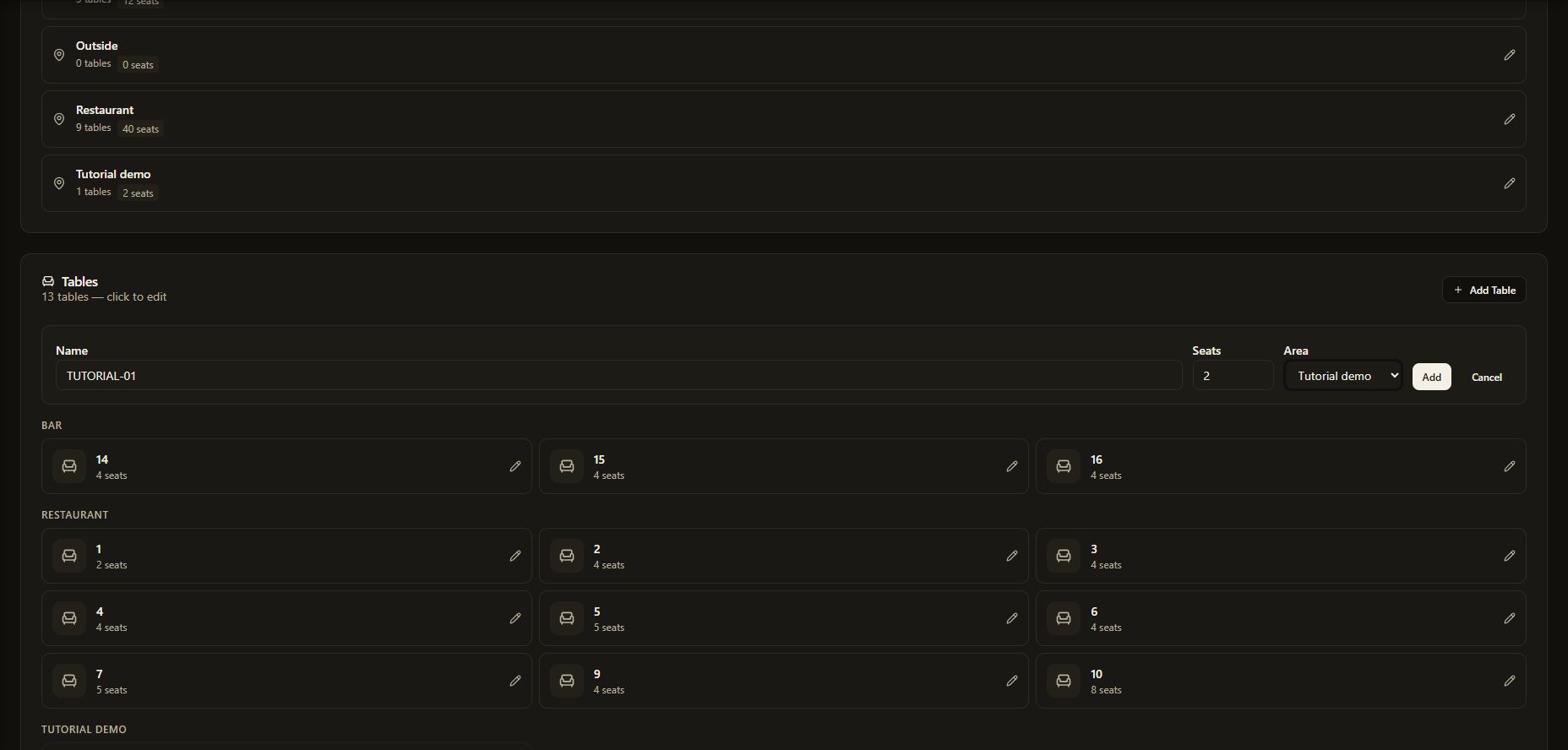
Under Tables, select Add Table. Enter a unique Name, its number of Seats, and the correct Area. Review all three fields, then select Add.
Our example is TUTORIAL-01, with 2 seats, in Tutorial demo. Use your real table names and physical seating capacity for service tables.
Open this screenshot full size
4. Review booking availability
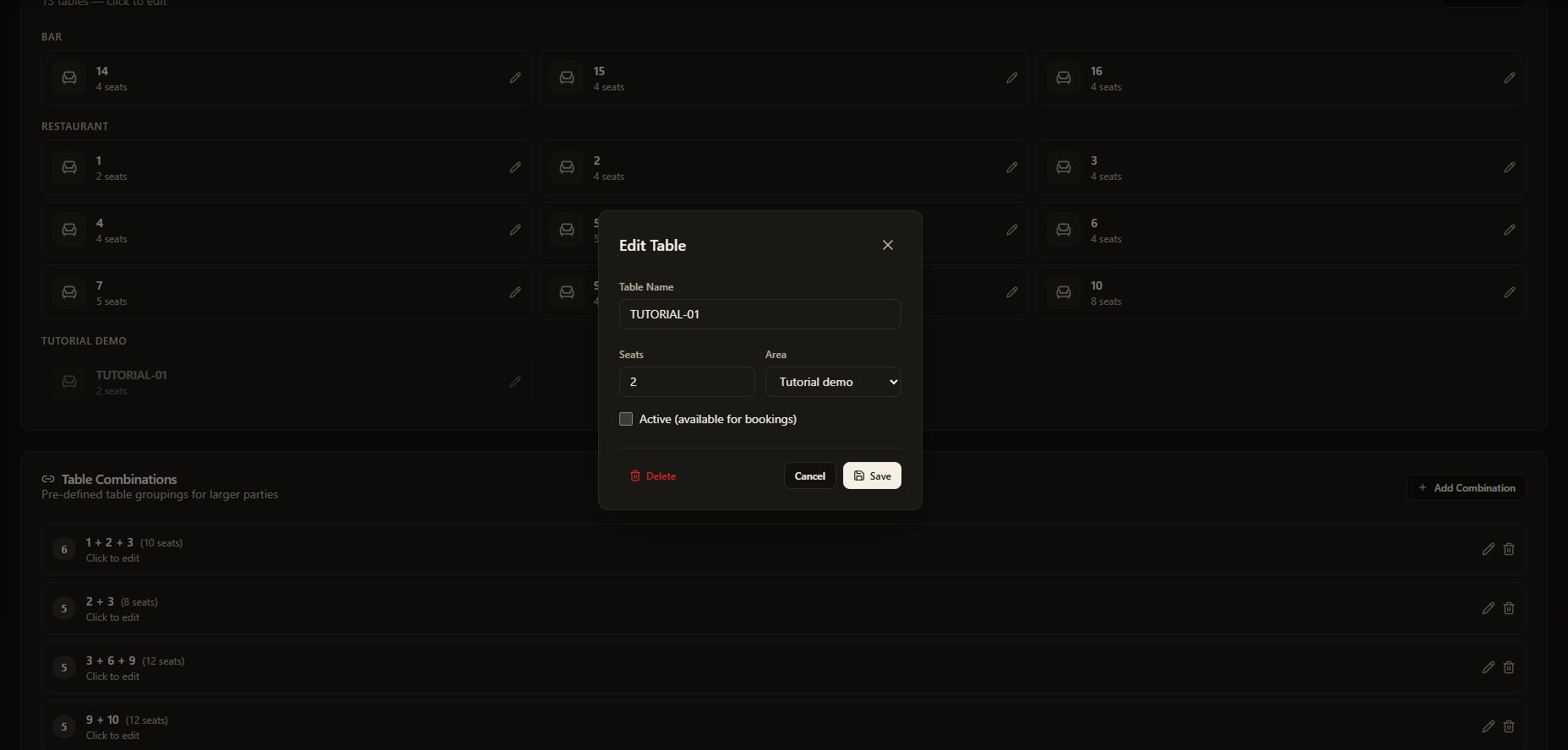
Find the saved table under its area and open it. Check Table Name, Seats and Area.
Active (available for bookings) controls whether the table can be booked. Turn it off for a table that is not in service. The tutorial table is left inactive.
Open this screenshot full size
5. Save and reopen the table
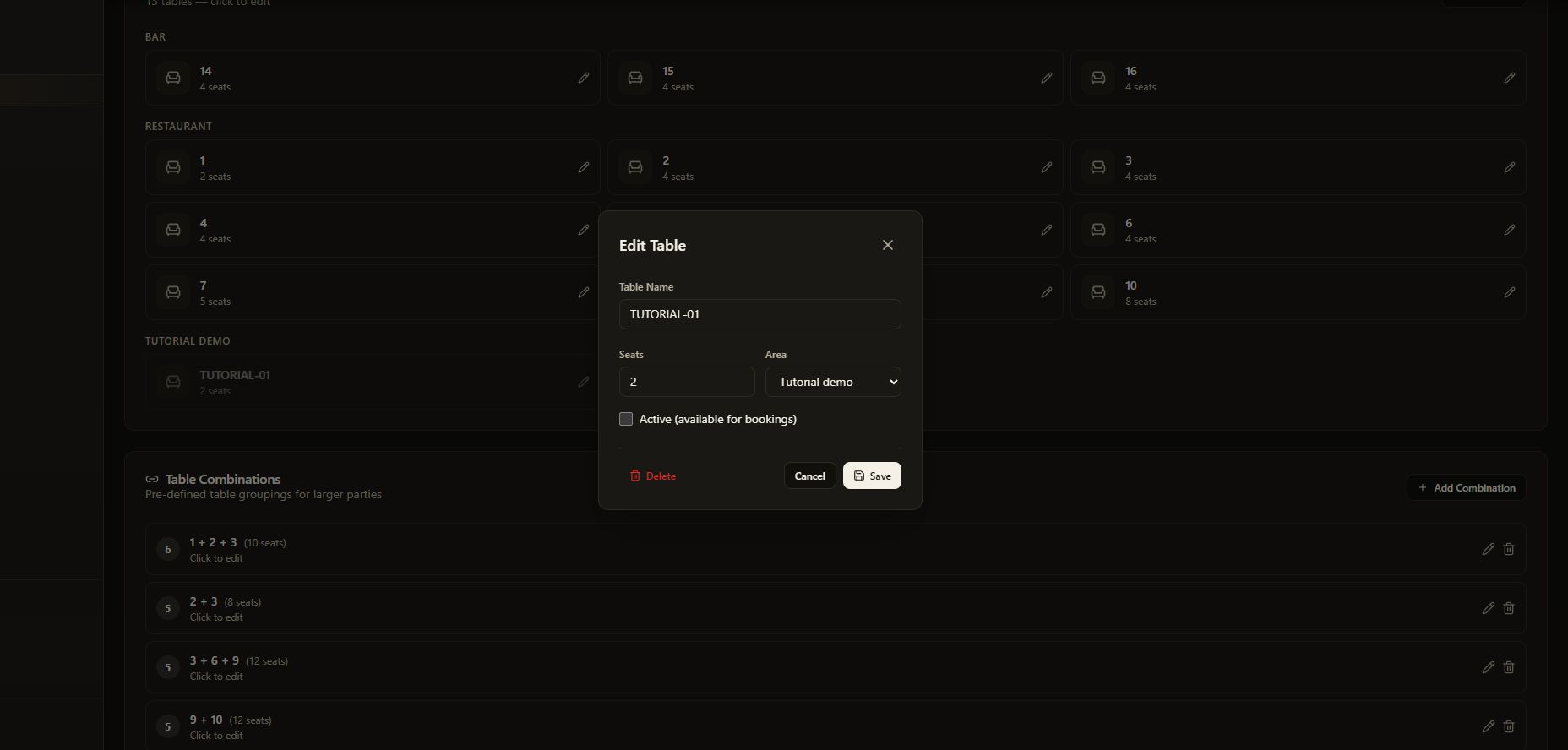
Select Save and wait for saving to finish. Reopen the table and verify its name, seats, area and Active setting. Refresh and check again if you need to confirm the saved result.
The demonstration table was refreshed and reopened: TUTORIAL-01, 2 seats, Tutorial demo, Active off.
Open this screenshot full size
6. Check the area’s seating total
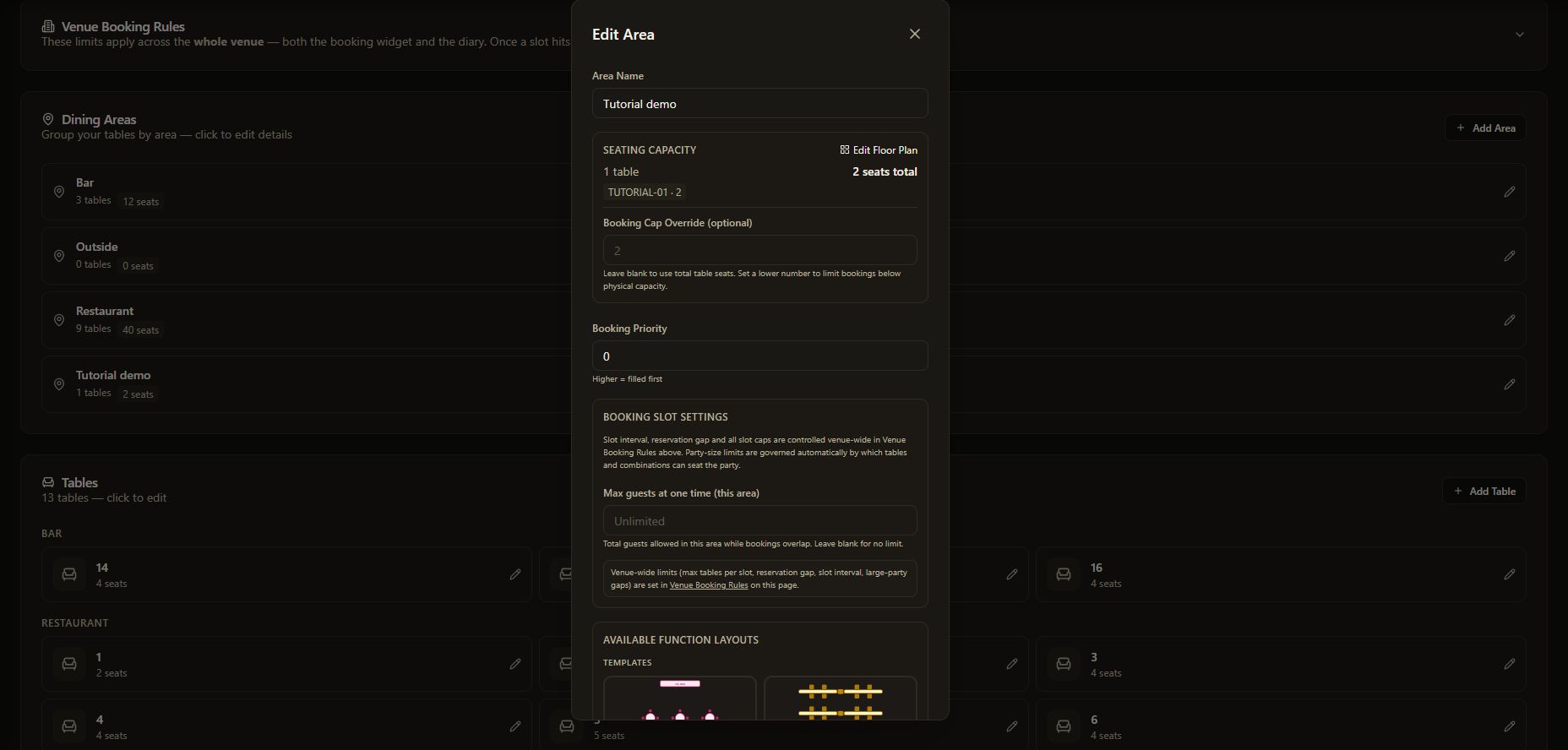
Open the area card. Seating Capacity shows its table count and physical seat total. Our example shows 1 table and 2 seats total.
A physical seat total is different from booking availability. Use Venue Booking Rules for venue-wide slot limits and pacing, and review area overrides separately when required.
Open this screenshot full size
Common checks
- Table is in the wrong group: reopen it and check Area before saving.
- Table cannot be booked: check Active, opening hours and the applicable booking limits.
- Capacity looks wrong: check individual seat counts before changing booking caps.
- Unsaved changes: complete Save, then reopen to verify.
Continue in Table Jasmine
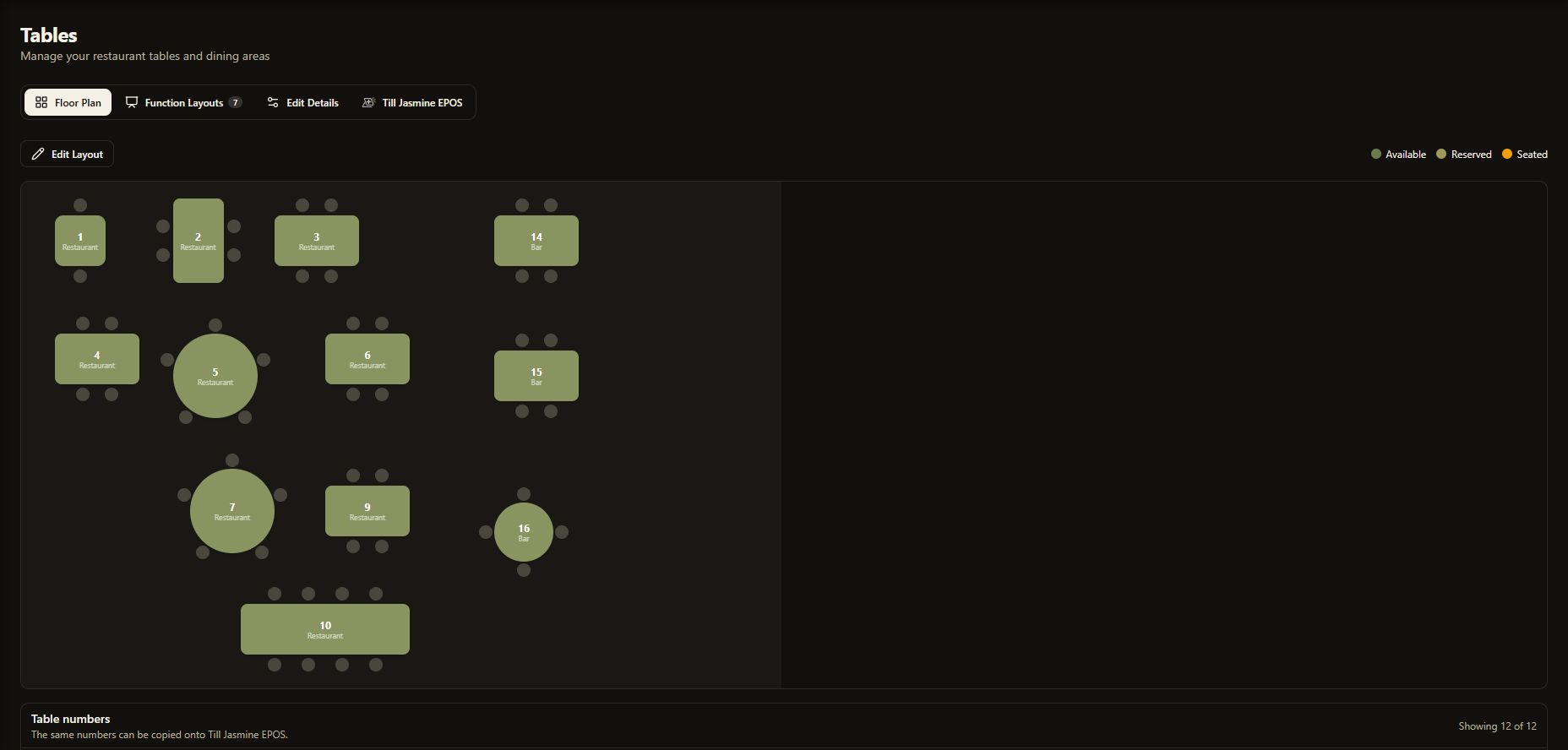
Next, open Floor Plan to arrange active tables to match the room. Floor-plan editing is the next walkthrough in this series.
Open this screenshot full size
You can also review creating a reservation and changing or cancelling a reservation.