

TutorialIn-app guide
Set Table Jasmine opening hours
· Jasmine Apps
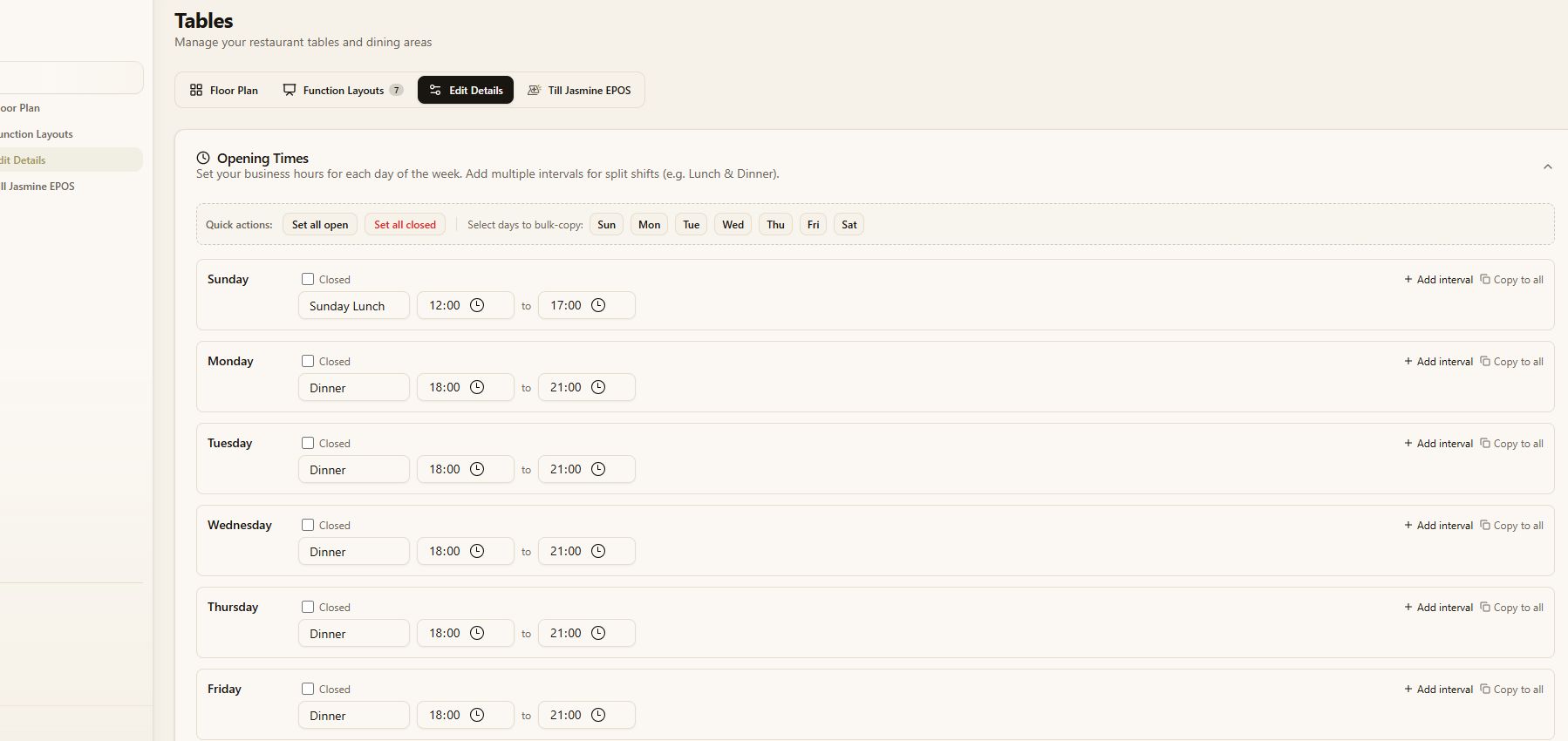
Set Table Jasmine opening hours for each day, split lunch and dinner into separate services, and mark days when you are closed. Finish by saving and reopening the weekly schedule to check it.
Quick route: Tables → Edit Details → Opening Times → Save Opening Times.
Watch the walkthrough
Before you start
- Open Table Jasmine for the correct venue with permission to edit its opening times.
- Have your weekly service schedule ready, including lunch, dinner and any closed days.
- If you still need to add tables, follow Set up the Table Jasmine floor plan.
1. Open your opening times
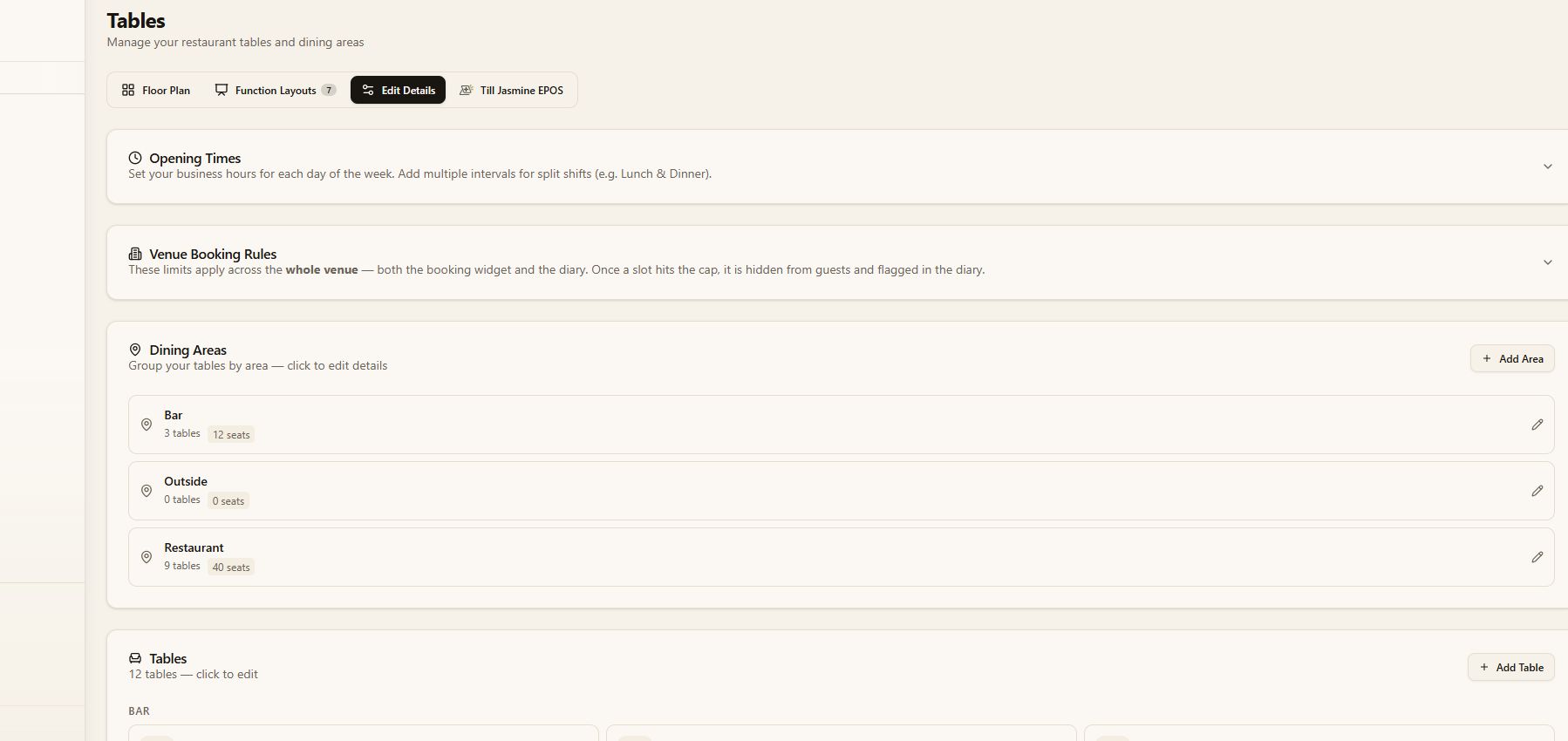
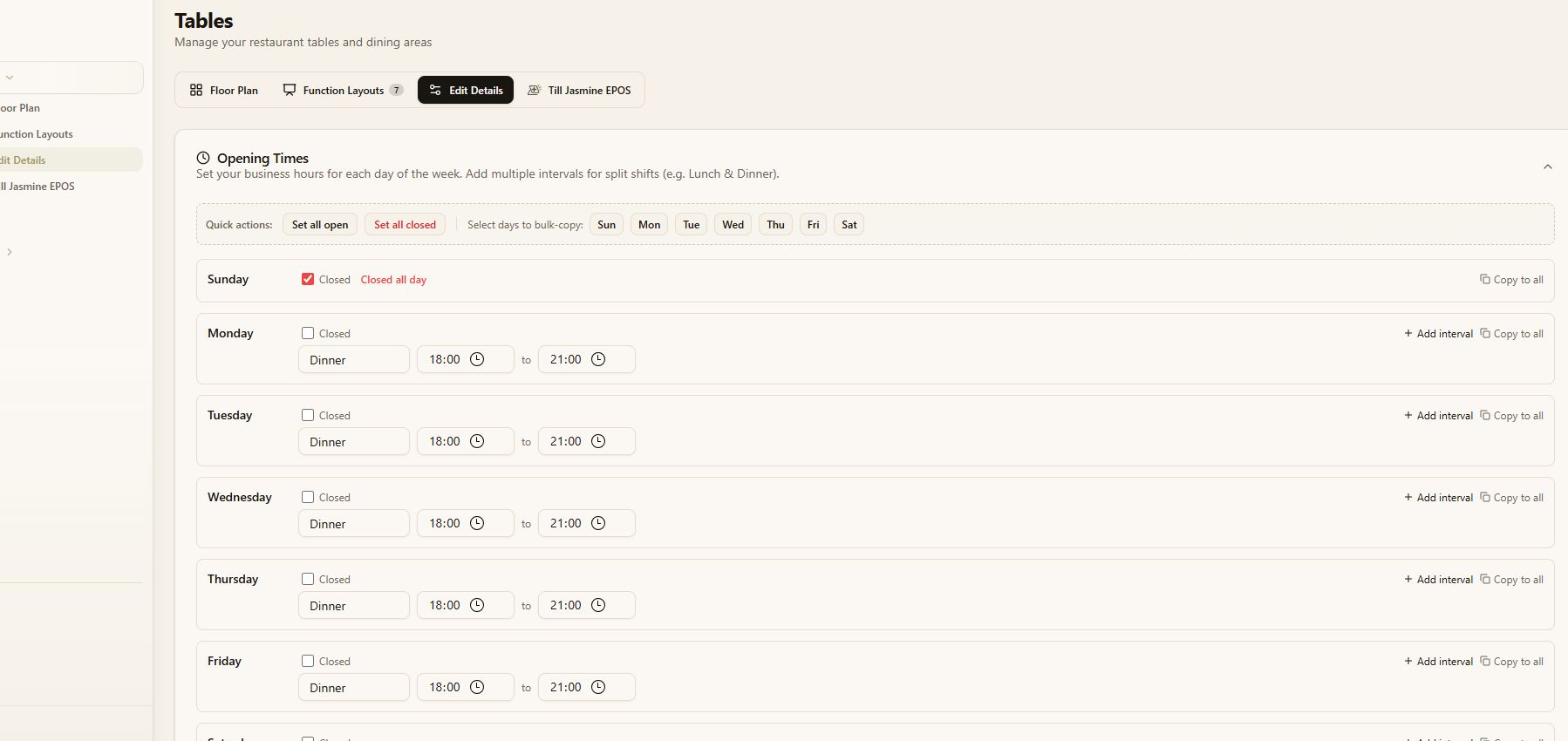
On the Tables page, select Edit Details, then expand Opening Times.
2. Set a service name and hours
Find the day you want to update. Enter a service name, such as Lunch or Dinner, then set its opening and closing times. Check each day against your actual service schedule.
3. Add a second service
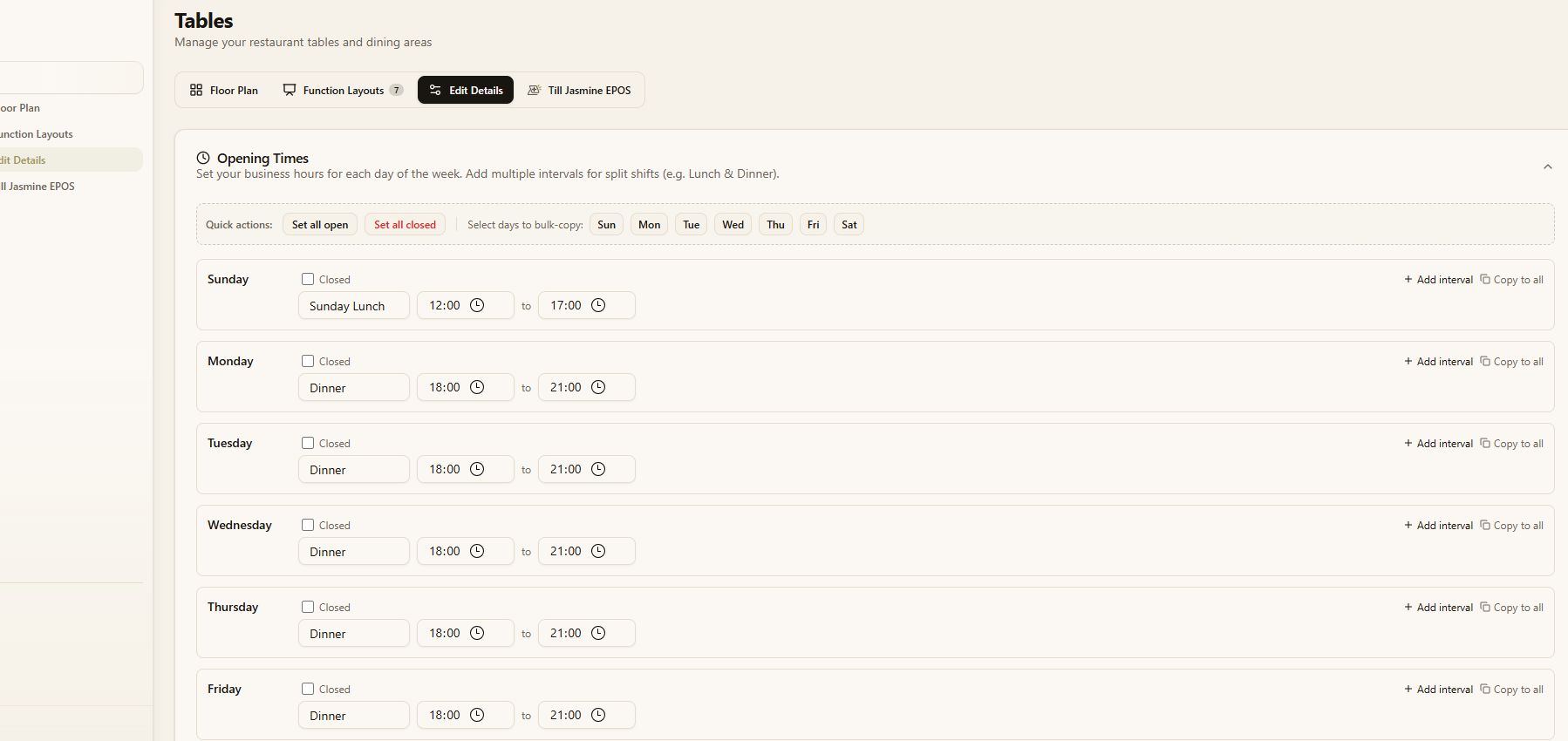
For separate lunch and dinner services, select Add interval on that day. Give the second service a name and enter its times. For example, a venue serving lunch from 12:00–15:00 and dinner from 18:00–21:00 needs two intervals. Use your own service times and check the gap between them.
4. Mark a day closed
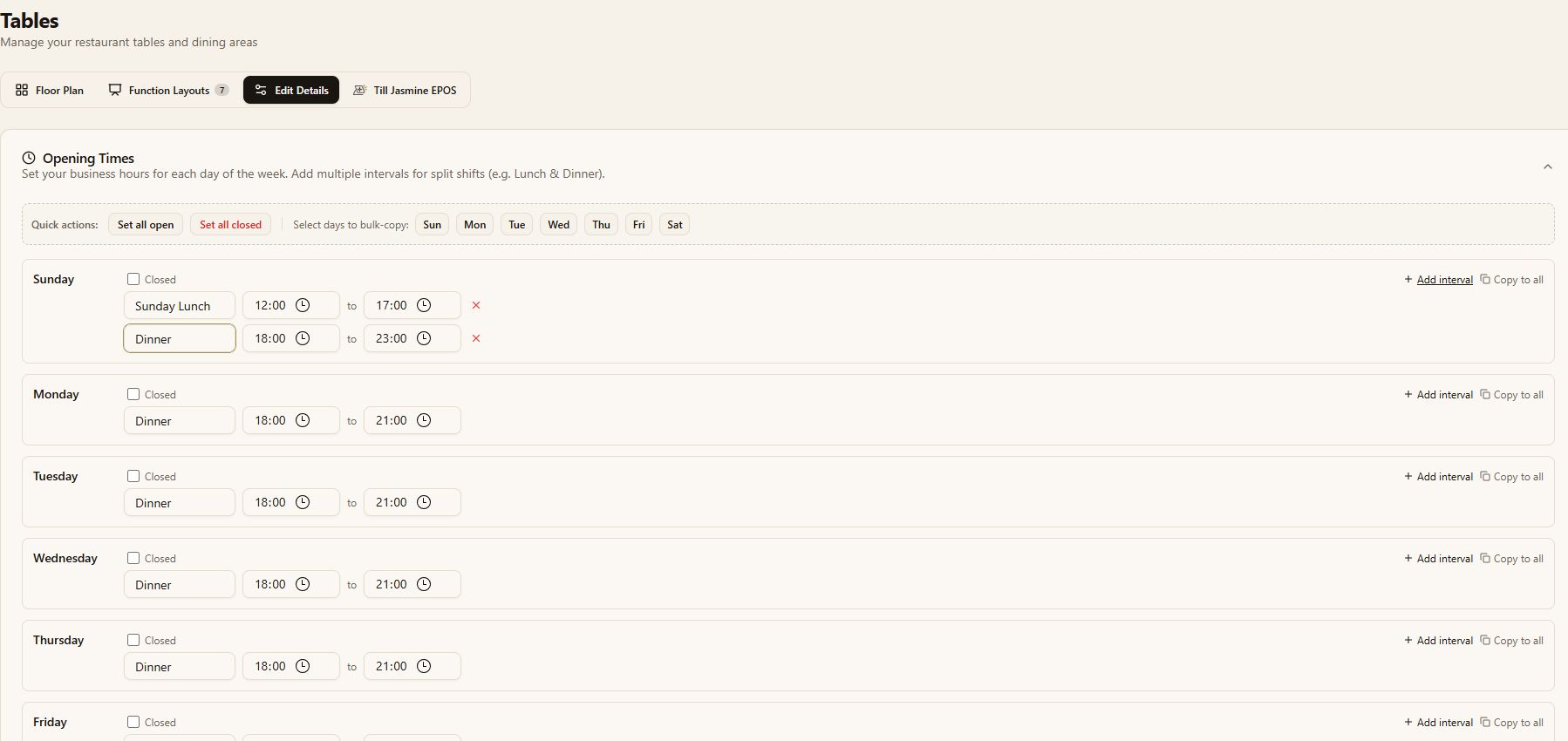
If the venue is closed for the whole day, tick Closed. That day displays Closed all day. Use this option only for days when you do not accept bookings.
5. Check before copying
Use Copy to all only when every day follows the same schedule. Review weekend hours carefully before copying, as they may differ from your weekday service.
6. Save and verify
- Review the full week, including service names, opening times, closing times and closed days.
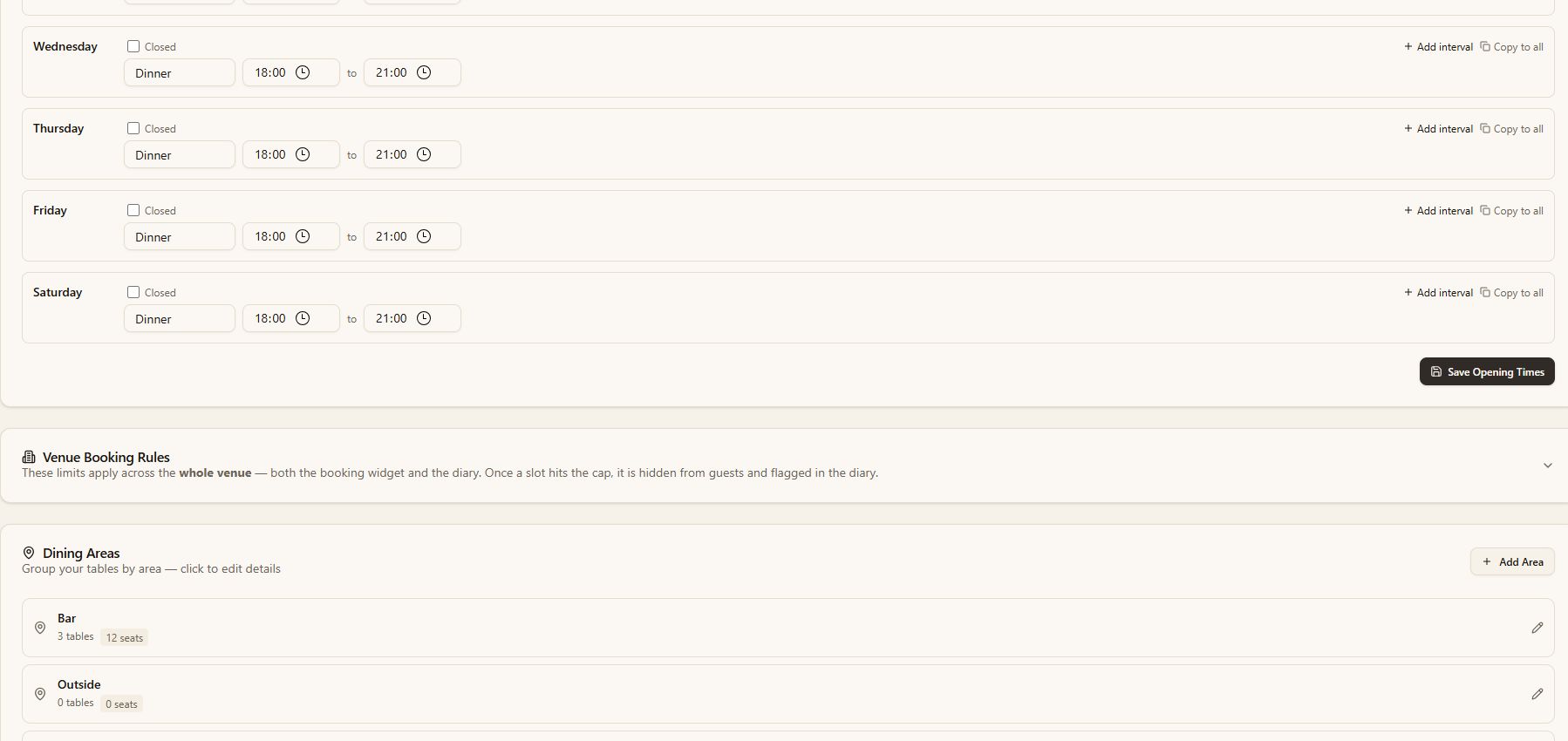
- Select Save Opening Times.
- Check the save confirmation.
- Reopen Opening Times and confirm that the saved schedule is correct.
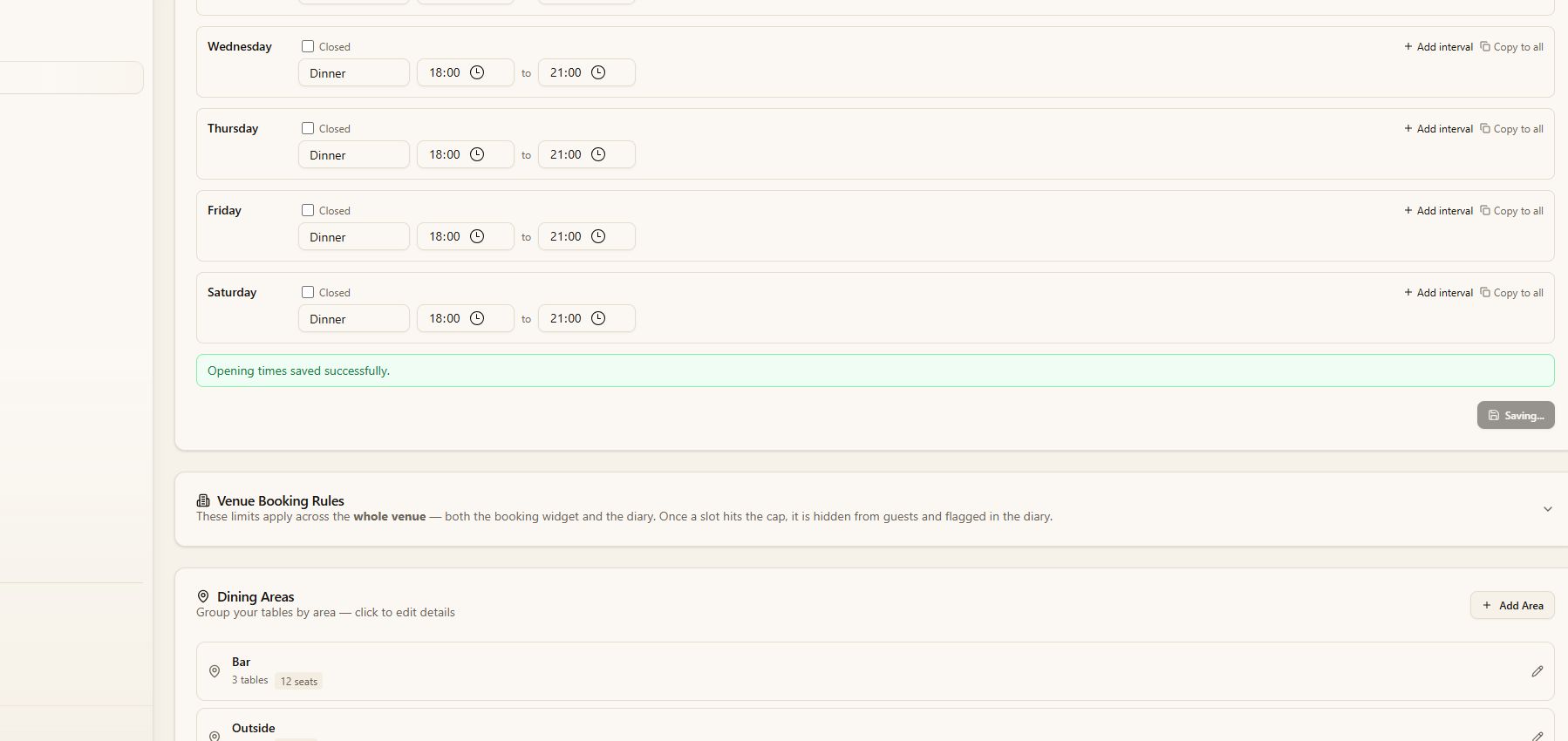
Separate save controls: Opening hours and Venue Booking Rules save separately. Saving opening times does not save changes to booking rules.
Check the result
Before leaving the page, confirm that all seven days show the intended services, times and closed-day settings after reopening. Opening times are one part of your booking setup: review Venue Booking Rules separately if availability still differs from what you expect.
Common checks
- The wrong day is available: Reopen the weekly schedule and check its Closed setting.
- Bookings are available too late: Check that day’s closing time and any additional interval.
- Copied hours do not suit weekends: Adjust those days individually, then save and reopen the schedule.
Next in this series
Continue with Take a reservation in Table Jasmine.
Learn more on the Table Jasmine feature page.