

Room Missing from Jasmine Maintenance? Check Save Rooms
· Jasmine Apps
Availability: Jasmine Maintenance is currently marked coming soon on its public product page. These instructions prepare the documented workflow for a supported test or future installation; confirm access and the current version with us before relying on them in live service.
Customer support: Work through these checks in order. After each change, repeat the original action and check the result. If it remains unresolved, use Contact Us.
A housekeeper wants to report a fault, but the room is not in the list. Jasmine Maintenance currently uses staff-entered room records. A pasted room list still needs saving, and selecting the wrong venue can hide the room you expected to use.
Quick answer: Check the venue and saved room list. Add the missing room deliberately and use Save rooms, rather than borrowing another room's record.
1. Why did the rooms disappear after I added them?
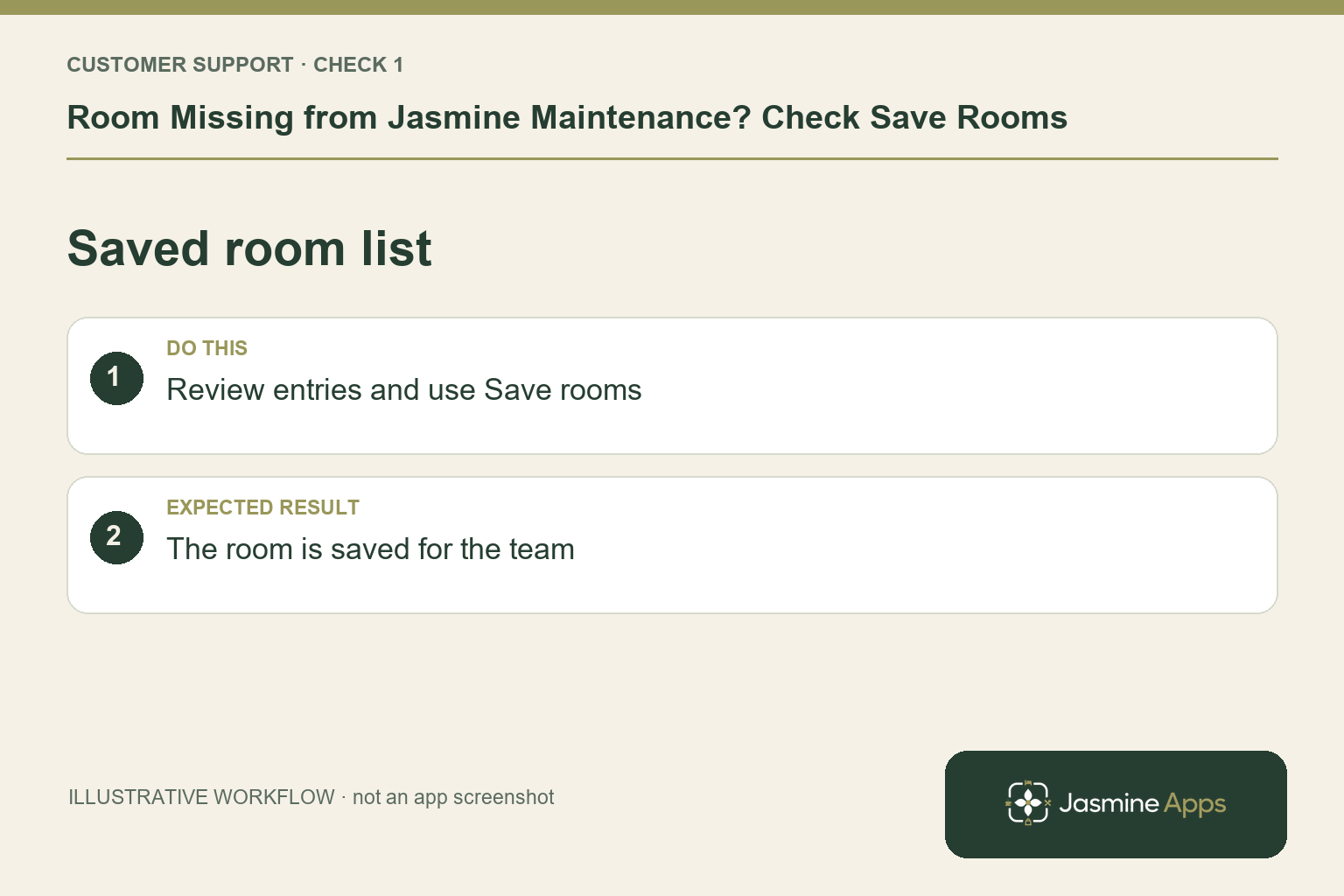
The setup guide separates Add rooms from Save rooms. Pasting names one per line and clicking Add rooms creates entries labelled Not saved. Review the list, remove entry mistakes, then Save rooms and check for Rooms saved. An unsaved entry visible in an editing session is not evidence that the fault-reporting list is ready for the rest of the team.
Check the result: The room is saved for the team.
2. Could the room belong to another venue?
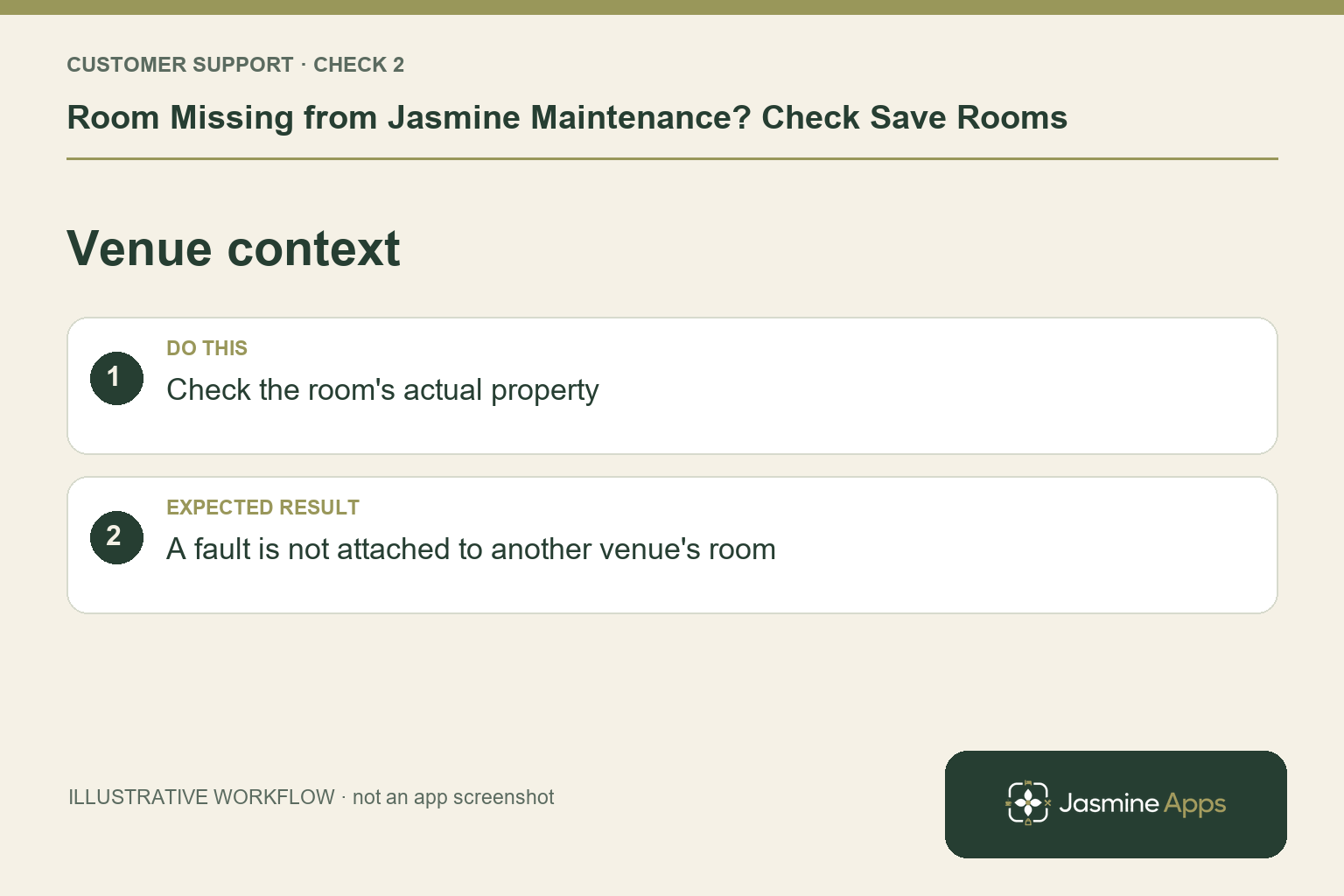
Rooms setup includes Venue for new rooms when you manage multiple sites. Verify the intended venue before adding entries, and check the room's venue if you open an existing record. Similar room numbers across properties need explicit context. Recording a fault against another property's Room 12 merely because it is visible sends the repair team to the wrong place and leaves the actual issue untracked.
Check the result: A fault is not attached to another venue's room.
3. Should I rename another room to replace it?
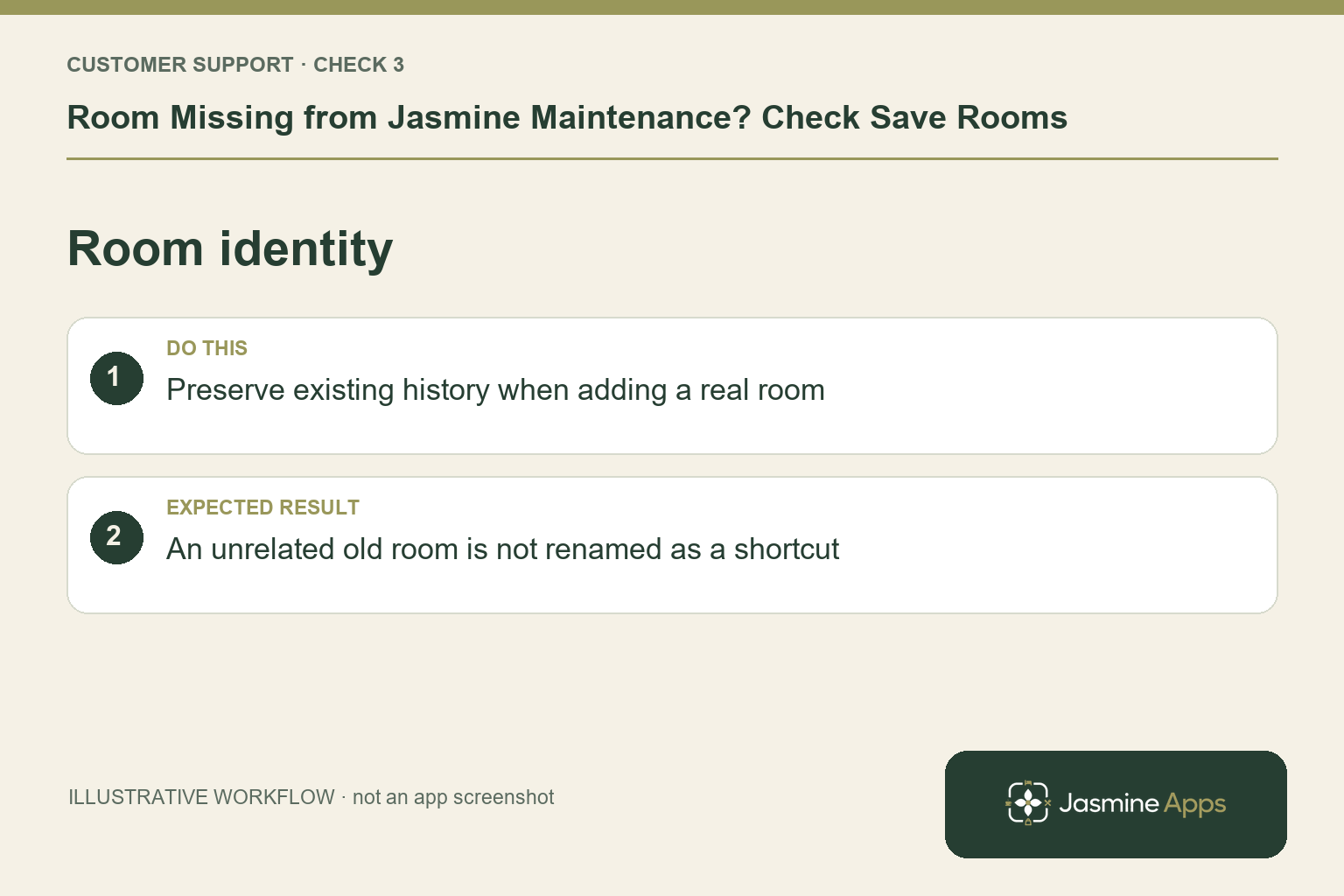
No. The guide advises hiding a room you no longer use rather than renaming it to something unrelated, because old issues stay linked to their original room record. Preserve that history. Add the genuine missing room instead, or use the supported Add a new room route while logging. A room-name correction should retain its real identity, not recycle an old record for a different space.
Check the result: An unrelated old room is not renamed as a shortcut.
4. Will the booking system fill the list automatically?
The published Maintenance information describes a later PMS module supplying room lists. Do not assume a current live PMS import or automatic room-status synchronisation. Maintain the room list through the documented setup and coordinate separate booking-system records using your hotel process. After saving, ask a colleague to locate the room and confirm its name before logging the fault.
Check the result: No current automatic PMS import is assumed.
Example from the actual app
In the actual blank Log an issue form, Which venue is this for? comes before Room name or number. Before a venue is selected, the form explicitly says Choose a venue first. That is a concrete explanation for an unavailable room choice in a multi-site account; check the venue context before adding another room.
Before you contact us
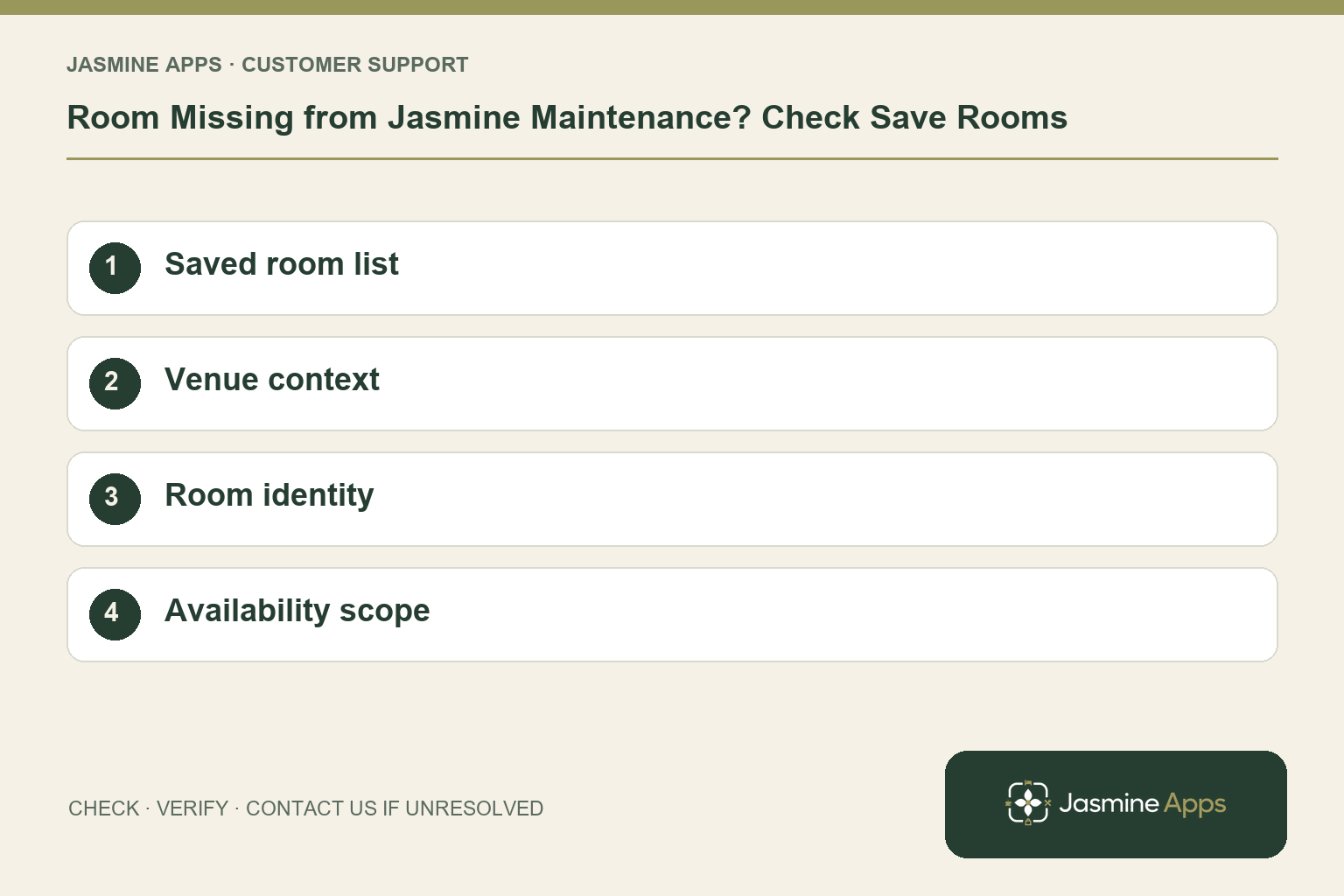
| Check | What to do | Result to verify |
|---|---|---|
| Saved room list | Review entries and use Save rooms. | The room is saved for the team. |
| Venue context | Check the room's actual property. | A fault is not attached to another venue's room. |
| Room identity | Preserve existing history when adding a real room. | An unrelated old room is not renamed as a shortcut. |
| Availability scope | Check the supported room-list workflow. | No current automatic PMS import is assumed. |
Record which check failed, the exact error wording and when it happened. Include the relevant venue and record reference, and say whether one device or several people are affected. If you changed a setting, identify that change and the retest outcome. This helps us investigate the actual failing stage instead of asking you to repeat the whole process.
Contact Us if the expected result still does not appear. Send only the information needed to investigate; keep passwords, active codes, payment details and unrelated customer records out of screenshots.
When to stop and ask for help
If a saved room in the correct venue remains absent, give support its name, venue and the save outcome. Include the relevant list screenshot without guest information. Do not log the problem against a wrong room just to move past the screen.
Related support checks
- Resolved Maintenance Issue Still Open or Blocked?
- Cannot Add Photos or Reopen a Fault in Jasmine Maintenance?
Illustrations explain the workflow and are not product screenshots. Any numerical example is labelled illustrative and is not a customer result. Product wording and documented setup checks reviewed on 13 October 2026; confirm the features available in your current installation.