

TutorialIn-app guide
Comply Jasmine: prepare a room issue
· Jasmine Apps
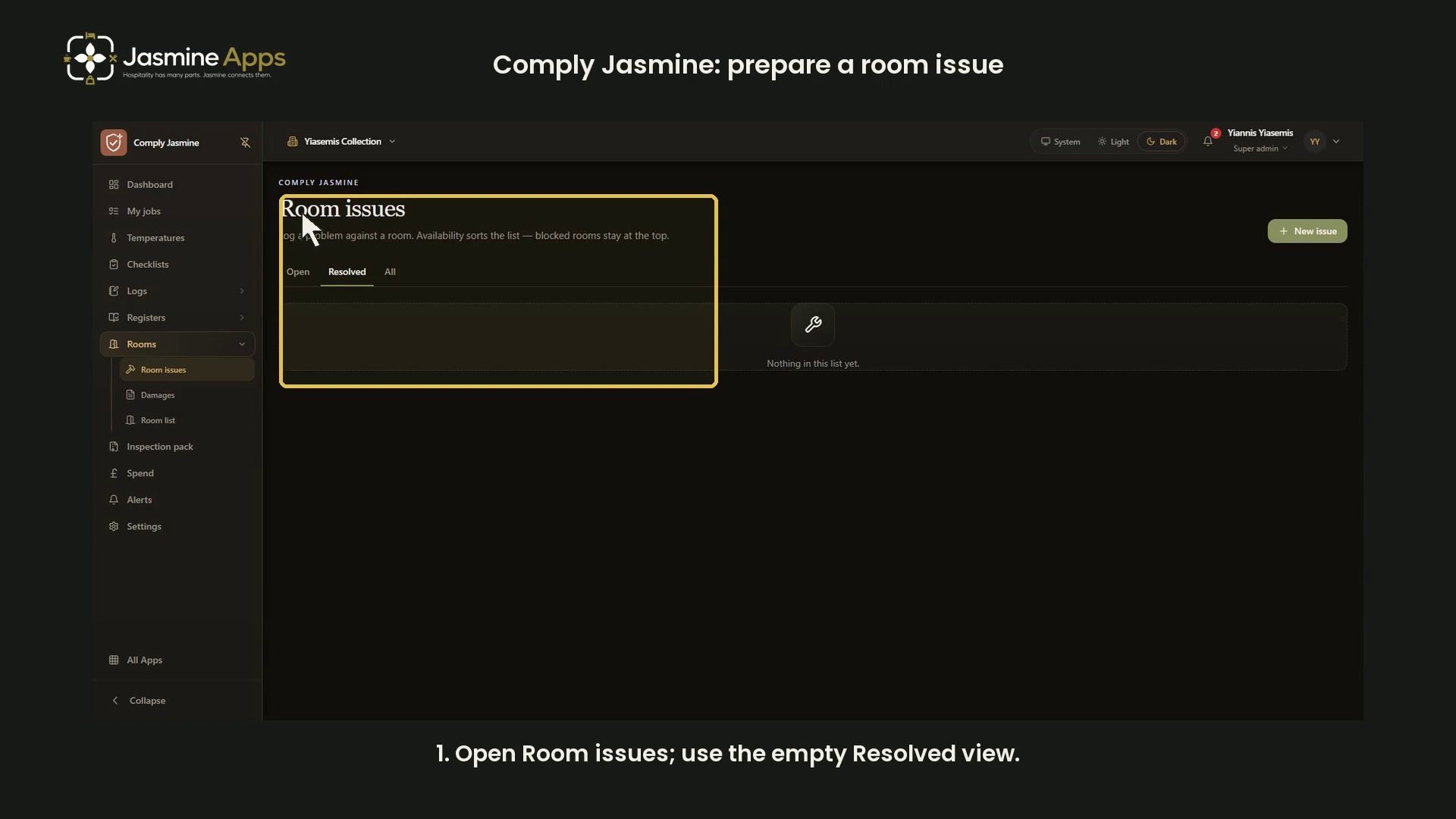
The current app navigation calls this area Comply Jasmine. This guide retains its existing Jasmine Maintenance address and demonstrates preparation on Rooms → Room issues, using an empty Resolved list and an unsaved issue form.
Watch the walkthrough
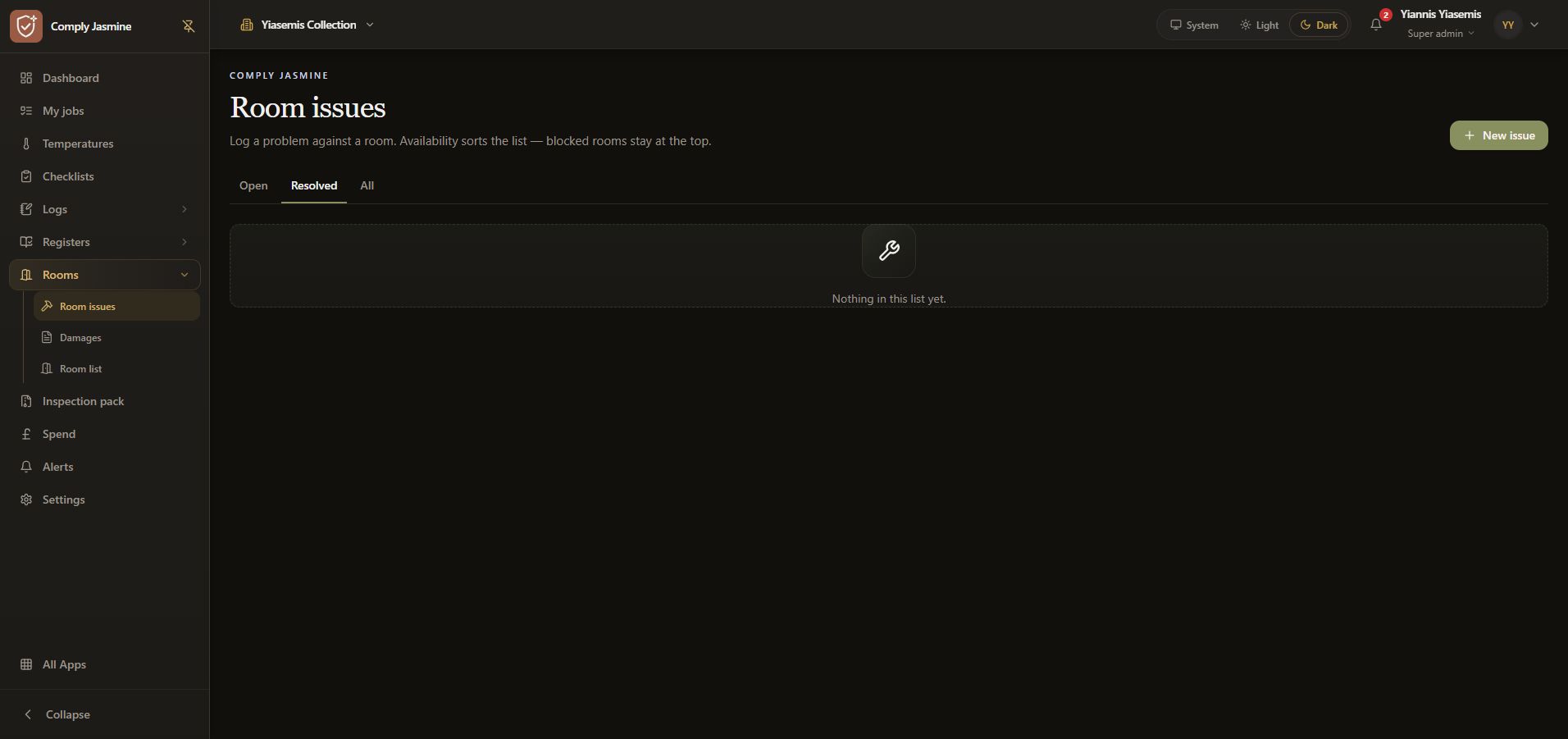
Open the clean issue view
Open Room issues under Rooms. The Resolved list is empty in this example. No live issue description or attachment is displayed.
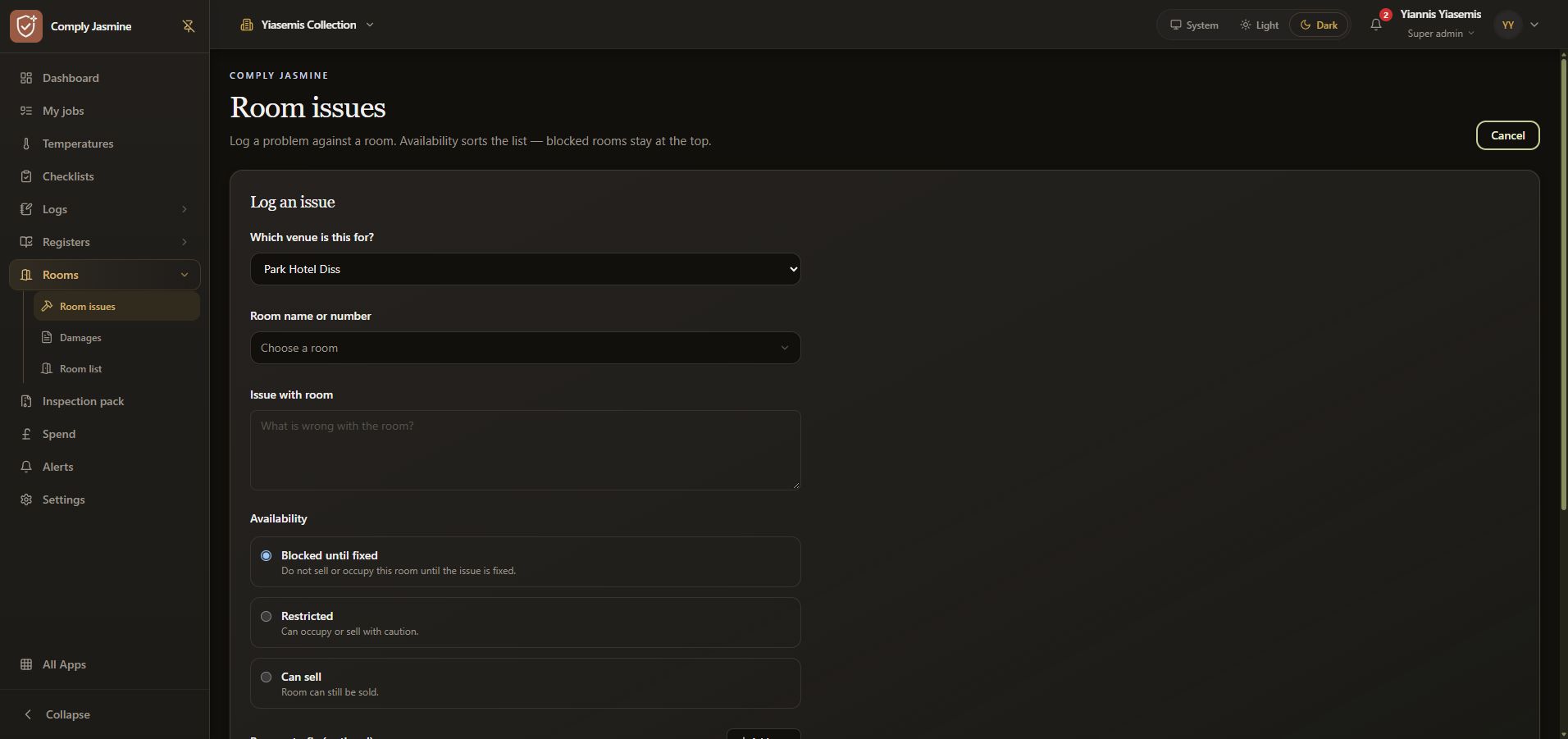
Review venue, room and description
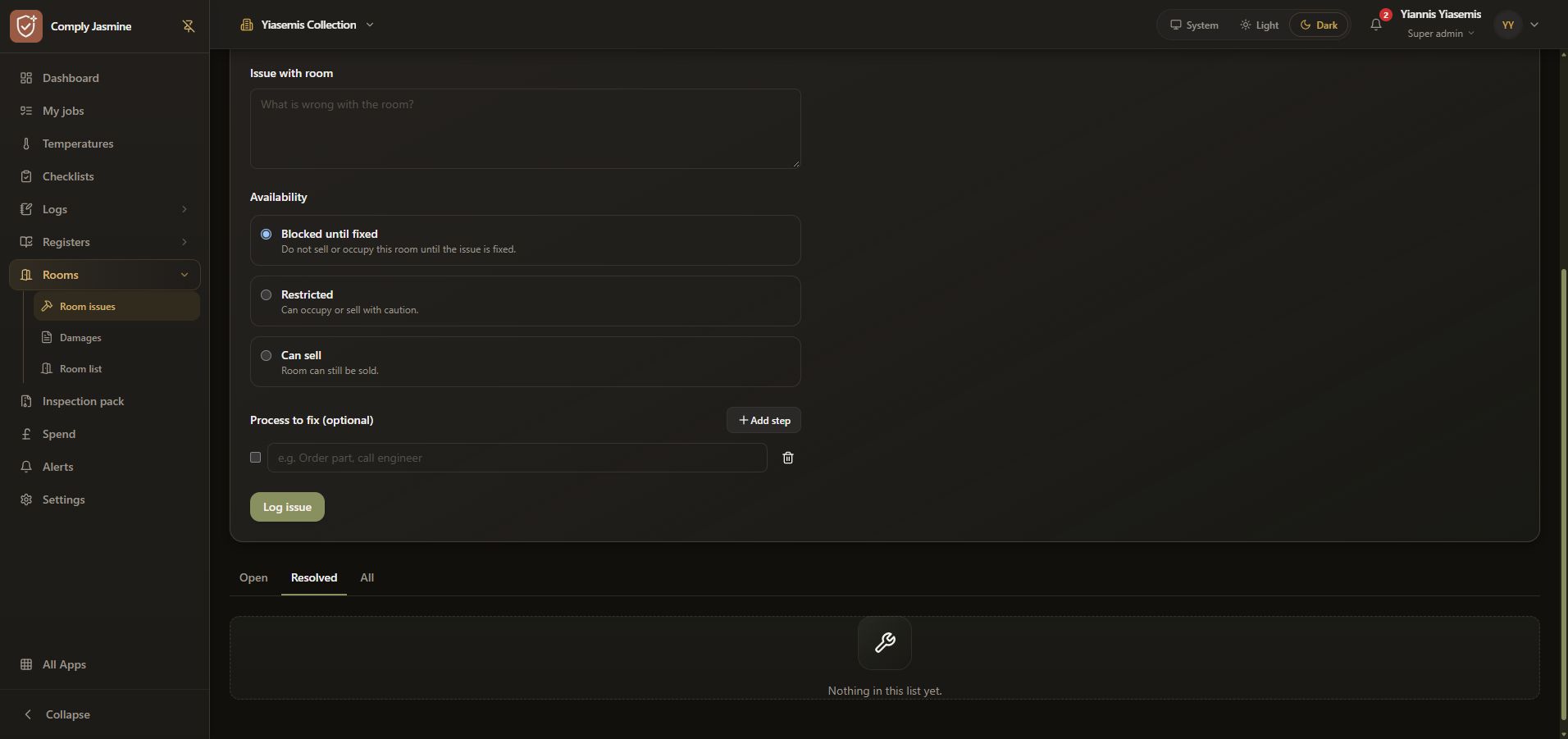
Choose New issue. Opening the form may return the list to Open; this example selects Resolved again to keep the background clean. Park Hotel Diss is selected only in the unsaved form. Choose a room remains unselected, and Issue with room stays blank.
Check room availability
The choices are Blocked until fixed, Restricted and Can Sell. The form displays Blocked until fixed selected. Review the availability choice carefully for a genuine issue; the demonstration does not save it.
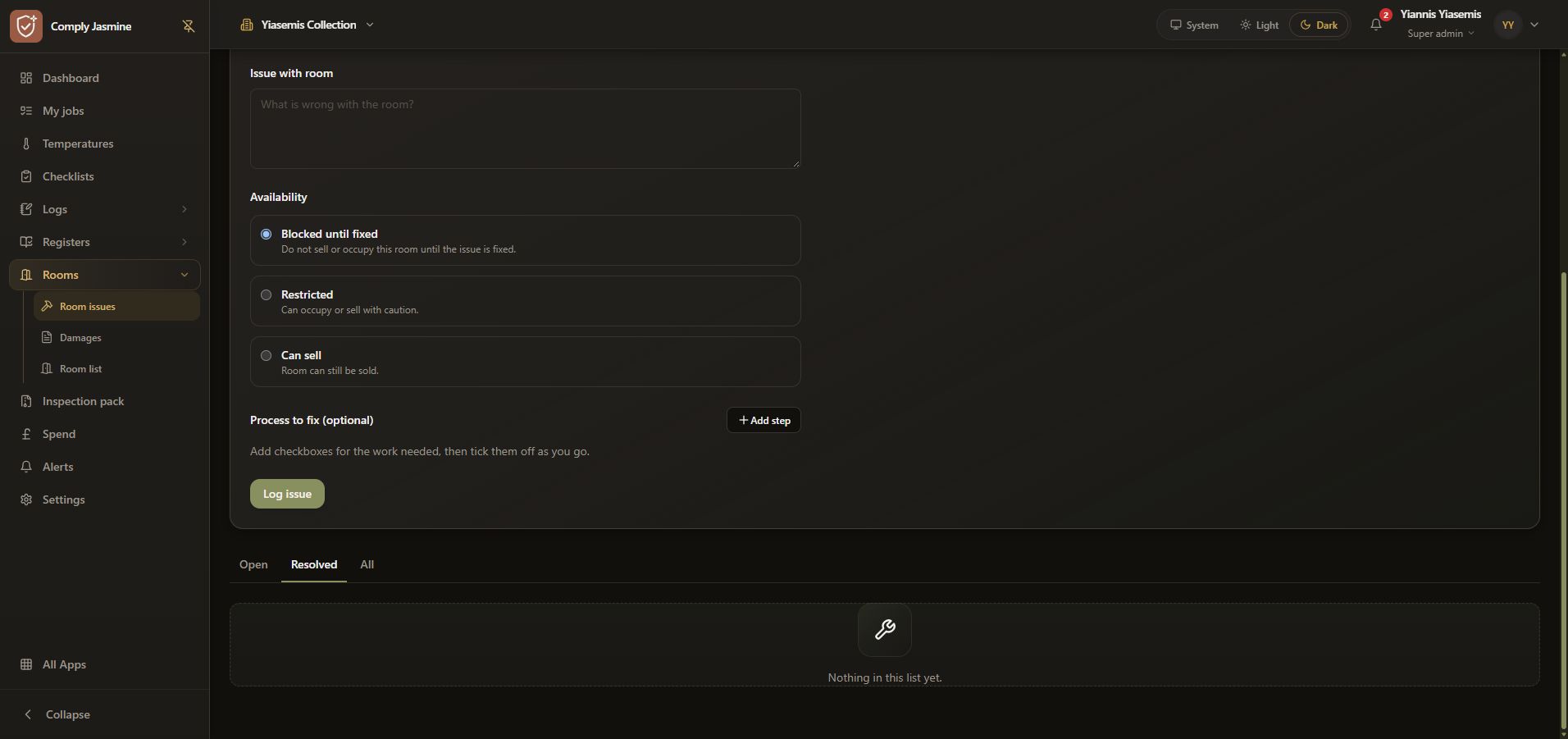
Review an optional process step
Add step opens a row with a checkbox, text field and remove control. The example leaves that row blank and does not complete a task.
Cancel the training review
Return to the top and choose Cancel. Log issue is not pressed. No issue, room status or attachment is changed. Resolving an existing issue is a separate workflow.