

Cannot Add Photos or Reopen a Fault in Jasmine Maintenance?
· Jasmine Apps
Availability: Jasmine Maintenance is currently marked coming soon on its public product page. These instructions prepare the documented workflow for a supported test or future installation; confirm access and the current version with us before relying on them in live service.
Customer support: Work through these checks in order. After each change, repeat the original action and check the result. If it remains unresolved, use Contact Us.
A fault has returned and the team wants to attach a photograph, but the web screen does not show that option. Jasmine Maintenance has device-specific workflows. Use the right route and preserve the original issue history rather than starting a disconnected record immediately.
Quick answer: Use the phone app for photos or video. For a returning resolved fault, open its history and use the supported Reopen action.
1. Why is there no photo upload on the web?
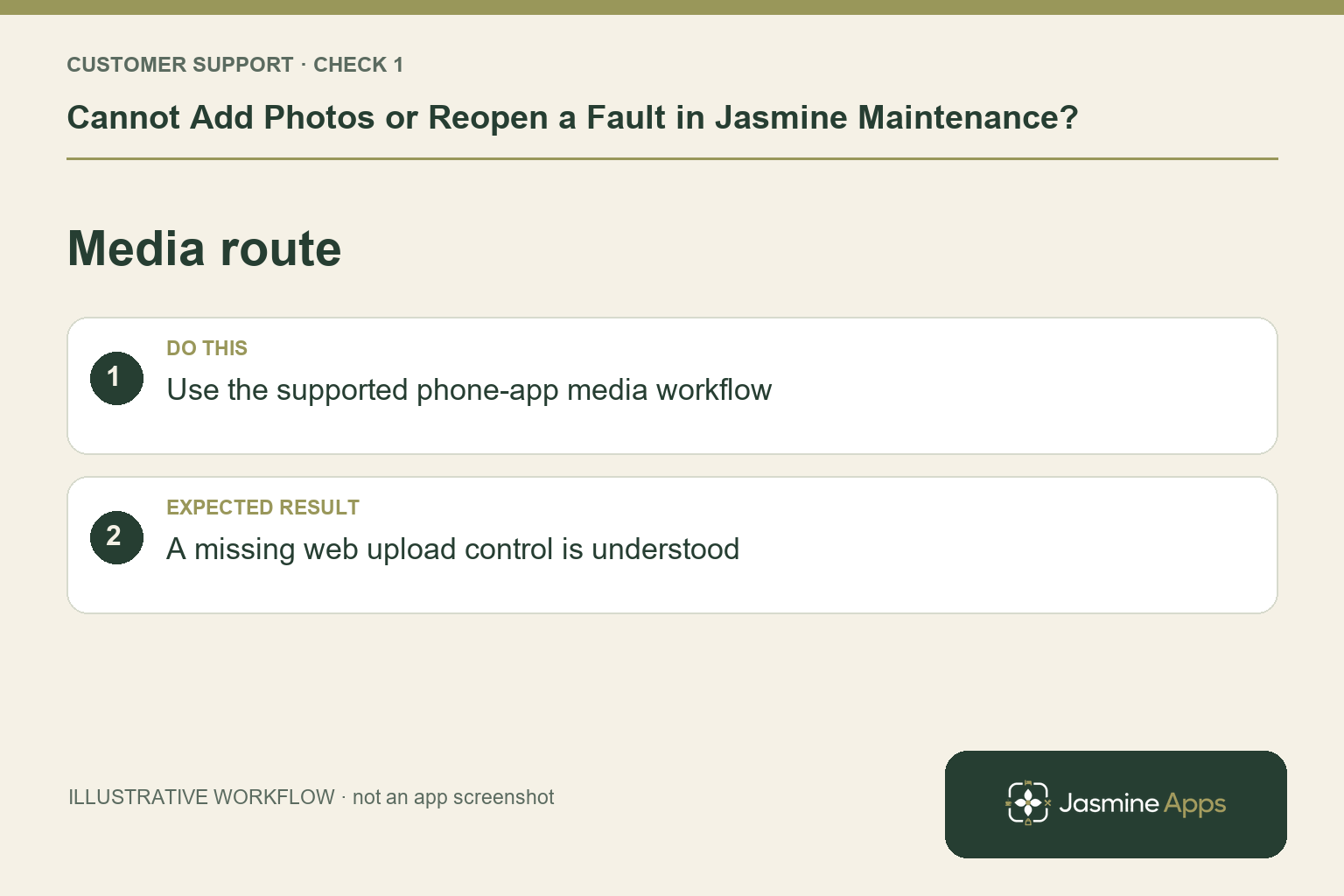
The existing setup and fault guides describe Photo or video in the Jasmine Maintenance phone app; the web app cannot add that media in the documented workflow. A missing web control can therefore be expected. Use the approved iOS or Android staff app, open the correct issue and select Photo or video. Keep images focused on the fault, not guest belongings or unrelated people.
Check the result: A missing web upload control is understood.
2. What should a useful fault photograph show?
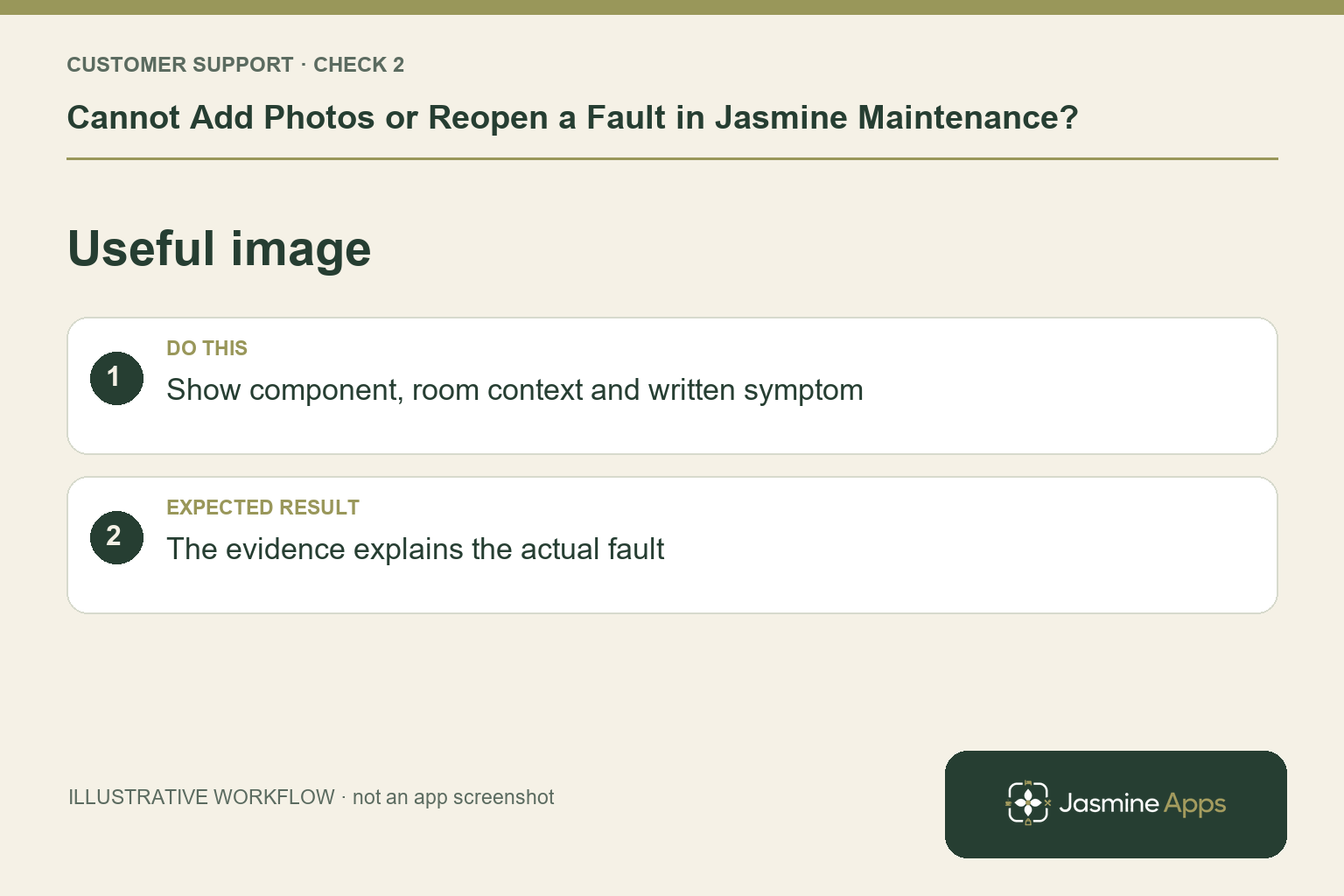
Capture the affected component and enough room context to identify it. Add a clear description of what happens and where. A close-up of a tap without a room reference can still leave the technician guessing. Follow staff access and photography rules, and do not undertake unsafe testing for a picture. The image supports the written issue; it does not replace the room name, availability or repair steps.
Check the result: The evidence explains the actual fault.
3. Should a returning problem become a new ticket?
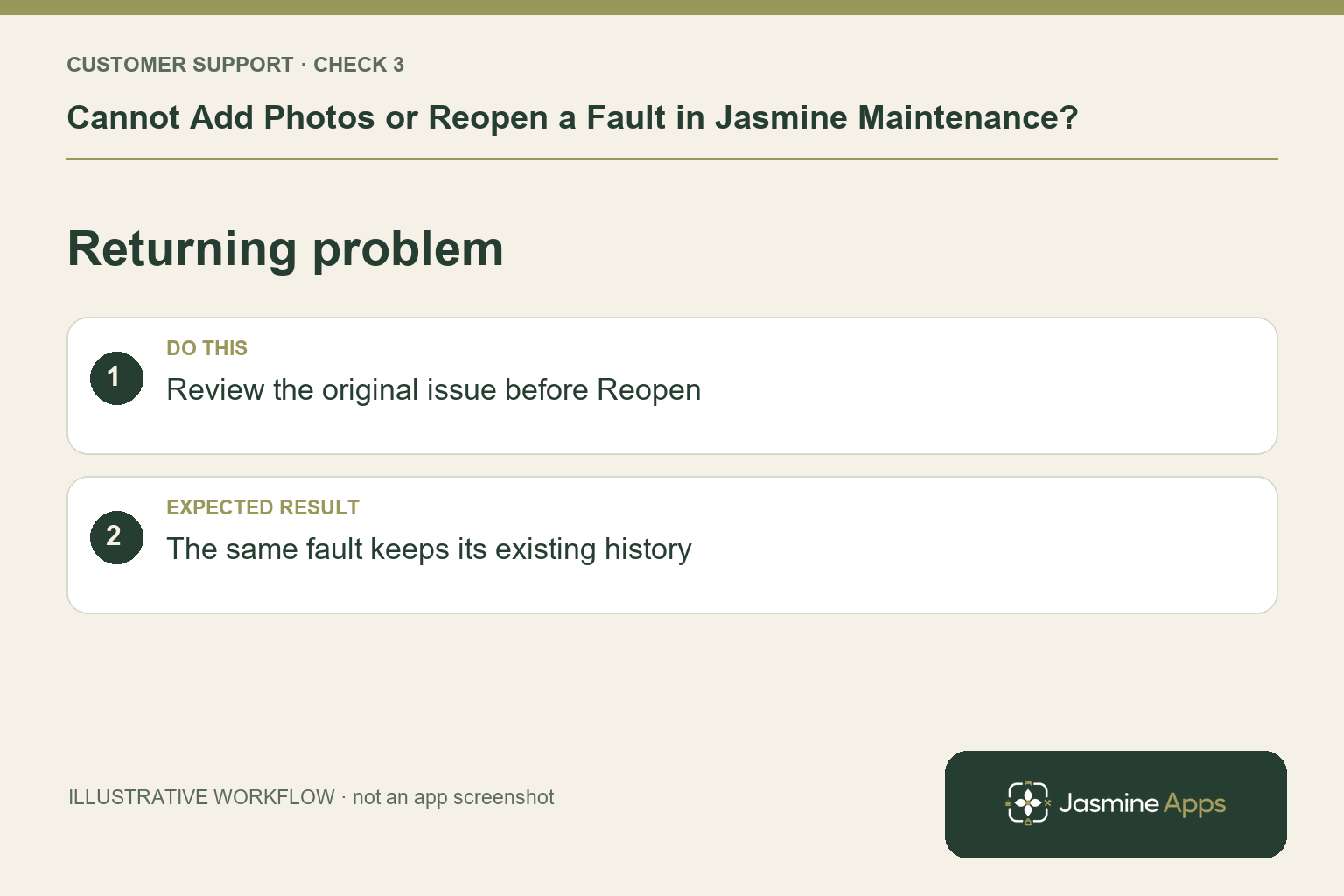
On the web, find the original item under Resolved and use Reopen if the same problem has returned. The guide says it returns to Open with its history. Describe the new observation so the team can distinguish a failed repair from an unrelated fault. If it is a genuinely separate issue, log it accurately rather than attaching every room problem to one old ticket.
Check the result: The same fault keeps its existing history.
4. Can I delete an old issue to tidy the list?
The web guide says there is no delete button; resolve issues so history remains. Use Open, Resolved and All to find the relevant stage. The phone uses Completed for resolved work. Removing context is not the repair. Review the saved issue with a colleague and keep the reopened problem's availability honest until the hotel is satisfied with the new work.
Check the result: An old issue is not removed to hide its context.
Example from the actual app
The real Log an issue form separates venue and room identity, the observed fault, Availability and an optional Process to fix checklist. The Room issues view separately offers Open, Resolved and All. Use those fields to keep the task and readiness decision traceable. Administrative access to this workflow does not establish general release availability; the public product page currently remains marked coming soon. For this article’s media route check, use the supported phone-app media workflow. Verify a missing web upload control is understood.
Before you contact us
| Check | What to do | Result to verify |
|---|---|---|
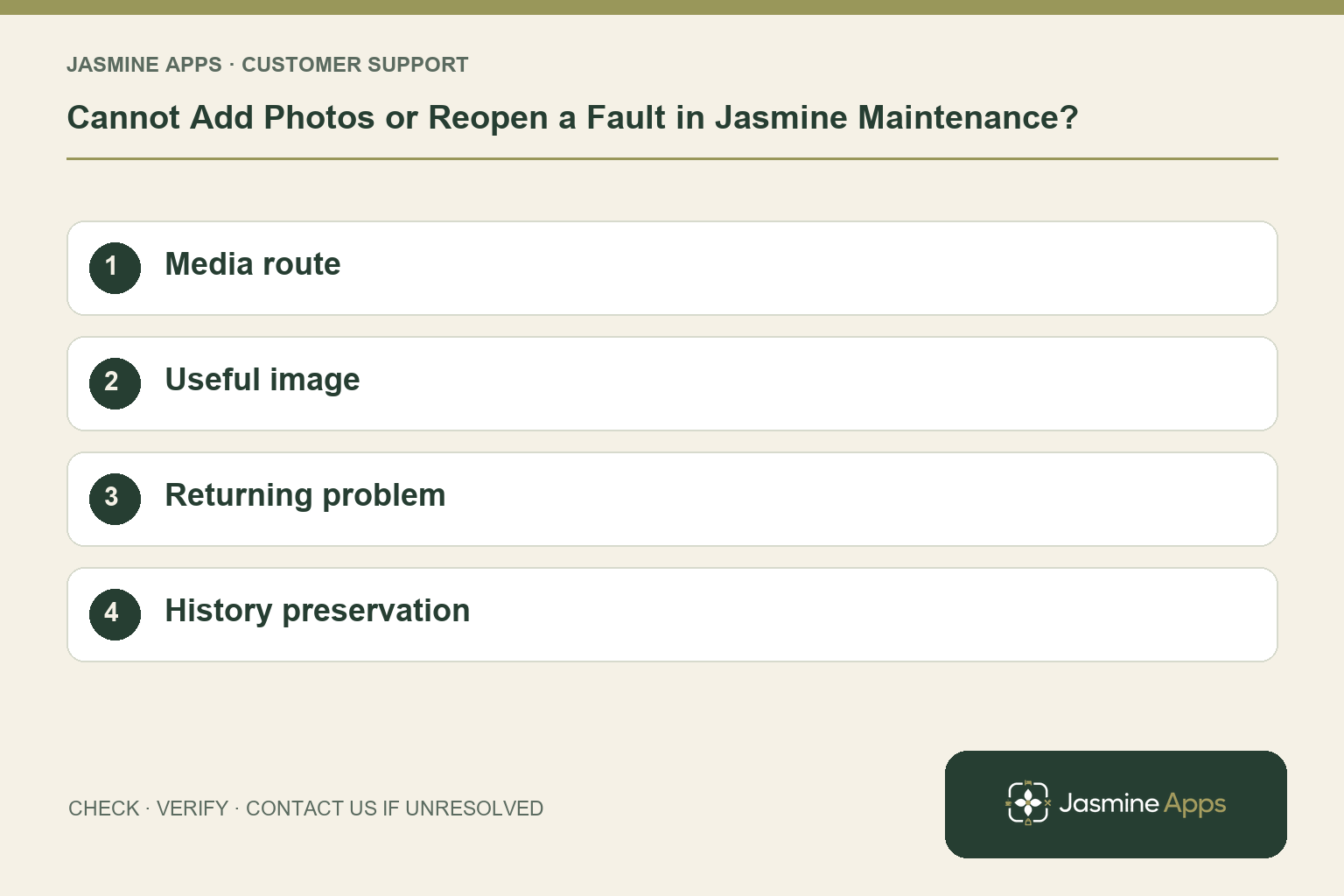
| Media route | Use the supported phone-app media workflow. | A missing web upload control is understood. |
| Useful image | Show component, room context and written symptom. | The evidence explains the actual fault. |
| Returning problem | Review the original issue before Reopen. | The same fault keeps its existing history. |
| History preservation | Use open and resolved views to find records. | An old issue is not removed to hide its context. |
Record which check failed, the exact error wording and when it happened. Include the relevant venue and record reference, and say whether one device or several people are affected. If you changed a setting, identify that change and the retest outcome. This helps us investigate the actual failing stage instead of asking you to repeat the whole process.
Contact Us if the expected result still does not appear. Send only the information needed to investigate; keep passwords, active codes, payment details and unrelated customer records out of screenshots.
When to stop and ask for help
If the supported phone media route or web Reopen action fails, report the issue reference, venue, app/device version and exact message. Share a fault-focused image privately if necessary, and keep a clear written record while support checks the upload or state change.
Related support checks
- Room Missing from Jasmine Maintenance? Check Save Rooms
- Resolved Maintenance Issue Still Open or Blocked?
Illustrations explain the workflow and are not product screenshots. Any numerical example is labelled illustrative and is not a customer result. Product wording and documented setup checks reviewed on 13 October 2026; confirm the features available in your current installation.