

Resolved Maintenance Issue Still Open or Blocked?
· Jasmine Apps
Availability: Jasmine Maintenance is currently marked coming soon on its public product page. These instructions prepare the documented workflow for a supported test or future installation; confirm access and the current version with us before relying on them in live service.
Customer support: Work through these checks in order. After each change, repeat the original action and check the result. If it remains unresolved, use Contact Us.
The technician finished a repair, but the fault still appears on the open list. Jasmine Maintenance tracks completed steps, availability and resolution separately. A ticked checklist does not by itself show that the room has been released for guests.
Quick answer: Save the checked work and appropriate availability, then use Mark resolved only after the room is ready. Check other open faults and tell reception.
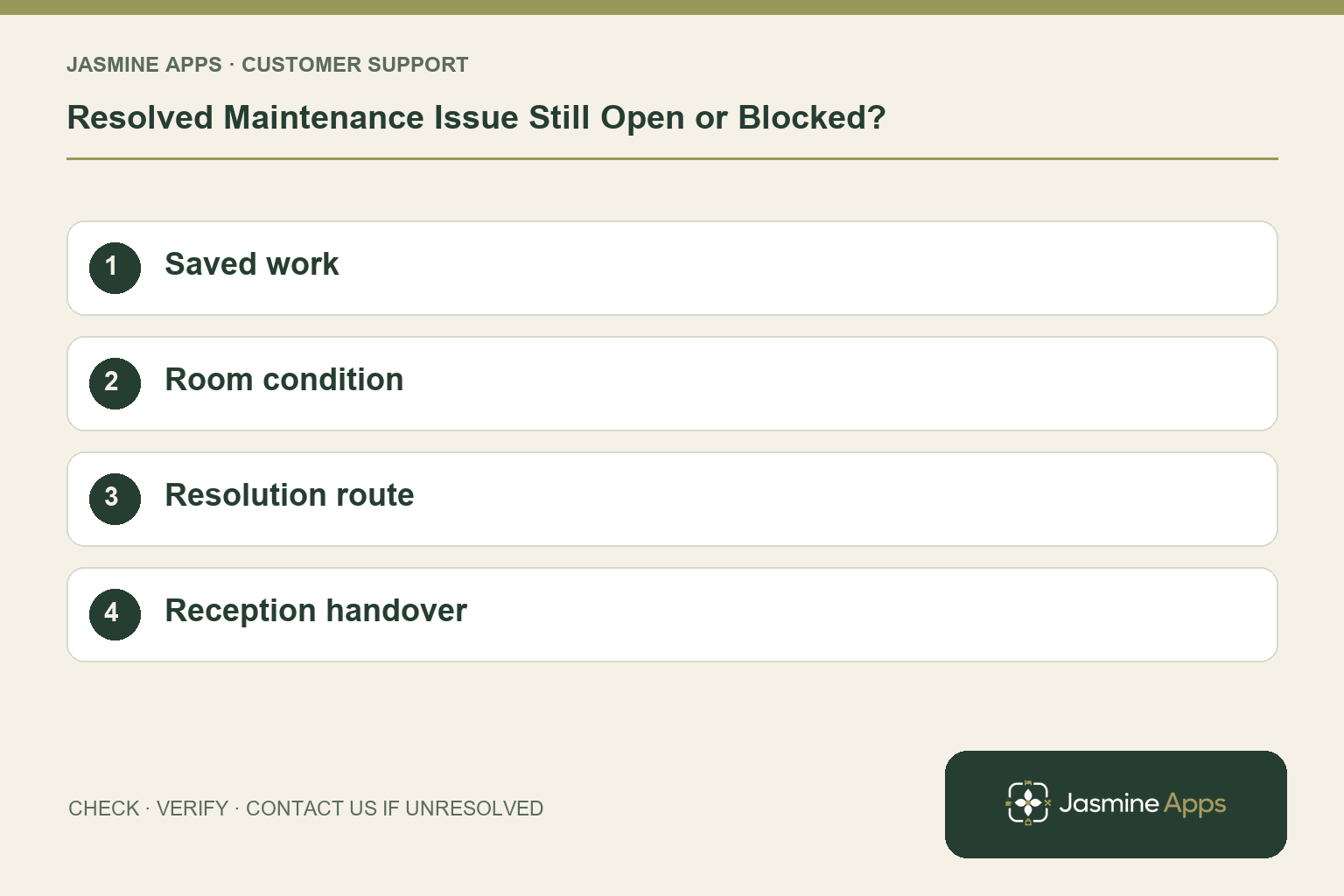
1. Is ticking every repair step enough?
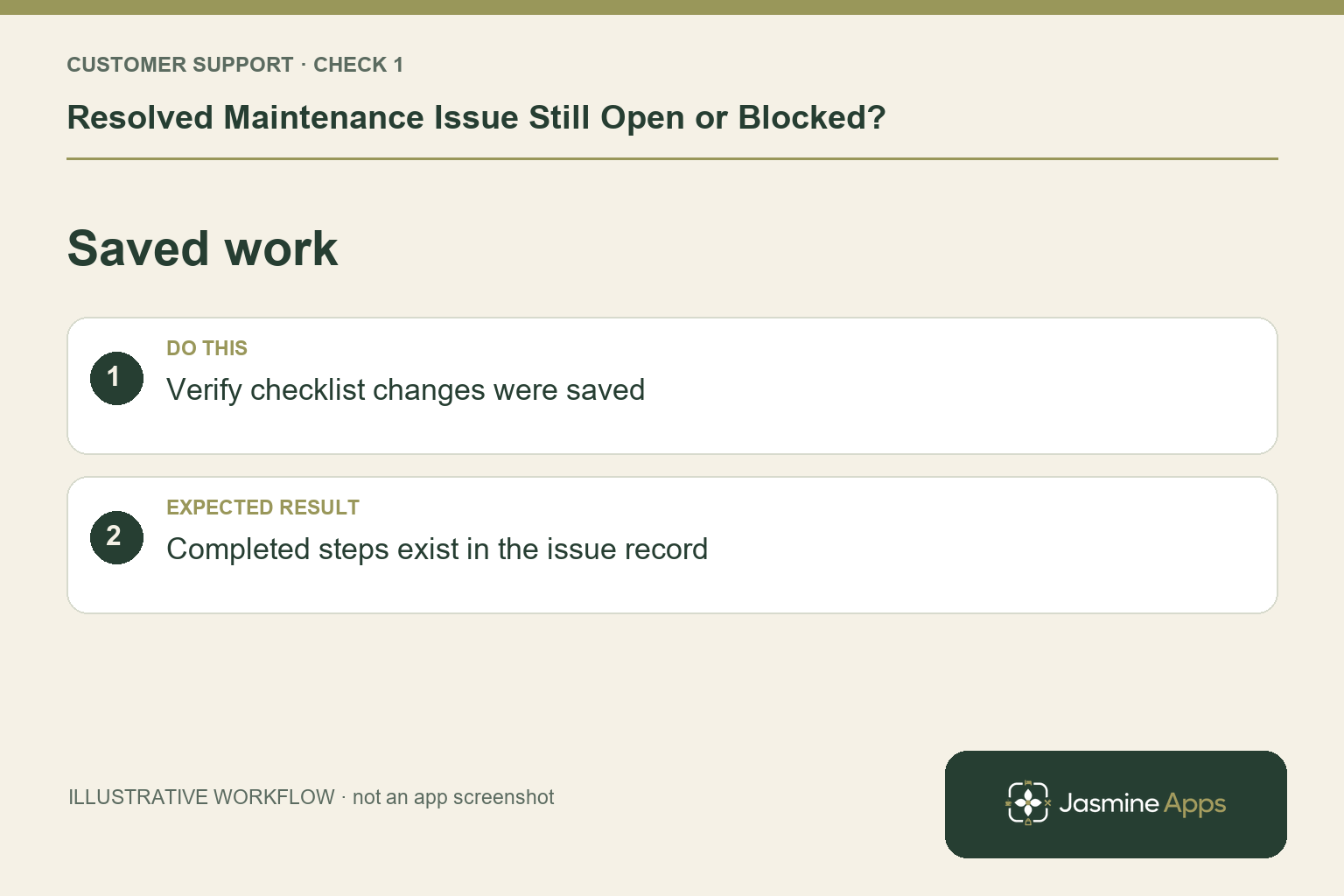
Process to fix checkboxes track work completed. The web guide then calls for Save issue and, when the room is ready, Mark resolved. Check whether the ticks were saved and whether resolution happened. A staff member remembering they clicked a checkbox is different from a recorded finished issue. Test the repaired function through the hotel's normal readiness checks before calling the room complete.
Check the result: Completed steps exist in the issue record.
2. What should happen to availability?
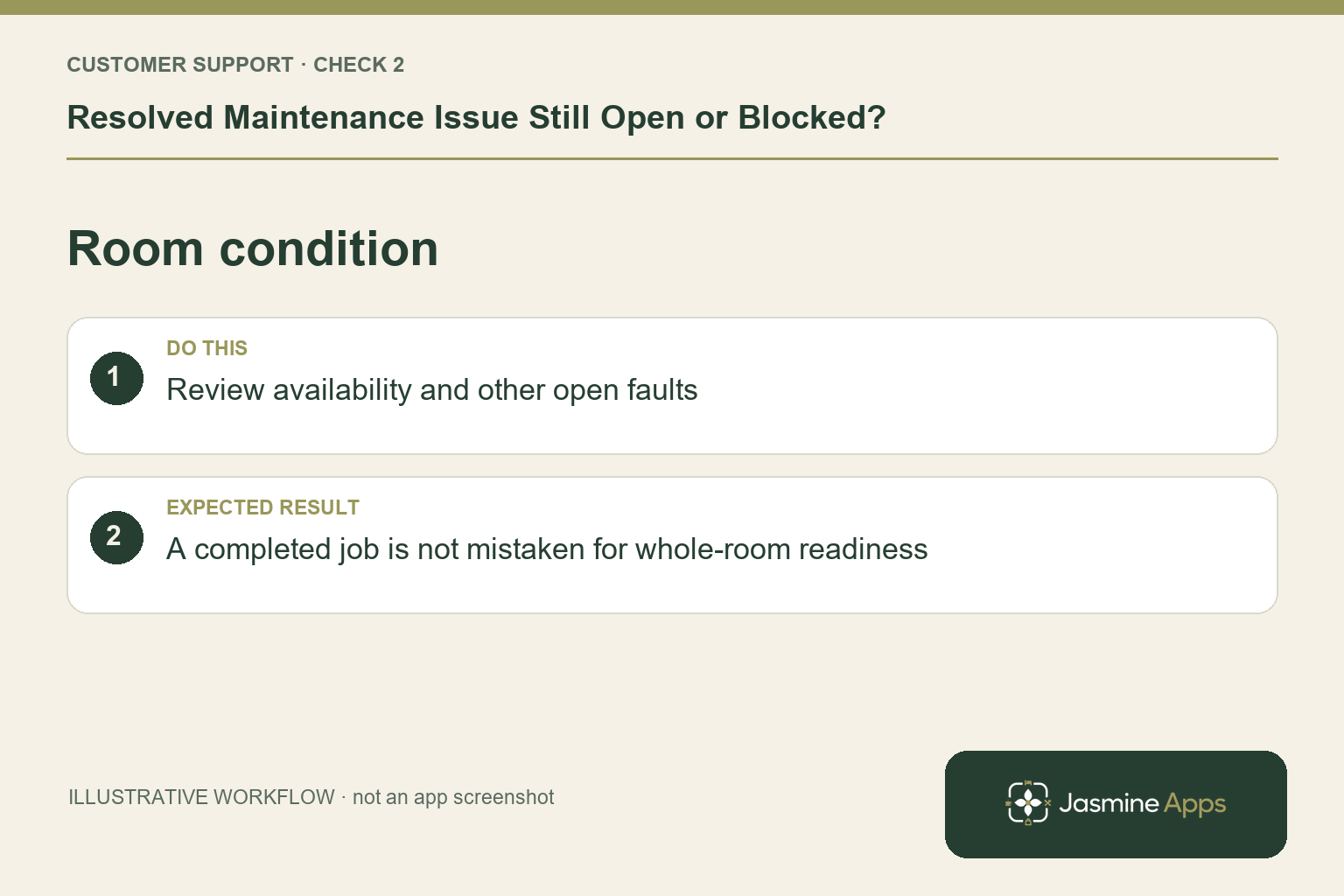
Availability describes Blocked until fixed, Restricted or Can sell. Update it honestly as the room's condition changes and save the issue. Do not select Can sell simply to clear a queue while a serious fault remains. Review other open issues for the same room too. One completed job does not establish that every unrelated problem is resolved or that the hotel's booking system has updated.
Check the result: A completed job is not mistaken for whole-room readiness.
3. Why does the phone app use a different label?
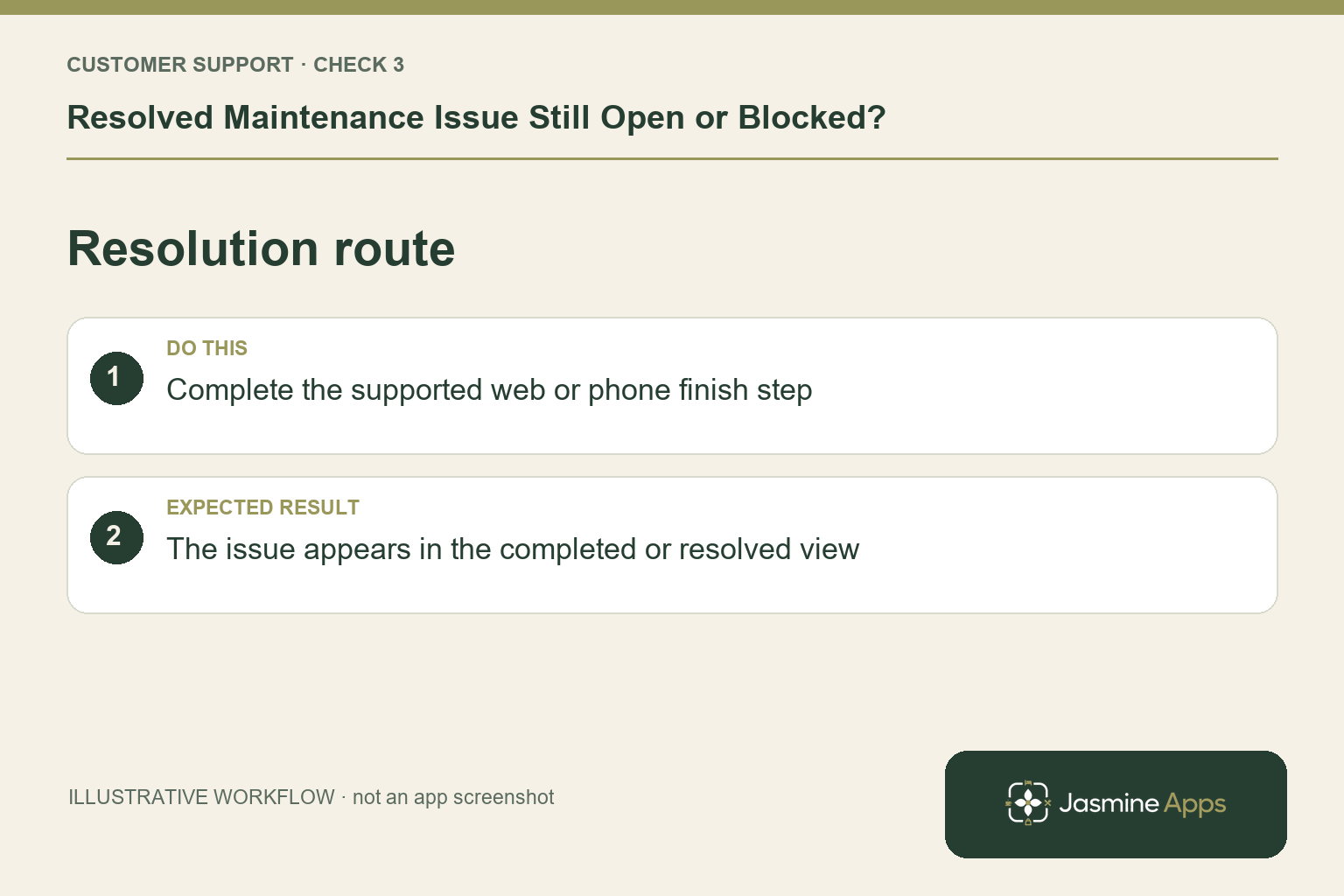
On the web, Room issues has Open, Resolved and All. The existing phone guide calls the finished tab Completed and uses Fixed followed by Yes, it's fixed. Identify which route the colleague used and verify the final record. Different wording is not necessarily missing data. Ensure everyone knows the completion step for the device they use, rather than stopping after entering a note.
Check the result: The issue appears in the completed or resolved view.
4. How do we prevent confusion at handover?
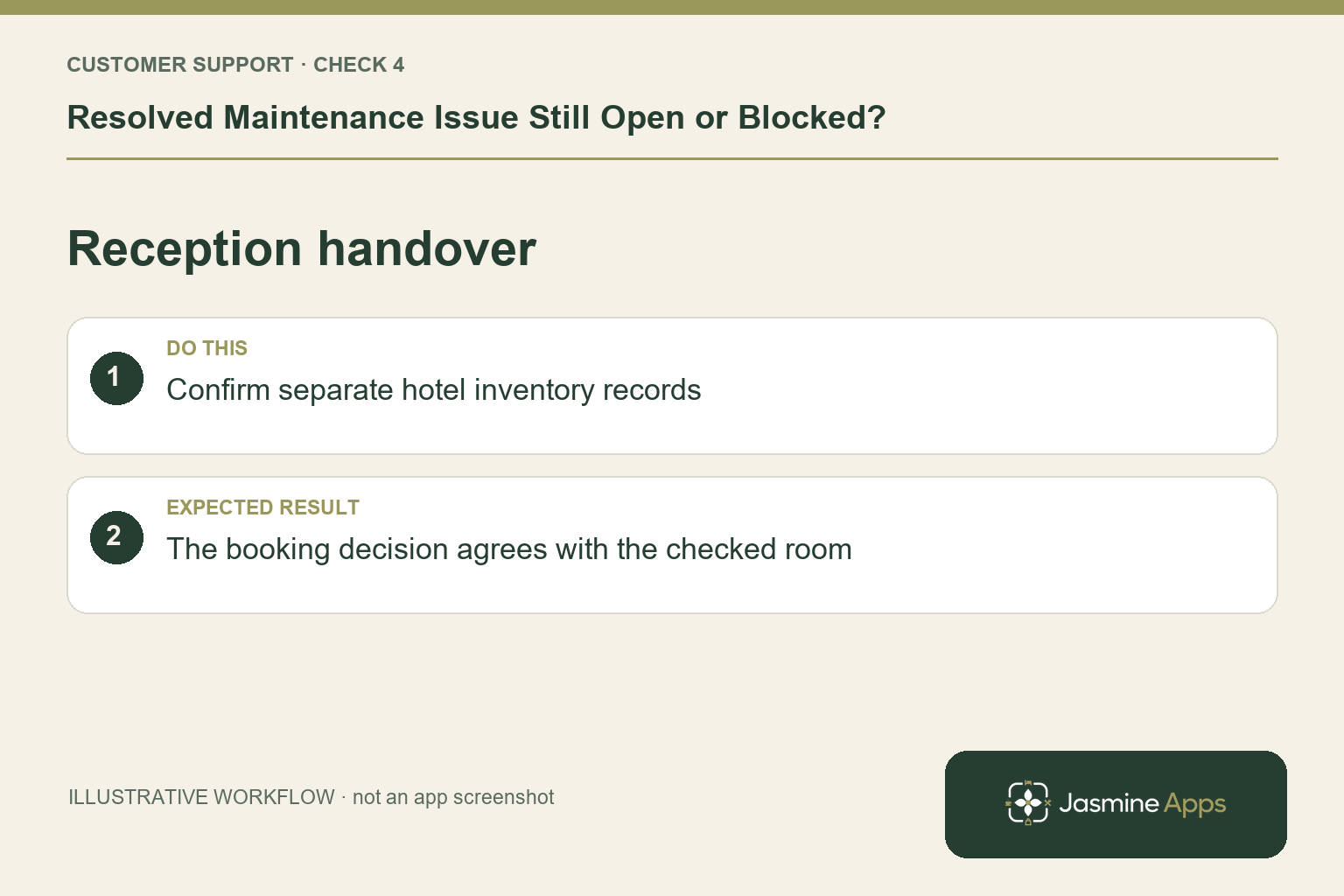
Use a named readiness check and communicate the room number, repair outcome and any remaining restriction to reception and housekeeping. Check separate hotel inventory through the approved process; no live PMS sync is assumed here. The maintenance record and the booking decision should agree. Keep the original fault history so another shift can understand why the room was blocked and what was tested.
Check the result: The booking decision agrees with the checked room.
Example from the actual app
The real Log an issue form separates venue and room identity, the observed fault, Availability and an optional Process to fix checklist. The Room issues view separately offers Open, Resolved and All. Use those fields to keep the task and readiness decision traceable. Administrative access to this workflow does not establish general release availability; the public product page currently remains marked coming soon. For this article’s saved work check, verify checklist changes were saved. Verify completed steps exist in the issue record.
Before you contact us
| Check | What to do | Result to verify |
|---|---|---|
| Saved work | Verify checklist changes were saved. | Completed steps exist in the issue record. |
| Room condition | Review availability and other open faults. | A completed job is not mistaken for whole-room readiness. |
| Resolution route | Complete the supported web or phone finish step. | The issue appears in the completed or resolved view. |
| Reception handover | Confirm separate hotel inventory records. | The booking decision agrees with the checked room. |
Record which check failed, the exact error wording and when it happened. Include the relevant venue and record reference, and say whether one device or several people are affected. If you changed a setting, identify that change and the retest outcome. This helps us investigate the actual failing stage instead of asking you to repeat the whole process.
Contact Us if the expected result still does not appear. Send only the information needed to investigate; keep passwords, active codes, payment details and unrelated customer records out of screenshots.
When to stop and ask for help
If the saved, resolved record still behaves unexpectedly, give support the issue reference, room, venue and route used. Ask the operational manager to keep the room status accurate while investigating; do not promise a guest that a room is ready from a checklist count alone.
Related support checks
- Room Missing from Jasmine Maintenance? Check Save Rooms
- Cannot Add Photos or Reopen a Fault in Jasmine Maintenance?
Illustrations explain the workflow and are not product screenshots. Any numerical example is labelled illustrative and is not a customer result. Product wording and documented setup checks reviewed on 13 October 2026; confirm the features available in your current installation.