

Jasmine Loyalty Reward Not Available or Not Redeeming?
· Jasmine Apps
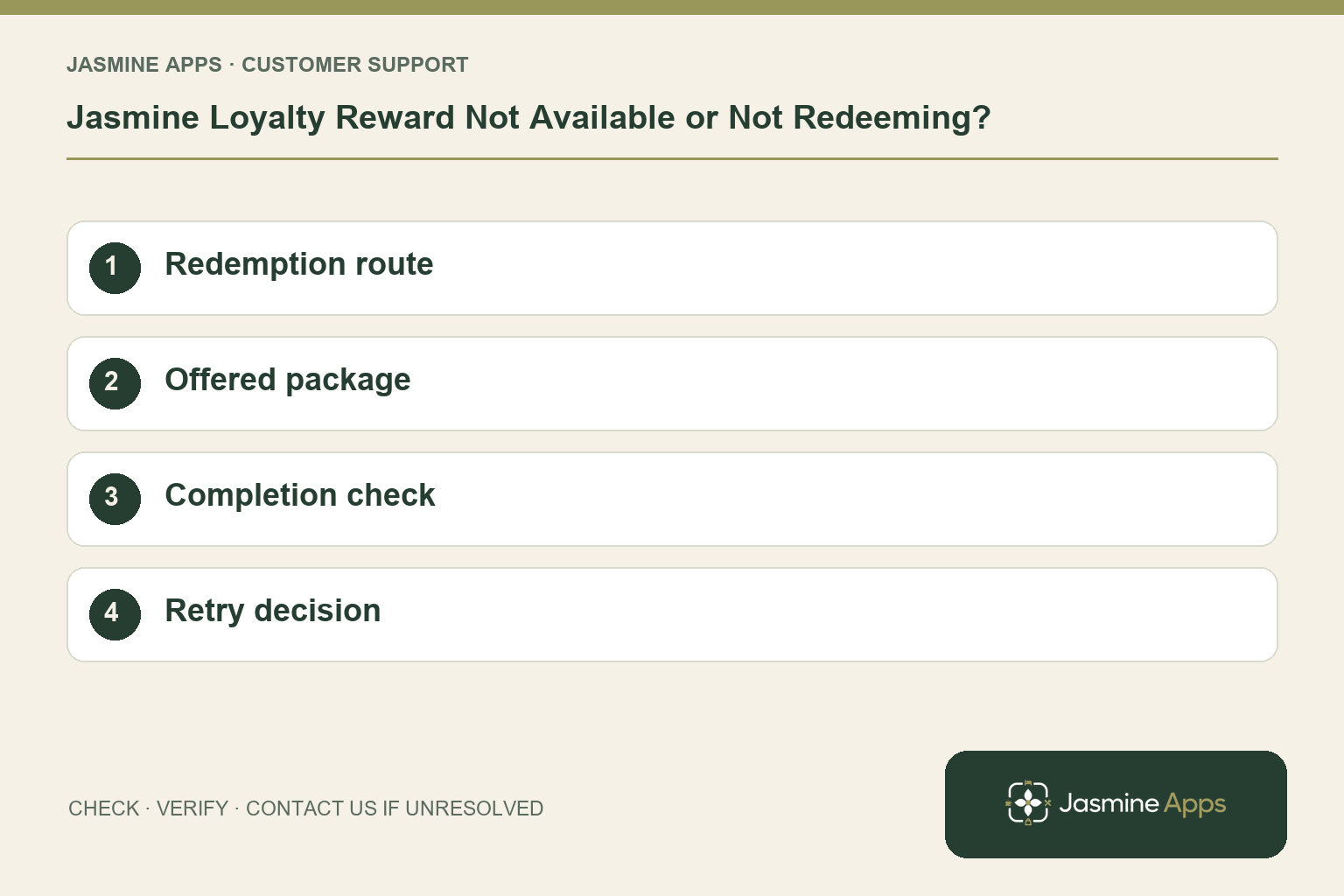
Customer support: Work through these checks in order. After each change, repeat the original action and check the result. If it remains unresolved, use Contact Us.
A guest can see a reward but cannot complete it on their phone, or a seasonal offer has disappeared. Jasmine Loyalty separates browsing rewards from staff redemption. Check the package and the actual redemption route before assuming the guest app has failed.
Quick answer: Confirm the package is offered and saved, review its points requirement, and use the authorised till redemption workflow.
1. Why is there no phone button to redeem?
Guests browse Rewards under Ready to redeem and Work towards. The help guide says redemption is completed by staff at the till, or through the supported Issue barcode route on the member page. The guest showing an offer is not itself a completed redemption. Explain this before changing the scheme: a missing self-service payment-style button can be normal product behaviour.
Check the result: Browsing a reward is distinguished from using it.
2. What if the reward is missing entirely?
An authorised manager should inspect Packages. Offer this package controls whether a reward is offered, and hidden packages are marked Hidden in the list. Check the name, description, Points to redeem and Save package. A seasonal offer may be intentionally hidden. Confirm the venue's decision before re-enabling it, and avoid creating another package with the same name just to make one appear.
Check the result: The intended reward is offered under the venue rules.
3. What should staff verify during redemption?
Find the correct member in the till Loyalty workflow, then select the intended package. The documented confirmation asks whether to redeem; successful completion shows Package redeemed. Check the guest's points and the package requirement before confirmation. Use the supported discount configuration for the actual offer. Do not invent a cash discount to substitute for a redemption that remains unresolved.
Check the result: The redemption result is explicitly confirmed.
4. How do we know the reward was used only once?
Inspect the confirmation and the member's points history before retrying an uncertain action. Redemptions appear in that history. If the screen was slow, the absence of an immediate visual response does not justify pressing Redeem repeatedly. Keep the member reference and package name for the manager. Make the staff handover explicit so a second colleague does not issue the same reward again.
Check the result: An uncertain action is not redeemed twice.
Example from the actual app
The real Edit package form includes Offer this package, Points to redeem and Valid at these venues. It explicitly says the till at an unselected venue will not accept the reward barcode. Check the package’s venue scope even when the member’s card works across the group. Changing points or issuing the reward again will not resolve a venue restriction.
Before you contact us
| Check | What to do | Result to verify |
|---|---|---|
| Redemption route | Use authorised staff redemption. | Browsing a reward is distinguished from using it. |
| Offered package | Review visibility and saved points requirement. | The intended reward is offered under the venue rules. |
| Completion check | Verify the correct member and package outcome. | The redemption result is explicitly confirmed. |
| Retry decision | Inspect confirmation and points history first. | An uncertain action is not redeemed twice. |
Record which check failed, the exact error wording and when it happened. Include the relevant venue and record reference, and say whether one device or several people are affected. If you changed a setting, identify that change and the retest outcome. This helps us investigate the actual failing stage instead of asking you to repeat the whole process.
Contact Us if the expected result still does not appear. Send only the information needed to investigate; keep passwords, active codes, payment details and unrelated customer records out of screenshots.
When to stop and ask for help
Report the member reference, package name, requirement and exact outcome to authorised support. State whether it is hidden, insufficiently funded or apparently unsuccessful after confirmation. Preserve history and do not change point prices merely to work around an unexplained error.
Related support checks
- Jasmine Loyalty Email Code Not Arriving?
- Jasmine Loyalty Points Missing After a Sale?
- Bought-In Item Missing or Already Collected in Jasmine Loyalty?
Illustrations explain the workflow and are not product screenshots. Any numerical example is labelled illustrative and is not a customer result. Product wording and documented setup checks reviewed on 13 October 2026; confirm the features available in your current installation.