

TutorialIn-app guide
Clock Jasmine: prepare a rota board
· Jasmine Apps
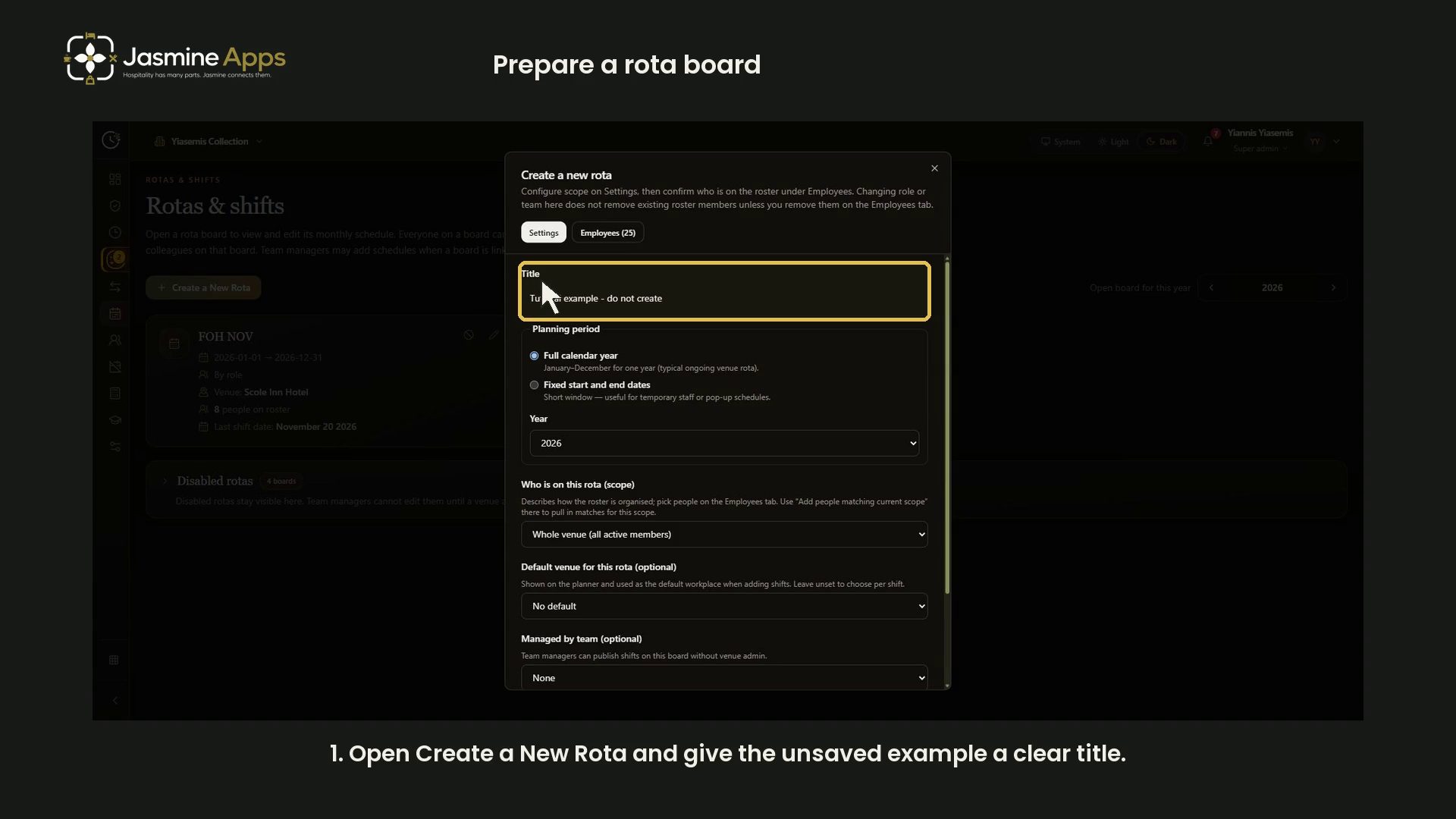
Prepare a Clock Jasmine rota board by reviewing its title, planning period, roster scope and venue settings. This narrated dark-mode walkthrough follows an unsaved example in the current app.
Watch the walkthrough
Before you start
Open Rotas & Shifts with the appropriate venue and account. This guide covers the Create a new rota form. It does not create a board, assign staff, add shifts or publish a schedule.
The form is longer than the viewport, so the walkthrough shows its upper and lower sections in sequence. All screenshots retain the full screen and dialog boundaries; scroll inside the dialog to reach the remaining controls.
1. Name the rota
Select Create a New Rota. On Settings, enter a clear Title. The example uses Tutorial example - do not create so it cannot be confused with an intended schedule.
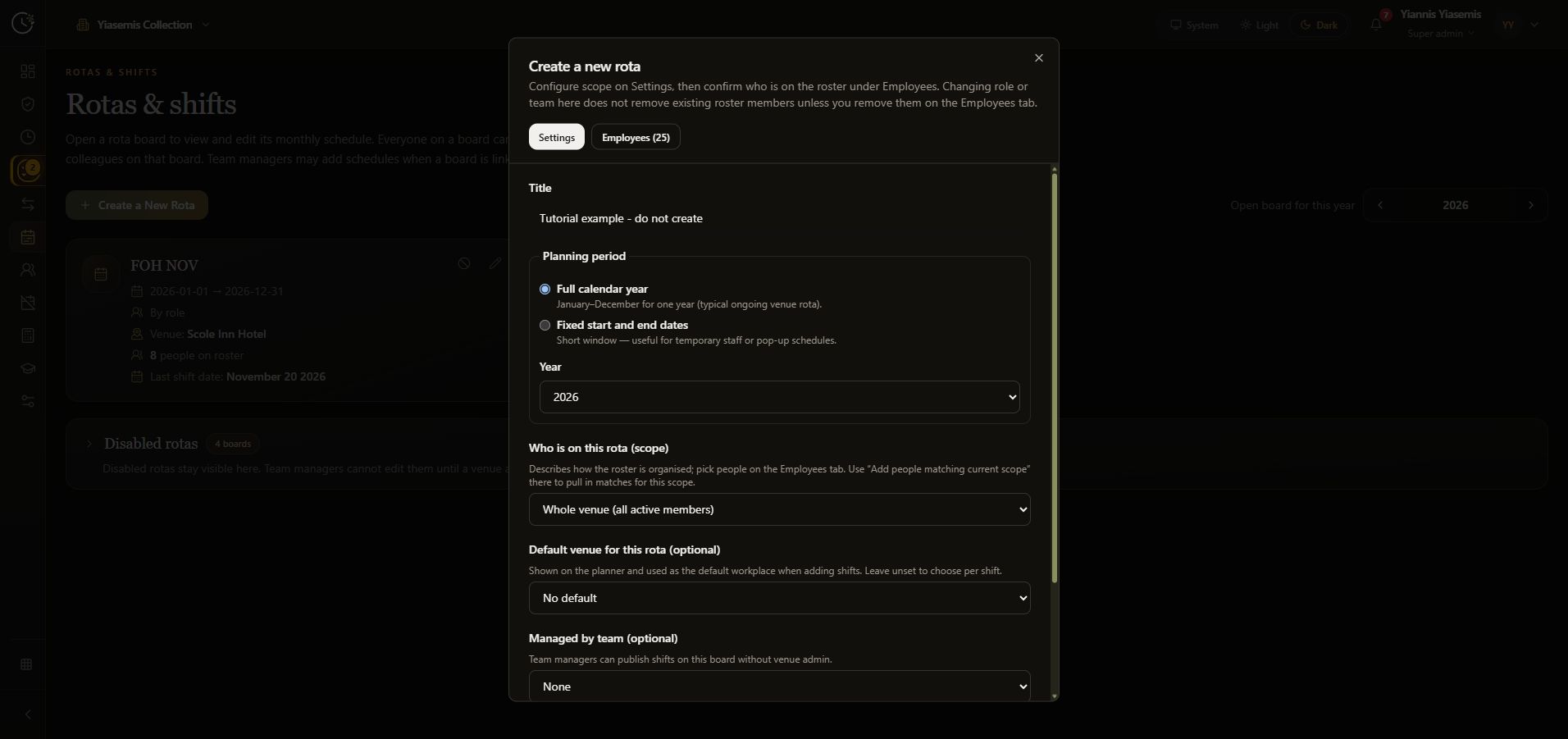
2. Choose the planning period
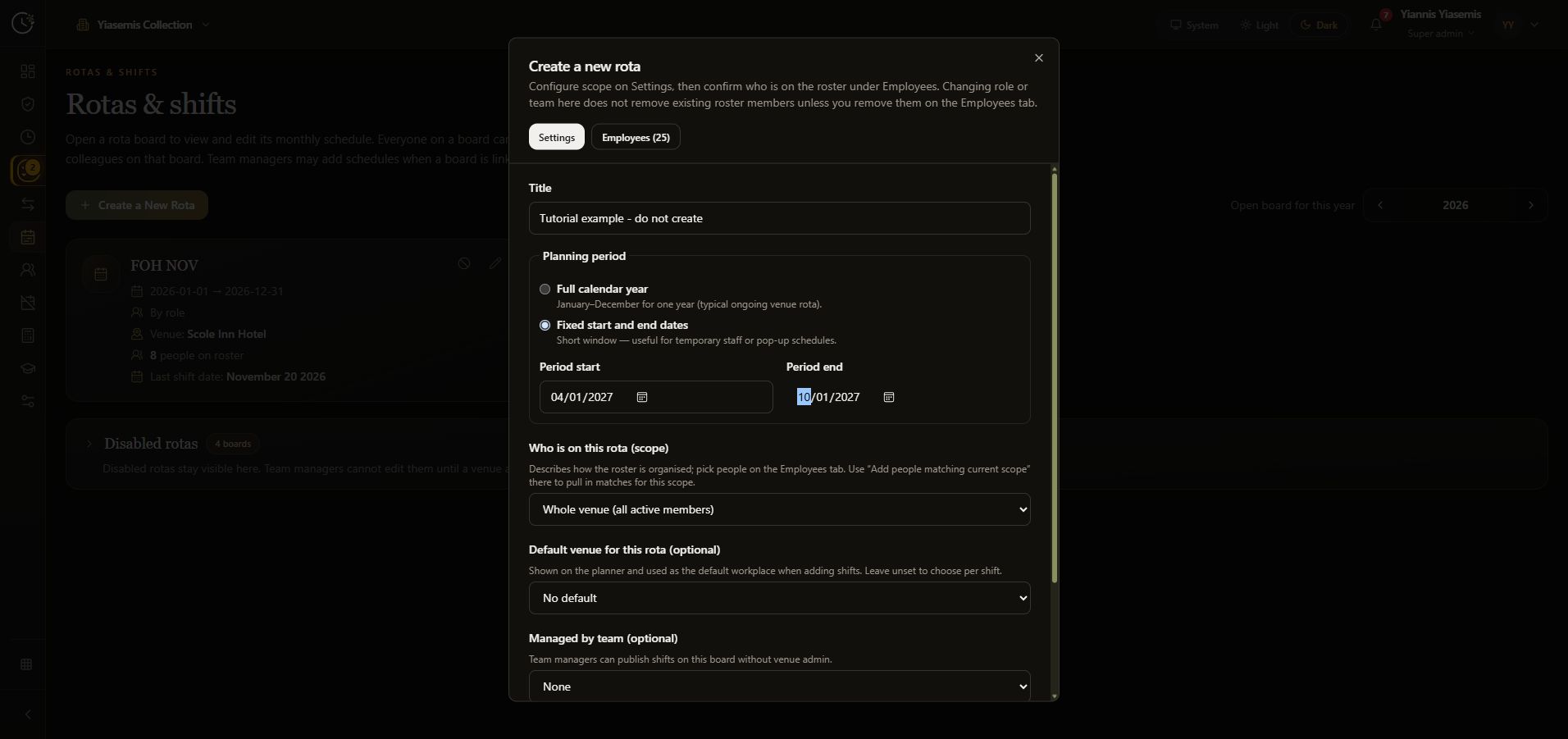
Full calendar year provides January–December for the selected year. Fixed start and end dates provides a shorter planning window and reveals Period start and Period end.
The demonstration enters 4 January 2027 through 10 January 2027 as fictional dates. These entries remain unsaved.
3. Review scope and venue defaults
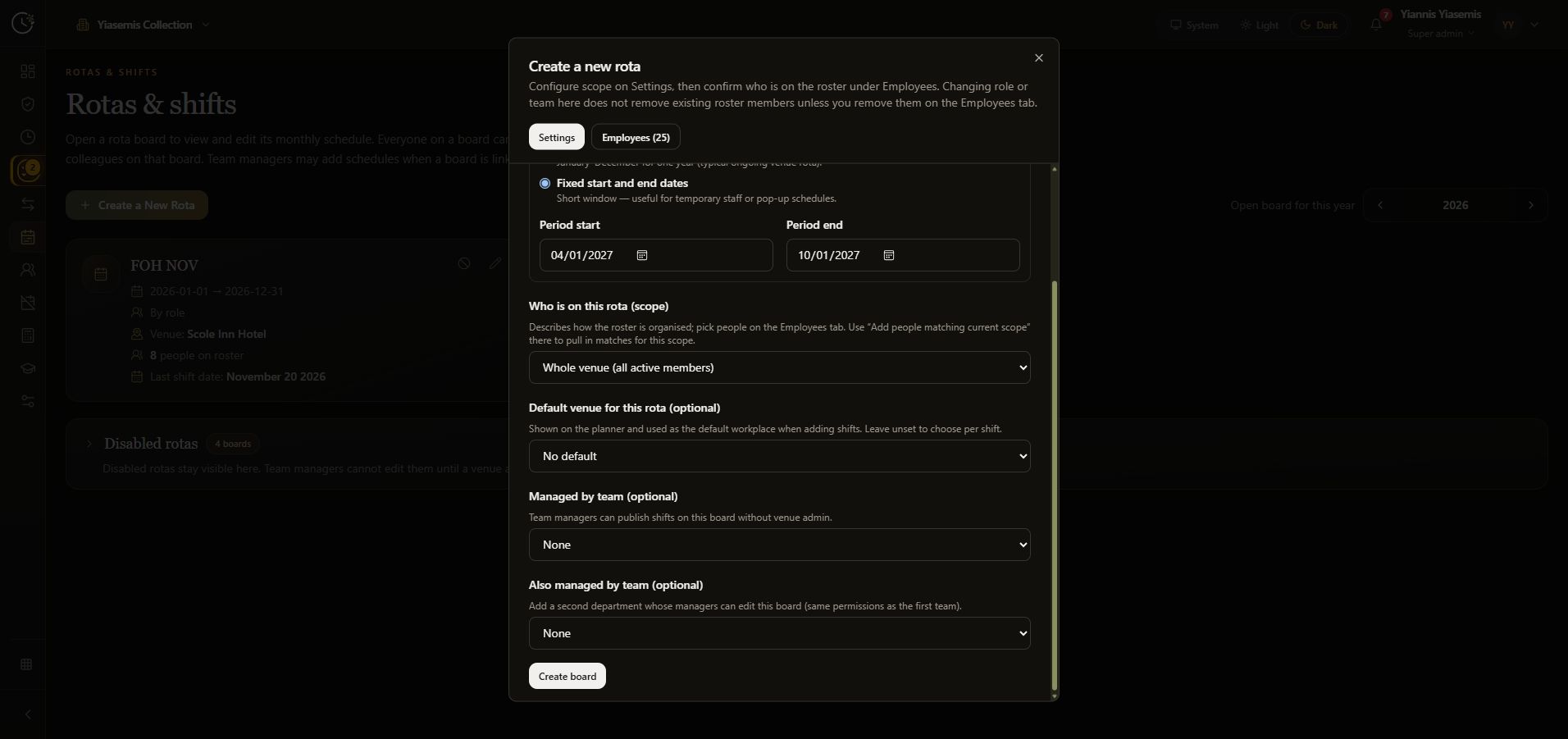
Scroll down to Who is on this rota (scope). The options include whole venue, a team, one role and selected people. The form explains that people are chosen on the Employees tab and that changing a role or team does not remove existing roster members unless they are removed on that tab.
Review Default venue for this rota (optional). Its help text says the venue appears on the planner and is used as the default workplace when adding shifts. Leaving it unset allows the workplace to be chosen per shift. This demonstration leaves No default selected and does not open staff records.
4. Review managing teams before creating a real board
Managed by team and Also managed by team affect who can manage the board. The form says team managers can publish shifts on it, and that the second team receives the same editing permissions as the first. Select these only as part of an approved setup.
The walkthrough leaves both at None and closes the dialog without choosing Create board. No rota or staff access is changed. Creating, assigning and publishing an actual schedule are separate steps that are not demonstrated in this guide.