

TutorialIn-app guide
Clock Jasmine kiosk: review setup and try demo mode
· Jasmine Apps
Prepare a Clock Jasmine kiosk by checking the setup screen and the manager-supplied registration process. This guide also shows how to explore the built-in demo and return to setup. The video follows a complete simulated shift from demo entry to returning to setup. Actual device registration is a separate manager-led step.
Watch the walkthrough
The walkthrough starts at the demo-entry confirmation and ends back at Kiosk Setup. It is the same complete video used in the detailed attendance guide below. The setup screen and registration-code guidance are covered in this article; live device pairing is not demonstrated.
The recording uses fictional training records in Demo Venue. Demo names remain readable; real private details are excluded.
Before you start
Use the intended shared device and confirm the correct venue with your responsible manager. For an actual registration, follow your organisation's approved kiosk setup process. This walkthrough does not generate, display or enter a live setup code.
Read Set up the Clock Jasmine kiosk for the wider setup context. Registration and staff PIN entry are separate steps: a setup code prepares the device, while staff use their own assigned PIN on a registered kiosk.
Review the setup screen
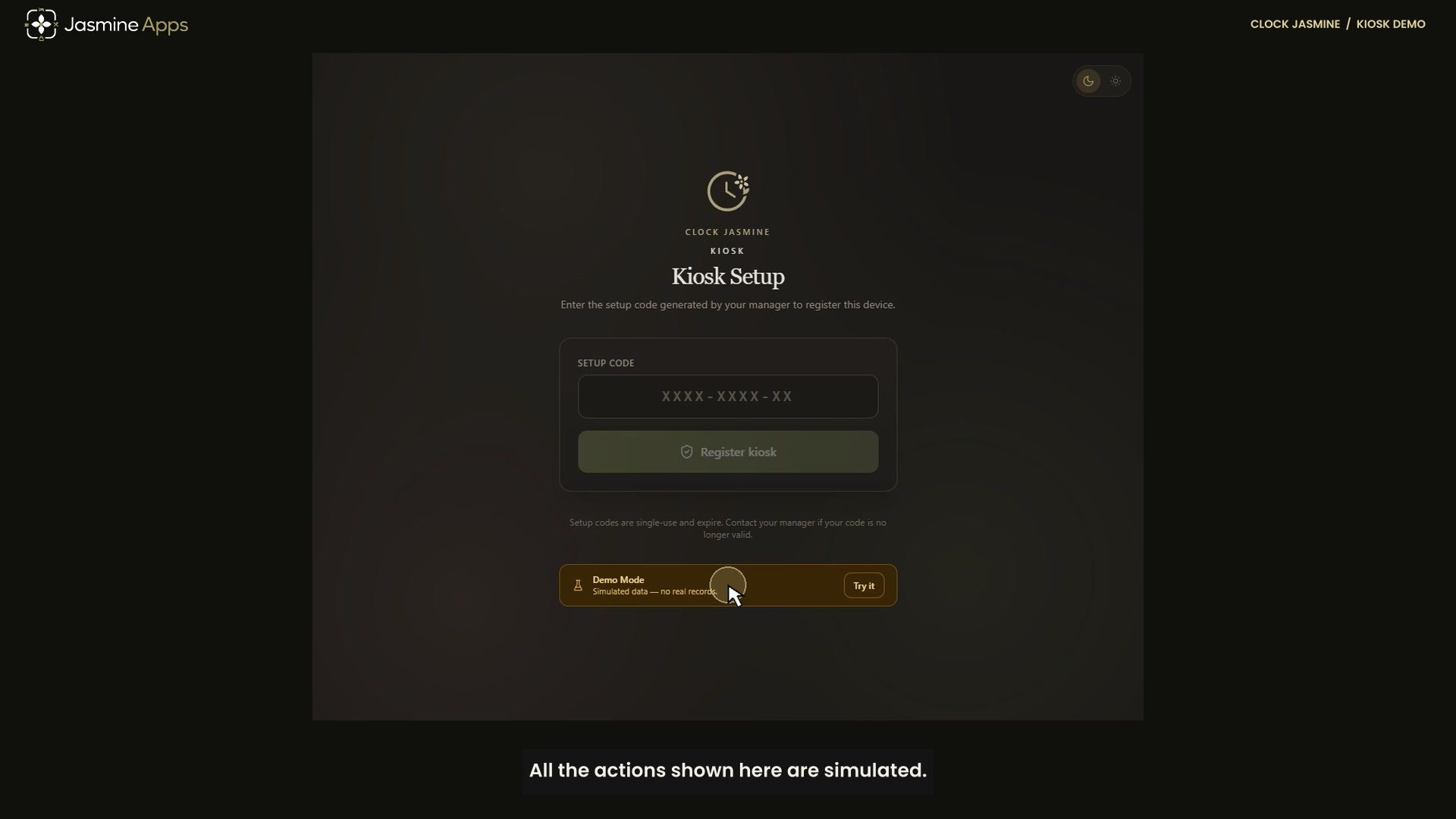
Open Clock Jasmine Kiosk on the intended device. The page heading is Kiosk Setup. Its instruction reads: Enter the setup code generated by your manager to register this device.
The Setup code field shows the expected pattern, XXXX-XXXX-XX. In the captured example it is empty, so Register kiosk is disabled. The visible pattern is a placeholder, not a usable code.
Use a manager-supplied code
For real setup, obtain the code through your authorised manager's process, enter it in Setup code, then use Register kiosk. Check the resulting device and venue before staff begin using it. This guide reviews that entry point; it does not show a completed live registration or claim that a device has been paired.
The setup footer states that codes are single-use and expire. Contact your manager if the supplied code is no longer valid. Do not substitute a staff PIN, invent a code or reuse a demonstration value.
Open the demo
Below registration, Demo Mode is labelled Simulated data — no real records. Select Try it to open its confirmation.
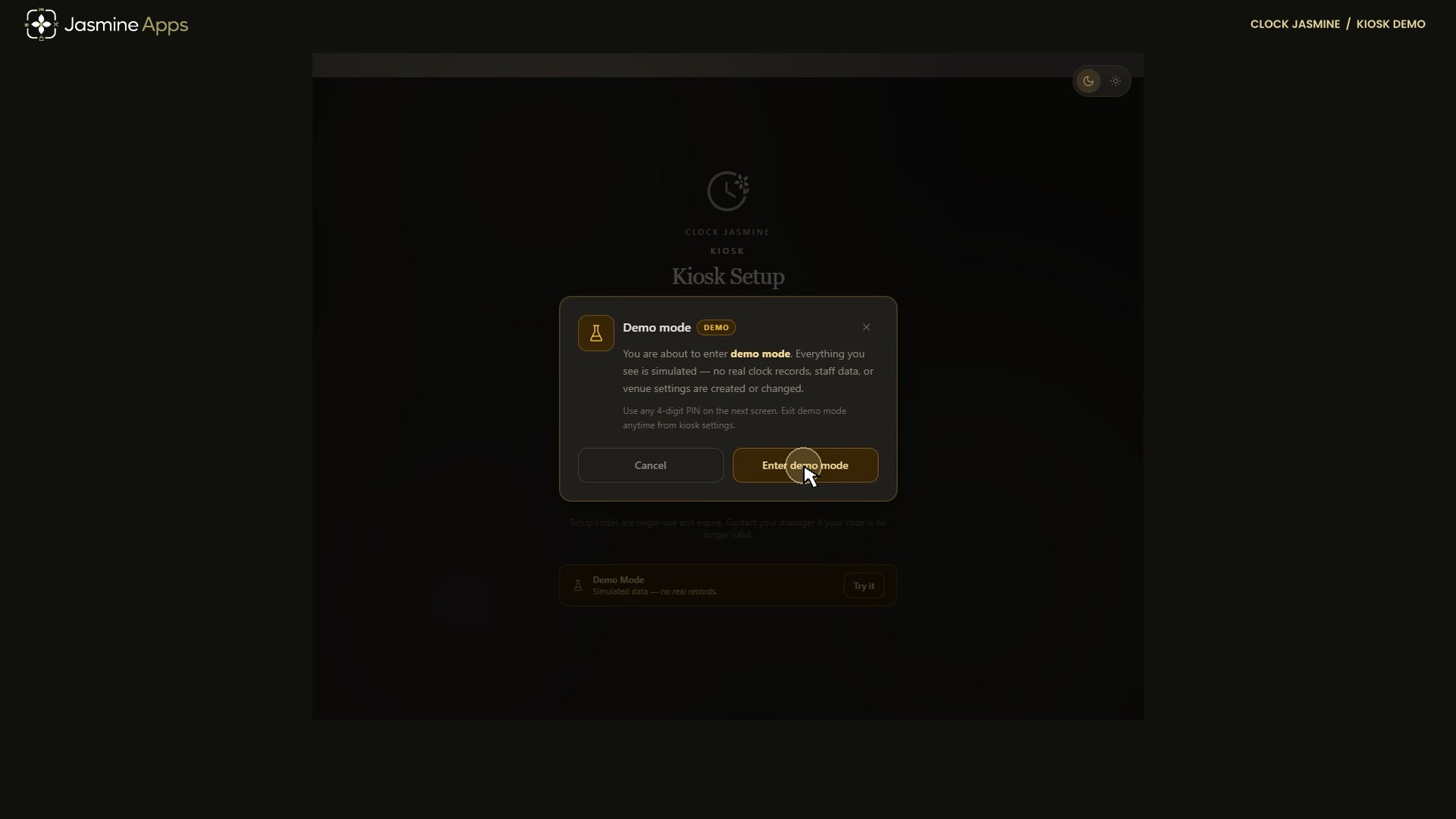
Read the explanation before continuing. It explicitly says that everything is simulated and no real clock records, staff data or venue settings are created or changed. Cancel closes the dialog; Enter demo mode opens the simulated kiosk.
Recognise the demo screen
The demo opens on Enter your PIN, with a visible DEMO label. Its instruction allows any four-digit example, such as 1234. That instruction belongs only to the simulation. For real attendance, use your own assigned PIN on the correct paired device.
Opening the demo does not register this device. A simulated clock-in result is not evidence of a real shift or payroll record. The video continues through clock-in, starting and ending a break, and clock-out, checking the resulting status after each action. Follow the detailed kiosk clock-in and breaks instructions alongside it.
Review kiosk settings
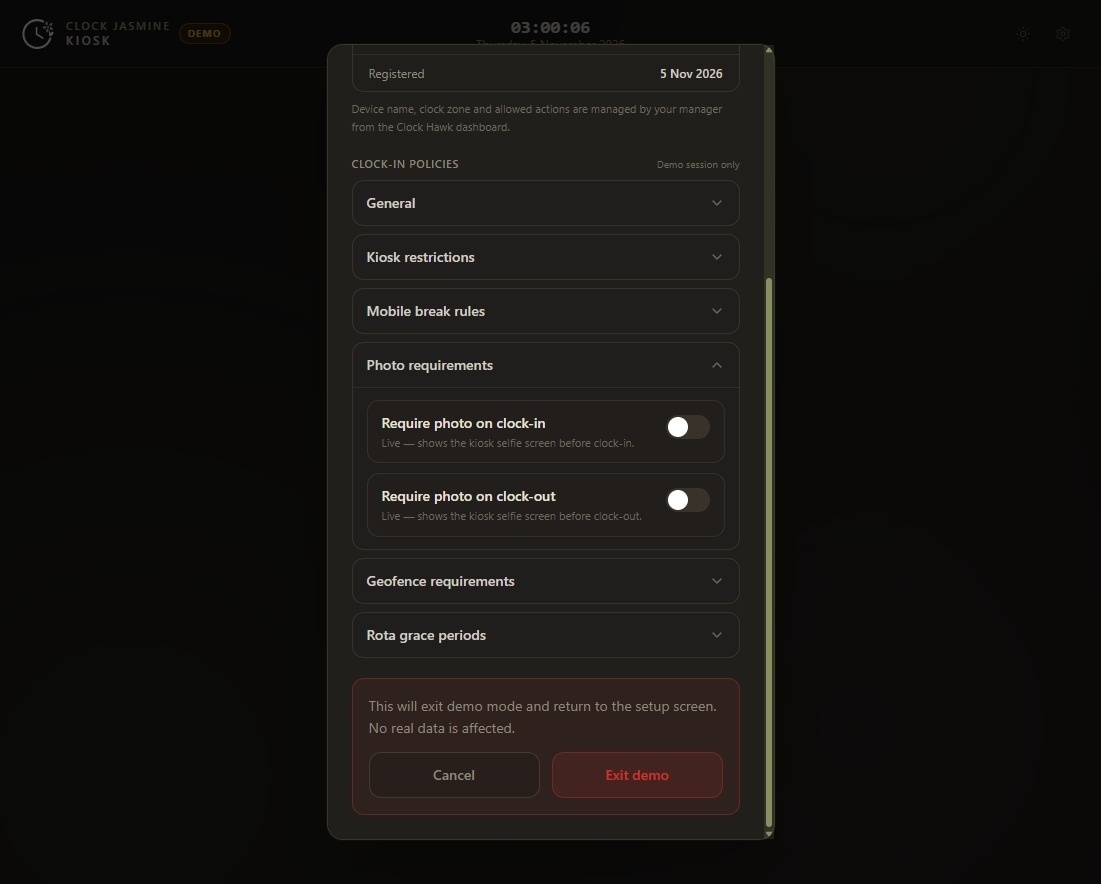
Open Kiosk settings from the upper-right control. The captured settings panel is labelled DEMO and identifies Demo Kiosk. The policy area is labelled Demo session only.
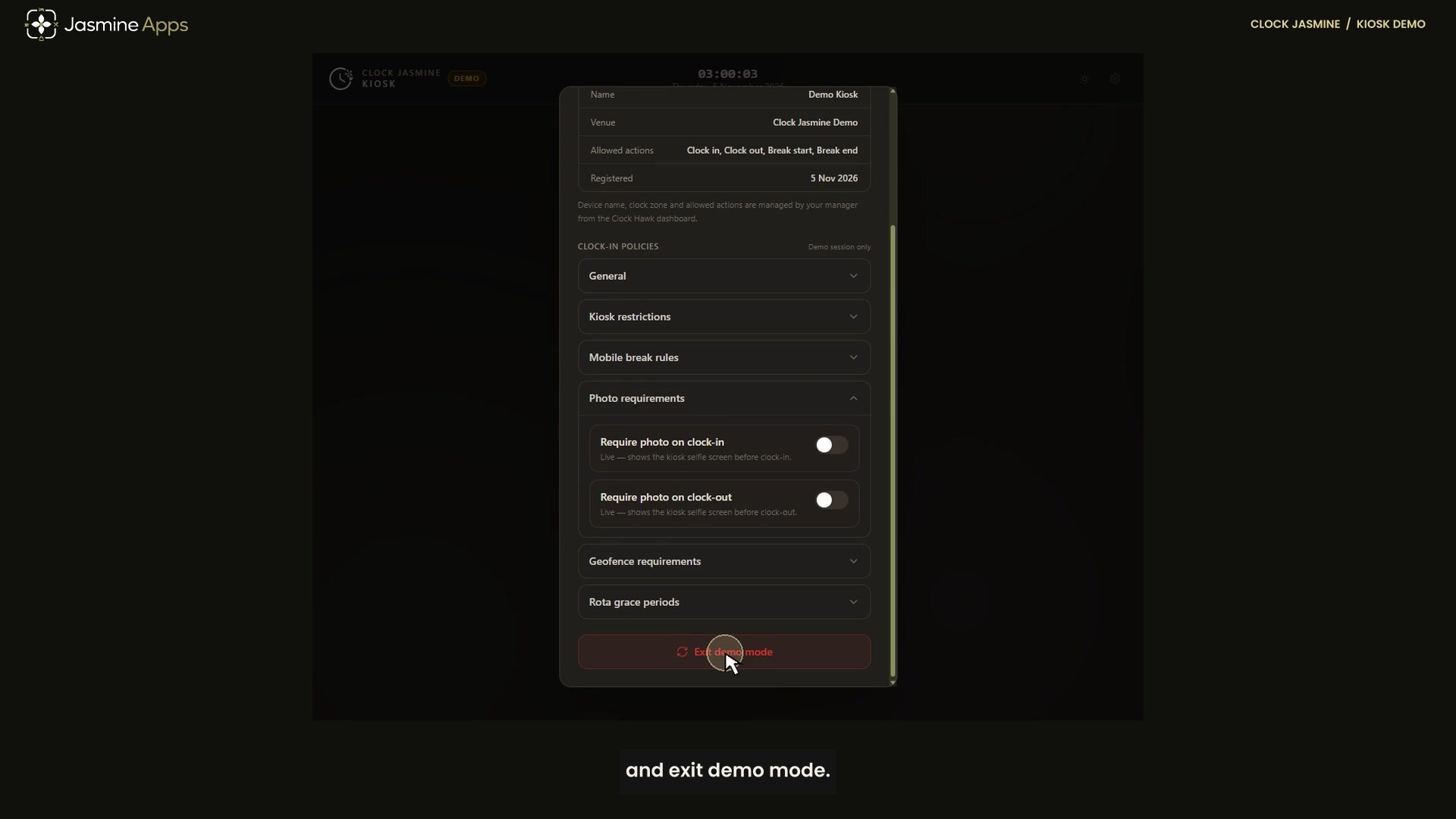
The panel lists appearance, device information and policy sections. Scroll through the panel to reach the exit control. It changes no appearance preference, policy or real venue setting. Do not copy demo device details into a live configuration.
Exit the demo
Select Exit demo mode at the bottom of settings. The confirmation explains that this returns to setup and affects no real data. Choose Exit demo to leave, or Cancel to remain in the simulation.
The verified result is Kiosk Setup with an empty setup-code field and disabled Register kiosk. No real kiosk was registered during this walkthrough.
Check your result
- The setup screen and registration-code field are identifiable.
- The demo remains clearly distinguishable from a real paired kiosk.
- Exiting the simulation returns to setup.
- Real registration is completed only through your authorised setup process and checked before staff use.
Troubleshooting
Register kiosk is disabled: check whether the setup-code field is empty. Do not enter invented information to enable it.
A supplied code fails: ask your manager to check it and provide a replacement when needed. The screen states that codes expire and are single-use.
The screen says DEMO: you are viewing simulated behaviour. Exit the demo before returning to the real setup process.
Related guides
Kiosk clock-in and breaks · Kiosk PIN guidance · Clock Jasmine feature page.