

TutorialIn-app guide
Till Jasmine: customise receipt QR codes and text
· Jasmine Apps
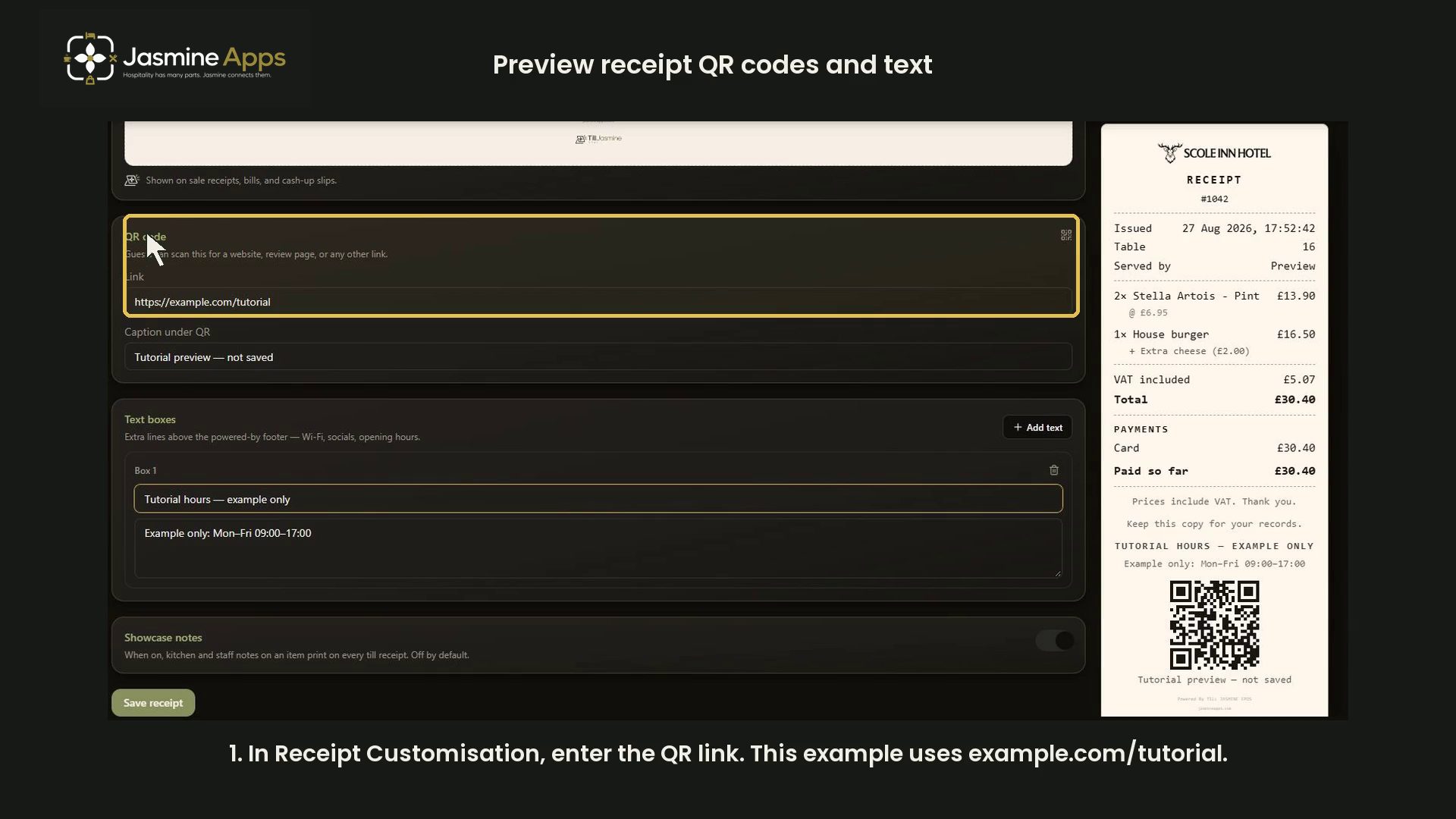
Customise a Till Jasmine receipt by previewing a QR link, its caption and extra text. The walkthrough uses a fictional link and clearly labelled example opening hours; it discards the example instead of saving receipt settings.
Watch the walkthrough
Before you start
Open the correct venue with access to Receipt Customisation. Have the intended public link, wording and logo ready. Use example information while testing and check the preview before saving real changes.
1. Set the QR link and caption
Under QR code, enter the destination in Link. The demonstration uses https://example.com/tutorial. Use Caption under QR for wording that explains the code; the example says Tutorial preview — not saved.

The page explains that guests can scan the code for a website, review page or another link. Check that your intended destination opens correctly before using it on a real receipt. The demonstration does not send a review or submit information to a third party.
2. Add an extra text box
Select Add text under Text boxes. Each box has a Heading (optional) and a text area. The page suggests extra lines such as opening hours or socials.
The example heading is Tutorial hours — example only, with Example only: Mon–Fri 09:00–17:00 beneath it. These are fictional tutorial hours, not the venue's opening times.
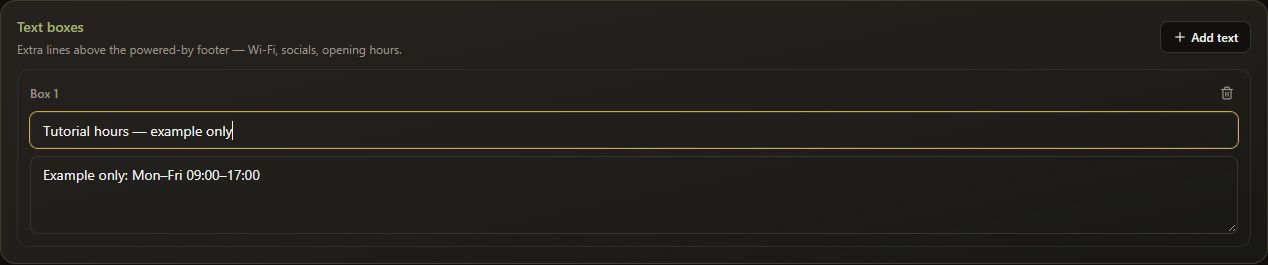
Use the remove control for an unwanted text box while reviewing your edits. Keep printed wording short enough to read clearly on the receipt.
3. Check the live preview
The Live preview updates as you type. Check the full wording, QR, caption and their position near the bottom of the example receipt.
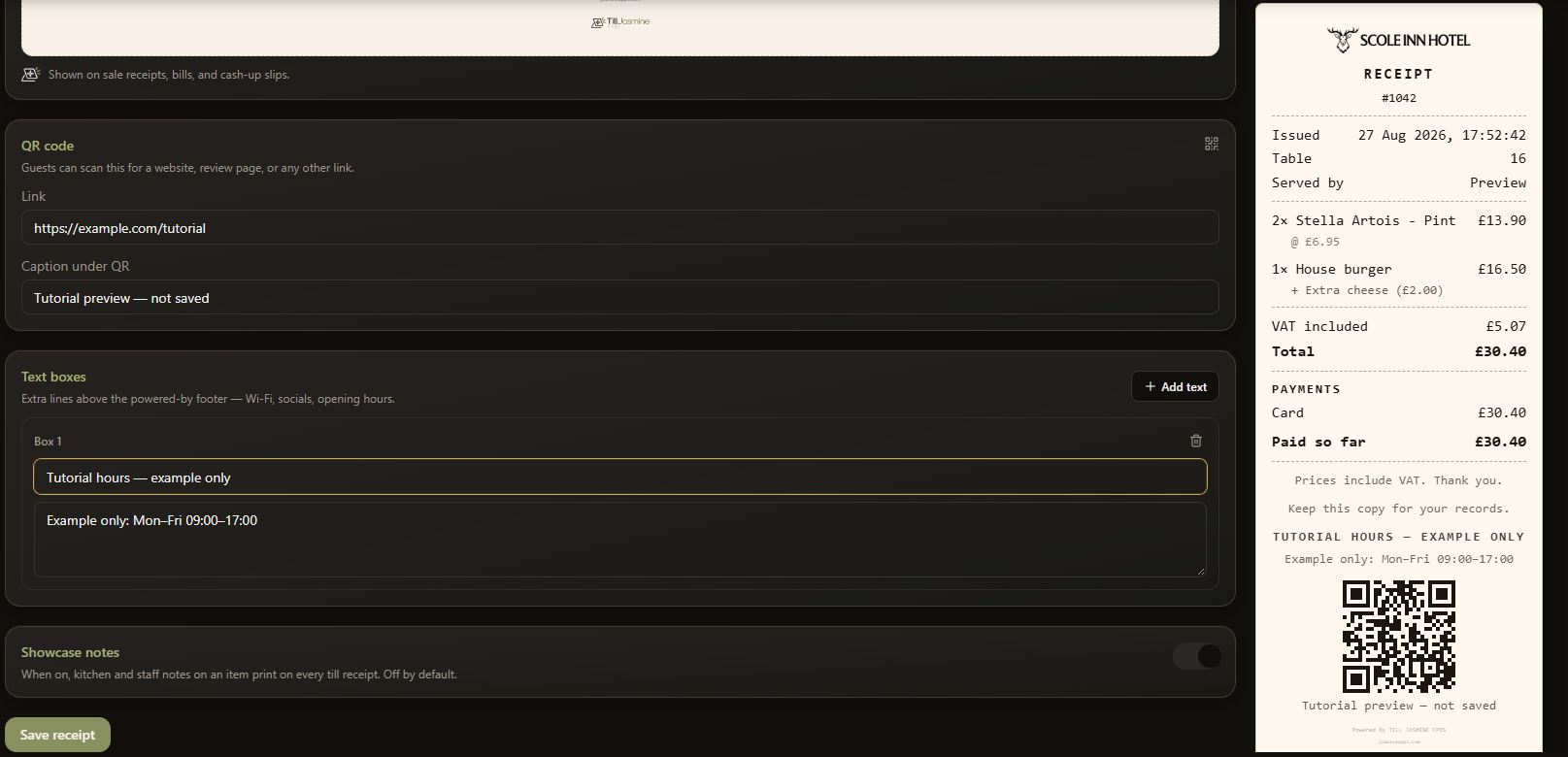
The sample receipt and totals are preview content, not a payment made by this walkthrough. No receipt is printed.
4. Review the remaining controls
The page says the company logo and VAT number come from the company profile, with controls for their visibility. Review the appropriate company information before changing real receipt settings. The tutorial preview temporarily hides the sample VAT-number line and restores its original setting afterwards.
Showcase notes controls whether kitchen and staff notes on an item print on receipts. Check the wording staff use before enabling it. The Till Jasmine EPOS footer is shown on sale receipts, bills and cash-up slips; the page says its lockup cannot be turned off.
5. Save only approved settings
When a real preview is correct, use Save receipt. This demonstration stops before that button. Reloading discarded the fictional QR link and text box; the original link, VAT visibility and absence of extra text were checked afterwards.
Common checks
- Wrong destination: check Link and test the intended public URL.
- Text is missing or too long: review the heading, text area and lower preview.
- Logo needs changing: review the company profile rather than replacing unrelated settings.
- Example edits should not go live: discard them before leaving.
Related guides
Add a product, design your till screen and review add-on groups.