

TutorialIn-app guide
Track stock in Till Jasmine
· Jasmine Apps
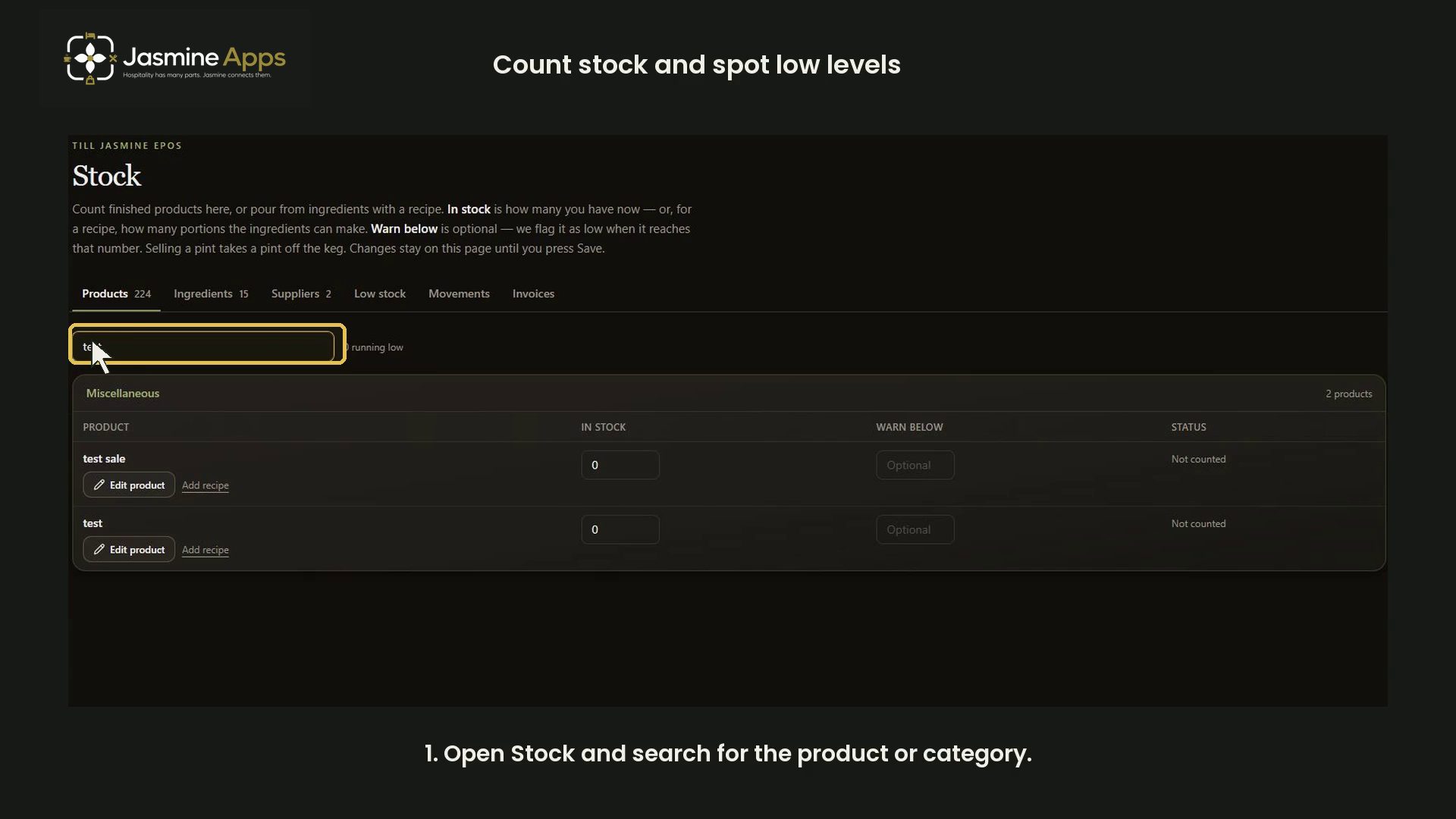
Review a counted quantity and a low-stock warning in Till Jasmine. The recording stages fictional counts on an existing test-labelled item and discards them.
Watch the walkthrough
Before you start
Open Stock for the correct venue and verify the physical count before changing real quantities.
1. Find the item
Use the product or category search to locate the exact item. Check its identity before entering a count.
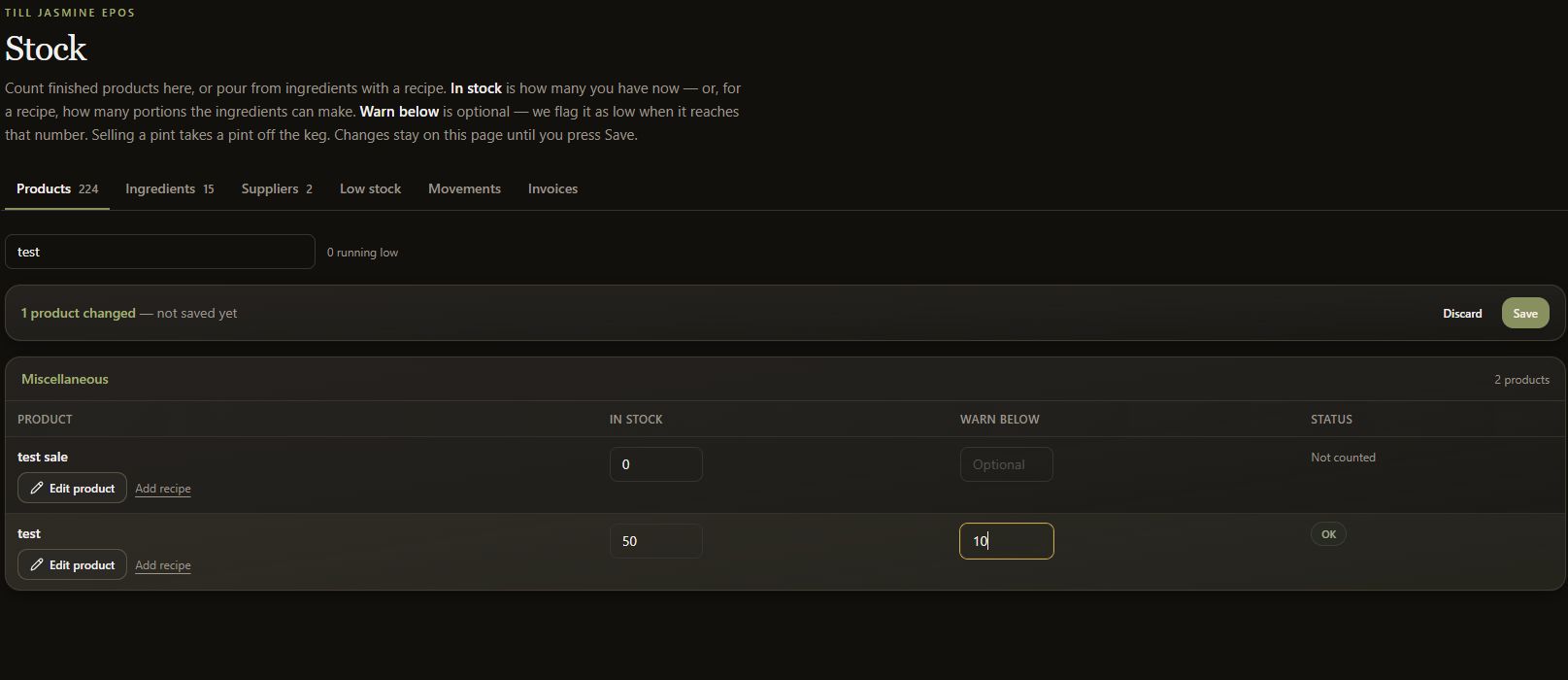
2. Enter In stock
Enter the counted quantity in In stock. The test example uses 50.
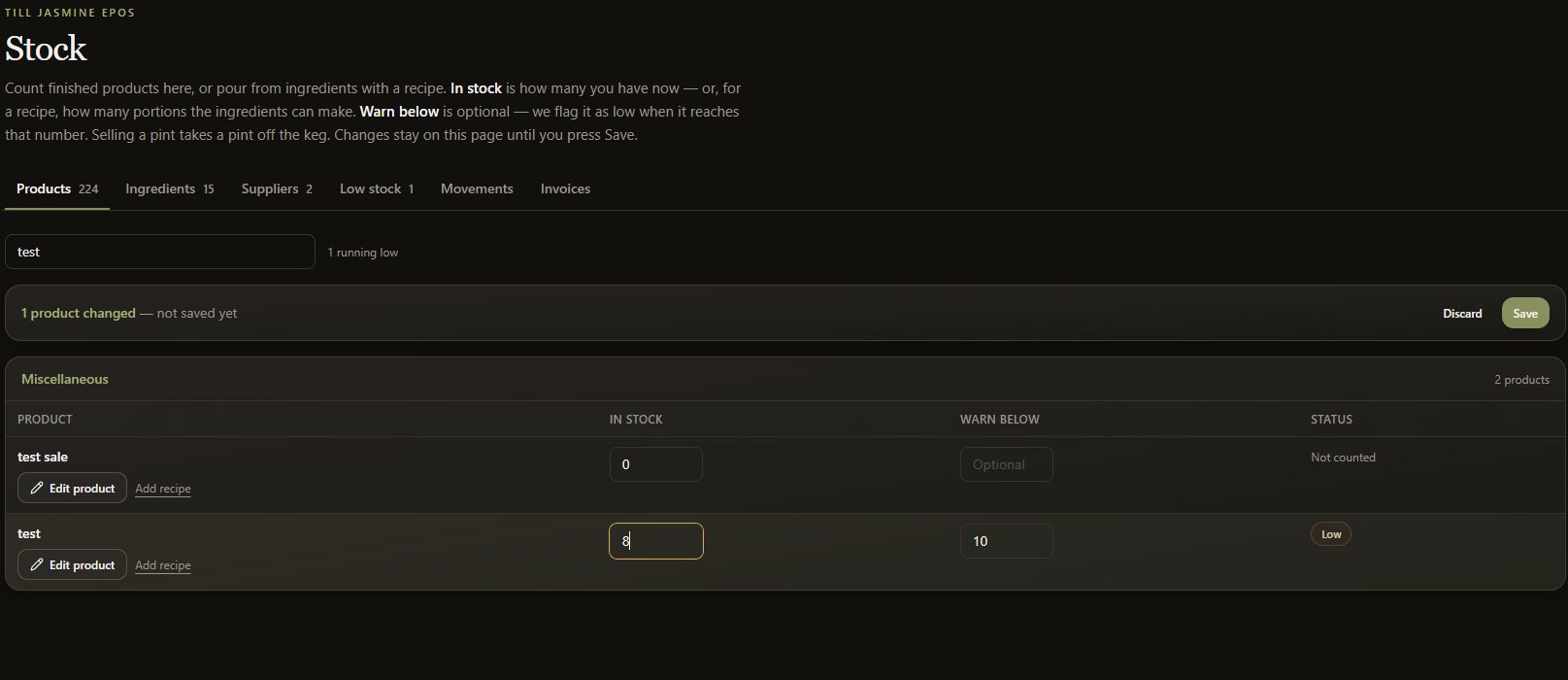
3. Set Warn below
Use Warn below for an optional warning threshold. The example uses 10. With 8 remaining, the status becomes Low.
4. Save only a verified count
Review the values before saving a real count. This tutorial uses Discard and checks that the original count is restored. It changes no live stock.