

TutorialIn-app guide
Till Jasmine: review add-on groups and choices
· Jasmine Apps
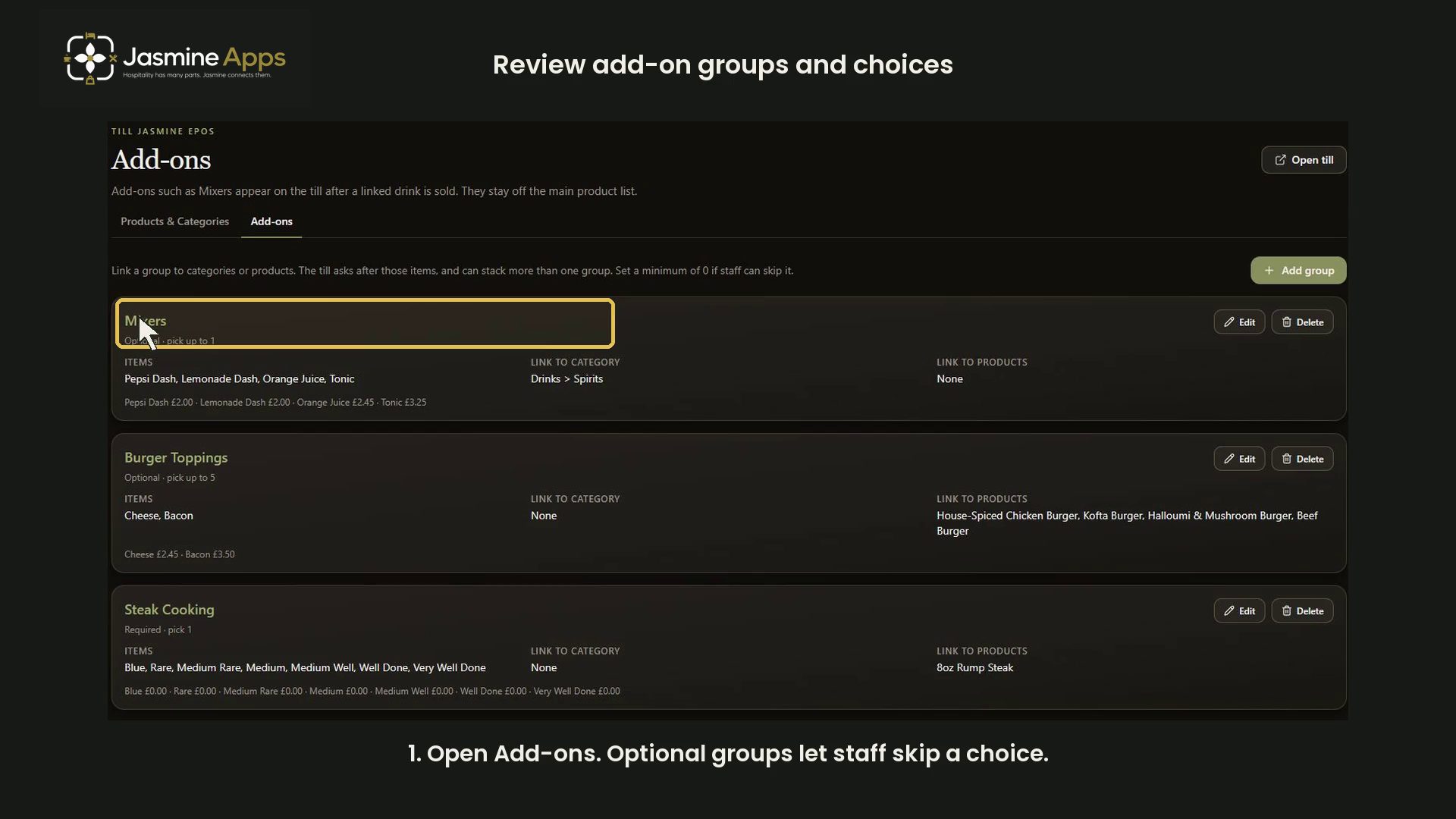
Review Till Jasmine add-on groups so staff see the right extra choices after selecting a linked product. This guide shows the current group list, the blank New add-on form and an existing group's controls. It creates no group and saves no changes.
Watch the walkthrough
Before you start
Open the correct venue with permission to manage Add-ons. Plan the choices, any additional prices and which categories or products should trigger them. Test an approved setup on a training till before using it in service.
1. Read the group list
Open Add-ons under Till Customisation. The page explains that add-ons such as mixers appear on the till after a linked item is sold and stay off the main product list. Groups can link to categories or individual products, and more than one group can apply.
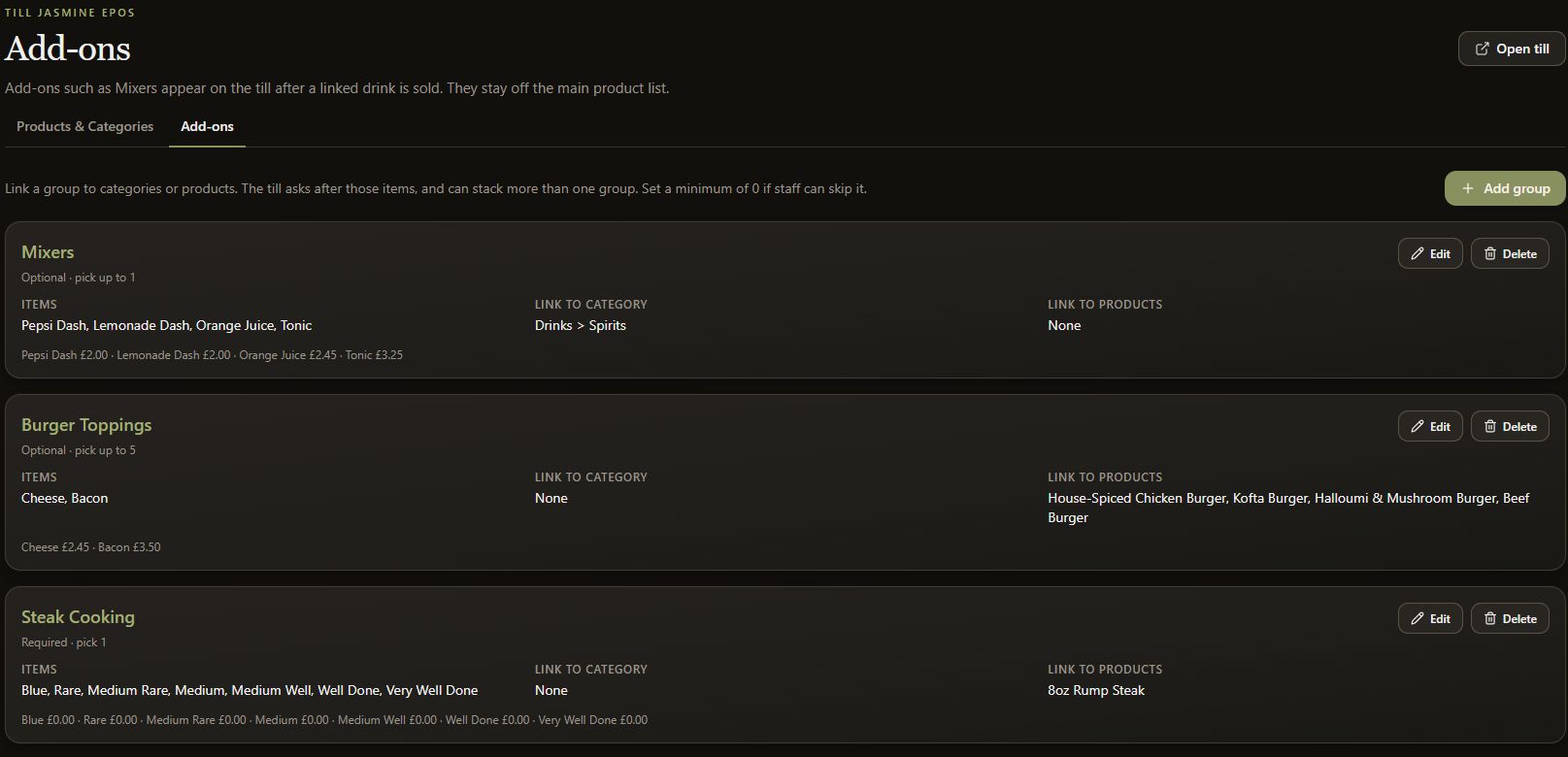
Each group card shows its selection rule, items, category links, product links and item prices. The demonstration includes optional mixers, optional burger toppings and required steak cooking. Your venue's names, prices and links can differ.
2. Check optional versus required choices
The Mixers example says Optional · pick up to 1. Burger Toppings says Optional · pick up to 5. Steak Cooking says Required · pick 1. These labels help you check the intended staff prompt before opening the group.
3. Review the New add-on form
Select Add group. The dialog contains Name, Minimum selected, Maximum selected, Link to category and Link to products. The blank form shown has a minimum of 0 and maximum of 1. Its note explains that 0 lets staff skip the group.
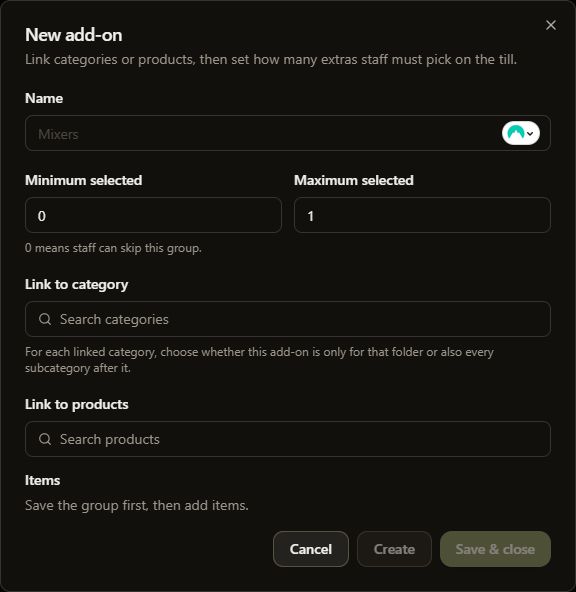
Set the name and choice limits deliberately when preparing a real group. The Items section says Save the group first, then add items. The walkthrough reviews the blank form and closes it with Cancel, without creating a group.
4. Review category scope and product links
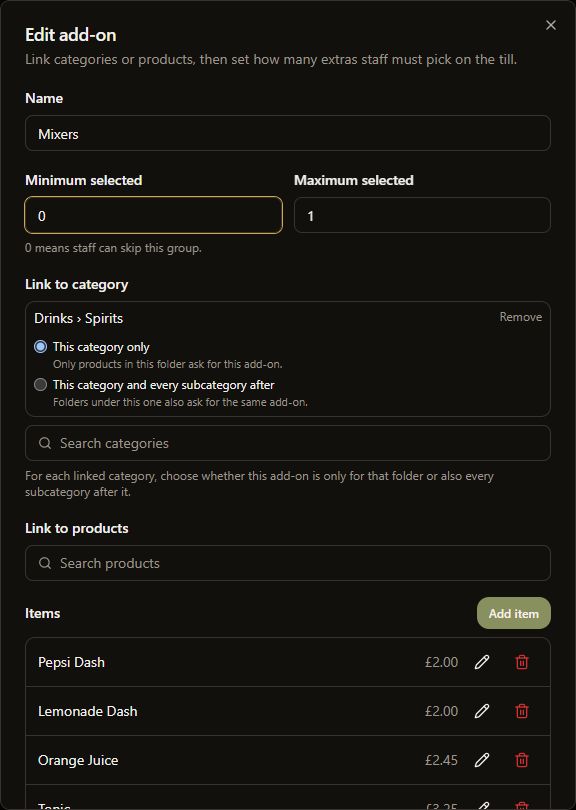
Use Edit on the intended existing group to inspect its controls. For a linked category, the dialog offers This category only or This category and every subcategory after. Check that scope before changing it; including subcategories can make the same prompt apply more widely.
Link to products is separate from the category controls. Review both areas so you understand where staff will encounter the group.
5. Review items without changing the group
A saved group's Items area shows its current item names, prices and Add item control. Check this list as well as the group's selection limits. This recording does not add, edit or remove an item. It closes the existing group with Cancel and leaves the venue's groups unchanged.
After an approved real change, verify the intended product and choice behaviour on an unlocked training till. The back-office review does not verify that till interaction.
Common checks
- Staff should be able to skip: review Minimum selected and the group's Optional label.
- The prompt appears on too many products: review category scope and product links.
- A required choice is wrong: review both the selection limits and item list.
- Items cannot yet be added: the New add-on form says to save the group first.
Related guides
Add a product, design your till screen and customise receipt QR codes and text.