

TutorialIn-app guide
Pair a Till Jasmine EPOS till
· Jasmine Apps
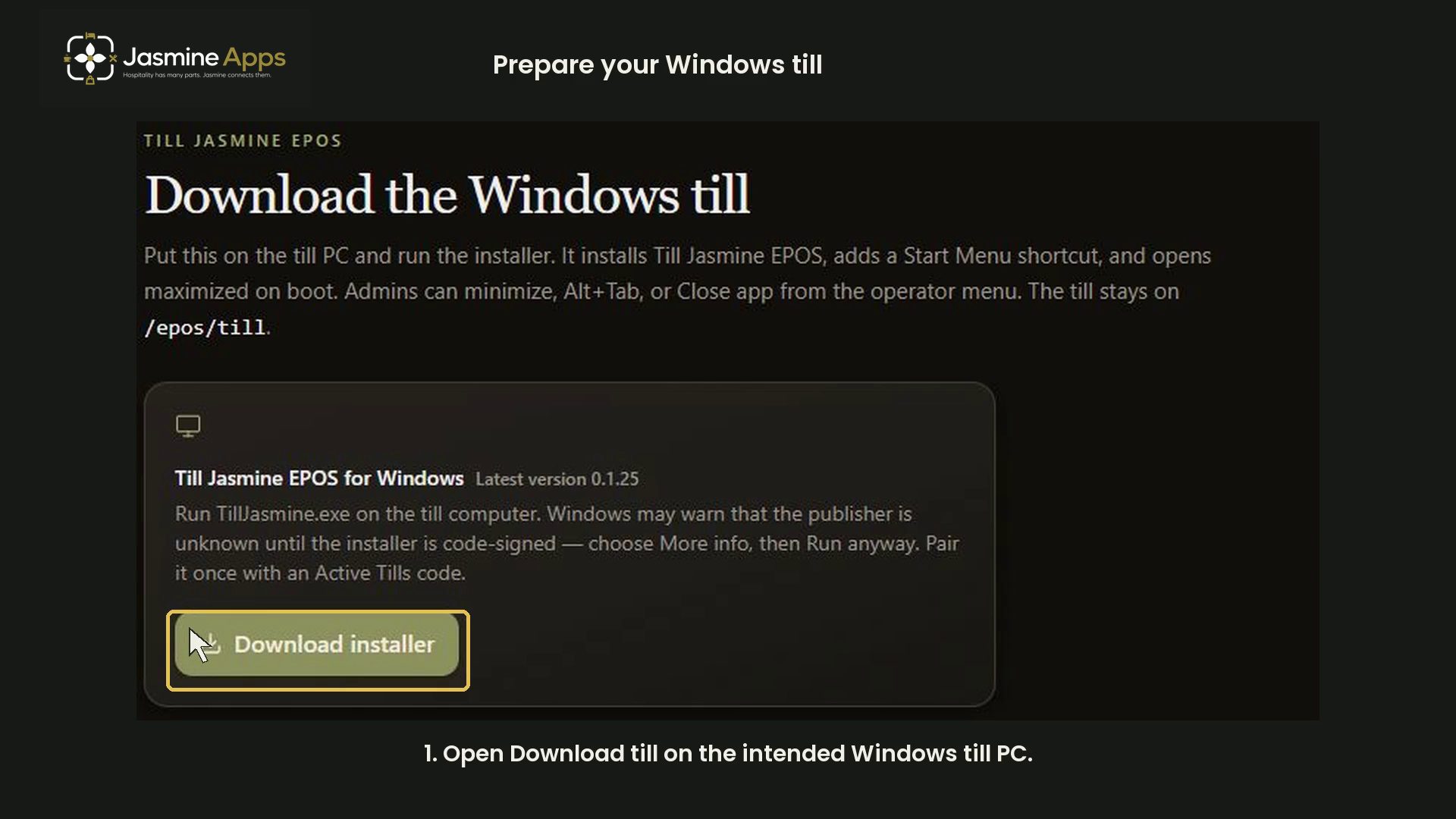
Prepare a Windows till installation and review pairing-code options in Till Jasmine. This walkthrough does not generate a code or pair a device.
Watch the walkthrough
Before you start
Use the intended Windows till PC and the correct venue. Follow the current installer instructions shown in the app.
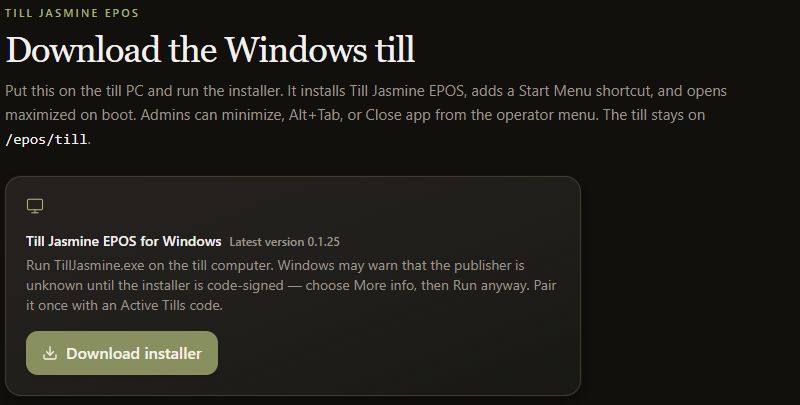
1. Open Download till
Open Download till on the intended PC. Review the installer page before starting an approved installation.
2. Prepare Active Tills
In Active Tills, give the device a clear name. The tutorial example is explicitly marked as unpaired.
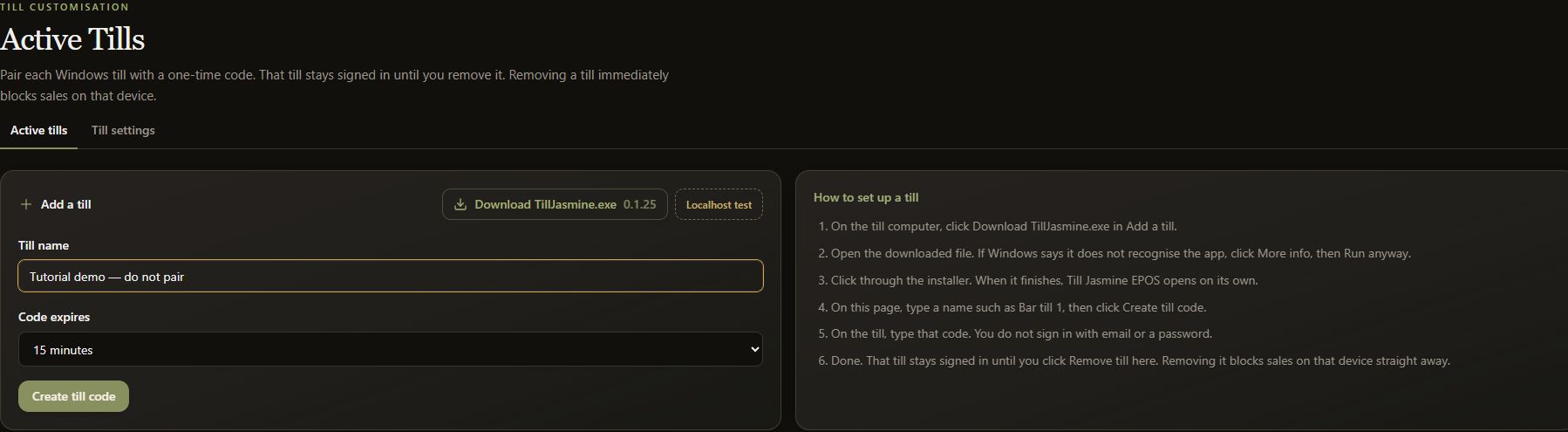
3. Choose code expiry
Review the visible expiry choices: 15 minutes, 1 hour or 24 hours. Choose the shortest practical period for a real setup.
4. Complete an approved pairing
Follow the pairing steps shown by the app and installed till. Pairing codes are sensitive: do not include them in public screenshots. This recording stops before generating a code and pairs no device.